What’s New – April 2021
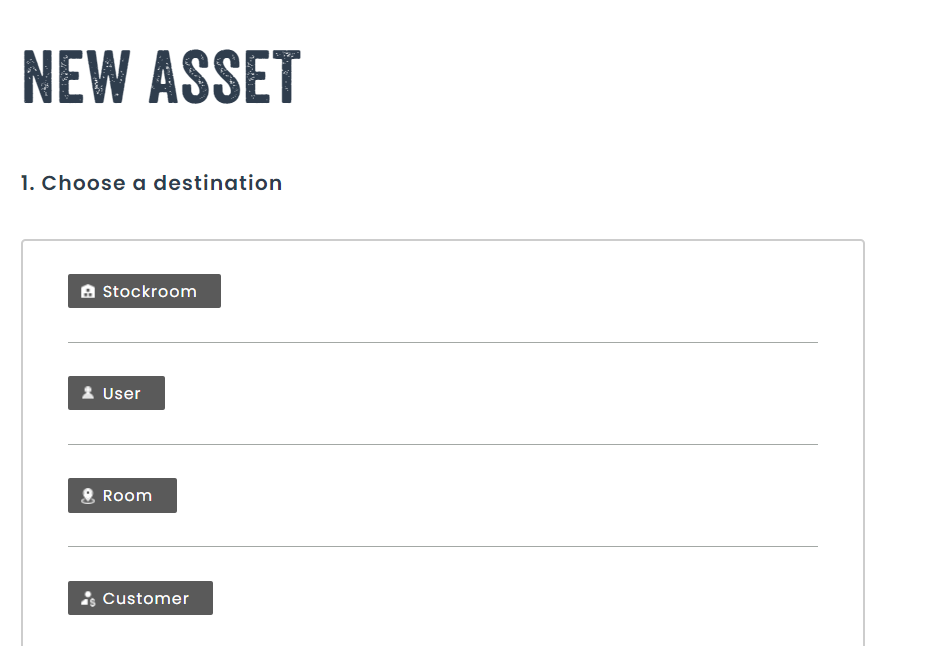
Assign an asset to a user and a place at the same time
Have you ever needed to move an asset to a physical place, and assign a person that’s responsible for the asset at the same time?
If so, you’ll be glad to know it is now possible to do this from the new asset page, as well as the move asset page.
Once saved, the asset will be with a user and a place at the same time. It remains possible to assign an asset only to a user, or only to a place.
Cancel a previous action when moving or deleting assets
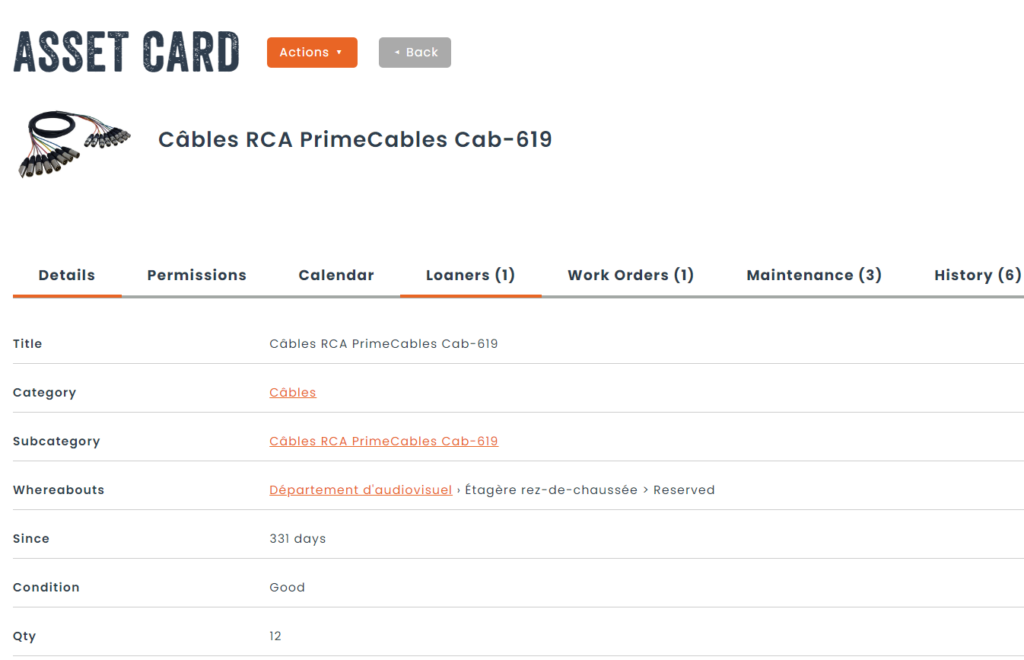
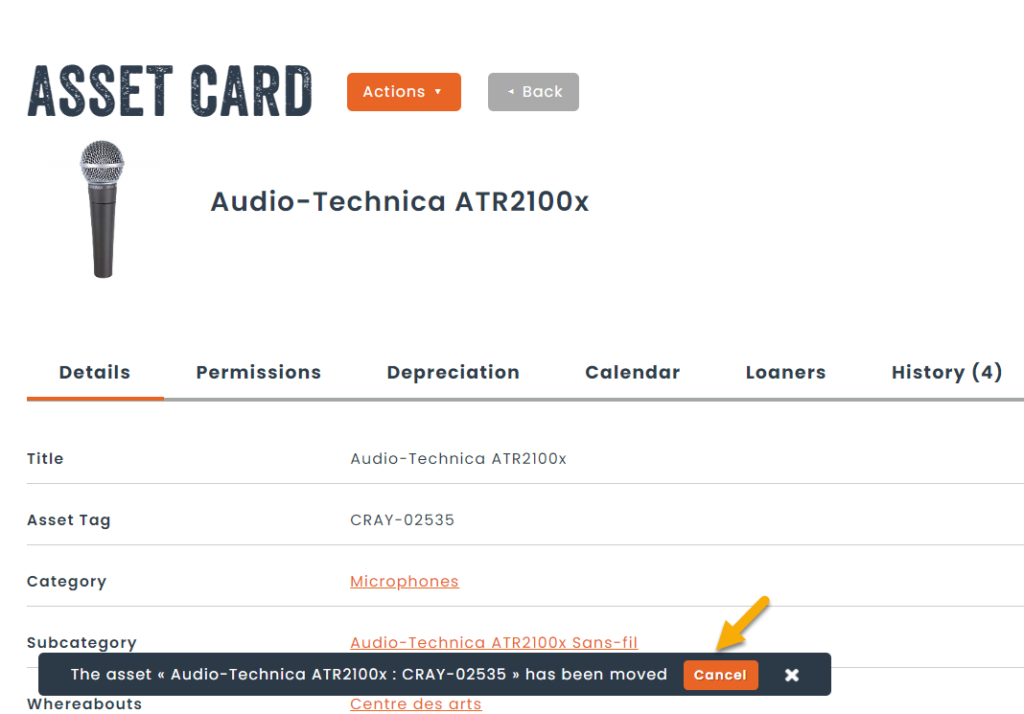
After performing a move, or delete operation, a popup at the bottom left of the screen will appear, allowing the reversal of the transaction, if the asset was moved to the wrong destination, or the asset was deleted by mistake.
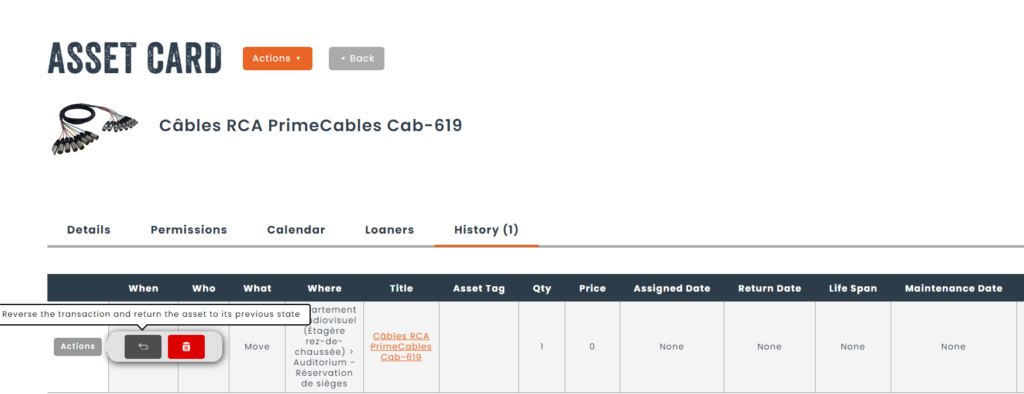
It is also possible to undo the operation directly from the asset history tab.
New attribute entity dedicated to moving assets
If you need to capture specific information when moving an asset, you can do so thanks to a new attribute entity called Asset Move.
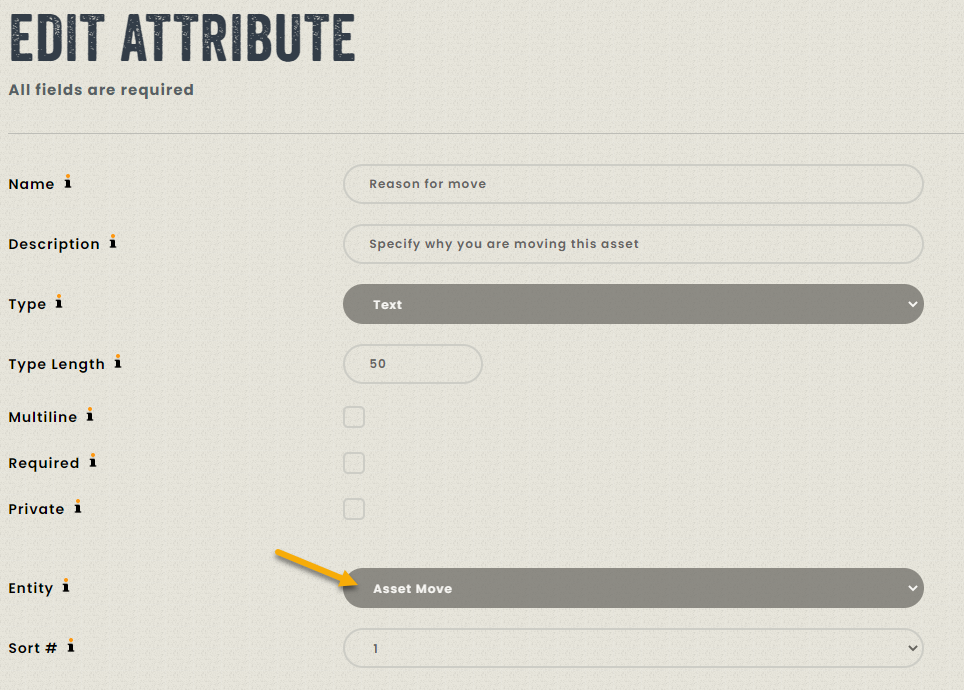
Simply create an attribute as you are used to doing and select the entity “Asset Move”. You must then attach this attribute to the categories of items you want to track.
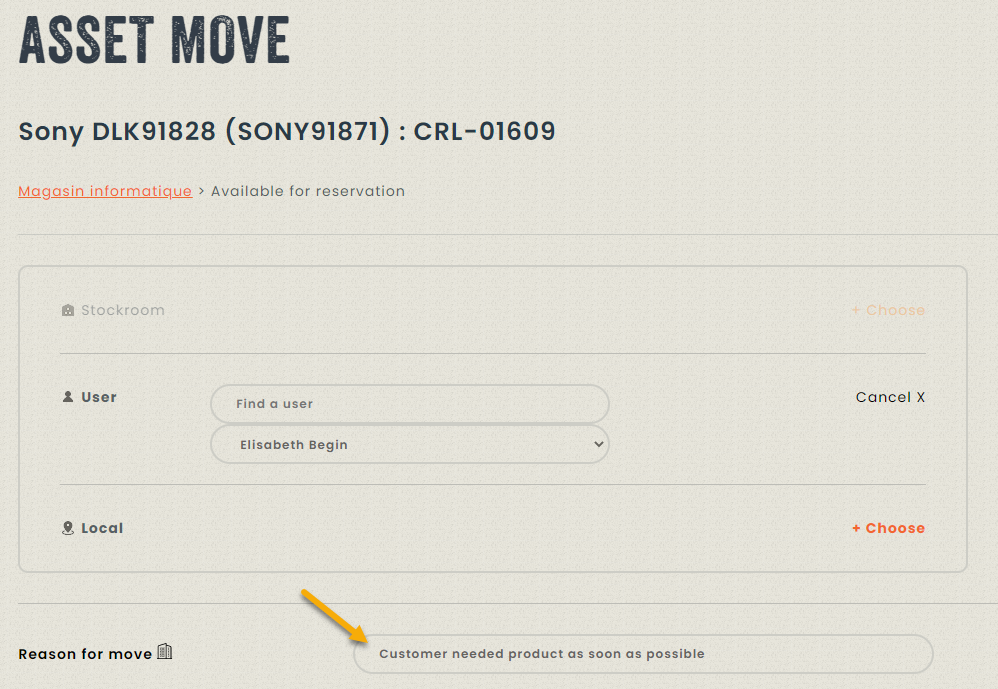
Finally, when doing an asset move, you will be asked to fill in some information specific to the move itself.
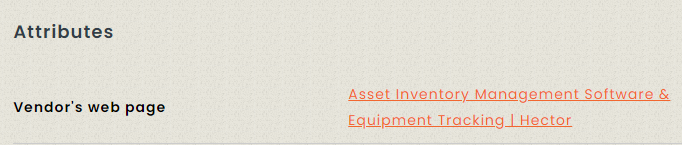
Text containing web urls will transform into clickable link
When an attribute of type text contains a link, it will now be automatically converted into a clickable link, saving a few steps if you collect this type of information in your attributes.

Report Filters
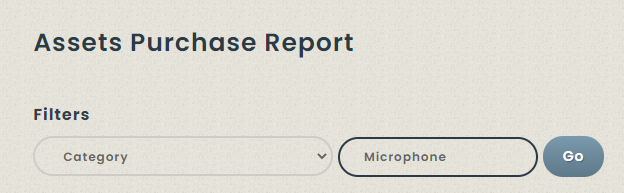
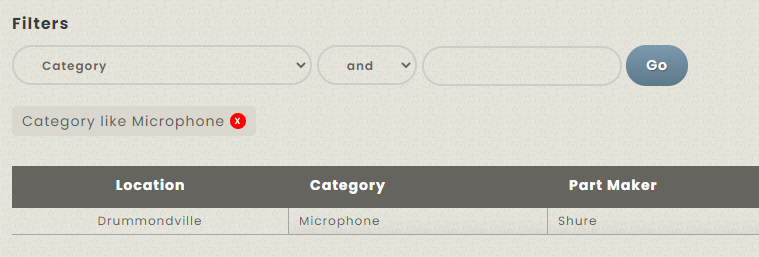
It is now possible to select filters for all the reports in your instance using any of the columns that is found in the report. This can be useful for filtering data down before exporting to Excel, or for getting a quick glance of specific data in a report.