
Hector can place each asset in the right location automatically, using information your integrations already send: who uses the device, which group or category it belongs to, where it sits on the network, or how it is named. This article explains each automatic assignment method, which integrations support it, how to set it up and how Hector decides where an asset goes.
Before you start
- Stockroom, Place, User. An asset is always in one location: in a stockroom (optionally on a racking), with a user, at a place, or with a user at a place. The automatic methods below assign either a user or a stockroom.
- Renamed labels. Your organization may have renamed “Stockroom”, “Place” or “User” (for example to “Site”, “Building” or “Employee”). The screens will then show your own terms.
- Initial Destination. Each integration has an Initial Destination setting. Hector uses it for new devices when no automatic rule finds a match. Always set it, so unmatched devices land somewhere predictable (for example a “To be sorted” stockroom).
- Where to configure. Most methods are set up in Settings › Stockroom › (open a stockroom) › Automation. The Automation tab appears once at least one integration is activated. User assignment is set up in the integration itself, under Settings › Integrations.
At a glance
| Assign by | Data used | Integrations | Configured in |
|---|---|---|---|
| 1. Security groups | Entra ID (Azure AD) security group membership | Intune / Windows devices | Stockroom › Automation › Security groups |
| 2. UPN / last connection | Primary user or last logged-on user, and how recently they connected | Intune, Google, Jamf Pro, Jamf School | Integration settings |
| 3. Device name rules | Part of the device name (site code, room number…) | Intune, Google, Jamf Pro, Jamf School, MECM | Stockroom › Automation › Device name |
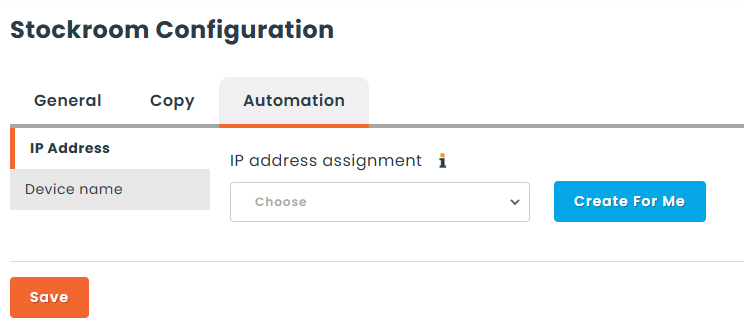
| 4. IP address | The device’s IP address or network | Any integration that reports an IP address | Stockroom › Automation › IP Address |
| 5. Organizational unit | Google org unit path or Active Directory OU | Google, MECM | Stockroom › Automation › Org Unit |
| 6. Location | Jamf building / location | Jamf Pro, Jamf School | Stockroom › Automation › Location |
| 7. Device category | Intune device category | Intune | Stockroom › Automation › Device Category |
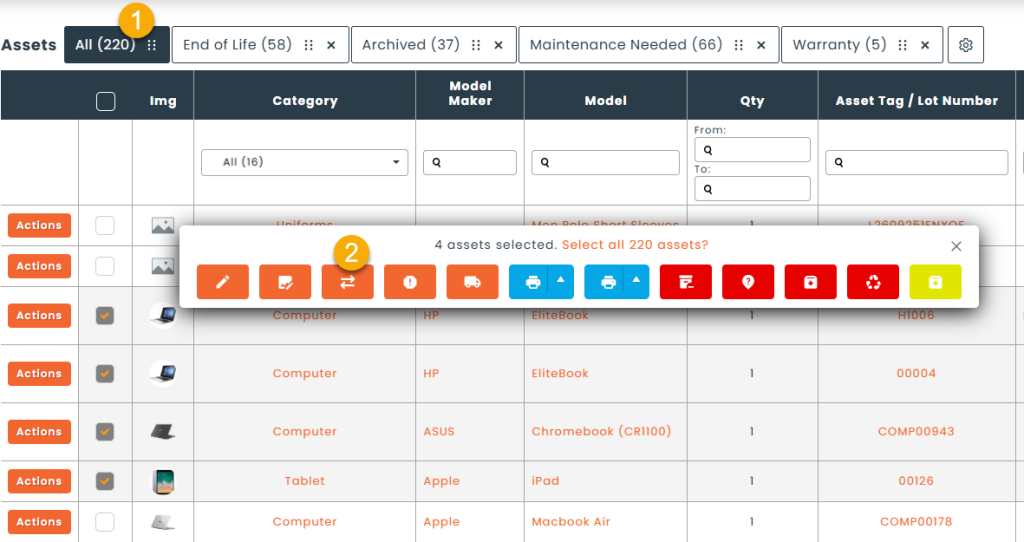
| 8. Bulk move | Your own selection | All assets | Asset list › Move asset |
How stockroom mappings work
Methods 1, 3, 4, 5, 6 and 7 all work the same way. You tell Hector which value from the integration belongs to which stockroom. Hector stores these values in a stockroom attribute, so they stay visible on each stockroom.
- Go to Settings › Stockroom, open any stockroom and select the Automation tab.
- Select the sub-tab for the method you want (for example Org Unit).
- Choose the stockroom attribute that will hold the values. If you don’t have one yet, click Create For Me and Hector creates it.
- The list shows every stockroom. In each row, type the matching value and press Enter. You can add as many values per stockroom as you need.
- Click Save. The mapping applies at the next synchronization.
You only need to do this once, from any stockroom: the table covers all of them. The same mapping can also be edited from the integration’s own settings page.
1. Assign by security group (Intune / Windows devices)
Many organizations already group Windows devices by site or department in Entra ID (Azure AD), for example SG-Devices-Location. Hector can use those security groups to choose the stockroom.
- In Settings › Integrations › Intune, check Import Device Groups so Hector reads each device’s group membership during the sync.
- In Settings › Stockroom › Automation › Security groups, enter one or more group names per stockroom, exactly as they appear in Entra ID.
Matching: group names are compared without regard to upper or lower case, and nested groups count. A device that belongs to several mapped groups goes to the first stockroom found, so keep your location groups mutually exclusive.
Don’t confuse it with the filter. The Security groups field under the Intune integration’s Filters decides which devices are imported. The Automation mapping decides where they go. You can use both together.
2. Assign by UPN / last connection
Instead of a stockroom, Hector can assign a device directly to the person who uses it. Turn on Automatically assign device to user in the integration’s settings.
| Integration | User identified by |
|---|---|
| Intune | Primary user (UPN or email); if none, the last logged-on user |
| Annotated user (email) | |
| Jamf Pro | User email in the device’s User & Location |
| Jamf School | Device owner email |
Hector looks up the user by email / UPN. If the user is found, the device is assigned to them. If the device was already at a place, it stays there and becomes “user at a place”. If the user isn’t found in Hector, the device isn’t reassigned. New devices then go to the Initial Destination.
Last connection threshold. Set a number of days so that only recent activity counts. If the user’s last connection to the device is older than the threshold, Hector no longer considers the device assigned. It returns the device to a stockroom using the other rules in this article, or the Initial Destination. This keeps devices sitting in a drawer from showing as “with a user” forever.
Tip: make sure your users exist in Hector with the same email as in your directory, ideally through SCIM or Entra ID provisioning. Otherwise the matching can’t happen.
3. Assign by device name rules
If your devices follow a naming convention, Hector can read the location straight from the name. For example, in ABC-LAB-0142 the first part, ABC, identifies the ABC site.
In Settings › Stockroom › Automation › Device name:
- Choose what to compare against: the stockroom Name, or a text attribute on the stockroom, such as a site code.
- Write one rule per integration, since naming conventions often differ between Windows, Mac and Chromebook fleets:
- Delimiter: the character that splits the name, such as
-or_. Leave it empty to use the whole name. - Segment: which part to keep, counted from the start or from the end.
- Take: the whole segment, its first or last N characters, or only its digits.
- Regular expression (advanced): for unusual naming conventions. It replaces the options above, and the first capture group is used.
- Delimiter: the character that splits the name, such as
- Test the rule with the preview: type a sample device name and see what Hector extracts.
| Device name | Rule | Extracted value |
|---|---|---|
| MTL-LAB-0142 | Delimiter “-“, first segment, whole | MTL |
| QC0315-PC22 | No delimiter, first 6 characters | QC0315 |
| STU-ROOM-214 | Delimiter “-“, last segment, digits only | 214 |
Matching: the extracted value is compared without regard to case and must equal the stockroom’s name or attribute value. A stockroom attribute can hold several values (for example MTL, MTL2). If the rule extracts nothing, it is simply ignored.
4. Assign by IP address
Each site usually has its own network, so the IP address a device reports is a reliable sign of where it physically is. This method works with any integration that reports an IP address, such as the Odysseus network scanner, the Pheidix agent, Intune, Google, Lansweeper, Fortinet or MECM.
In Settings › Stockroom › Automation › IP Address, enter one or more values per stockroom:
- a single address, for example
10.12.4.20; - a whole network in CIDR notation, for example
10.12.0.0/16for every address from 10.12.0.0 to 10.12.255.255.
When networks overlap, the most specific one wins: 10.12.4.0/24 takes precedence over 10.12.0.0/16. Mapping your VPN range is usually a bad idea, because remote devices would all end up in the same stockroom.
5. Assign by organizational unit
- Google (Chromebooks): enter the full org unit path as it appears in the Google Admin console, for example
/Students/North School. Capitalization matters. Map every sub-unit you use: a device in/Students/North School/Grade 5doesn’t automatically inherit the parent’s mapping. - MECM: enter the Active Directory OU, for example
OU=Montreal,OU=Computers,DC=contoso,DC=com.
Google in both directions. With Google you can also have Hector update the device’s org unit from its stockroom. Moving a Chromebook to another stockroom in Hector then moves it to the matching org unit in Google as well.
6. Assign by location
For Apple devices managed in Jamf, Hector can use the location already recorded there:
- Jamf Pro: the Building in the device’s User & Location;
- Jamf School: the device’s Location.
In Settings › Stockroom › Automation › Location, enter the Jamf names exactly as written in Jamf, capitalization included. When Automatically assign device to user is also on, Jamf School first tries to assign the device to its owner, or to the place whose name or code matches the location, and only then uses the stockroom mapping.
7. Assign by device category (Intune)
If you use Intune device categories to describe where or how a device is used (for example Montreal – Lab or Loaner pool), map each category to a stockroom in Settings › Stockroom › Automation › Device Category. Enter category names as they appear in Intune. Matching ignores case.
Don’t confuse this with the InTune Categories filter in the Intune integration, which decides which categories are imported. The category is also kept on each asset in the Device Category attribute, so you can filter on it and report on it.
8. Bulk move
For anything the rules don’t cover, such as a one-time reorganization, a cleanup of the Initial Destination, or assets that come from no integration, move assets in bulk:
- In the asset list, filter the assets you need (for example Stockroom = To be sorted and Device name starts with MTL) and select them.
- Click Move asset in the batch actions. The Move assets page opens.
- Under Destination, choose a stockroom (and optionally a racking), a user, a place (and optionally a space), or a user and a place together.
- Under Options, you can mark the move as In Transit, change the stockroom ownership, set assigned and return dates, and add a Note.
- Click Save. An Undo option is offered right after saving in case of a mistake.
To have the move tracked from shipping to reception, create a Transfer Order from the same selection instead.
When several rules apply
You can combine methods. At each sync, Hector checks them in this order and stops at the first match:
- Assignment to a user (UPN), if turned on and the user is active within the threshold
- Security group
- Device category
- Organizational unit / Location
- IP address
- Device name rule
- Initial Destination (new devices only)
New and existing assets
- New devices are placed by the rules as soon as they are imported.
- Existing assets are re-evaluated at each sync. If the source data changes (new group, new org unit, new network), the asset is moved and the move appears in its history like any other move.
- Assets already in a correct stockroom are not moved again. Neither are existing assets for which no rule matches.
- Do not import new devices keeps updating existing assets, including their location, without creating new ones.
Best practices
- Create a dedicated “To be sorted” stockroom as the Initial Destination. Anything that lands there shows you a gap in your rules.
- Use the method that matches how your organization already works. If IT maintains security groups or org units carefully, use those. If naming conventions are strict, use device names. If every site has its own network, use IP addresses.
- Copy values exactly as they appear in the source system. Paths and Jamf names are case-sensitive.
- After setting up a rule, run a sync and check the “To be sorted” stockroom, then fine-tune.