
Work orders now use custom forms. You can choose which fields are displayed, their order, labels and default values, as well as the line types allowed, the columns of the line grid and how line options behave. This article explains how to configure each type of work order form.
📑 Form types
Each work order form has a purpose, chosen in the Used for field:
- Creation Form: the work order page (creation, editing and viewing). It controls the header fields, the lines and the menu of each line.
- Flag: the Flag window, opened from a list of assets, places or spaces, or from a loaner. It is a short form; the work order it creates then continues with a creation form.
- Completion: the window that opens when the work order is finished. It controls the fields to fill in when finishing the work order and the completion checkboxes of each line.
A creation form can also be an assembly form (see below). What the form does not control: the work order states, the actions available in each state and role permissions.
● Default forms
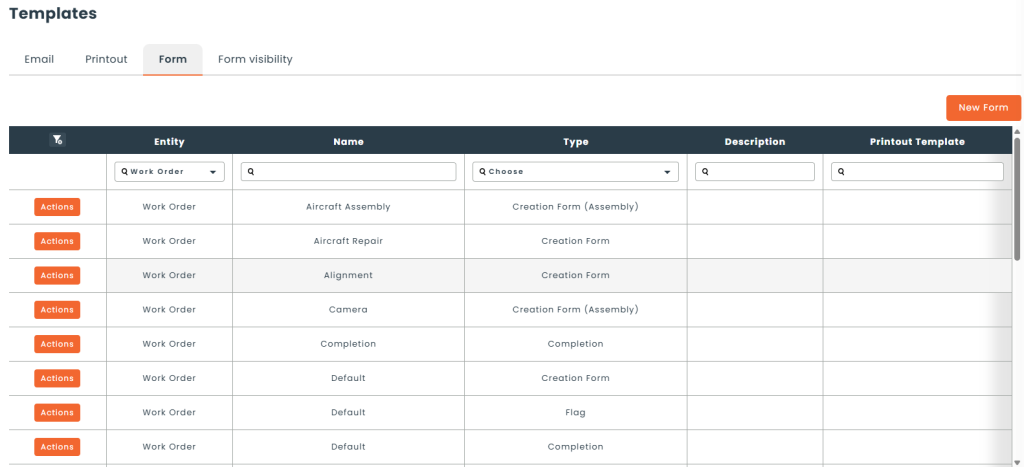
Hector provides three forms, one per type. They are all named Default: the Type column of the list tells them apart. They reproduce the behaviour work orders had before the redesign and cannot be edited: copy them to adapt them.
If your former work order settings differed from the standard behaviour (default requester, state or terms, billable fields, condition and document when flagging, checkbox ticked at completion, renamed columns), they were carried over into a form named User Default, which became your default form. You can edit it freely.
● Forms converted from former templates
Work order templates no longer exist as such. Each active template was converted into a creation form named after it: its lines, description, instructions, terms, note, reference number, currency, requester and owner became the form’s default values. To start from a former template, simply choose that form when creating the work order.
⚙️ Configuration
Forms are created and edited from Settings › Templates › Form.
● Create or copy a form
- In the Form tab, click Copy next to an existing form (recommended: the copy keeps all fields and the whole line configuration), or New Form to start from scratch.
- In the Details tab, choose the Work Order entity, then the purpose in Used for.
- Configure the Permissions tab, the field list and the lines, as described below.
- Click Save.
On a work order page, the icons next to the Form selector let you edit the current form or create a new one, in a new tab.
Details
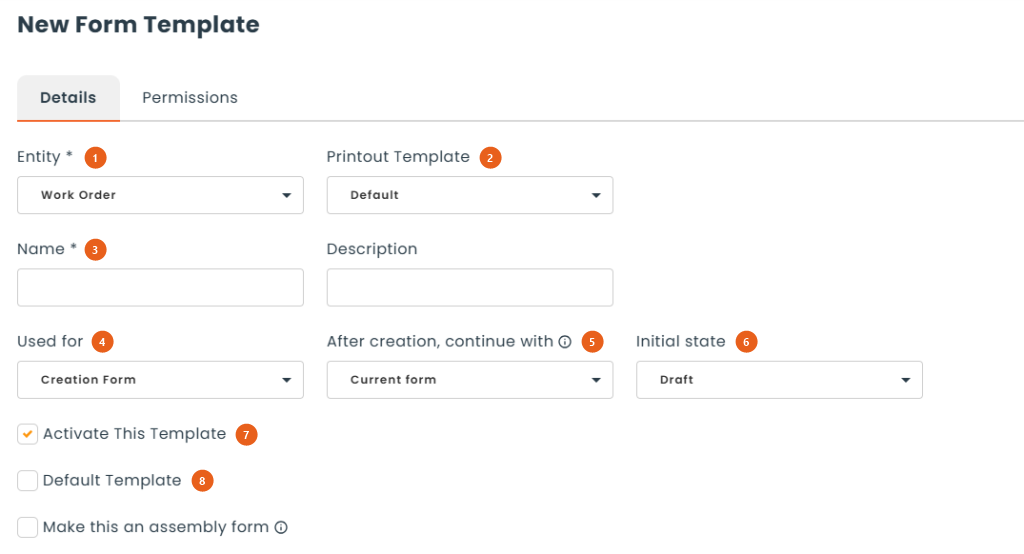
1. Entity: choose Work Order to display the options specific to work orders.
2. Printout Template: the layout used to print the work orders created with this form. Default uses the standard printout.
3. Name and Description: identify the form. The name is what users see in the form selector.
4. Used for: Creation Form, Flag or Completion.
5. After creation, continue with: the form the work order switches to afterwards. On a creation form, Current form keeps the same form for the whole life of the work order; any other choice switches the work order to that form as soon as it moves past the Pending Approval state. This switch is checked at every step, so a work order that skips a step still switches at the next one. On a flag form, this choice is mandatory: it is the creation form the flagged work order will live on. When the switch happens, the default values of the target form are not applied.
6. Initial state: the state the work order is saved in when it is created. Draft follows the approval setting (the work order is Pending Approval if approval is required, otherwise Draft). Pending Approval, New and In Progress are forced, even against the approval setting. With In Progress, reserved assets are locked on the work order as soon as it is created.
7. Activate This Template: an inactive form is no longer offered, but the work orders already created with it remain intact.
8. Default Template: the form offered by default. There is a single default per type: one for creation, one for flagging and one for completion.
Note: on a completion form, the After creation, continue with and Initial state fields are disabled, since completion saves onto the existing work order.
Permissions
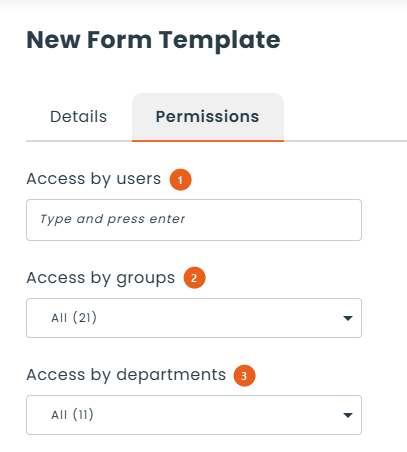
1. Access by users: specific users.
2. Access by groups: the members of these groups.
3. Access by departments: the members of these departments.
If all three lists are empty, the form is available to everyone. As soon as a list contains a value, only the people targeted see the form. You can therefore offer a different flag form to each team.
Note: the Form visibility tab of the Templates page is different. It decides who sees which field inside forms (by user, role, department or group), whereas the Permissions tab decides who can use a form. Both combine.
Field table
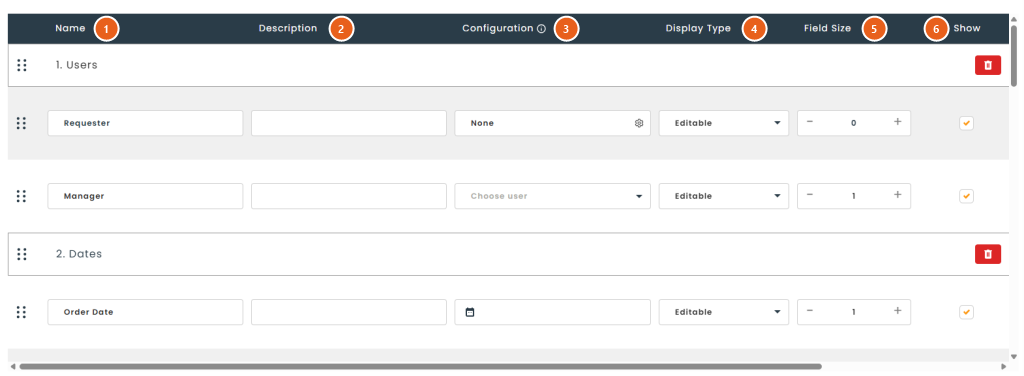
1. Name: the field name. It can be customized; if you clear it, the standard name comes back.
2. Description: help text displayed in an information tooltip next to the field.
3. Configuration: the field’s behaviour and default value. A default value set here overrides any system logic that would otherwise fill this field.
4. Display Type: Editable or Read Only.
5. Field Size: from 1 to 5 columns.
6. Show: when unchecked, the field does not appear in the form at all.
7. Required: the field must be filled in to save.
8. Line Break: the following fields start on a new line.
9. Add New Section: creates a section title to group your fields. Drag and drop the rows to change the order of the fields.
A creation form offers the Requester, Owner, Priority, Order Date, Expected Start Date, Expected Finish Date, Reference Number, Vendor, Currency, Description, Instructions, Terms, Note, Lines and Documents fields, along with your work order attributes. A few details:
- Requester: its configuration sets the entities offered (user, customer, place), the entity proposed by default and the default value, for example Current user.
- Owner: the default value can be Current user or a specific person. Only users whose role has the Responsible permission are offered.
- Vendor: the vendor performing the work (external maintenance, calibration…), with its contact. It comes in addition to the owner, who remains the person responsible internally.
- Dates: the Creation Date default value enters the current date when the work order is created.
- Billable: there is no Billable checkbox in the header anymore. A work order is billable as soon as one of its lines is.
Note: in a completion form, a default value only fills a field that is still empty. It never overwrites a value already entered on the work order.
🧾 Lines
On the Lines row of the field table, the cog in the Configuration column opens the Lines Configuration window.
Template
This tab only exists on a creation form.
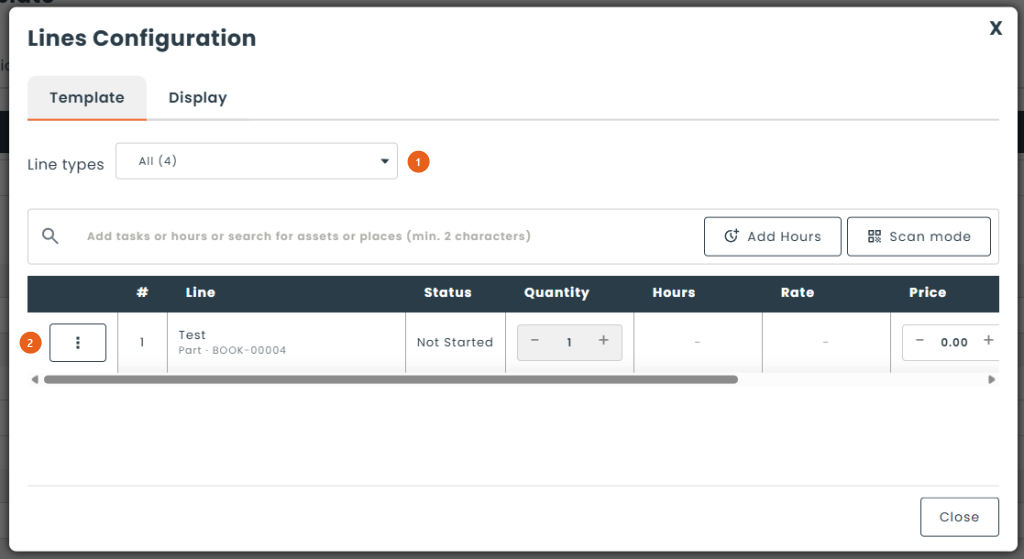
1. Line types: the types the add bar offers on this form, among Task, Hours, Asset and Place. A request form can, for example, offer assets only.
2. Default lines: the lines every new work order starts with. This is where the former work order templates now live.
Display
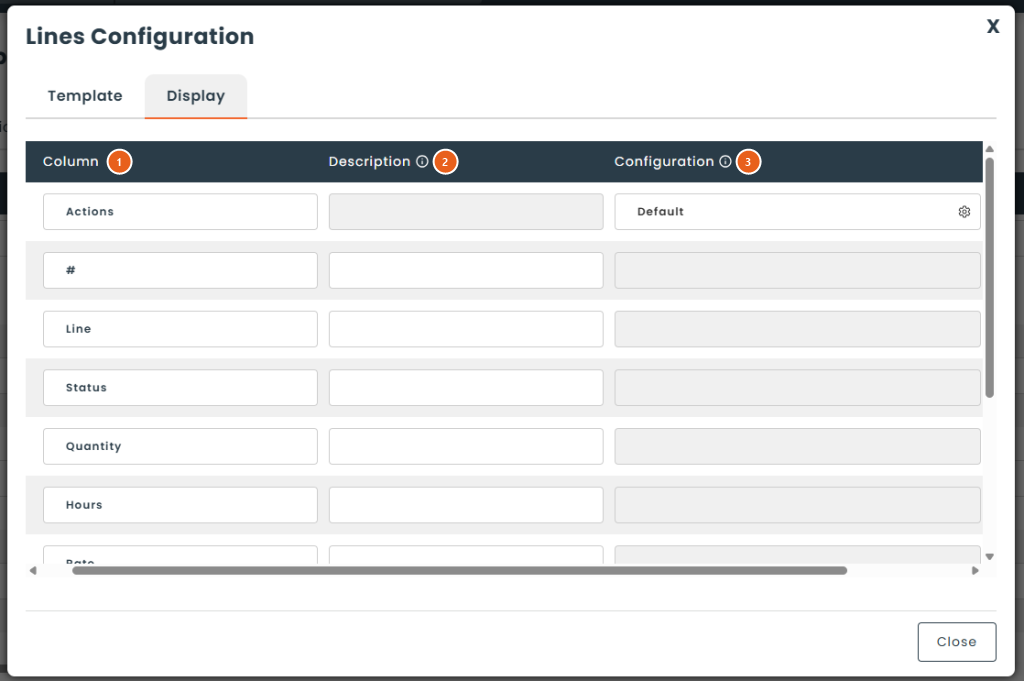
1. Column: the name of the column in the line grid. Drag and drop the rows to change the order; the # column always stays first.
2. Description: help text displayed for this column in the grid.
3. Configuration: on the Billable column, the checkbox makes every new line billable by default. On the Actions row, the cog opens the automation options.
4. Show: when unchecked, the column is hidden.
The columns offered depend on the form type:
- Creation Form: #, Line, Status, Quantity, Hours, Rate, Price, Discount (%), Billable, Amount and Actions. For a form without billing, hide Rate, Price, Discount (%), Billable and Amount.
- Flag: #, Line and Condition.
- Completion: #, Line, Quantity, Price, Condition and Actions.
The windows of flag and completion forms have no tabs: they show the column list directly.
Automation options of a creation form
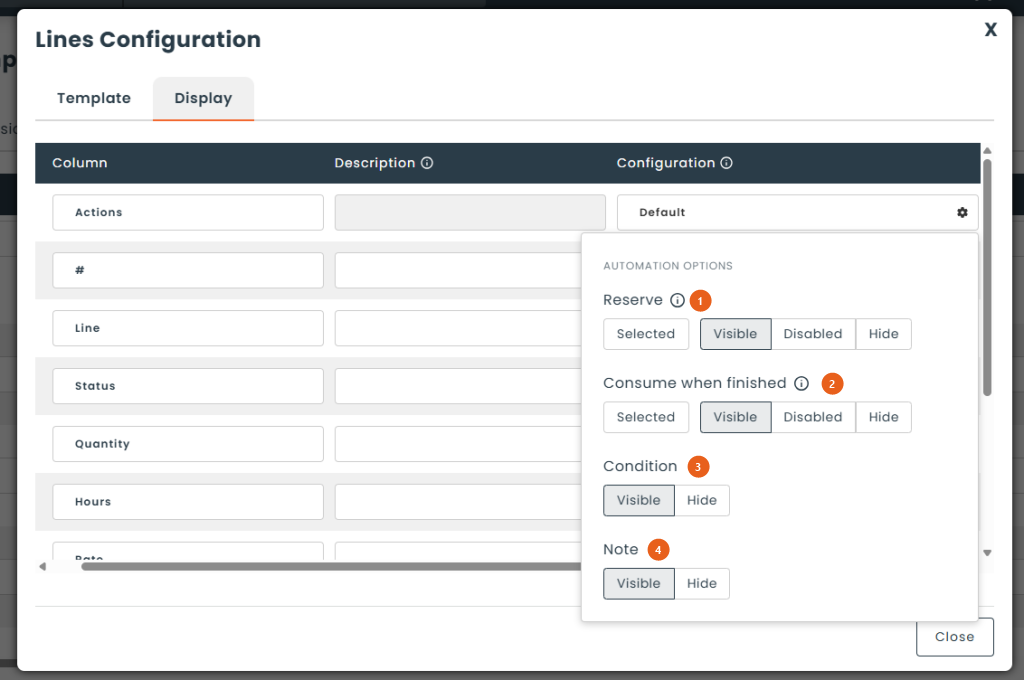
These options configure the ⋮ menu of each line.
1. Reserve: Selected, then Visible, Disabled or Hide.
2. Consume when finished: Selected, then Visible, Disabled or Hide.
3. Condition: Visible or Hide.
4. Note: Visible or Hide.
5. Reset: appears as soon as a setting differs from the default and returns the whole menu to its standard state.
The summary of the Actions row reads Default as long as nothing is changed, then Customized.
Automation options of a completion form
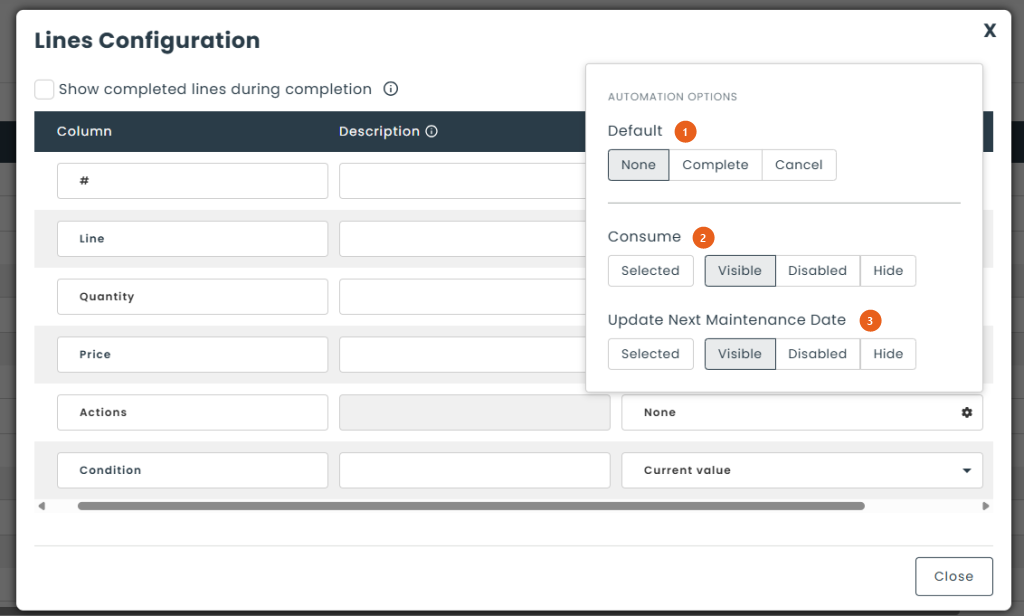
These options configure the checkboxes of each line in the completion window.
1. Default: None, Complete or Cancel, the checkbox ticked by default on each line.
2. Consume: Selected, then Visible, Disabled or Hide.
3. Update Next Maintenance Date: Selected, then Visible, Disabled or Hide.
● How the options combine
- Selected, on a creation form, means that a new line starts with this value. The menu always shows the line’s actual value.
- A hidden option still applies its value. For example, Consume hidden and selected always consumes, without giving the user a choice.
- Disabled shows the option but locks it. This setting can only be stricter than the base rules: Reserve, for example, can only be changed while the line has not started, and no configuration lifts that rule.
- If every option of the menu is hidden, the ⋮ menu disappears and the line only offers the delete button.
🚩 Flag and completion
Several settings that used to be on the work order settings page now depend on each form. You can therefore have, for example, two flag forms with different rules.
● Default condition
On the Condition row of the column list, the Configuration column contains a list: Current value, Unknown, Good, Poor or Broken.
- On a flag form, the chosen condition is written to the flagged assets. Current value changes nothing.
- On a completion form, the chosen condition is only preselected on each line; the user can change it.
● Document required when flagging
On a flag form, check Required on the Document row of the field table to make the user attach a document, for example a photo of the damage.
● Show completed lines
On a completion form, the Show completed lines during completion checkbox is in the Lines Configuration window. On a partially completed work order, the completion window then also shows the lines already completed or cancelled, read-only.
● Where the former settings went
- “Requester selected by default”: Requester field of a creation form.
- “Default terms”: default value of the Terms field of a creation form.
- “Activate billable fields”: billing columns and Billable checkbox of the lines of a creation form.
- “Set line condition to “Broken” when flagging an asset”: default condition Broken of a flag form.
- “Make it compulsory to upload documents when reporting a problem”: Required checkbox of the Document row of a flag form.
- “Completed is checked by default”: Default = Complete option of a completion form.
Your values were carried over automatically into the User Default form. The work order settings page shows a notice with the Go to form templates link.
Note: if your instance already had its own default flag or completion forms, they were not modified. Review them and apply these options as needed.
🏭 Assembly form
A creation form can be checked Make this an assembly form. It then becomes a recipe: completing a work order created with this form consumes the components listed on its lines and creates the final product.
1. Final Product: the product made by the recipe. On completion, the consumed components are removed and this product is created in the destination stockroom.
2. Quantity produced: the number of assets produced by the assembly.
3. Allow extra asset creation: lets the operator increase the number of assets produced on the work order. The planned quantity is always created.
These forms appear in the list with the Creation Form (Assembly) type. An assembly form cannot be the default work order form.
💡 Examples
● A request form for a team
Employees of a department request a repair with a short form, then managers handle the work order with the full form.
- Copy the Default creation form and name it “Repair request”.
- In Details, choose your full form in After creation, continue with, and Pending Approval as Initial state.
- In Permissions, choose the department in Access by departments.
- In the field table, only show Requester (default value Current user, Read Only), Priority, Description (Required), Lines and Documents.
- In the lines configuration, only check the Asset type, then hide the price columns.
● A flag that marks the asset as broken
- Copy the Default flag form and name it “Equipment breakdown”.
- In Details, choose your full form in After creation, continue with.
- On the Condition row of the columns, choose Broken.
- On the Document row of the field table, check Required.
- Check Default Template if this form should be offered by default.
● One-click completion
- Copy the Default completion form.
- In the automation options, choose Default = Complete, Consume = Selected and Hide, and Update Next Maintenance Date = Selected and Visible.
- Check Default Template.
On completion, every line is checked Complete, consumption always happens, and the user can still uncheck the maintenance update.
Once your setup is complete, click Save and your form will be ready to use! For the day-to-day use of work orders (creation, lifecycle, completion and billing), see the Work Order User Guide article. If you have any questions or would like personalized support, please feel free to contact our sales team at [email protected] or your account manager.