
Consuming an asset removes it from inventory: it is no longer available and no longer counted in your quantities. Instead of ticking the Consume option on every transaction, you can set, for each subcategory, whether assets are consumed automatically based on the transaction type and its direction. This article covers the automatic consumption grid, updating several subcategories at once, and how loaners behave.
Note: this article uses the words “subcategory” and “stockroom”. If your instance uses different terms (model, item, warehouse…), those are the words Hector displays.
✅ Prerequisites
- The automatic consumption grid comes with the plan that unlocks all of Hector’s features.
- Transfer Order rows only appear when the operations (transfer orders) module is enabled.
- You need access to the subcategory settings.
📍 Where to find the grid
Go to Settings › Subcategories, Consumption tab. This is the full grid: it lists all your subcategories and supports bulk updates.
The same options appear on each subcategory:
- in edit mode, in the subcategory’s Consumption tab;
- in view mode, in the Configuration › Consumption tab, where each option is shown read-only (Yes or No).
The asset and transfer order settings also remind you that consume options are defined by subcategory, with a link to the grid.
An info bubble at the top of the grid points back to this guide. You can close it; it won’t show again for you.
⚙️ The configuration grid
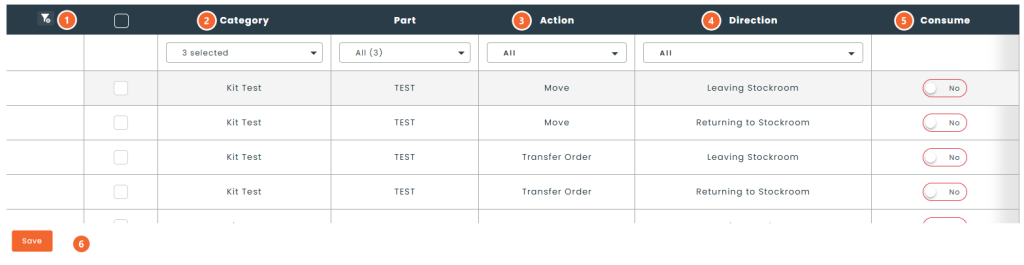
1. Filters: filter the grid by Category, by Subcategory (the list is narrowed to the chosen categories), by Action and by Direction.
2. Category and Subcategory: each subcategory takes a group of rows, one per action and direction combination.
3. Action: the transaction type, Move or Transfer Order.
4. Direction: Leaving Stockroom (the asset leaves a stockroom) or Returning to Stockroom (the asset comes back to a stockroom).
5. Consume: the switch that turns automatic consumption on for this combination.
6. Save: saves your changes. Nothing is saved before you click it; only the rows you changed are updated.
● What each combination does
- Move – Leaving Stockroom: when an asset is moved from a stockroom to a destination that is not a stockroom (an employee, a room…), the Consume after save box is pre-checked.
- Move – Returning to Stockroom: when an asset is moved to a stockroom, the Consume after save box is pre-checked.
- Transfer Order – Leaving Stockroom: the transfer order lines are marked Consume when delivered; the assets are consumed on delivery.
- Transfer Order – Returning to Stockroom: the return order lines are marked for consumption the same way.
The grid sets the default value: users can still check or uncheck the option during the transaction. A combination left at No pre-checks nothing.
☑️ Updating several subcategories at once
In Settings › Subcategories › Consumption, you no longer need to configure subcategories one by one.

1. Selection checkboxes: check the rows to change. The header checkbox selects every row on the page.
2. Selected count: the action bar shows how many rows are selected, for example “12 selected”.
3. Select all: selects every row matching the filters, on every page. The number in parentheses shows how many rows will be selected.
4. Yes / No: turns Consume on or off for every selected row.
5. Close: closes the action bar. The bar can also be dragged around the screen.
Then click Save to save.
Good to know:
- The selection is kept when you change pages: you can check rows across several pages before applying an option.
- Changing a filter clears the selection, and so does saving.
- To target a single combination, for example every move leaving the stockroom, filter by Action and Direction first, then use Select all.
🔁 Loaners
● A loaner’s consume option
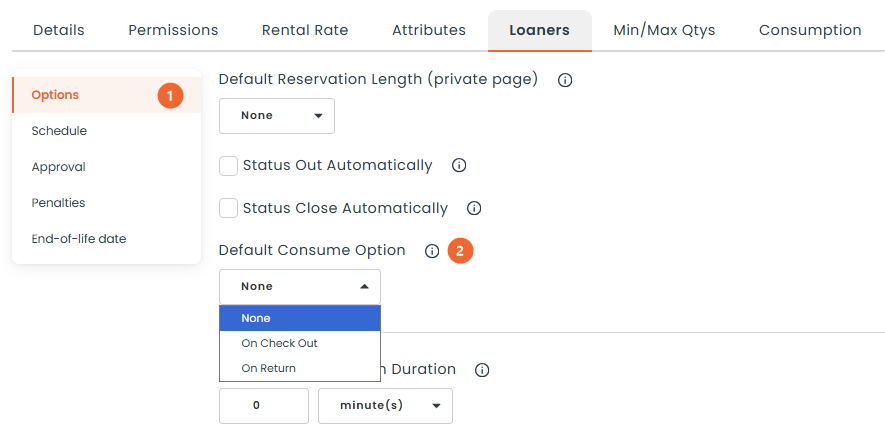
For loaners, the consume option is set in the subcategory’s loaner section, with Default Consume Option: On Check Out, On Return or None. The loaner’s stockroom must also have Allow Consumption checked. To learn more, see Loaners by stockroom.
1. Loaners › Options: the subcategory’s loaner settings.
2. Default Consume Option: the value applied to new loaners for this subcategory’s assets.
When a loaner is shipped with a transfer order, its default consume option comes from the grid’s Transfer Order rows instead:
- Leaving Stockroom at Yes: consumed On Check Out;
- otherwise, Returning to Stockroom at Yes: consumed On Return;
- otherwise, no consumption.
● Returning an asset consumed on check out
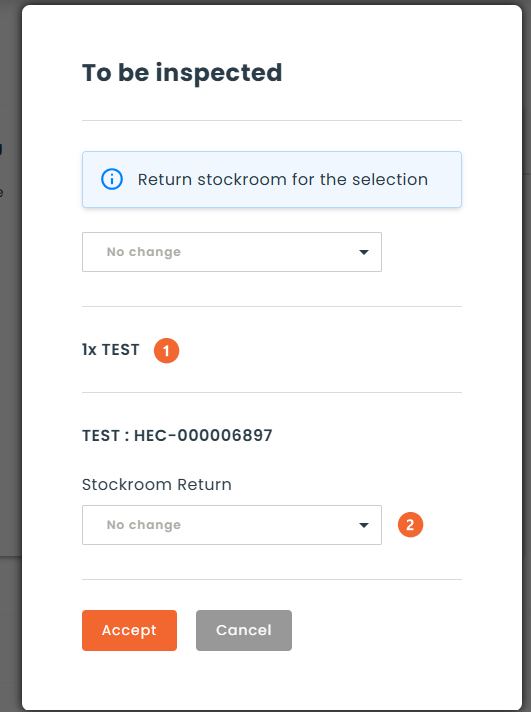
An asset consumed on check out has already left inventory: it will not go back to a stockroom. When the loaner is completed, Hector therefore no longer asks for a Stockroom Return for that asset, even when the stockroom allows returns to another stockroom. The loaner’s other assets keep their return stockroom choice.
1. Asset consumed on check out: the row only shows the asset and its quantity, with no stockroom choice.
2. Stockroom Return: shown only for assets that go back into inventory.
🔗 Other ways to consume
- Work orders: on a work order line, the Consume when finished option consumes the assets from inventory when the work order is finished. It is in the line’s menu. See the Work Order User Guide article.
- Maintenance plans: a maintenance plan whose Output is a work order creates a work order at each due date. Parts used during the maintenance are consumed by that work order: add them as lines with the Consume when finished option. See How to set up part and asset maintenance.
If you have any questions or would like personalized support, please feel free to contact our sales team at [email protected] or your account manager.