
With Hector, you can enable loaners on a per-stockroom basis, so users, employees, work sites, clients or students can reserve equipment. Every stockroom keeps its own rules, schedule, catalog, messages and notifications.
Below you will find instructions on how to allow loaners by stockroom in your Hector instance.
Prerequisites
- The loaner module must be active in your instance.
- Your role must grant you Manage loaners (full or limited) on stockrooms, otherwise the Loaners tab stays hidden.
Step 1 – Create the stockroom
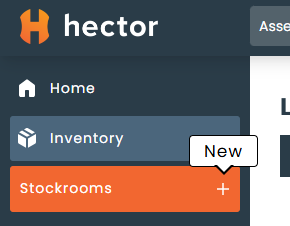
Go to Inventory > Stockrooms and create a new stockroom.
Step 2 – Fill in the Details tab and activate loaners
The stockroom form is split into tabs: Details, Permissions, Loaners and Rackings. Start on Details and enter the stockroom information — name, description, note, address, city, postal code, default shipment user, any custom attributes, documents and a picture.
On the right side of the Details tab, switch Activate Loaners on. Two things happen:
- A new Loaners tab appears, containing every loan setting for this stockroom.
- The Permissions tab gains the loaner-specific permission types.
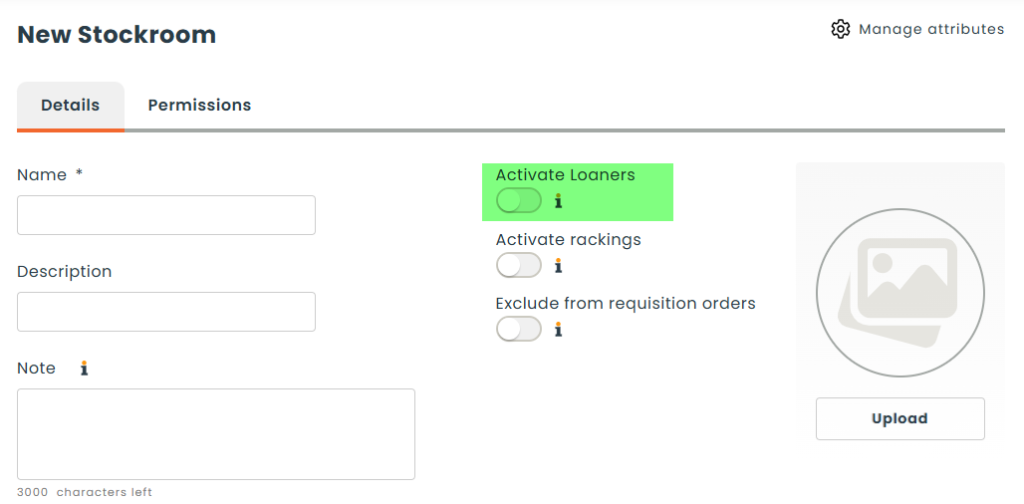
The same panel also holds Activate Rackings and Exclude from requisition orders.
Note: loaners are a paid feature. If the toggle is not visible, the module is not enabled on your instance.
Step 3 – Set the permissions and the staff
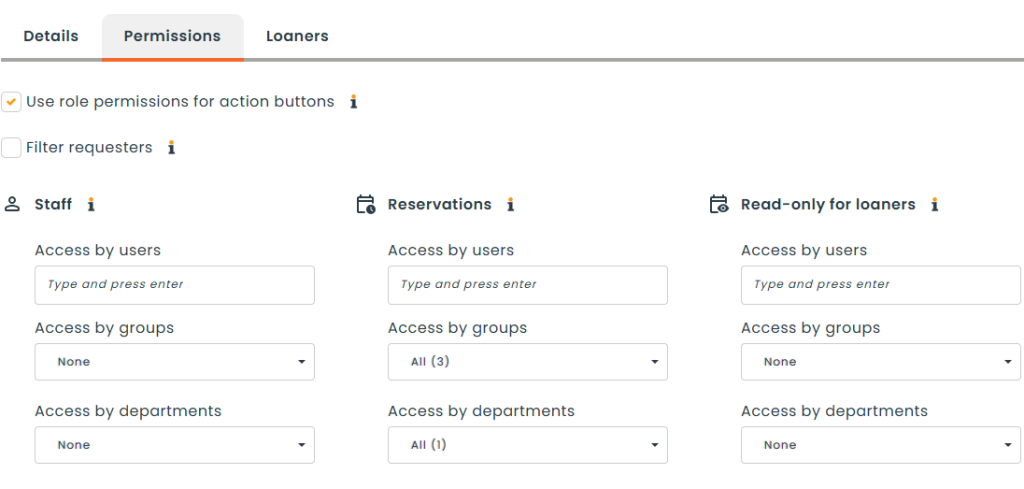
Open the Permissions tab. Staff members are no longer a separate field on the loan form — they are one of the permission types you assign here, to groups, departments or individual users:
- Staff — the people who look after the assets and the loans in this stockroom. They also receive the emails configured in Communications > Notifications.
- Reservations — who is allowed to reserve from this stockroom.
- Read-only for loaners — who can see loans without acting on them.
- Approvals — who can approve or refuse reservations, directly from their home page. Staff already hold this right and do not need to be added twice.
- View and Management — standard access to the stockroom and its assets.
- Access restrictions for operations — scopes which operations apply to this stockroom.
Two options sit at the top of the tab: Use role permissions for action buttons and Filter requesters, which limits the requester list on a staff reservation to users who can actually reserve from this stockroom.
Step 4 – Find your way around the Loaners tab
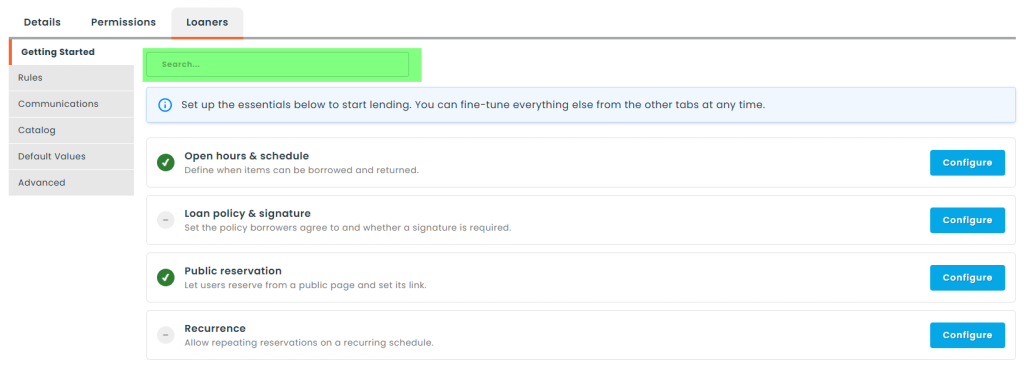
The Loaners tab groups the settings into six sections, listed down the left side:
- Getting Started — the essentials needed to start lending.
- Rules — approvals, extensions, durations, overdue handling, restrictions, maintenance and penalties.
- Communications — the messages shown to users and the email notifications.
- Catalog — what the reservation catalog shows and which items it offers.
- Default Values — the dates, durations and calendar defaults proposed to users.
- Advanced — automation and the less common options.
There are a lot of settings here. Use the search box above the sections to jump straight to a setting by name — it switches to the right section and highlights the field for you.
Step 5 – Getting Started
This section is a short checklist of the four things you need before the stockroom can lend anything. Each item shows whether it is already configured, and a Configure button expands it in place. Everything else can be fine-tuned later from the other sections.
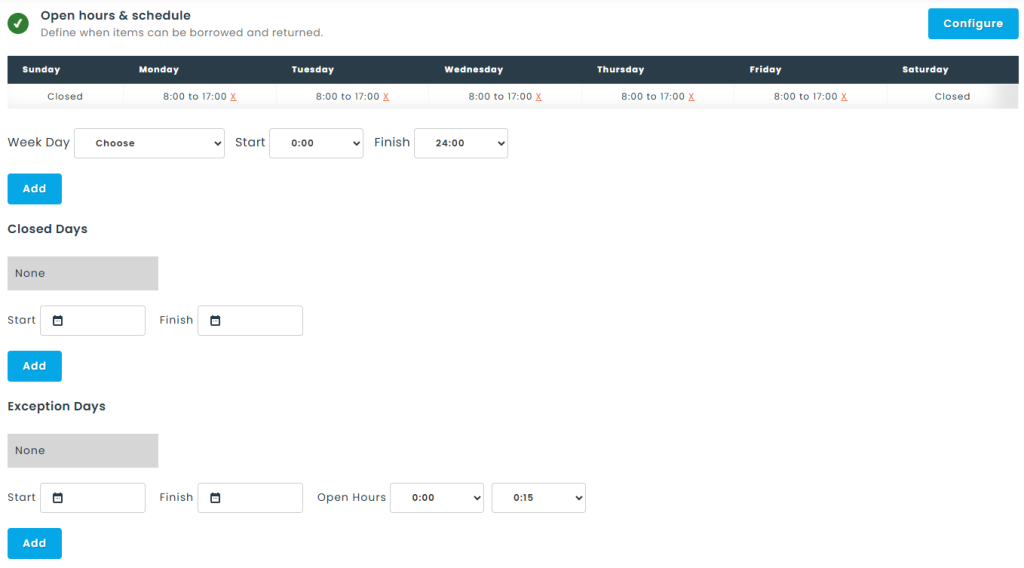
Open hours & schedule
Define when items can be borrowed and returned. Opening hours can differ from day to day. Below them you can also declare:
- Closed Days — date ranges when the stockroom does not lend at all.
- Exception Days — date ranges with their own open hours, for holidays or reduced schedules.
Loan policy & signature
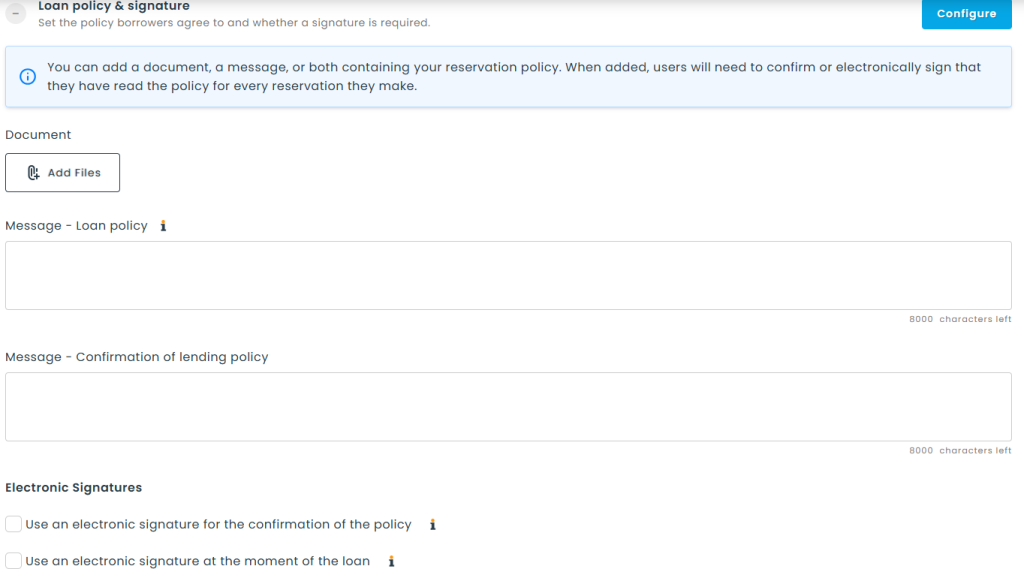
Set the policy borrowers agree to, and whether a signature is required. You can add a document, a message, or both. When a policy is present, users must confirm — or electronically sign — that they have read it for every reservation.
- Loan policy — the document and the message displayed at the bottom of the public reservation page.
- Confirmation of lending policy — the wording of the confirmation itself.
- Use an electronic signature for the confirmation of the policy — replaces the confirmation checkbox with a signature field in the public catalog.
- Allow remote signature by email — sends the signature request to the borrower by email.
- Use an electronic signature at the moment of the loan — forces a signature before a loan can be set to Out. Note that this blocks the automatic “status out” setting.
- Allow remote signature by email on out — same, requested by email when the loan goes out.
- Use a signature pad at the moment of the loan — enables signing on a Topaz signature pad.
Public reservation
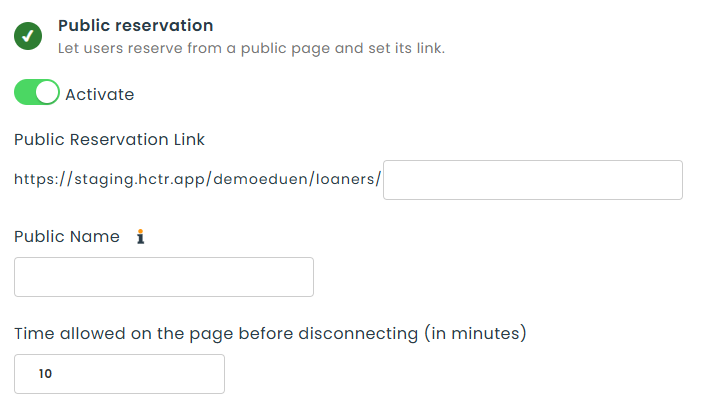
Switch Activate on to let users reserve from a public page, then set:
- Public Reservation Link — the end of the address you share. It is pre-filled from the stockroom name and can be changed.
- Public Name — if the stockroom name is meant for internal use, give the public page a different title.
- Time allowed on the page before disconnecting (in minutes) — the inactivity timer on the public page.
Important: the people you share the link with must still have an account in your Hector instance.
Recurrence
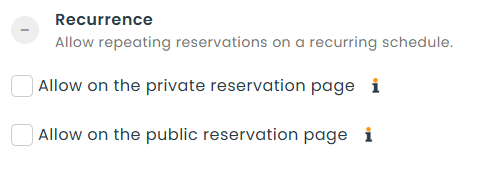
Allow repeating reservations — daily, weekly, monthly or yearly. Recurrence is enabled separately for the private reservation page and the public one, so you can offer it to staff without exposing it publicly.
Step 6 – Rules
This is where you decide what users are and are not allowed to do.
Extension
Allow borrowers to request an extension on a loan, require those requests to be approved, and choose whether the approver can add a message — and whether that message is mandatory on approval, on refusal, or both.
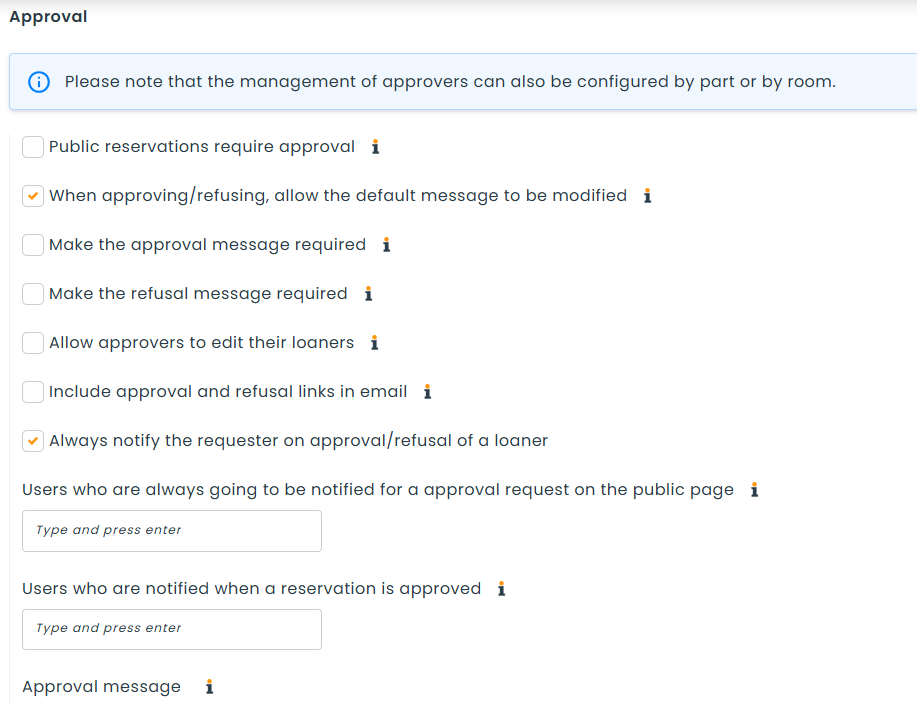
Approval
- Public reservations require approval — every new public reservation must be approved by a staff member or an item/place approver.
- When approving/refusing, allow the default message to be modified — turn this off to stop the popup appearing on every reservation.
- Make the approval message required / Make the refusal message required.
- Allow approvers to edit their loaners — approvers can correct a loan where they are the item or place approver.
- Include approval and refusal links in email — be aware that some anti-spam tools follow links automatically and may approve a loan before you do.
- Always notify the requester on approval/refusal, plus two lists of users who are always notified of an approval request and of an approved reservation.
- Approval message and Refusal message — the wording emailed to the user.
Approvers can also be configured per item or per place, not only here.
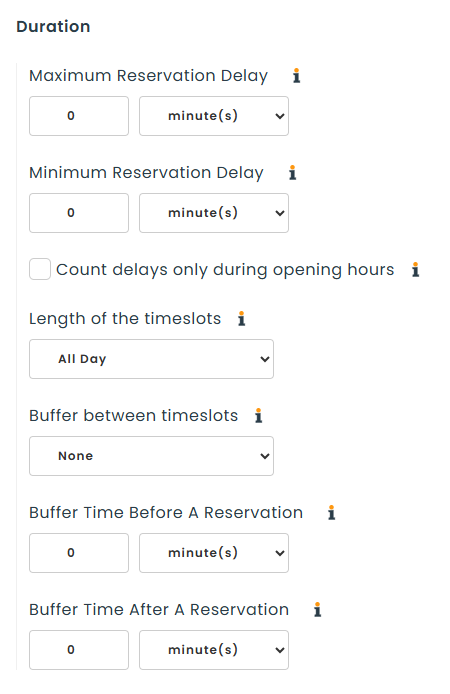
Duration
- Maximum / Minimum Reservation Delay — how far ahead a reservation can or must be made. Leave at 0 to skip.
- Count delays only during opening hours — delays elapse only while the stockroom is open, so a delay starting after closing counts from the next opening time.
- Length of the timeslots and Buffer between timeslots — how a day is divided up.
- Buffer Time Before / After A Reservation — breathing room around a loan, typically to inspect returned equipment.
These restrictions do not apply to reservations made by a staff member from the admin reservation page. Maximum and minimum reservation durations are set in Default Values.
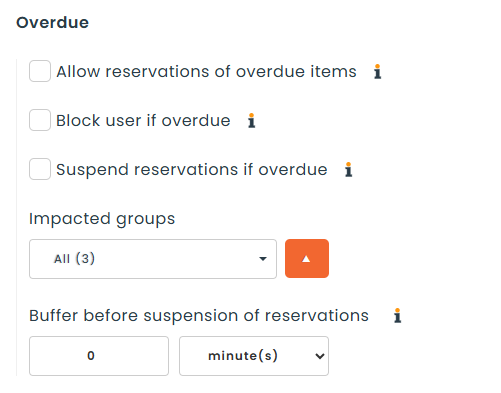
Overdue
- Allow reservations of overdue items — items overdue on another loan can still be reserved. This can create conflicts to manage if the item is not returned in time.
- Block user if overdue — the user cannot borrow again until everything overdue is returned.
- Suspend reservations if overdue — all of that user’s future loans are suspended until they return what is overdue.
- Buffer before suspension of reservations and the impacted groups — a grace period, and who these rules apply to.
Restrictions
- Maximum number of items a user can reserve at any given time — set separately for all items, assets and places. Use 0 for unlimited.
- Maximum number of items that can be reserved in a single request.
- Buffer time between two reservations of the same item by the same user — stops one person monopolising an item.
Maintenance and lifespan
Decide whether an asset can be reserved during a maintenance period, or when a scheduled maintenance is already overdue. You can also set the criteria for automatically cancelling a reservation when maintenance overlaps a loan:
- Maximum overlap percentage tolerated — above this share of the loan being eaten by maintenance, the reservation is cancelled.
- Minimum remaining time tolerated on loaners — below this remaining duration, the reservation is cancelled.
The same block controls whether an asset can still be reserved past its lifespan date, and how long before that date reservations should stop.
Penalties
If the penalty feature is enabled on your instance, you can activate penalty settings specific to this stockroom. They override the global penalty settings whenever a penalty is detected here, and cover both the calculation and the handling of damaged items.
Step 7 – Communications
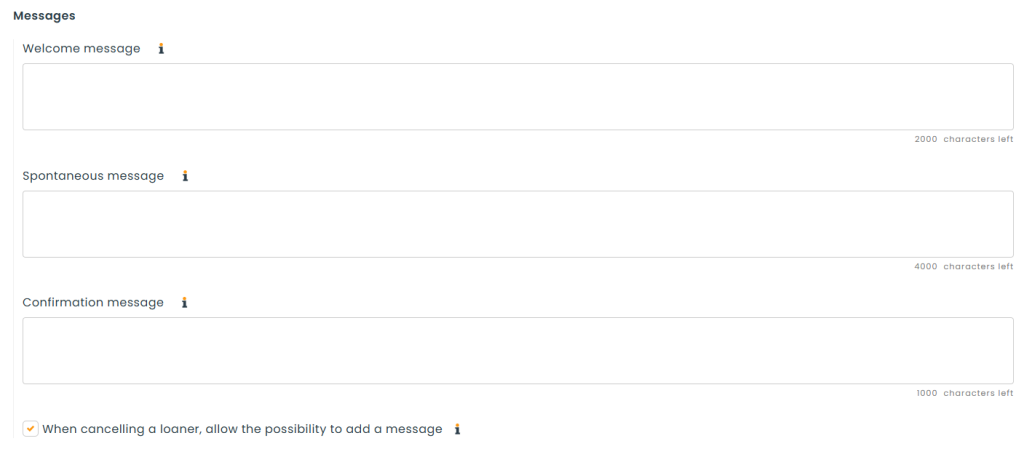
Messages
- Welcome message — shown when a user arrives on the public reservation page.
- Spontaneous message — shown just below it. Leave blank to display nothing.
- Confirmation message — shown after a successful reservation.
- When cancelling a loaner, allow the possibility to add a message.
Notifications
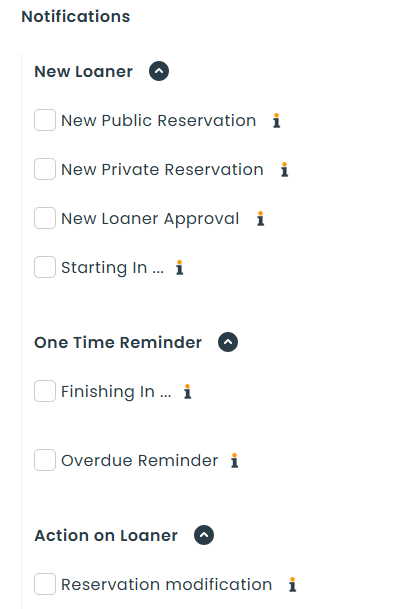
Email notifications are grouped into four collapsible sections. For most of them you choose not only whether to send the email but who receives it — the Requester, the Staff, or specific groups to notify.
- New Loaner — new public reservation, new private reservation, and new loaner approval.
- One Time Reminder — one-off reminders around the loan dates.
- Action on Loaner — reservation modification (with per-field triggers for requester, owner, dates, items and status), reservation cancellation, and the exchange of a broken asset.
- Various Notifications — return of a loan from a different stockroom, and informing a user when they are blocked.
At the bottom, Email Body controls what the emails contain: the loaner’s attributes, the item’s attributes and the item’s components.
Step 8 – Catalog
The catalog is what users browse when they reserve.
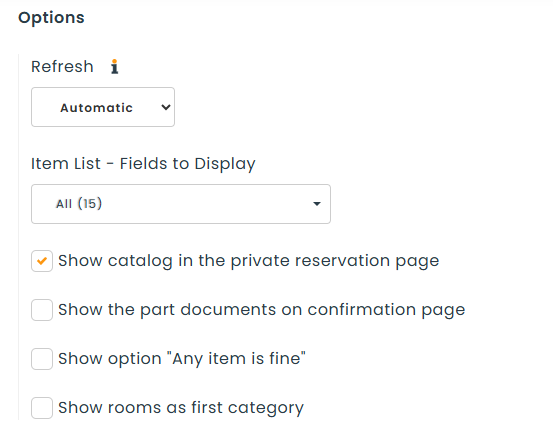
- Refresh — how and when the catalog recalculates availability.
- Fields to Display — which item fields appear on each catalog card.
- Show catalog in the private reservation page — give staff the same browsing experience.
- Show the item documents on confirmation page.
- Show option “Any item is fine” — lets a user accept whichever unit is free.
- Show places as first category.
- Filters — which filters users get in the catalog.
- Condition Criterias — a grid of conditions (None, Unknown, Good, Poor, Broken) where you decide, per condition, whether items are shown and whether they can be reserved.
- Sort — the order items appear in.
Step 9 – Default Values
These settings decide what Hector proposes before the user changes anything.
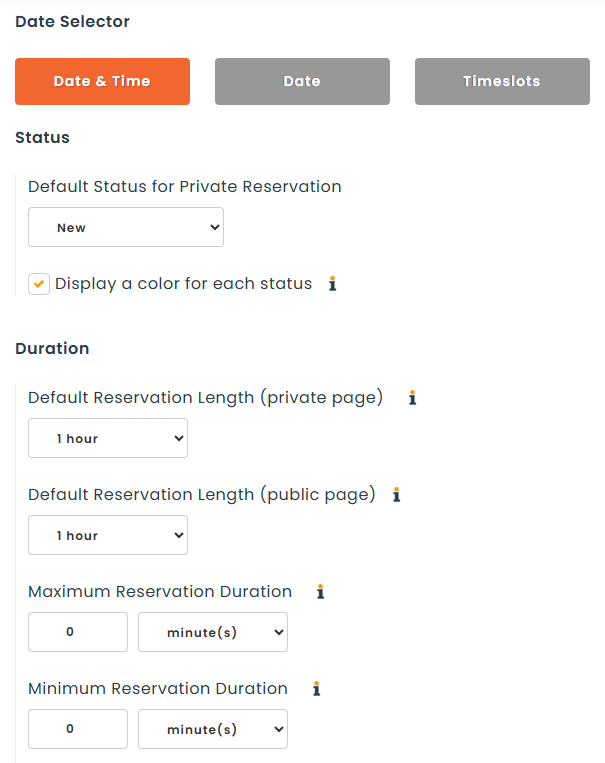
- Default Status for Private Reservation, and Display a color for each status — in a busy stockroom, colours make it much faster to tell reservations and loans apart.
- Default Reservation Length, set separately for the private and public pages.
- Maximum / Minimum Reservation Duration — how long an item can be kept. Leave at 0 to skip.
- Time items stay in the loaner cart before expiring (in minutes).
- Default Start Date and Minimum Start Date (public page).
- Allow a loan without a finish date, Default Finish Date and Fixed Finish Date.
- Calendar — hourly increment on the date picker and on the management calendars, the day the week starts on, how loans are displayed on calendars, and whether closed periods are shown.
Step 10 – Advanced
Options
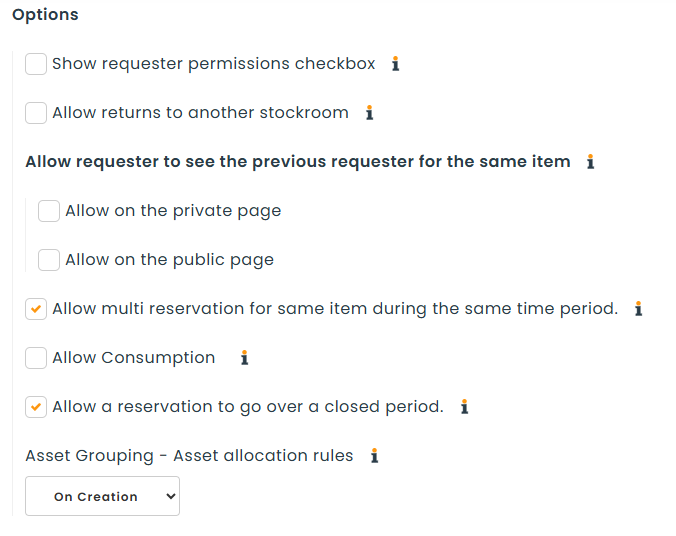
- Show requester permissions checkbox — lets a staff member see which items are available according to the requester’s own permissions.
- Allow returns to another stockroom — useful when another stockroom handles repairs, maintenance or cleaning.
- Allow requester to see the previous requester for the same item — enabled separately for the private and public pages. Handy when items pass directly from one borrower to the next.
- Allow multi reservation for same item during the same time period.
- Allow Consumption — adds a “consume” checkbox so an asset can be consumed against a loan.
- Allow a reservation to go over a closed period — as long as it starts and ends while the stockroom is open.
- Asset allocation rules — when asset grouping is active on an item, choose which assets are picked based on their attributes.
Automating
- Auto Add To Cart — on staff reservations, an available asset or place scanned for the requested period is added to the cart automatically.
- Auto Select Items During Search — when a staff search narrows to a single result, select it.
- Status Out Automatically — the reservation flips to Out when its start time arrives. This does not work if a signature is required at the moment of the loan.
- Status Close Automatically — the loan is completed once the finish time has passed and its status is out, overdue, to be inspected or damaged.
- Status Cancel Automatically, with a Threshold — a reservation still awaiting approval, assigned or new past its start date is cancelled once the threshold is exceeded.
- Default order when adding an asset from a group.
Resources and display
- Add a resource field to loaners — adds a place, customer, vendor or contact field to the loan header. You choose which resource, whether several can be selected, whether it appears on the public catalog, whether it is required, and whether it is filtered by stockroom.
- Category Picking Order — the order the items of a loan are listed in, by category.
- Affluences Link — connect the stockroom to Affluences.
- Loaner planning display management — including showing only the current day in the hour view, which hides closed periods and makes the view easier to read.
Step 11 – Check the stockroom list
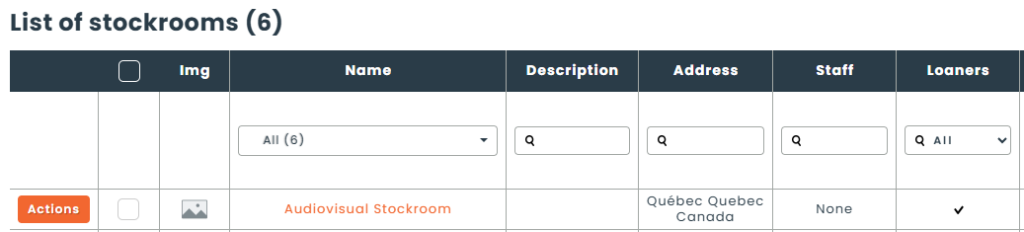
Once saved, the stockroom appears in the stockroom list. A checkmark in the loaners column confirms that it allows loans.
Next step – Add assets to the stockroom
The stockroom is configured but still empty. Add assets to it, and you will be able to manage loans and reservations.