Hector offers several calendar views to help you visualize your reservations and loaners at a glance. This article covers the calendar default settings you can configure for each stockroom, and how to switch between the List, Scheduling, and Calendar views.
Configuring your calendar defaults
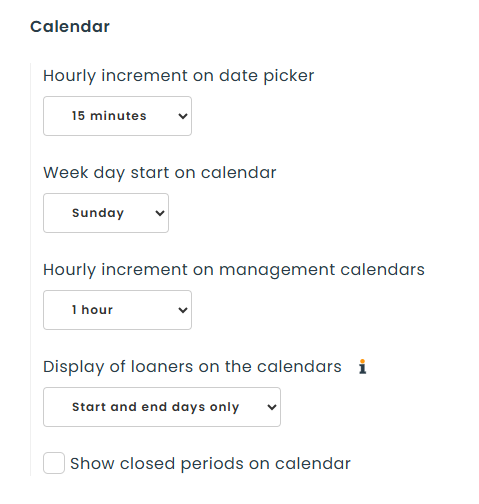
From Inventory > Stockrooms, edit your loaner stockroom and open the Loaners tab. Select the Default Values sub-tab and scroll to the Calendar section, where you can set the following default values:
- Hourly increment on date picker — Sets the increment offered when selecting a time in a reservation’s date picker. Values range from 15 minutes to 8 hours. The default is 15 minutes.
- Week day start on calendar — Sets the first day of the week shown on the calendars. The default is Sunday.
- Hourly increment on management calendars — Sets the time-grid granularity used by the management calendar views. The available values are 30 minutes, 1 hour, and 2 hours. The default is 1 hour.
- Display of loaners on the calendars — Controls how a multi-day loaner is drawn: on every day it spans, or only on its starting and ending day. Showing it only on the start and end day improves readability when many loaners overlap.
- Show closed periods on calendar — When enabled, closed periods and days are shown on the calendar.
Switching between calendar views
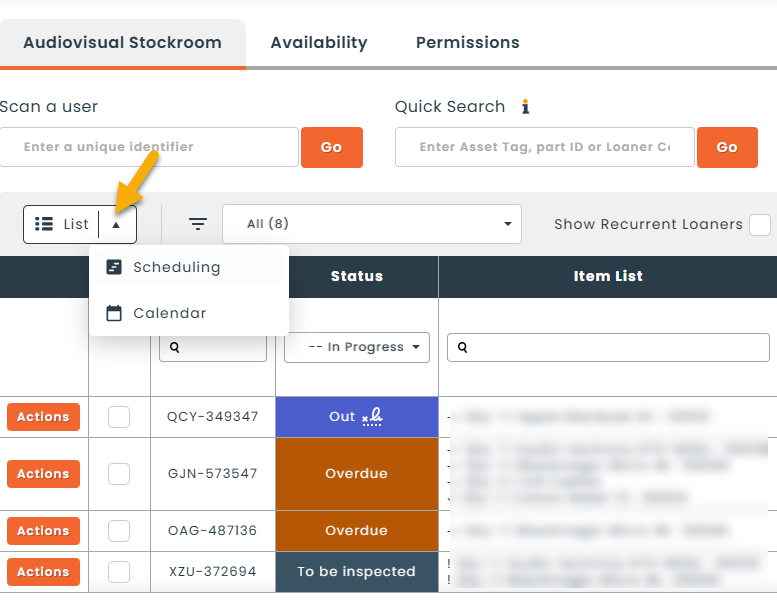
Open the Loaners section and select your stockroom. On the leftside of the loaner list, use the view toggle to switch between three views: List, Scheduling, and Calendar.
List
The List view is the default display. All the information tied to your loaners is shown in a standard grid, giving you a quick overview of every loaner in the system across multiple days, weeks, and months.
Scheduling
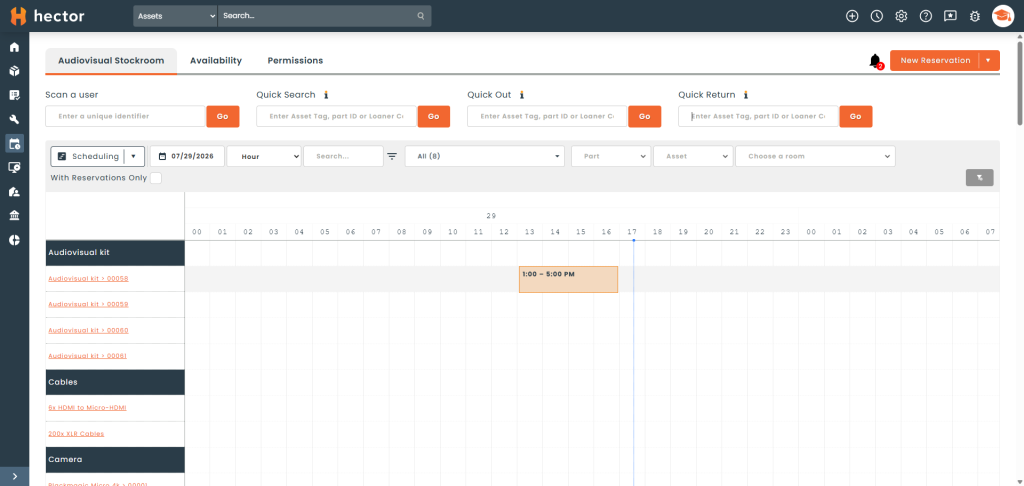
The Scheduling view (previously called Timeline) is useful for quickly seeing which items are reserved or loaned out for a given day. You can start a new reservation directly from this view by clicking the + icon next to an item.
Calendar
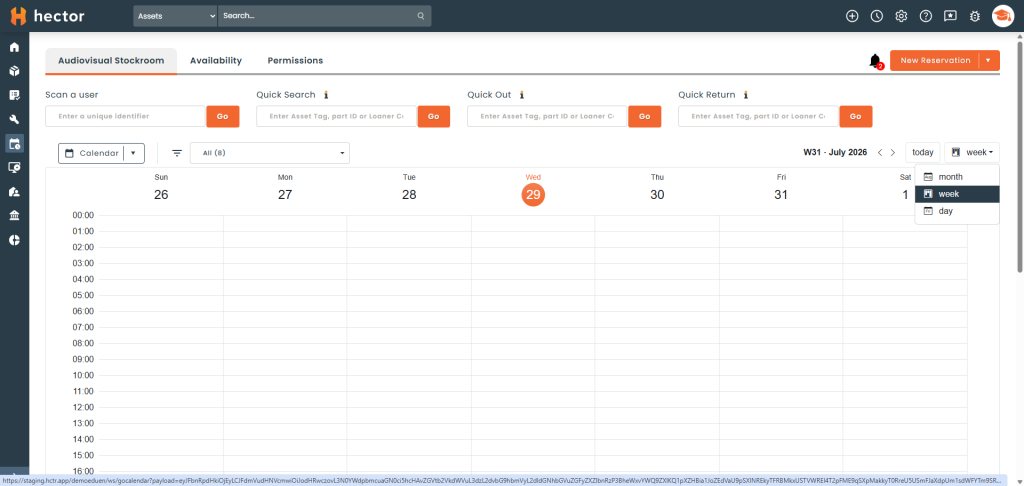
The Calendar view presents your loaners on a traditional calendar. Within this view you can switch between Day, Week, and Month layouts:
- Day — Shows a single day. The items belonging to a loaner are combined into a single event.
- Week — Shows all loaners for the selected week. Loaners that span several days appear across each of those days.
- Month — Shows loaners across a monthly calendar, giving a high-level overview of the upcoming loaners for the month.