
A recurrence lets you create one reservation that repeats on a schedule — the same items, to the same requester, every day, week, month or year. Hector creates one loaner per occurrence, and validates item availability across every single occurrence before the reservation is saved.
Before you begin
- Recurrence is not enabled by default, on either page. It has to be turned on per stockroom before anyone — including staff — can use it.
- There are two separate settings: one for the private (staff) reservation page and one for the public reservation page. Turning on one does not turn on the other.
- To create a recurrence from the private page, your role also needs the rights to set the begin date and the finish date on a reservation.
- Days on which the stockroom is closed are skipped automatically. You do not have to exclude them yourself.
Enabling recurrence on a stockroom
Step 1
Navigate to the loaner stockroom of your choice, open the New Reservation menu at the top right, and choose Edit Stockroom.
Step 2
Click on the Loaners tab, then on the Getting Started sub-tab. Find the Recurrence line and click Configure.

Step 3
Two checkboxes appear. Check the ones you need, then save the stockroom.
- Allow on the private reservation page — lets your staff build recurrences from the internal reservation screen.
- Allow on the public reservation page — lets requesters build recurrences themselves from your public reservation page.
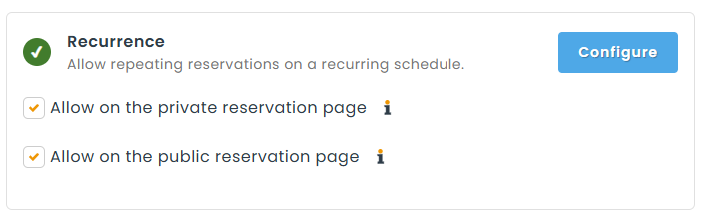
Once at least one of the two is checked, the Recurrence line in the Getting Started checklist is marked as done.
How it works for staff reservations
Step 1
Navigate to the loaner stockroom of your choice and click on the New Reservation button.
Step 2
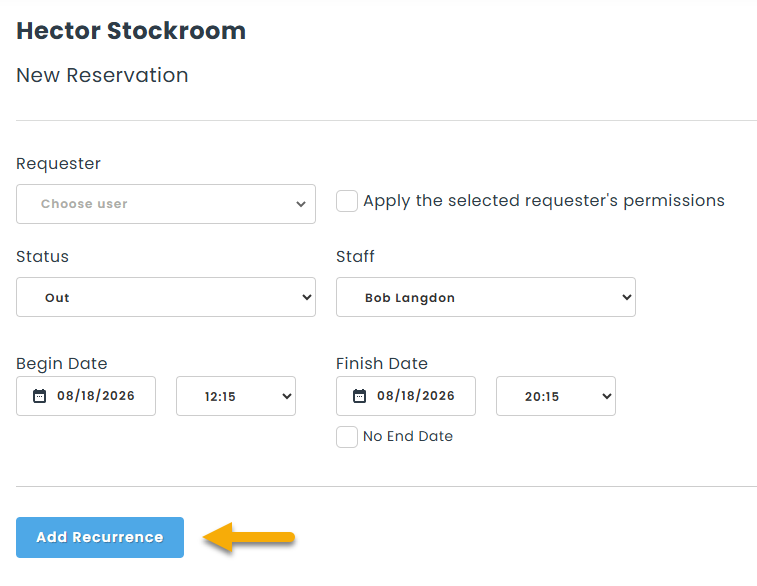
Fill in the general information at the top of the form. When you are ready to create the recurrence, click on the Add Recurrence button, located just under the date selection. A window opens where the schedule is built.
Step 3
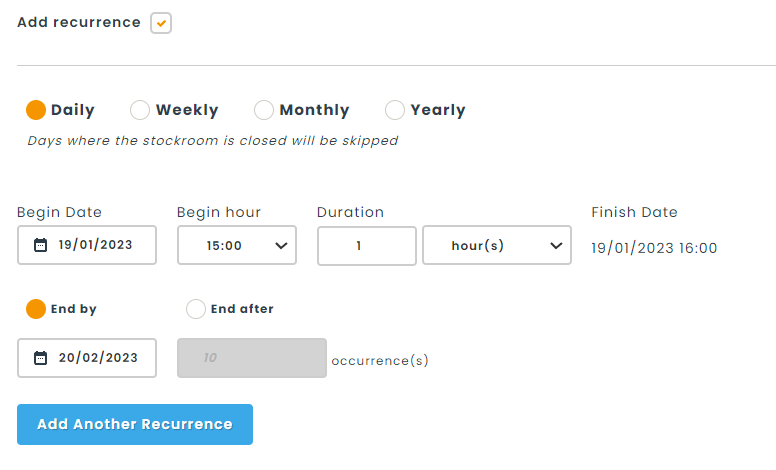
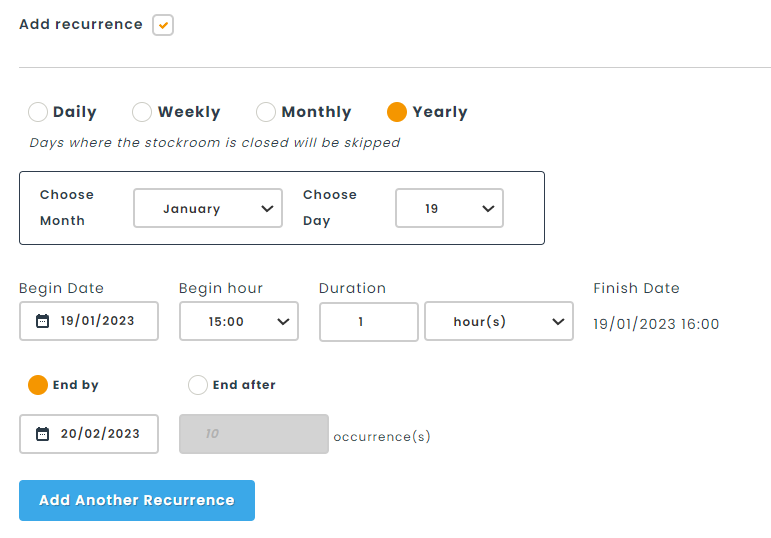
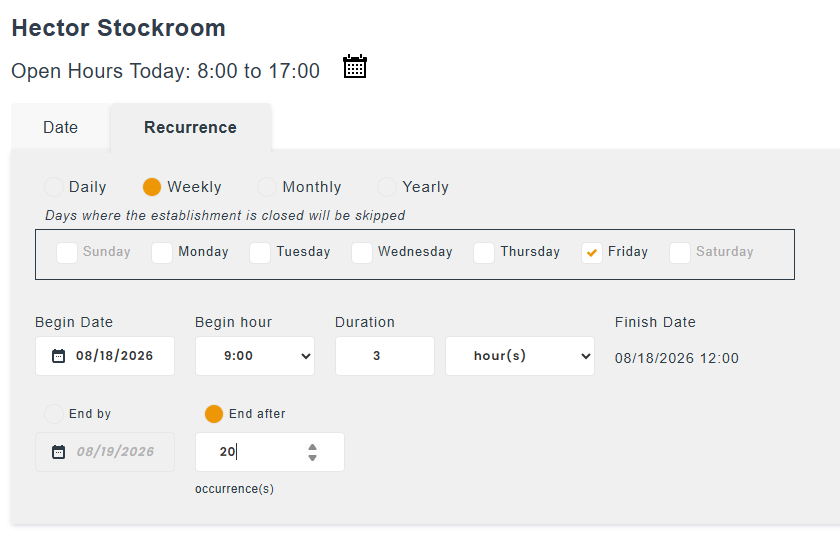
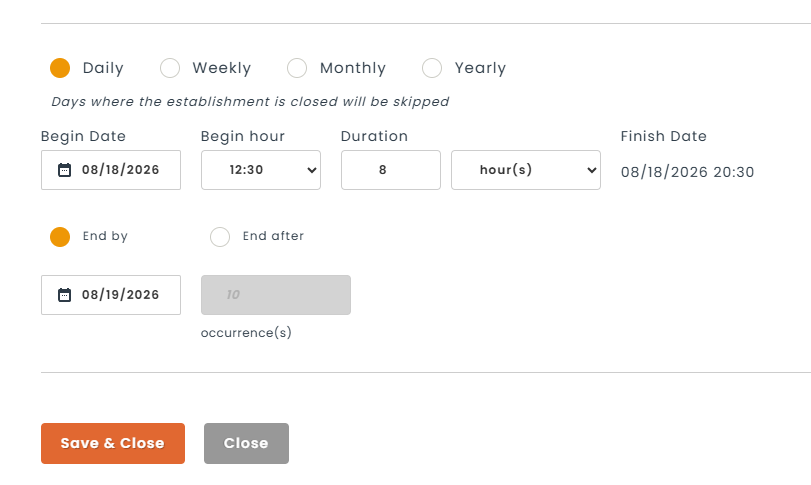
Choose the frequency of the recurrence. Each option reveals its own settings.
- Daily: repeats every day.
- Weekly: repeats on the weekdays you select. At least one weekday must be checked, and days on which the stockroom is closed appear greyed out.
- Monthly: repeats on the day of the month you enter (1 to 31).
- Yearly: repeats on the month and day you choose.
A reminder is displayed under the frequency options: days where the stockroom is closed will be skipped. Occurrences that would land on a closed day are simply not created.
Step 4
Fill in the recurrence range. This section defines when the repetitions start, how long each one lasts, and when the series ends.
- Begin Date and Begin hour — when the first occurrence starts.
- Duration — how long each occurrence lasts, in minutes, hours, days or months. The Finish Date shown to the right is calculated from the begin date, begin hour and duration; it is the finish of a single occurrence, not the end of the series.
- End by — the series stops on a fixed date, or
- End after — the series stops after a set number of occurrences.
Click Save & Close when the schedule is complete.
Daily Form
Weekly Form

Monthly Form

Yearly Form
Step 5
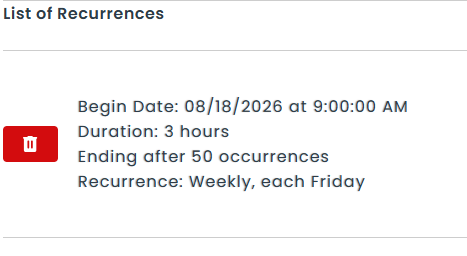
The saved schedule is now listed under List of Recurrences, summarised in plain language — begin date, duration, end condition, frequency, and whether closed days are skipped.
- Click on the summary to reopen the schedule and adjust it.
- Click on the red trash icon to remove it.
- Click Add Another Recurrence to stack a second schedule onto the same reservation — for example every Monday morning and the first day of each month.
Schedules on the same reservation cannot overlap. If two of them produce occurrences that collide, Hector displays Recurrences cannot overlap and the schedule is not saved.
Step 6
Add the items to the reservation as you normally would. Hector checks availability against every occurrence of the recurrence, not just the first one — if an item is already reserved or unavailable on one of the dates, it is refused with a message naming the conflicting period.
A reservation is either date-based or recurrence-based, never both. Once you add an item using the regular date selection, the recurrence section is locked for the rest of that reservation, and once you add an item to a recurrence, the regular date selection is locked. The message Recurrences have been locked for the remainder of the reservation is displayed when this happens.
Step 7
Save the reservation. Hector generates one loaner per occurrence. On long series this runs in the background — you may see a message inviting you to refresh the page periodically to see the occurrences appear.
Recurrent loaners are identified in the list by a recurrence icon next to their status, so staff can tell at a glance that a reservation is part of a series.

By default, the loaner list only shows the next upcoming occurrence of each series, to keep the in-progress list readable. Check Show Recurrent Loaners above the list to display every future occurrence. Your choice is remembered for the next visit.
How it works for public reservations
Step 1
Activate Allow on the public reservation page on the stockroom, as described at the top of this article.
Step 2
Requesters will then see two choices above the date selection on the public reservation page: Date and Recurrence. Date is the ordinary single reservation; clicking Recurrence opens the same frequency and range options described above, and the item catalog below adjusts to show what is available across the whole series.
If the stockroom requires approval, recurrent requests go through the usual approval flow. The occurrences are created once the request is approved, in the background.
Modifying a recurrence
Recurrences can now be edited directly in Hector — cancelling and recreating them is no longer necessary.
Step 1
Open any reservation belonging to the series in edit mode. A Recurrence section shows the current schedule, followed by an Edit Recurrence Schedule button.
Step 2
Click Edit Recurrence Schedule. The same editor opens, pre-filled with the existing schedules. You can adjust a schedule, delete one, or add another. You can also set the status the regenerated reservations should take.
Step 3
Save. Hector regenerates the series and validates the new dates against item availability, exactly as when the recurrence was created.
Important
- Save your reservation first. Modifying the schedule overwrites unsaved changes made to the reservation you are working on.
- Only occurrences that have not started yet are rebuilt. Occurrences that are already out, returned or otherwise closed are left untouched.
- Individual edits are lost. If someone modified one of the not-started occurrences on its own — swapped an asset, changed the requester, adjusted a field — those changes are reset to match the reservation you edited the schedule from.
Cancelling a recurrence
To end a series, open any reservation in it and click Cancel Recurrence. Hector asks you to confirm, then cancels all future occurrences. Occurrences already in progress or completed are not affected. A Recurrent Loaner Cancelled notice is emailed to the requester and to the stockroom staff.
To cancel a single occurrence instead, cancel that reservation on its own — the rest of the series continues.