Hector generates a standard printout for most of your records. When that standard layout does not match your organization’s needs, you can build your own printout templates: your logo, your wording, your table columns, your legal notices. This article walks through creating a template, translating it, and using it when you print.
What you can customize
Printout templates are available for the following entities:
- Loaner
- Invoice and Payment
- Purchase Order, Requisition Order, Transfer Order and Work Order
- Physical Count
- Place and Space
- Customer, Vendor and Contact
- User
Some of these names follow the vocabulary configured for your instance. If you renamed Place to Building, for example, that is the name you will see in the Entity list.
Note: Place, Space, Customer, Vendor, Contact and User were added recently and ship with a deliberately simple default layout. Expect their imported default template to be lighter than the one for a loaner or a purchase order.
Before you start
- Printout templates require the Castle plan. On other plans the New button is locked.
- You need full access to the Templates settings to create, edit or delete a template. Click here to learn more about permissions.
- Users only need the Print permission on the entity itself in order to use a template you created.
Access the printout template list
From the settings, go to the Customization section and select Templates, then open the Printout tab. The other tabs on this page hold your email notification templates and your forms.
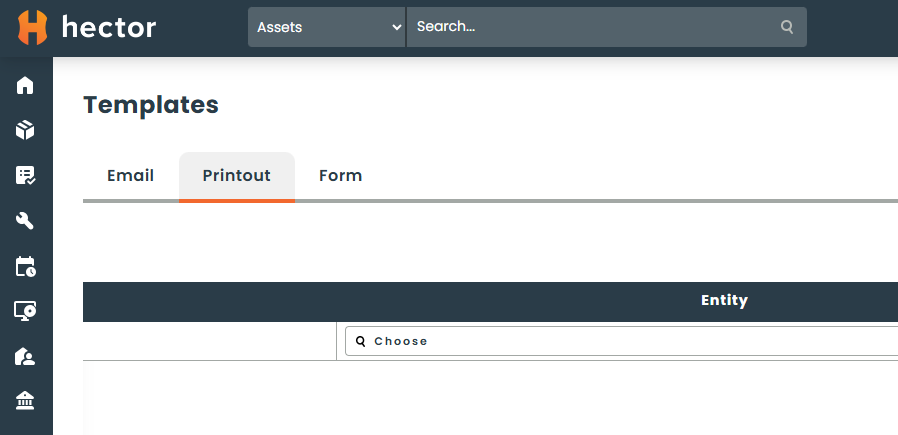
Click New to create a template.
Create the template
1 – Name, entity and language
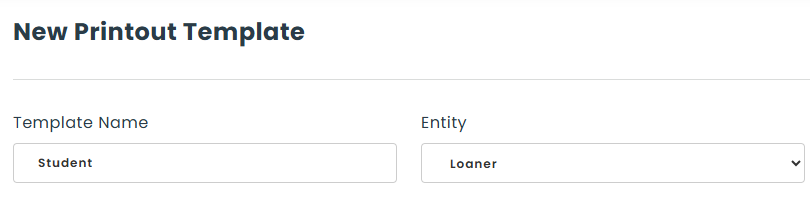
- Template Name: choose a name that identifies the template. This is the name your users will see in the print menu, so make it explicit — Loan agreement (signature copy) is more useful than Template 2.
- Entity: the type of record the template applies to. The rest of the form stays hidden until you pick one, because the available content depends on the entity.
- Language: the language this version of the template is written in. You can add versions in the other languages later — see Translate a template below.
2 – Start from the default layout
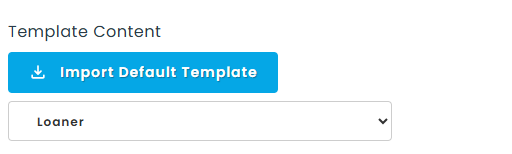
In the Template Content section, the Import Default Template button loads Hector’s standard printout for the selected entity into the editor. This is almost always the fastest way to begin: you get a working layout with the header, the logo and the line table already in place, and you only adjust what you need.
If you want to see the standard layout before importing it, open any record of that type and use Print in its action menu.
Careful: importing the default template replaces what is currently in the editor. Import first, then customize.
3 – Insert content tags
Tags are placeholders that Hector replaces with real data at print time. To insert one, use the dropdown under Template Content to pick a section — the record itself, its attributes, the general information of your organization, and so on. The available sections depend on the entity you selected.
For a simple section, select the tags you want in the list and click Add. They are inserted at the cursor position in the editor.
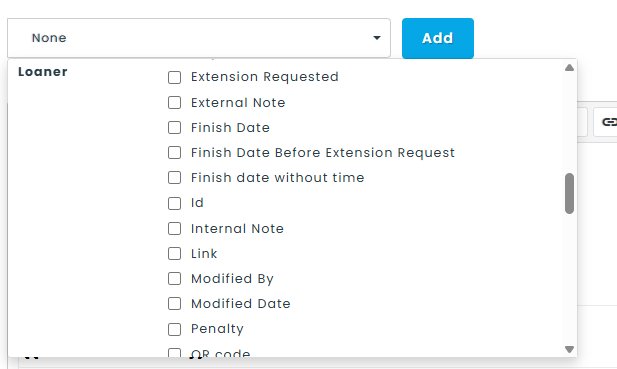
Some sections describe a list of elements — the items of a loan, the lines of a purchase order, the assets of a count. These offer two extra settings:
- Choice of Filters: restricts which elements appear in the list.
- Fields Inside Tag: fields repeated on every line of the list, distinct for each element — the title of the element, its quantity, and so on.
- Fields Outside Tag: aggregate fields computed from all the elements of the list, such as a total value. They are tied to the list by an identifier, so you can place them anywhere in the template.
Make your selections, then click Add.
4 – Shape the layout
The editor lets you build tables, paragraphs, apply colors and insert images. You can also switch to code view to work directly on the HTML, which is handy for fine-tuning column widths or spacing in an imported default template.
Images pasted into the editor are uploaded and stored automatically when you save.
5 – Sort order and permissions
Sort # determines the position of the template in the print menu, among the other templates of the same entity.
The Permissions section controls who can use the template once it is published. You can grant access by group, department or role, and add individual users for more granular access. Leave it empty to make the template available to everyone who can print that type of record. Click here to learn more about permissions.
Finish with Save & View to review the result, or Save & List to return to the template list.
Translate a template
A template can hold one version per language. From the action menu of a template, use Add english translation, Add french translation or Add german translation to create a version in that language; once a version exists, the same menu offers Edit for it.
At print time Hector automatically picks the version matching the language of the person printing, and falls back to the original version when no translation exists. The entity, the sort order and the permissions are defined once on the original template and shared by all its translations — you only write the content again.

Manage existing templates
The action menu of each template offers:
- Copy — duplicates the template, including its content and its permissions. Useful for building a variant without starting over.
- Deactivate — removes the template from the print menus without deleting it. Activate brings it back. Activating or deactivating applies to the template and all of its translations at once.
- Delete — permanently removes the template and all of its translations.
Use your template
From a record
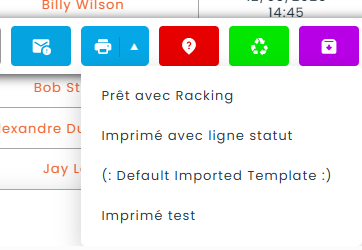
Open the record and use the Printing section of its action menu. The main print button still produces the standard layout; the arrow next to it opens the list of your custom templates, in the order defined by Sort #. Only active templates you have permission to use are listed.
For loaners, templates are offered under both Print and Detailed Print.
For several records at once
Select several records in a list, then use the print action of the batch menu and choose your template. Every selected record is rendered with that template in a single document, one page per record.
As an email attachment
A printout template can also be attached to a notification. In an email template, add a dynamic document attachment and select the printout template to use: Hector renders it as a PDF for the record concerned and attaches it to the outgoing email.
Configure your print settings
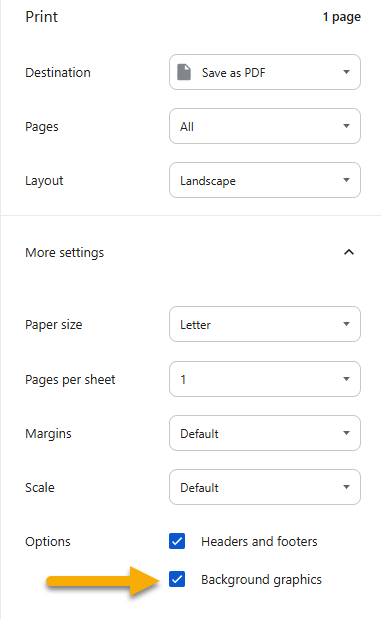
Printouts open in your browser’s print dialog. If colors and background shading are missing from the result, make sure the Background graphics option is checked in that dialog before printing or saving to PDF.
It is also worth checking the paper size and the margins there — a template designed with wide tables may need reduced margins to fit on one page.