Do you want Hector to calculate what your assets cost when they are assigned or loaned, show you what is left to bill, and create invoices for you?
The Location / Rentals module does exactly that. This guide explains why to use it, how to configure it, and how a rental works from the moment an asset leaves until it is invoiced: default rates, specific rates per category, part, asset, place or space, rentals on assignments and loans, the rental in progress, invoicing and importing rates.
🎯 Why use rental rates in Hector?
Assets that leave your stockroom have a cost, and that cost is easy to lose track of. Rental rates let you:
Bill your customers, projects or departments for the equipment they use, by the hour, day, week or month.
Always charge the best price automatically, with the Best-rate option.
See at any time how much a rental has cost so far and how much is left To bill.
Never bill the same day twice: Hector remembers up to which date each rental was invoiced.
Keep different rates per category, part or asset without having to enter them on every asset.
📋 Prerequisites
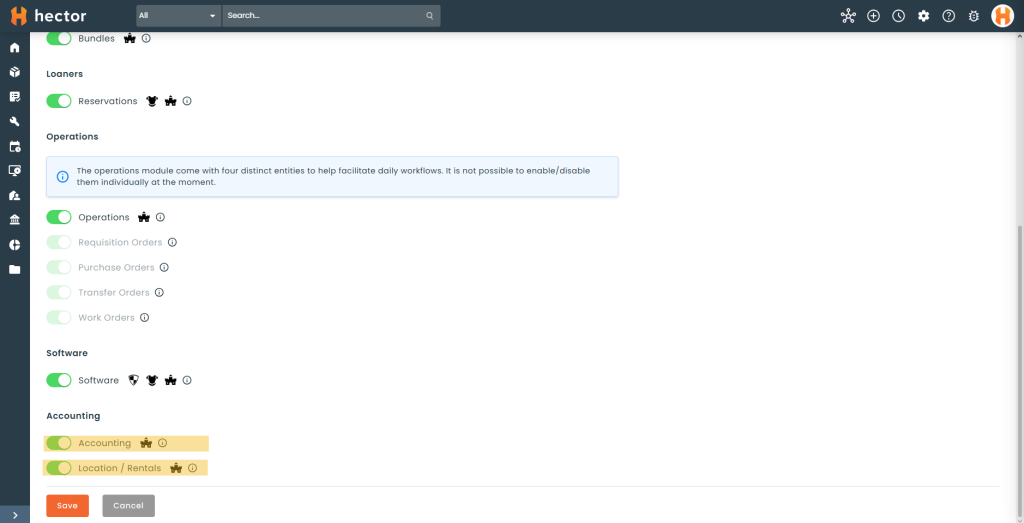
The Location / Rentals module must be available on your Hector plan and enabled on your instance (see Step 1).
To create invoices from rentals, the Accounting module must also be enabled.
You must have a role with the rental permissions. See the Permissions section at the end of this article.
ℹ️ Note: some names in this article (Part, Stockroom, Place, Space, Loaner, Invoice…) may be different in your Hector, depending on the terminology chosen for your instance.
🧠 How rental rates work
Rental rates apply in two situations:
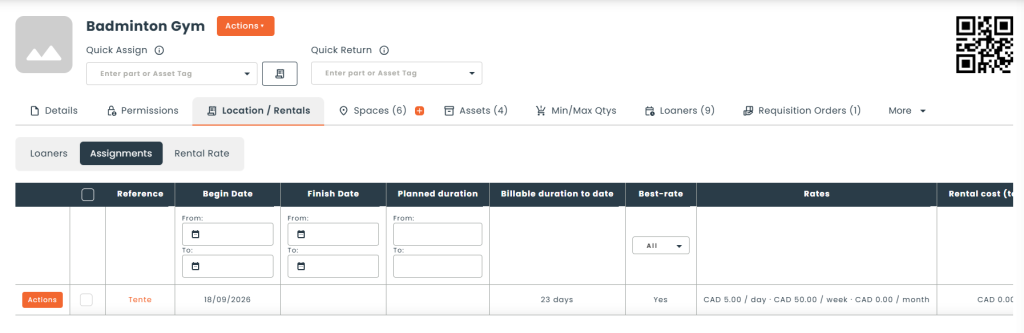
Assignments — an asset is moved out of a stockroom to a user, a place, a customer, a vendor or a contact. The rental is billed by the day, week or month.
Loaners — an asset, a place or a space is loaned through a reservation. The rental can also be billed by the hour.
When a rental starts, Hector takes a “picture” of the rental rate, the minimum charge and the billable days at that moment. This picture never changes afterwards: if you modify your rates later, rentals already in progress keep the rate they started with. Only new rentals use the new rates.
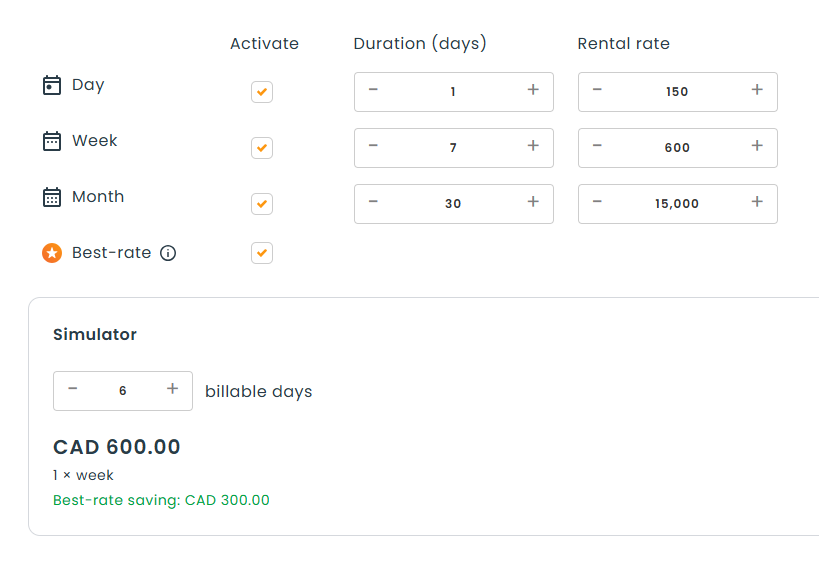
💰 Example of the best-rate
With a rate of $150 per day and $600 per week (7 days), an asset rented for 6 days is billed 1 week ($600) instead of 6 × $150 ($900).
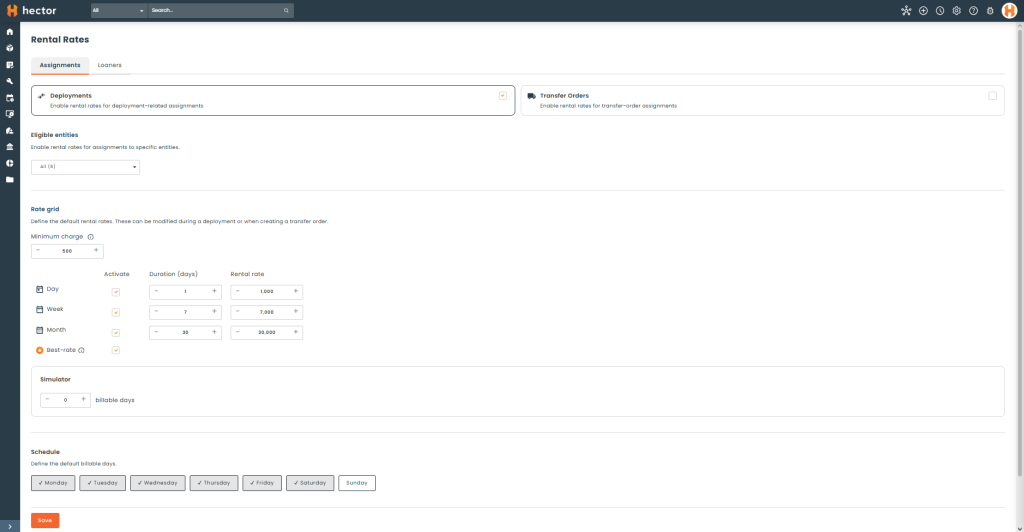
Default rates are used by every asset, place and space that does not have its own rate. Go to the Settings menu, then Rental Rates. The page is organized into two sections: Assignments and Loaners. Each one has its own rates and its own rules.
🚚 Assignments section
Deployments — activate rental rates for assignments made with a move.
Transfer Orders — activate rental rates for assignments made with a transfer order.
Eligible entities — choose the destinations that can be billed (user, place, customer, vendor, contact).
Rate grid — for each tier (day, week, month), check Activate, enter the Duration (days) and the Rental rate. These are the default rates; they can be modified during a move or when creating a transfer order.
Best-rate — automatically apply the cheapest tier combination. Requires at least two active tiers.
Minimum charge — minimum amount billed for a rental.
Schedule — choose the Billable days and add the Exception Days (closed days) that will not be charged.
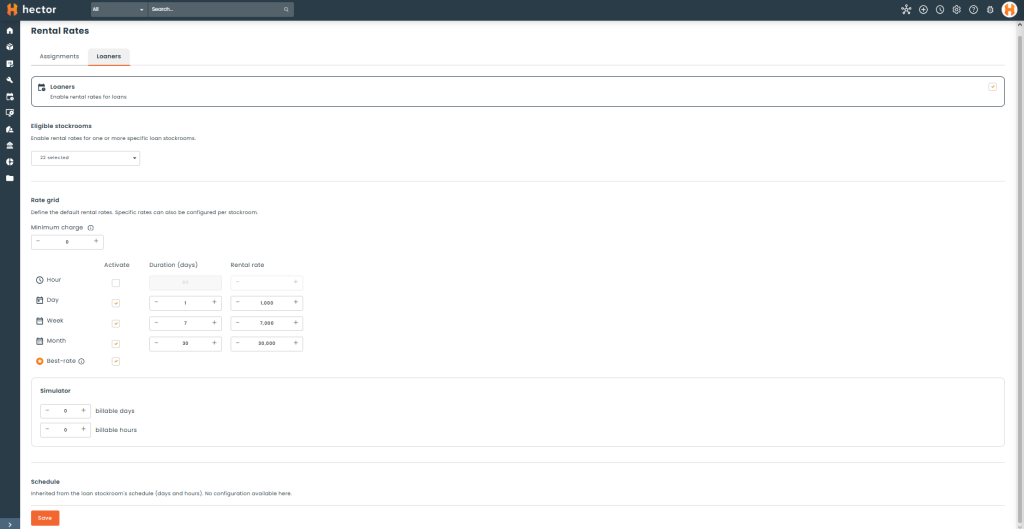
📦 Loaners section
Enable rental rates for loans — turns rentals on for loans.
Eligible stockrooms — choose the loan stockrooms where rentals apply.
Rate grid — same as for assignments, with an additional hour tier (its duration is entered in minutes).
Best-rate and Minimum charge — same as for assignments.
Schedule — for loans, the billable days and hours come from each stockroom’s schedule (see Step 5).
🧮 Simulator
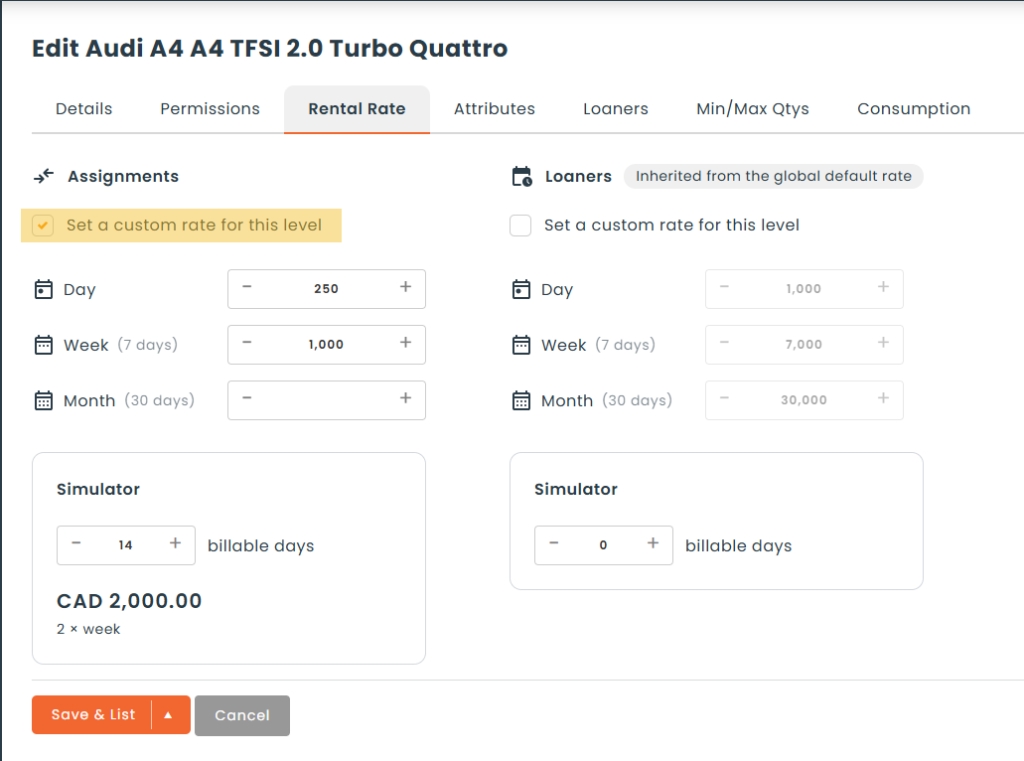
Under each rate grid, the Simulator lets you enter a number of billable days (or hours) and see right away the amount Hector will charge, the tiers used and the Best-rate saving.
Click Save at the bottom of the page when you are done.
ℹ️ Note: changes to the rates, the billable days or the closed days only apply to rentals created after you save. Rentals already in progress are not affected.
🏷️ Step 3: Set specific rates on a category, part, asset, place or space
By default, everything uses the default rates from Step 2. You can set a different rate at any level. Hector looks for a rate in this order and uses the first one it finds:
For an asset — Asset → Part → Category → Default rate.
For a space — Space → Place → Default rate.
For example, if you set a rate on the “Excavators” category, all excavators use it, except a part or an asset that has its own rate.
✏️ Set a specific rate
Open the category, part, asset, place or space and click Edit.
Open the Rental Rate tab.
Turn on Set a custom rate for this level.
Enter the amounts for each tier. Use the Simulator to validate.
When the option is turned off, the tab shows where the rate comes from, for example Inherited from Excavators or Inherited from the global default rate.
💡 Tip: to make an item free of charge, turn on Set a custom rate for this level and leave the amounts empty. Turn the option off to go back to the inherited rate.
ℹ️ Note: places and spaces can only be loaned, not assigned. Their Rental Rate tab only shows the loan rates.
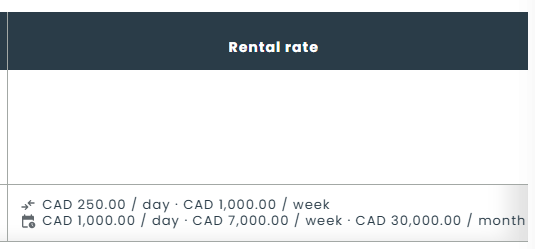
ℹ️ Note: the rental rates are also available to add to every related grids for a faster view without having to open every entity one by one.
🚚 Step 4: Rental on assignments
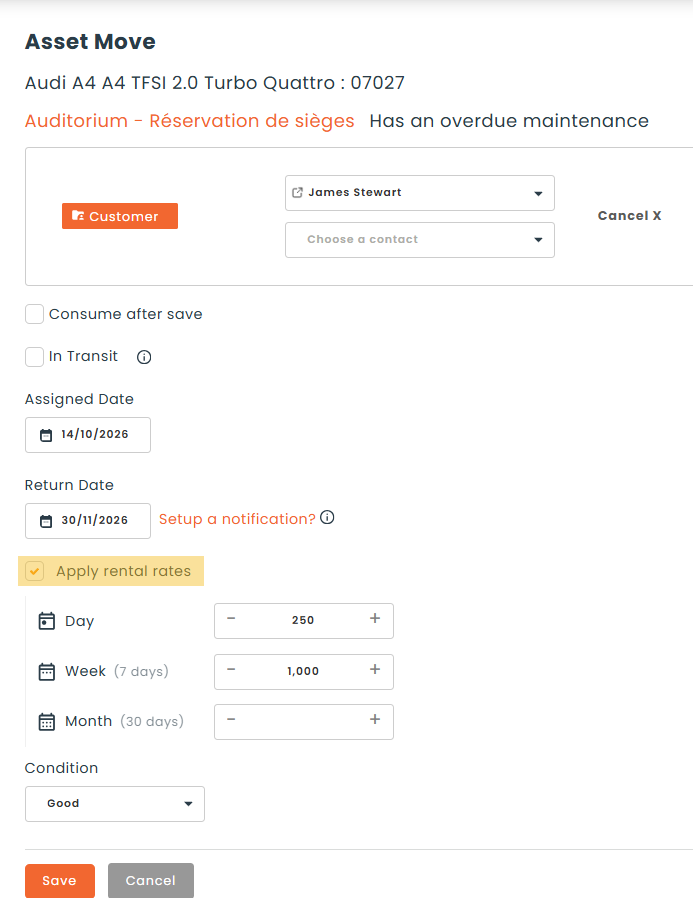
When you move an asset, the move form shows the Apply rental rates option.
Rate — filled in automatically with the asset’s rate, with a label showing where it comes from.
Editing — depending on your role, the rate is hidden, read-only or editable for this assignment only.
Opting out — uncheck Apply rental rates if this assignment must not be billed.
🔀 Other ways to assign assets
Bulk move, Move multiple, Assign list and Quick assign — only the Apply rental rates checkbox is shown. Each asset gets its own rate (asset, part, category or default).
Transfer orders — when rentals are activated for transfer orders, the rate is applied automatically at delivery.
Mobile app and integrations — the rate is applied automatically when a rate exists for the asset.
🏁 When does the rental end?
A rental stops automatically as soon as the asset is moved again: returned to a stockroom, or moved directly to someone else. If the assignment has a return date, billing stops at that date.
ℹ️ Note: moving an asset to a stockroom or a racking is an internal transfer: it is never billed.
📦 Step 5: Rental on loans
When a loan is created from an eligible stockroom, Hector applies the rental rate automatically to each line of the loan. It works the same way whether the loan is created by a staff member, from the public catalog, by import or by integration.
🛒 Show the rates in the catalog
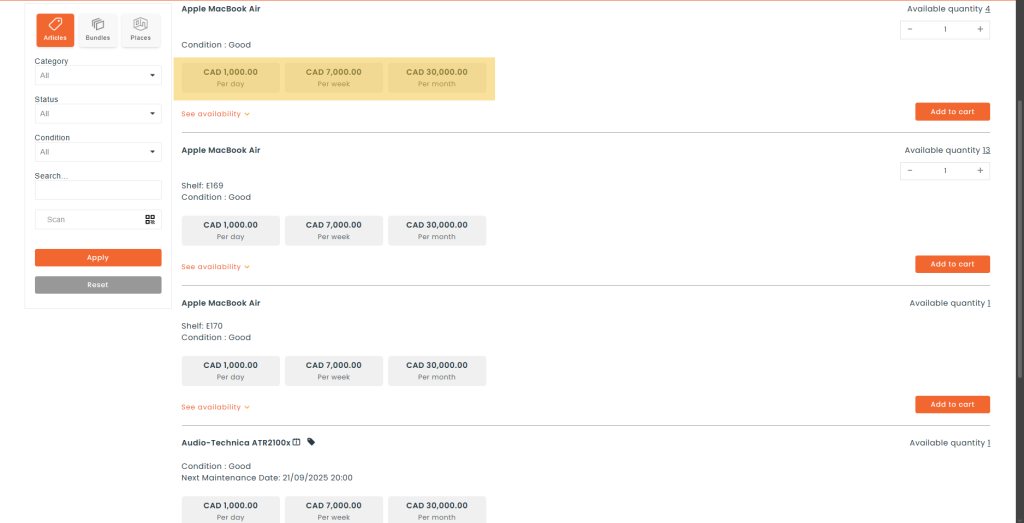
You can show the rate and the Rental Cost for the selected period in the loan catalog and in the cart.
Open the stockroom and click Edit.
In Fields to Display, select Rental rate.
Click Save.
📅 Billable days for loans
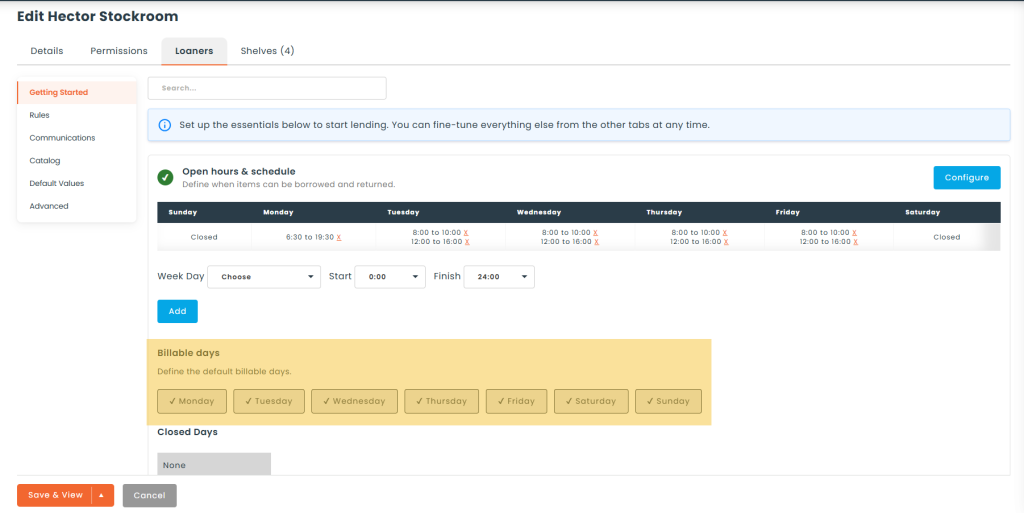
Each loan stockroom uses its own schedule. When the module is active, the stockroom’s schedule shows a Billable days section where you choose the days that are charged. The stockroom’s Closed Days are not charged.
Same-day loan — billed by the hour, even on a closed day.
Loan over several days — billed by the day, without the closed days.
✏️ Change the rate of a loan line
In the loan’s item list, open the action menu of a line and click Edit to adjust its rate. The new rate applies from now on; what was already billed does not change.
🖨️ Custom printouts
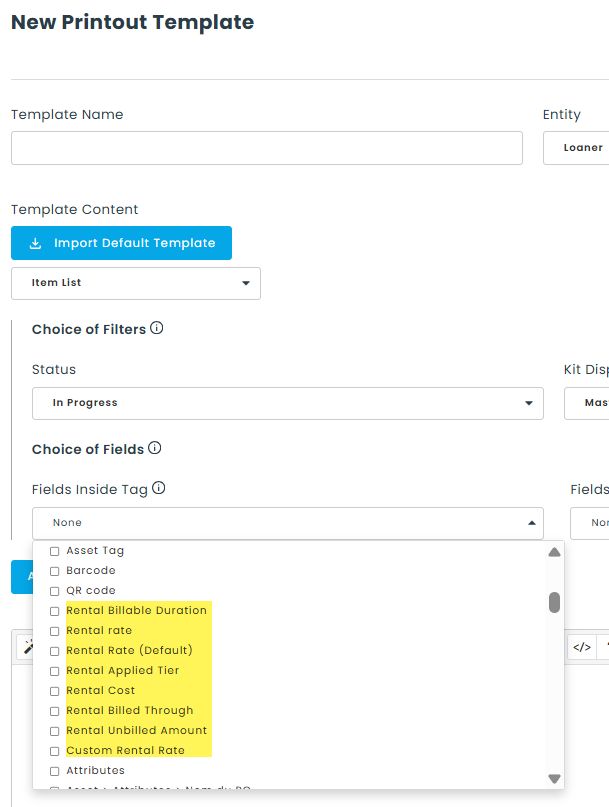
When creating or editing printout templates for loaners, rental data is now available to add to the template.
📊 Step 6: Follow a rental in progress
🚜 On the asset
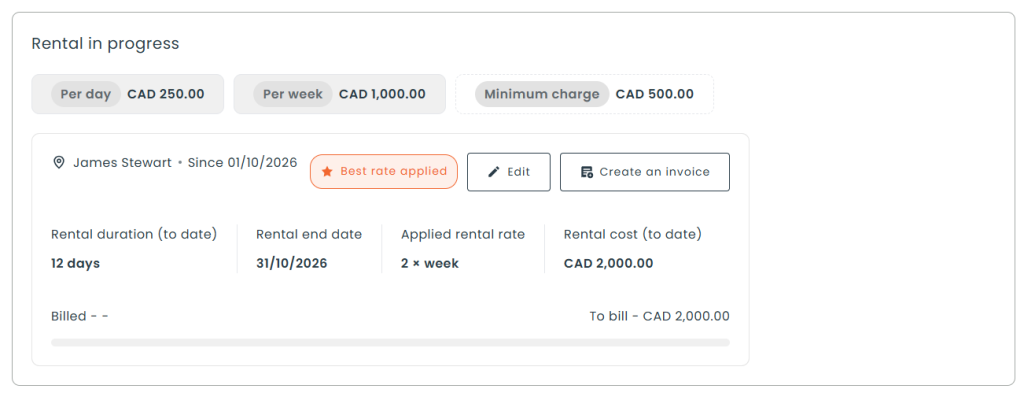
In the asset’s Details tab, the Rental in progress tile shows:
Rates — per hour, day, week or month, with the Best rate applied badge when applicable.
Rental duration (to date), Rental end date, Applied rental rate and Rental cost (to date).
Billed / To bill — a bar showing what was already invoiced and what is left to invoice.
Editrate and Create an invoice buttons.
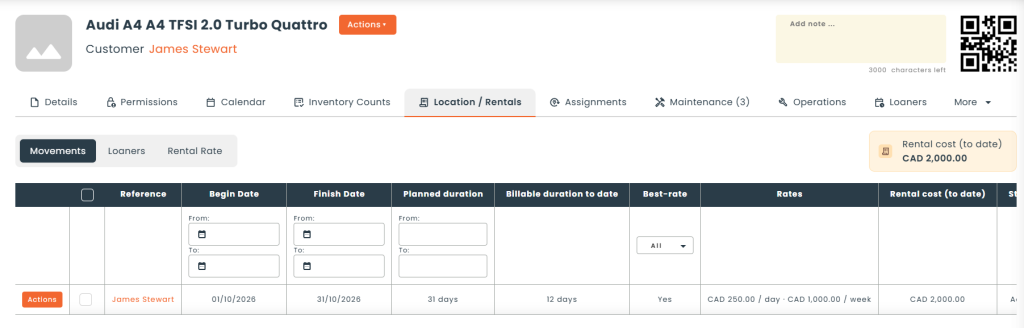
The asset’s Location / Rentals tab contains three sub-tabs:
Movements — the rentals from assignments.
Loaners — the rentals from loans.
Rental Rate — the rate that applies to this asset and where it comes from.
Each list shows the period, the duration, the rate, the cost, the billing status and the status. Use the Unbilled only / Billed only filters and the action menu of each line (Edit rate, Create an invoice). A movement from a transfer can be cancelled as long as it has not been billed.
🏢 On places, spaces, users, customers, vendors and contacts
These records also have a Location / Rentals tab listing the rentals linked to them (for a place: Loaners, Assignments and Rental Rate). The summary shows the Active Rental Assignments, the Ongoing Rental Cost and the Unbilled Rental Cost.
💡 Tip: the Ongoing Rental Cost and Unbilled Rental Cost values are also available in printouts and email templates.
🧾 Step 7: Create an invoice
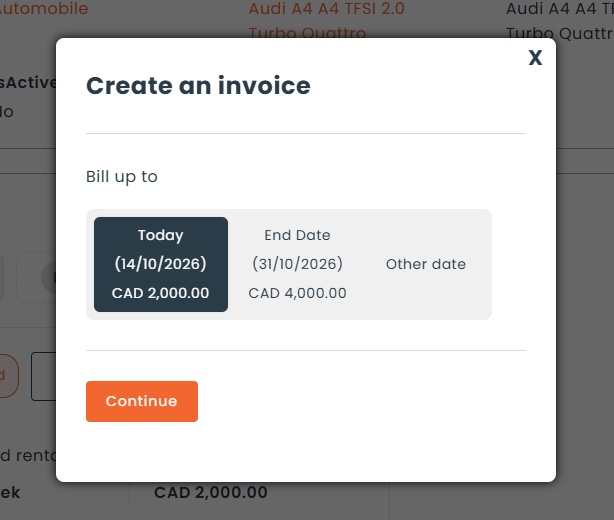
Click Create an invoice from the Rental in progress tile, from the action menu of a rental, or from a loan. A window asks you up to which date to bill (Bill up to):
Today — bill everything up to now.
End Date — bill up to the planned end of the rental (the whole period in advance).
Other date — for example, the end of the month.
Each choice shows the amount that will be billed. Click Continue to open the invoice.
Invoice lines — one line per tier used, for example “Rental (week)” and “Rental (day)”.
Billed through — Hector remembers this date. The next invoice starts exactly where the last one ended, so the same day is never billed twice.
Several rentals — if they are billed to different parties, the invoice is addressed to the first one.
ℹ️ Note: an invoice saved as a draft also counts as billed. If you delete that draft, the rental is not automatically put back as “to bill”.
📆 Changing dates after billing
Once a rental has been invoiced, its assignment date can no longer be changed, and the return date cannot be set before the Billed through date.
📥 Import rental rates
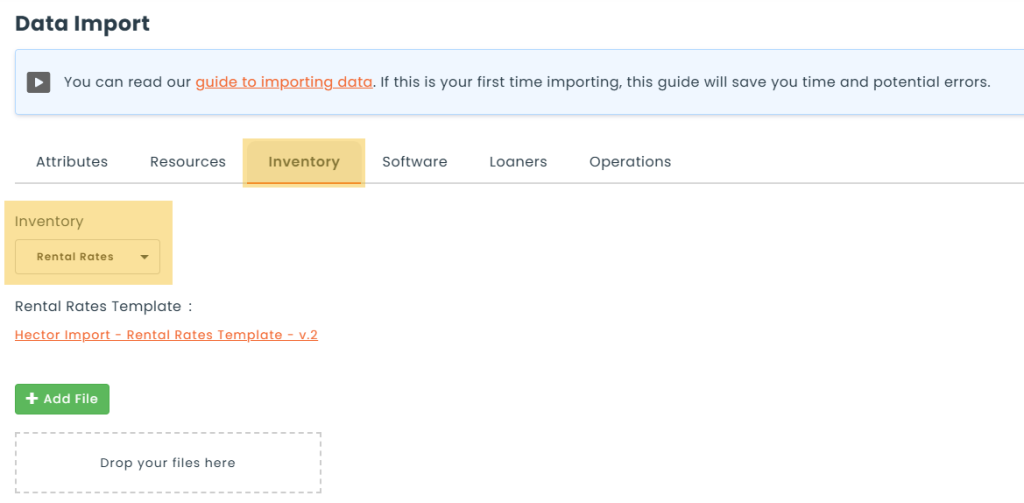
To set many rates at once, go to Settings > Data Import and download the Rental Rates Template. Each line sets the rates of one category, part, asset, place or space, for the Assignment or Loaner context.
Empty tier — leave a tier empty if it does not apply.
Hour tier — only applies to the Loaner context.
RestoreInheritance — set it to Yes and leave the amounts empty to put an item back on the inherited rate.
🔐 Permissions
Access to rental rates is controlled by the following role permissions under Settings > Roles. When the module was added, existing roles automatically received permissions based on what they could already do; we recommend that you review them.