Need to update multiple assets at once without editing them one by one? This article walks you through how to export your asset grid to Excel, identify which fields you can change, and import your updates back into Hector — saving you time and reducing manual entry errors.
1. Exporting
Hector allows you to export your asset grid to an Excel file, make changes directly in the spreadsheet, and import it back to update your data in bulk.
Exporting to Excel
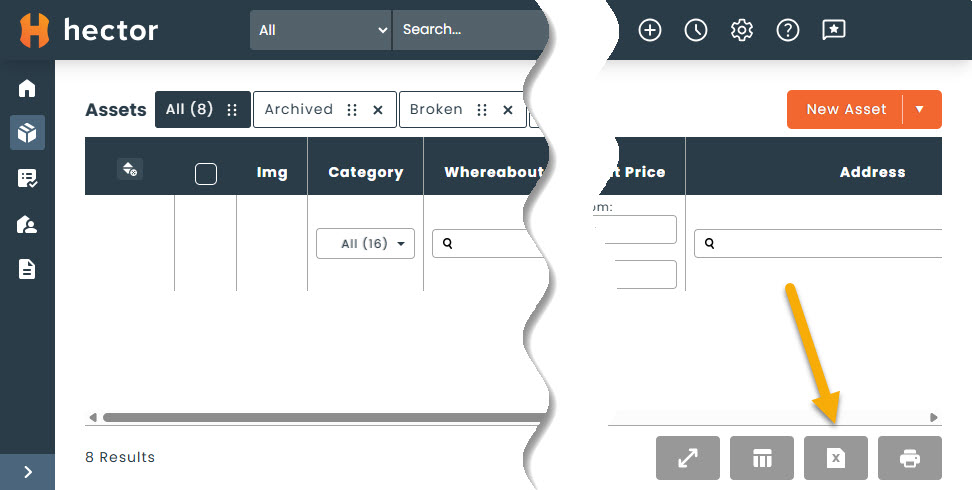
From the asset grid, click the Export button to download an Excel file containing the currently displayed columns and filtered results.
Understanding the Column Colors
Once you open the exported file, you will notice that columns are color-coded:
Orange columns — These fields are editable. You can modify the values in these columns and they will be updated when you import the file back into Hector.
Gray columns — These fields are read-only. They are included for reference purposes only and cannot be modified through the import process.
Making Changes
Edit the values in any orange column as needed. You can update multiple rows at once — this is the fastest way to make bulk changes to your assets. It is important to note that if you provide invalid data for a column, it will be ignored during the update task.
Tip: Do not rename, reorder, or delete any columns in the spreadsheet. Hector uses the column headers to match the data during import.
2. Importing
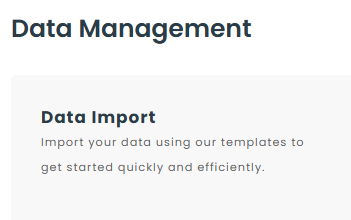
Requirements: To import your changes, you will need to have access to the Settings > Data Import page. Please see your administrator if you don’t have access to this page.
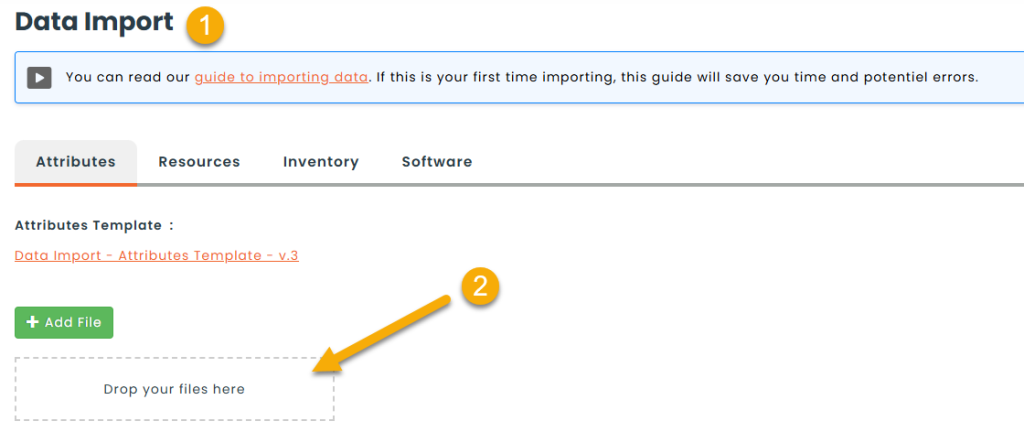
Once your changes are ready, save the Excel file and use the Import function in Hector to upload it. Hector will validate the contents of the file, display any errors. If everything is good, you can start the import.
Hector will read the file and update the editable fields for each asset based on the data in the spreadsheet.
Note: Only values in orange (editable) columns will be processed during import. Any changes made to gray (read-only) columns will be ignored.
3. Summary
The export and import feature is a powerful way to manage your assets in bulk. Remember: edit only the orange columns, keep the spreadsheet structure intact, and import your file back into Hector when you’re done.
If you have any questions or run into issues, don’t hesitate to reach out to our support team.