
Step 1
Navigate to the software section from the Software menu. Once inside, you will see a list of software in your instance. If you haven’t created any software yet, you can do so using the New Software button.
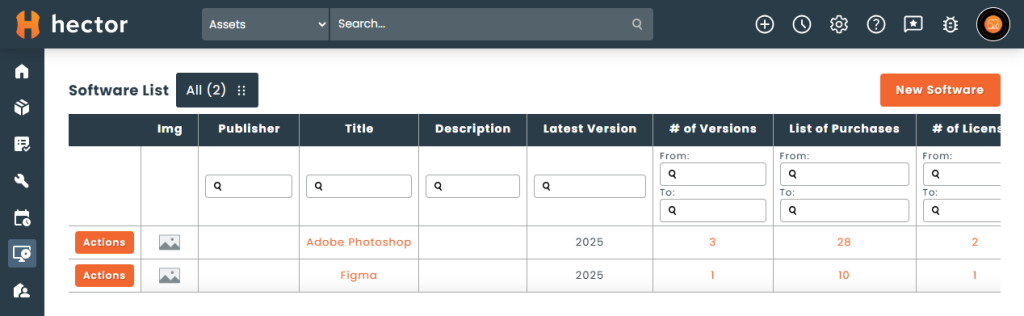
The list has an All tab, and a Discovery tab that appears once an integration has imported applications waiting to be associated with a software. If you do not synchronize applications, you will only ever see the All tab.
It is important to note that you can also create attributes to better represent your needs.
Step 2
Once inside the new software screen, you will find the fields that describe the software you are adding, as well as the people who use it in your organization.
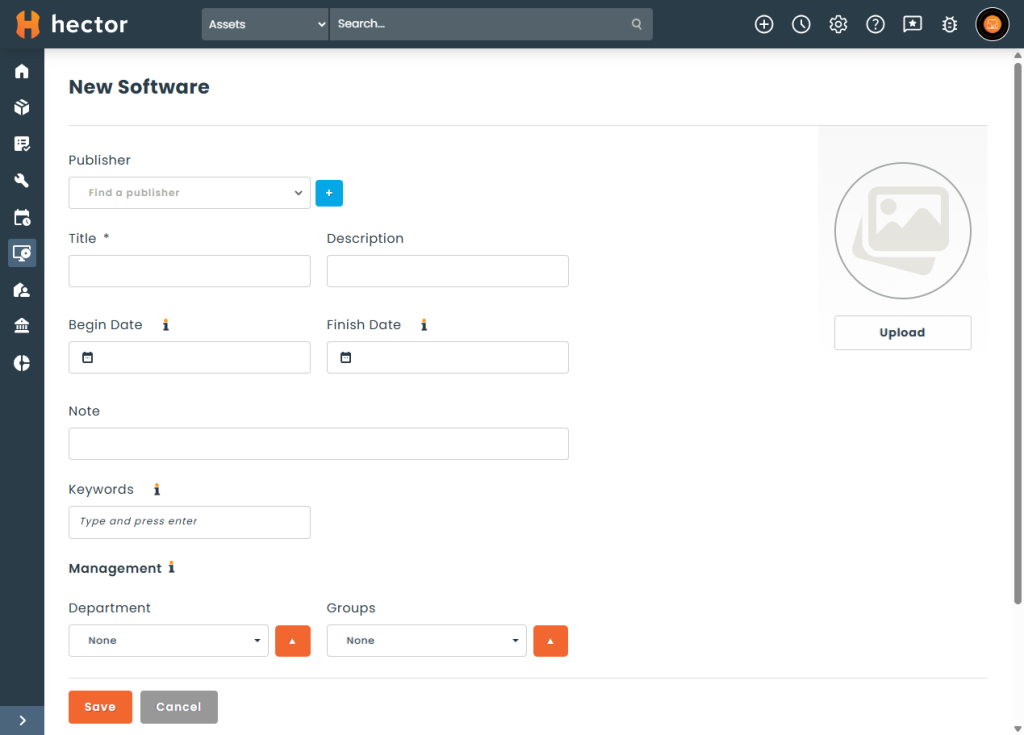
- Publisher : The publisher of the software, chosen from your vendor list.
- Title : The name of the software. This field is required.
- Description : A description of the software features.
- Begin date : When the software entered service in your organization.
- Finish date : When the software left service in your organization.
- Note : Any additional information regarding the software.
- Keywords : Extra terms used to widen the application matches pulled in from your integrations. Optional, and only relevant if you synchronize applications.
- Department : Departments that use the software in your organization.
- Groups : Groups that use the software in your organization.
- Picture : An icon or logo for the software, shown on the software card and on related grids.
- Documents : Add any relevant files for the software.
If you have created custom attributes for the Software entity, they appear below the standard fields. Once all fields are filled, you can click on the Save button.
Step 3
After creating the software, you will see a card including the details you entered, along with tabs for Versions, Purchases and Licenses. A Discovery tab also appears on the edit form when an integration has imported applications that match this software.
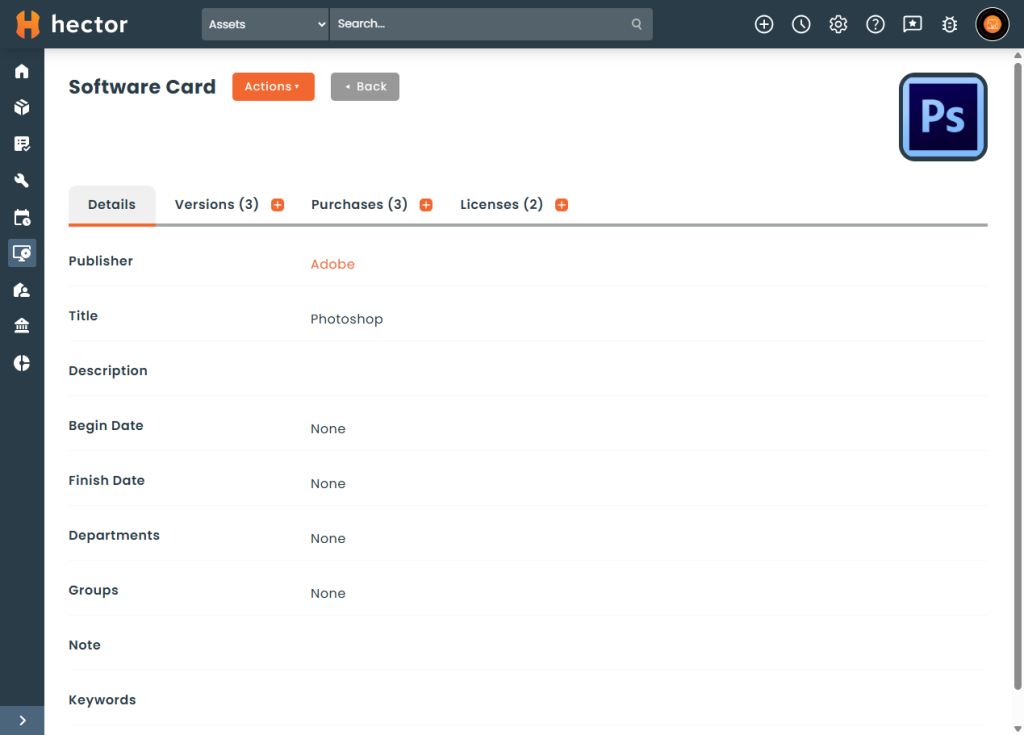
To purchase a software, it is essential to have a version per software. If you only have one version for this software, you can enter main as a version number. In the example below, we added the version 2016 for Microsoft Office.
To add a version, open the Versions tab and click on the + next to the tab name.

Fill in the information on screen.
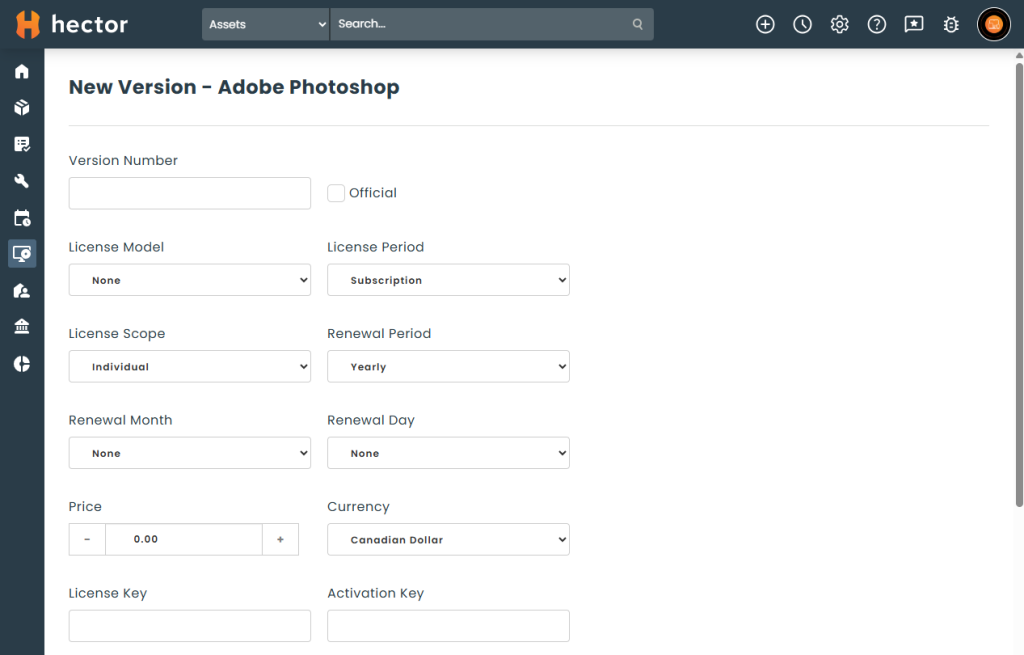
- Version number : Enter a name or number for the version.
- Official : The official flag allows you to indicate this is an approved version of the software used in your organization. You can have more than one official version.
- License Model :
- User : The license is assigned to a single user.
- Floating : The license is drawn from a pool and can be used by multiple users or devices.
- Device : The license is assigned to a device (see inventory assets).
- License Period :
- Perpetual : The license is perpetual and is owned by your organization.
- Subscription : The license is part of a subscription and does not belong to your organization.
- License Scope : Whether the entitlement is Shared between several people or Individual to one. This is separate from the license model, which records how the license is allocated.
- Renewal Period : Subscriptions only. How often the subscription renews: daily, weekly, monthly, yearly, or every two to five years.
- Renewal Month, Renewal Day, Renewal Start Year : The calendar the renewal falls on. Only the parts the chosen period can express are shown — a monthly renewal asks for a day, a yearly one for a month and a day, and a multi-year one also for the year the cycle starts in.
- Price and Currency : The cost of a single license for this version. The currency selector appears when more than one currency is configured in your instance.
- Expiration Date : The expiration date for this version. Useful for subscriptions.
- License Key : The license key for this version. If this version of the software has multiple activation keys, you can enter them when assigning licenses for this version.
- Activation Key : The activation key for this version. If this version of the software has multiple activation keys, you can enter them when assigning licenses for this version.
- Language : The language of the software purchased.
- Note : An internal note regarding this version of the software.
- Documents : Relevant files for this version of the software, which could be release notes, new features or other information from the vendor.
Custom attributes for the Software Version entity appear below the standard fields. Once the version is created, it will be displayed in the table of versions for this software, and its view page will also report the number of licenses owned and the number currently in use.
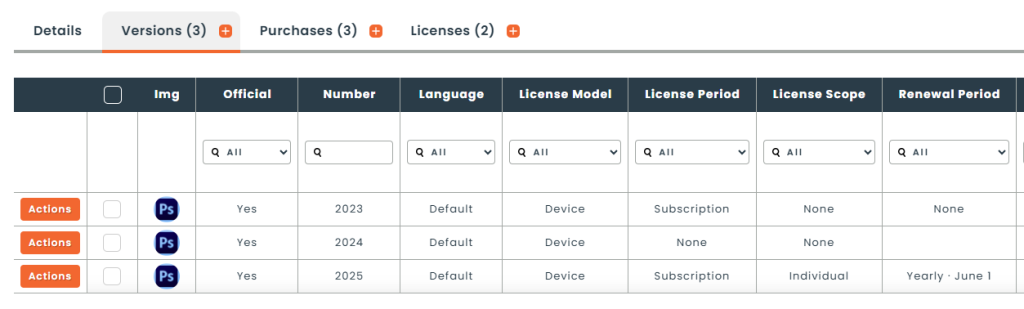
A version can be viewed, modified, purchased, assigned or deleted with the help of the action menu.

Merging versions
When application synchronization has created near-duplicate versions, you can consolidate them. Tick two or more rows in the version table and choose Merge, then pick the version to keep. The licenses of the other versions move onto the one you keep, and their version numbers are retained as aliases, so a later synchronization resolves an old number onto the surviving version instead of recreating it.
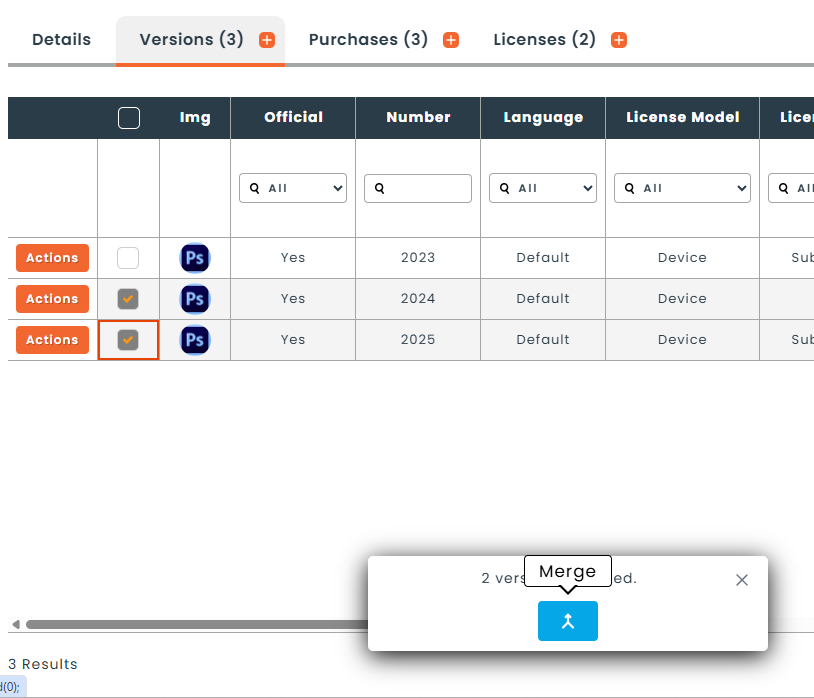
Merging requires the Merge permission on Software Version. See Management of Software module permissions.
The next step is purchasing a software. You can read more about this step in our main article on software purchases.