
When using Microsoft Intune with Hector, it is possible to synchronize software licenses as well as devices. This can help you track installations against your purchases, in order to be compliant with terms and agreements, as well as any contracts that cover software use.
Getting Started
In order to synchronize software licenses with Hector, you’ll need to make sure that your Intune integration is activated and configured. You can find out more from our Intune integration setup guide.
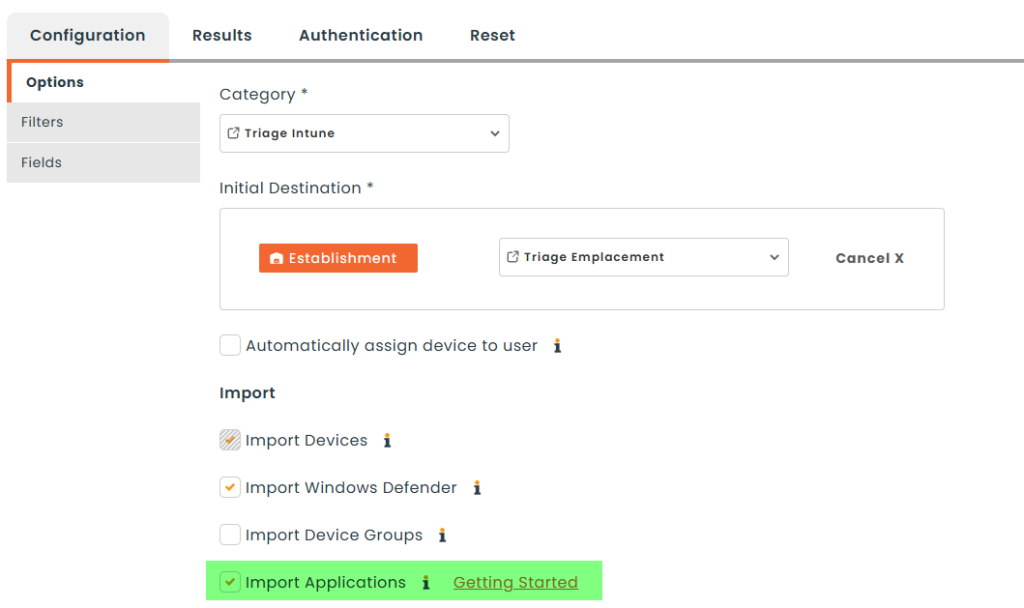
Once Intune has been set up, you’ll want to check the Import Applications checkbox in the Options tab, under the Import section.
Synchronizing Apps
Once you’ve turned on importing applications, you’ll need a full app synchronization to occur. You can manually trigger this step from the Integrations page, or simply wait until the next day, as all integrations run once a day during the evening.
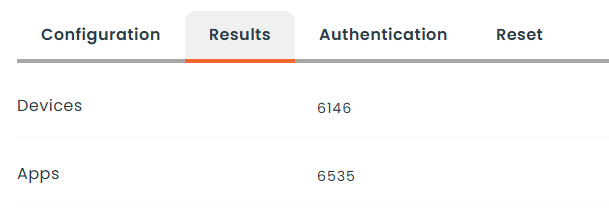
You can check how many records have been synced so far using the Results tab in the Intune integration settings.
Once the apps have been synced, you will need to associate them to software. This step is necessary to prevent unnecessary apps from being created and associated to devices, polluting the software list with licenses you are not looking to track. In other words, you’ll be creating the list of software you want to track, and Hector will only look for those software when creating licenses.
Creating Software
If you haven’t already, you’ll need to create the list of software you want to track. In our example, we’ll use Adobe Acrobat, as it is a pay to use software, and knowing which devices have licenses will be important to manage budget and costs.
We’ve filled out the form with three pieces of information.
- Publisher : Adobe
- Title : Acrobat
- Keywords : Pro
The keyword is optional, but it can help pull in extra results from the Intune App synchronization.
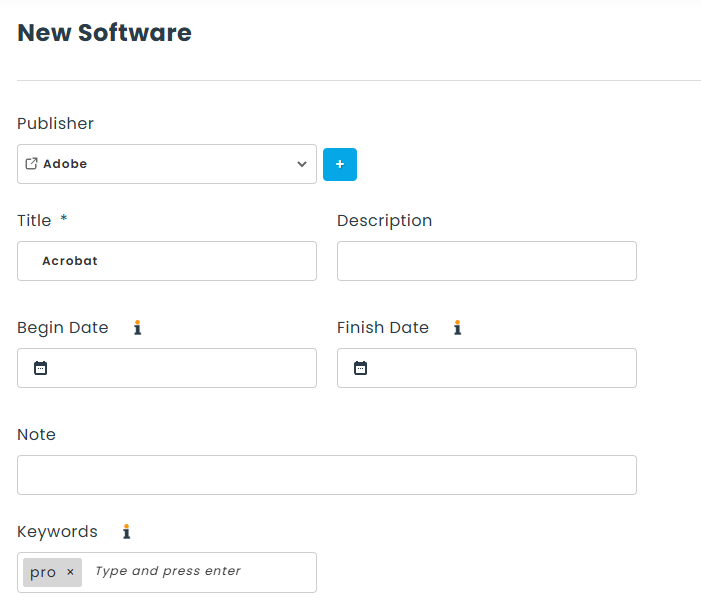
Click on the Save button. The rest of the fields can be ignored for our example.
Associating apps on the Discovery tab
Once you’ve created the software, you can edit it and navigate to the Discovery tab. Depending on the Publisher, Title and Keywords, the number of available apps is shown on the tab itself. In our example, we have 32 matches based on the information we provided.
The grid lists the different apps, their versions, their corresponding licenses, and the number of installations for each line. To associate an app with the software, tick one of the two checkboxes at the start of its row. The two are mutually exclusive, and leaving both clear means the app is not associated at all.
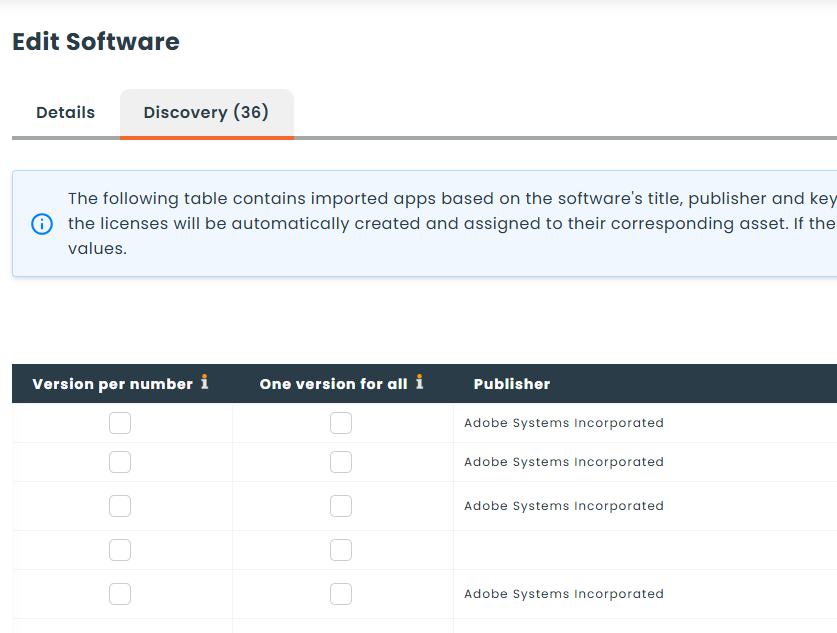
- Version per number : Hector creates a version for each version number it discovers. Choose this when the versions matter to you, because you license or report on them separately.
- One version for all : Every discovered version is folded onto a single version of the software. Choose this for software you license per seat regardless of release, where a version per build would only add noise.
It is important to note that there will be matches that don’t correspond to the software. We can ignore these by simply leaving both checkboxes clear. You can choose to associate all the apps now, or progressively associate them.
Once you’re finished, click on the Save button. Hector will create the versions and licenses based on what was selected. You will now be able to track all the Adobe Acrobat licenses in your environment, by device and by version.
You can also create purchases to record each time you purchase licenses for a specific software or even by version over time. This will help you report Licenses Used versus Licenses Owned in order to stay compliant with each publisher.
Maintenance and Data Cleansing
New apps will be assigned automatically to the devices as they are installed. It is not necessary to navigate to the software card once your associations have been configured.
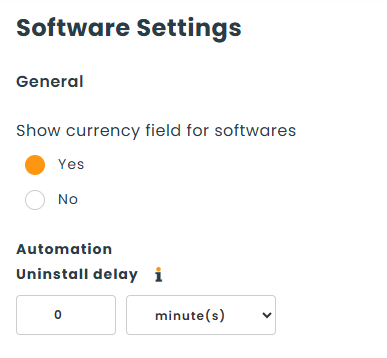
When an app stops being reported by a device, its license is removed after the Uninstall delay configured in Settings > Software > Automation. The delay is yours to choose: set it to the number of days a device may go quiet before you treat the app as gone, or leave it at 0 to keep licenses on the device until you remove them yourself.
When a synchronization turns up apps that are not yet associated, the Discovery tab on the Software list shows the outstanding count beside its name, and the App Associations graph on your dashboard lists the software affected. It is not necessary to perform this task each day, but time should be set aside to review the list.

Application synchronization is also the main source of near-duplicate versions. When you find several versions that should be one, tick them in the version table of the software and choose Merge. Their licenses move onto the version you keep, and the old version numbers are retained as aliases so a later synchronization resolves onto the survivor instead of recreating them.
Recap
In this guide, we’ve seen how to set up Software synchronization with Microsoft Intune, how to create a list of software that is important for your organization to track, how to associate the imported apps with each software, and how to keep that data clean over time.
If you want to learn more about how this feature can benefit your organization, please reach out to our sales team for more information.