
You must be an administrator to perform these steps.
Step 1 — Turn the module on
Navigate to Settings and then click on Modules. Switch on Software. The module is available on the Shield, Armor and Castle plans.

While this toggle is off, the Software menu is hidden for everyone in your instance, no matter what their role allows.
Step 2 — Grant access by role
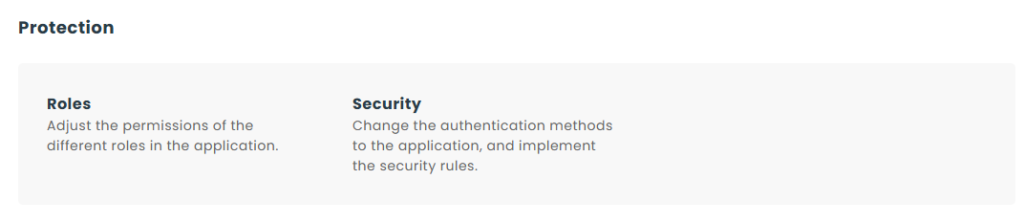
Software access is granted per role, not per user. Navigate to Settings, then Roles, open the role you want to change, and select its Software tab.
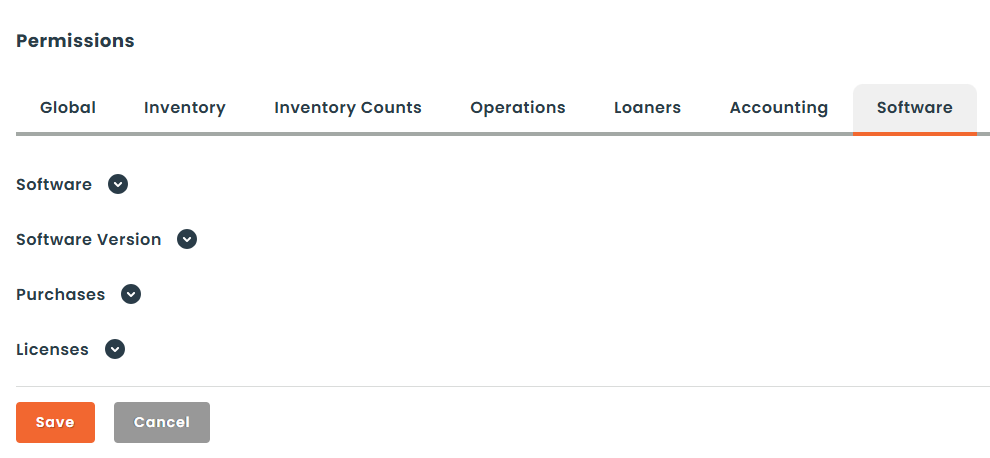
Four permission groups are listed:
- Software : View, Create, Edit, Delete, and License Key. Clear License Key to let a role work with software without seeing the keys themselves.
- Software Version : View, Create, Edit, Delete, and Merge. Merge is what allows a role to consolidate duplicate versions.
- Purchases : View, Create, Edit, Delete. Without View, the Related Purchase field is hidden when assigning a license.
- Licenses : View, Create, Edit, Delete.
Grant a role View only if it should be able to read the module without changing anything. A user assigned to that role picks up the rights on their next sign-in. For more on how roles work in general, see our guide to default roles in Hector.
Step 3 — Who may change the module’s settings
Access to the Settings > Software page is a separate permission, found in the Settings section of the role. It also controls who may change which columns appear on the Software, Licenses and Purchases grids, so grant it only to the people who look after the instance.
Step 4 — Giving end users their own list
If you want people to see the software assigned to them without opening the module itself, enable the workspace option Software: My Software on their role. It adds a My Software page listing their own licenses, with no access to the rest of the module.
What the Software settings page is for
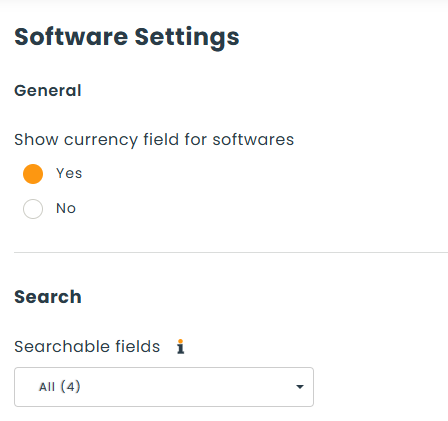
The Settings > Software page is configuration rather than access control. It holds:
- Whether prices in the module show a currency symbol.
- Uninstall delay : How long an application may go unreported by a device before its integrated software license is removed from it. Enter 0 to keep licenses on the device until they are removed manually. This section only appears when the Intune or MECM integration is active.
- Which fields Find searches when looking for software.
Step 5 — What a user without access sees
A user whose role has no Software permissions has no Software menu at all. Following a direct link to a software page returns the following message instead of the record.