Step 1
You can assign licenses and seats to users, inventory assets, stockrooms and places in order to track software usage in your organization. This is very important in order to know if you are being compliant with your software usage.
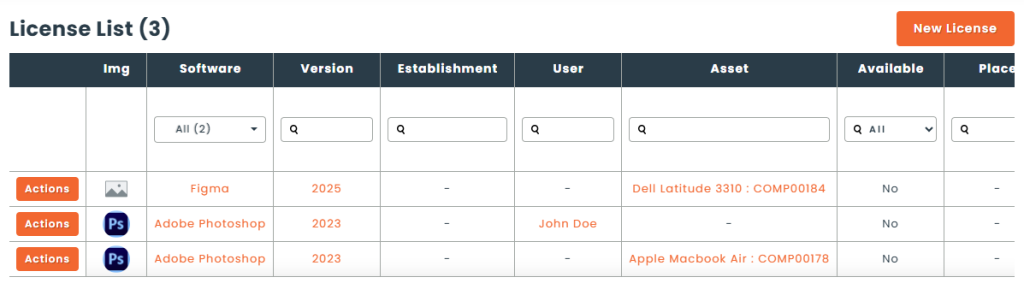
You can create a license with the New License button from the Licenses page, or use the Assign option in the action menu of a software or version.
Step 2
Choose the software and version you are assigning from. The License Pool then shows how many seats remain — the number purchased less the number already installed — or Unlimited if a purchase was recorded with a quantity of 0.
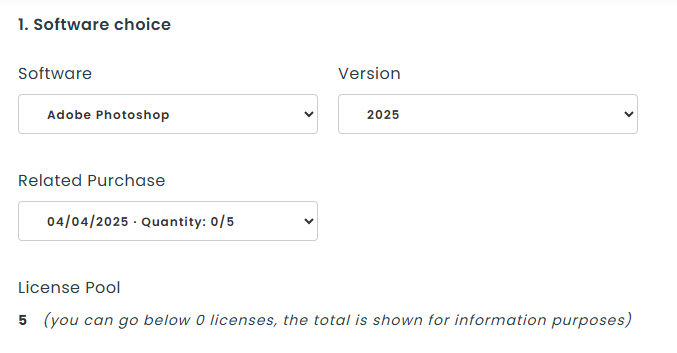
If the version has recorded purchases, Related Purchase lets you tie this license to the specific purchase it is drawn from. This is useful when a version was bought in several batches and you need to report per contract. Only purchases belonging to the selected version are offered.
How many licenses your save creates
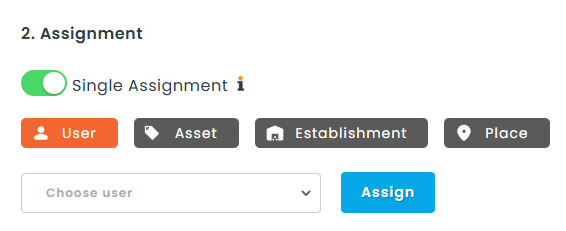
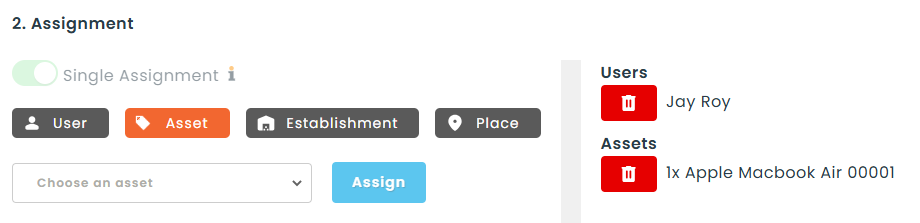
The Single Assignment toggle decides this. It can only be set while the license is new, and it locks as soon as you add your first assignment.
- On (the default) : One license record, linked to at most one of each type. Use this when a single entitlement covers a person and the device they use it on — one seat, one license, several links.
- Off : A separate license for every entity you add, and you can add as many of each type as you like. Ten users selected means ten licenses, and ten seats consumed from the pool. Use this to hand out seats in bulk.
Choosing what the license is assigned to
Switch between User, Asset, Stockroom and Place, then use the Assign button to add each one. Everything you have selected is listed by type below, so you can review it before saving.
An example of an assignment to an inventory asset is when a license is assigned to a computer, which is represented by an inventory asset in your inventory. Assigning to a stockroom is how you account for seats you hold but have not handed out yet.
Afterwards, you can provide an installation date, enter a license or activation key if they differ from the ones entered on the version, and add a note, custom attributes or documents if you use them. Click Save to complete the assignment, or use Save & new or Save same to keep assigning.
Step 3
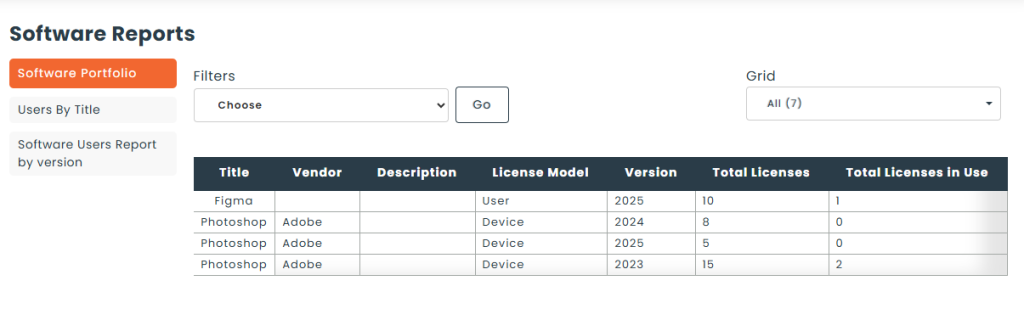
From the reports section, you can track the number of licenses owned versus the number of installations with the help of the Software Portfolio report.