
Step 1
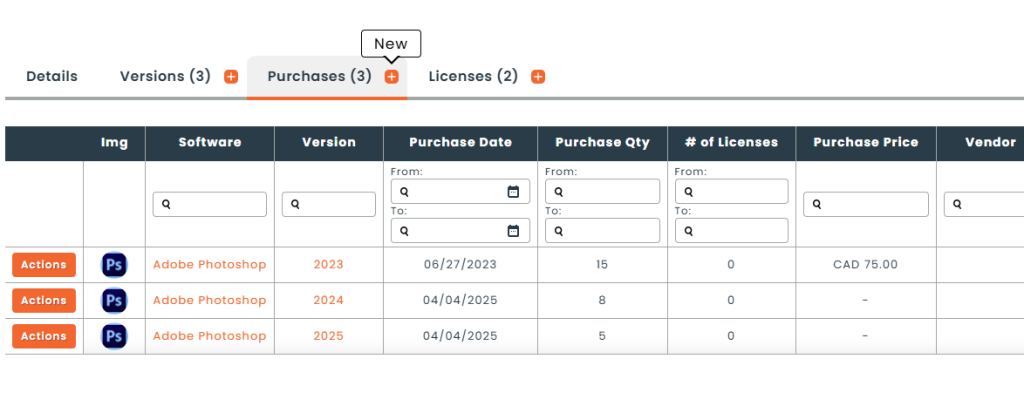
There are a few different ways to purchase software in Hector. You can do so from the action menu of a software or software version, or use the New Purchase button found on the software purchase page.
Step 2
When purchasing a software, you will need to fill in the required information.
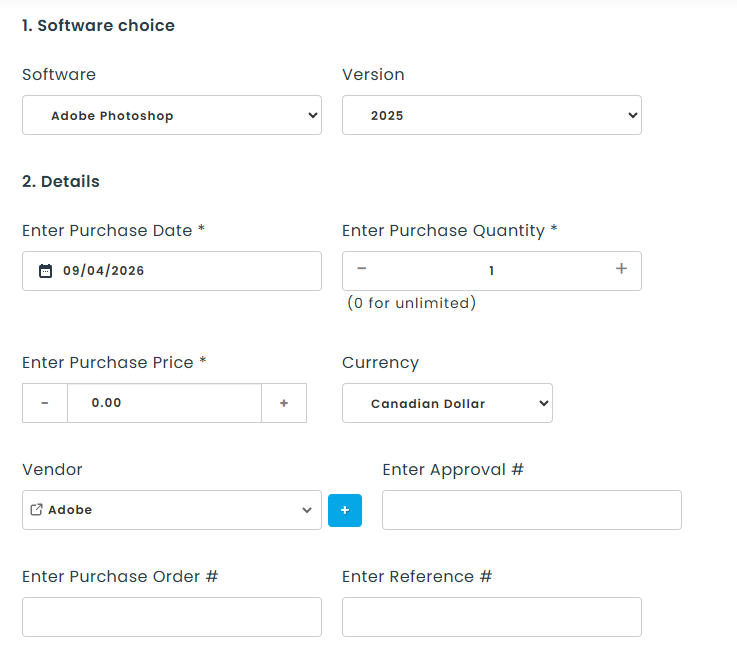
- Software : Choose the software you wish to purchase.
- Version : Choose the version of the software you wish to purchase, or type a new version number and Hector will create it for you.
- Purchase Date : Enter the purchase date.
- Purchase Quantity : Enter the number of licenses or seats purchased. Enter 0 for an unlimited entitlement, such as a site license; the license pool will then read Unlimited rather than a remaining count.
- Purchase Price : Enter the price of each license.
- Currency : Enter the currency.
- Vendor/Reseller : Enter the vendor or reseller of the software.
- Approval # : If you have an internal approval number, you can enter it here.
- Purchase Order # : If you have an internal purchase order number, you can provide it here.
- Reference # : If the vendor has provided a reference number, you can enter it here.
- License Key : The license key supplied with this purchase, if it differs from the one held on the version.
- Activation Key : The activation key supplied with this purchase, if it differs from the one held on the version.
- Note : Enter a note with any additional information for your purchase.
- Documents : Add an invoice, proof of purchase, license files, or other important files linked to your purchase.
Above the form, License Pool shows what the chosen version currently has left, and Purchase History lists the purchases already recorded against that version, so you can see what you are adding to. Custom attributes for the Software Purchase entity appear below the standard fields.
When you are finished, the save button offers three destinations:
- Save & list : Returns you to the purchase list.
- Save & new : Keeps you on the form to record another purchase.
- Save & assign license : Takes you straight to the assignment screen with this software and version already selected.
Step 3
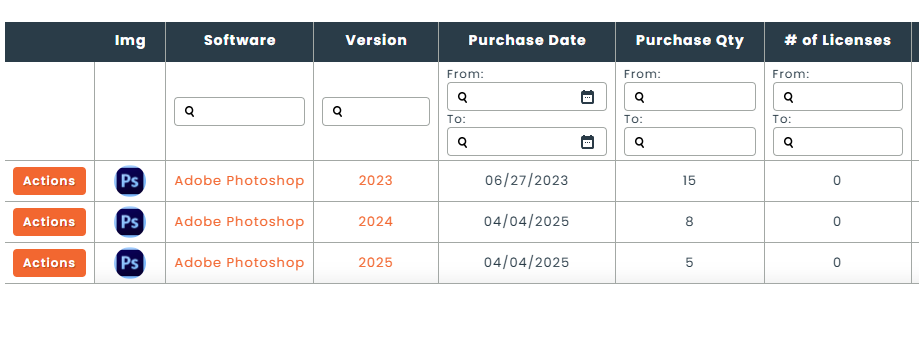
The list of purchases contains your software as well as the number of licenses or seats you purchased. This is important, as this field is used to calculate the number of licenses or seats in your software pool. A purchase recorded with a quantity of 0 makes the pool unlimited.
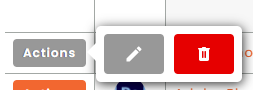
If you wish to modify the purchase, or even delete it, you can do so from the action menu.
Now that you’ve added licenses or seats, you can assign them to users, assets, stockrooms and places.