
The Operations module lets you plan and track the work done on your assets, places and spaces: internal or external repairs, maintenance, installations, employee requests. A work order brings together the requester, the person responsible, the planned dates and a list of lines describing exactly what needs to be done, then follows its lifecycle through to billing and archiving. This article explains how to create a work order, move it forward, finish it and bill it.
The layout of work orders (fields, columns, line options) is configured per form: see the Configuring Work Order Forms article.
📋 What a work order contains
Each work order receives a unique number, assigned automatically on the first save (“Determined upon completion” is displayed until then). Depending on your form, it contains in particular:
- the requester: a user, a customer (with their contact) or a place (with its space);
- the owner, that is, the person responsible for the work internally;
- the vendor and their contact, when the work is done by an external company (maintenance, calibration…);
- the priority, the order date and the expected start and finish dates;
- the description, instructions, terms, a note and documents;
- the lines.
A line is always one of these types:
- Asset: a specific piece of equipment, or a quantity taken from a lot.
- Place or space: a location, or a space inside a location.
- Task: a free-text instruction, with no linked record.
- Hours: labour time, attributed to a person.
A single work order can mix these types: Hector always knows which assets and locations are affected.
➕ Creating a work order
You can create a work order:
- from Operations › Work Orders, with the New Work Order button;
- from the list of assets, places or spaces, for one or more selected items;
- through the Flag window (see below);
- through data import or the API.
- from a maintenance plan (see the Maintenance Planning article).
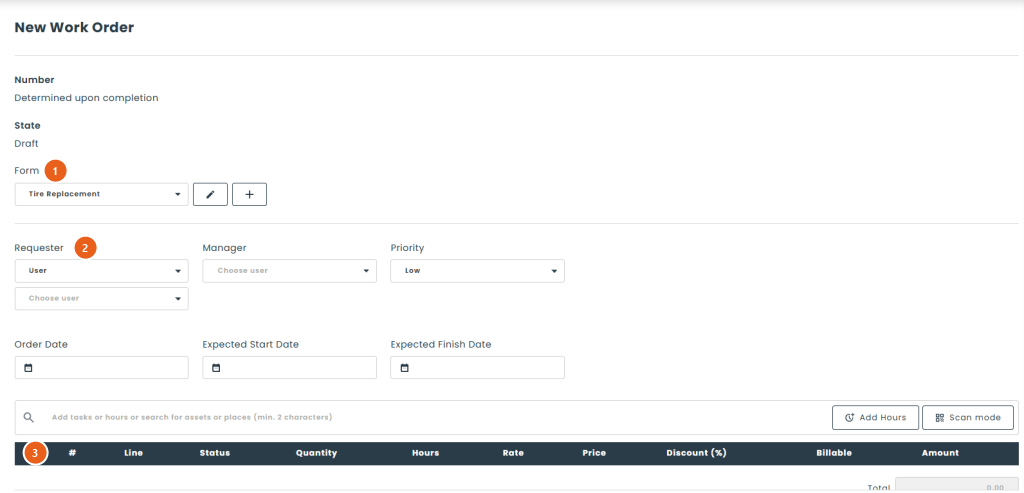
1. Form: the layout of the work order. Only the forms you have access to are offered; the default form is preselected.
2. Header: the fields defined by the form. Required fields must be filled in to save.
3. Lines: the add bar and the line grid (see below).
4. Save: Save & View or Save & List save the work order in its initial state. While the work order is a draft, Save Draft & View and Save Draft & List keep it as a Draft.
● Adding lines
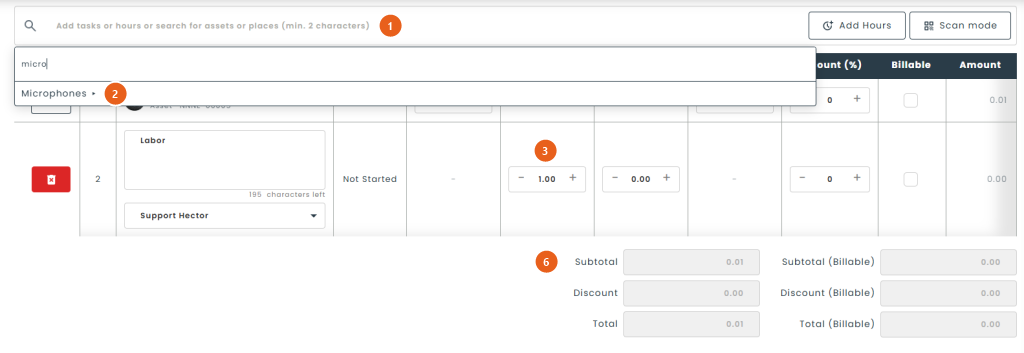
1. Add bar: type a few characters to search for an asset, an item or a place, then click the result to add it. Type free text and choose Create task to add a task. Add Hours adds a labour line. Only the types allowed by the form are offered.
2. Browse by category: click in the empty bar to navigate from the category to the item, then to that item’s assets. The path you followed stays displayed and clickable. When an item has several assets, check the ones you want and click Add selected.
3. Grid: the quantity, hours, rate, price, discount and Billable checkbox are edited directly in the grid. On an hours line, the By field shows who did the work.
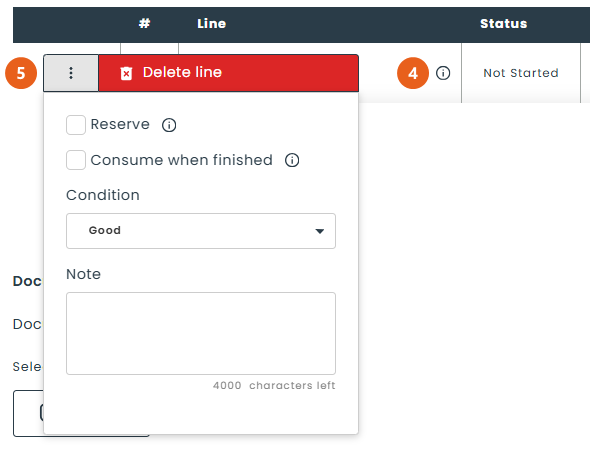
4. Details: the ⓘ icon in the Line column opens a read-only panel. For an asset: its whereabouts, condition, warranty, life span, maintenance information, note and attributes.
5. ⋮ menu: Reserve, Consume when finished, Condition and Note, depending on the form configuration. Delete line is also in this menu.
6. Totals: Total adds up all non-cancelled lines. Subtotal (Billable), Discount (Billable) and Total (Billable) only count billable lines.
A few rules to know:
- Use this item adds a line that represents an item, without a specific asset. Choose the asset in the line’s list before saving; otherwise the message “Choose an asset for each item line before saving” is displayed.
- For a lot asset, the quantity is the number of units taken, up to the lot size. For a single asset, it is always 1.
- The same asset cannot be on two lines of the same work order.
- A work order no longer has a Billable checkbox in its header: it is billable as soon as one of its lines is.
- Lines can be added or removed until the work order is finished.
🚩 Reporting a problem
An employee who notices a breakdown can create a work order in seconds, without knowing the Operations module.
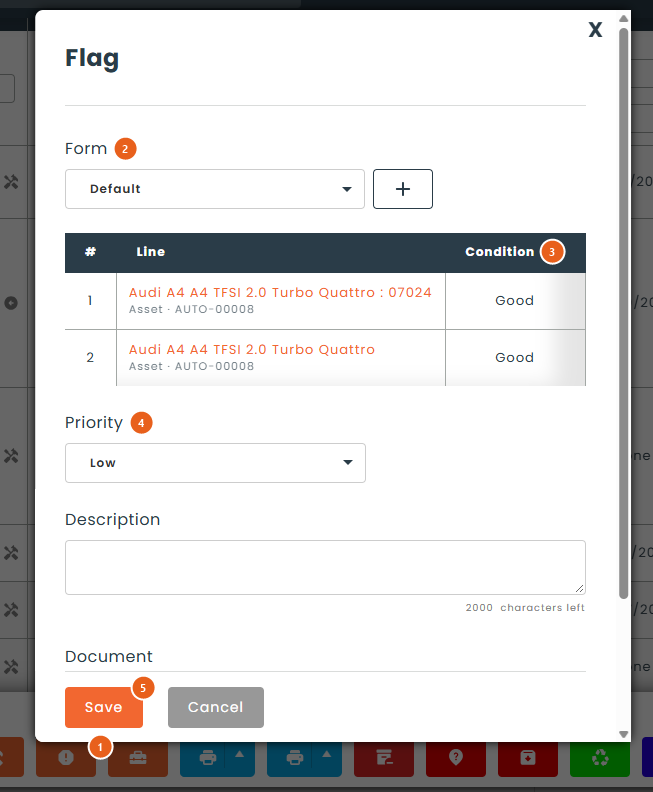
1. Report button: on the list of assets, places or spaces, for one item or a selection. On loaners, the button is called Signal an issue.
2. Form: the flag form to use, if several are offered to you.
3. Items: the flagged items. Uncheck Include to remove one, and choose a New Condition if needed.
4. Description, priority, documents and other fields: those of the flag form. The form can make documents mandatory.
5. Save: the work order is created and its number is displayed (“Reported. Work Order Number : …”).
The work order then continues with the creation form chosen by the administrator, and the team handles it like any other work order. In the list and on the work order page, a Problem Reported icon is displayed next to the number of work orders created from a flag. To use this button, the user’s role must have the Flag permission.
🔄 The lifecycle
● States
- Draft: the work order is being prepared and has not been submitted yet.
- Pending Approval: the work order is waiting for an approver’s decision.
- New: the work order is approved (or did not need to be) and ready to be handled.
- Assigned: a person responsible has been designated.
- In Progress: the work has started. Reserved assets are then locked on this work order.
- Finished: the work is done and the completion is recorded.
- Invoiced and Paid: these states are applied automatically by billing (see below).
- Archived: the work order is closed; all its non-cancelled lines are completed.
- Cancelled: the work order is abandoned and reserved assets are released.
The names of the states and actions can be renamed in the work order settings.
● Actions
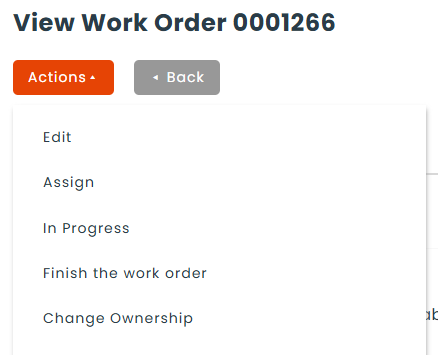
- Submit For Approval: Draft › Pending Approval, when approval is required. Asset availability is checked at this point.
- Approve and Refuse: Pending Approval › New, or back to Draft. Only members of the approver groups can do this, as well as the requester’s manager if that setting is enabled. No one can approve their own request.
- Start: Draft › New, when approval is not required.
- Assign: designates the person responsible and moves the work order to Assigned.
- In Progress: New or Assigned › In Progress. Availability is checked again and reserved assets are locked.
- Finish the work order: opens the completion window. It is offered from In Progress, or as early as New and Assigned for roles that have the Finish › At any state permission. A work order can never skip approval this way.
- Archive: closes a Finished, Invoiced or Paid work order.
- Cancel: abandons a submitted work order that is not finished yet. A draft is not cancelled: it is deleted.
- Delete: offered in Draft, Finished, Archived and Cancelled. The work order is deactivated, never erased.
- Change Ownership, Print and sending by email to the requester are offered depending on the state and the role’s permissions.
● Reserved assets
The Reserve option of a line blocks the asset for this work order: it cannot be committed to another work order, a transfer order or a loaner over the same period. It can only be changed while the work order is a draft. The asset is actually locked (“on work order” state) when the work order moves to In Progress, and released if the work order is cancelled.
● List and Kanban
The Operations › Work Orders page offers the All, Mine, Open tabs, one tab per state, Late and History. The Kanban button displays work orders in columns by state; dragging a card moves it forward following the same rules as the buttons.
✅ Finishing a work order
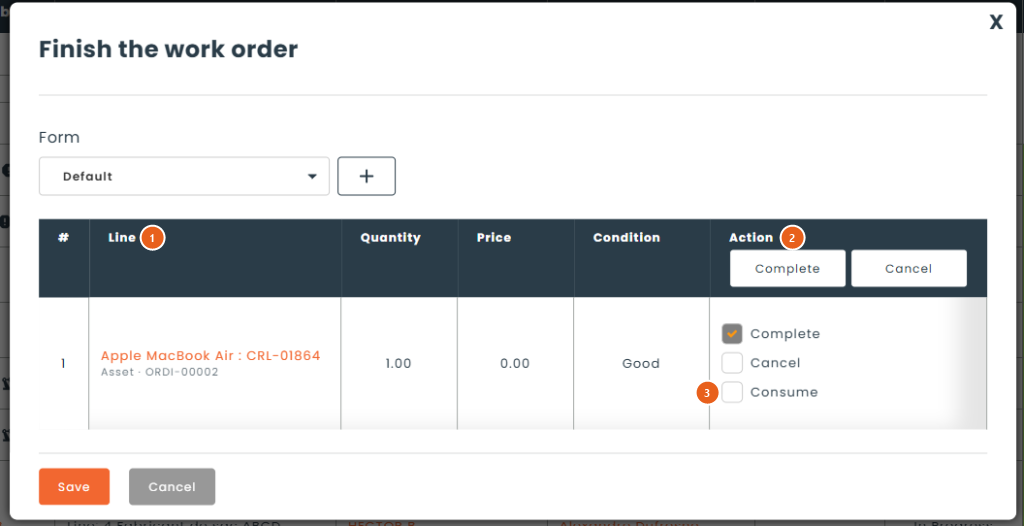
1. Lines: each line is displayed with its quantity, price and condition, which you can adjust.
2. Complete or Cancel: check one of the two boxes on each line handled. The Complete and Cancel buttons in the column header check every line at once.
3. Consume: removes the units used from the inventory.
4. Completion fields: the note, documents and other fields defined by the completion form.
You can complete only some of the lines: the work order then stays open until all its lines are handled. The boxes checked by default, the hidden options and the display of lines already completed depend on the completion form. If the Automatically archive on finish setting is enabled, the work order goes straight from Finished to Archived.
💵 Billing a work order
With the Accounting module, a finished work order is billed in one click. There is no button to mark a work order as invoiced or paid: Hector does it for you.
● Creating the invoice
On a Finished or Archived work order, the New Invoice action opens an invoice that is already filled in:
- Billed To: the work order’s requester (user, customer with their contact, or place with its space);
- reference number: the work order number;
- general conditions: the work order’s terms;
- currency: the work order’s currency;
- lines: one invoice line per billable work order line.
Lines are carried over as follows:
- Hours: an hours line whose amount is the total labour cost; the number of hours is shown in the description.
- Asset: the units taken multiplied by the price.
- Place, space or task: the quantity multiplied by the price.
Non-billable lines are excluded, and the discount applies as it does on the work order: the invoice total therefore matches the work order’s Total (Billable). Taxes apply on the invoice, not on the work order. A work order generates only one invoice: the action disappears as soon as an invoice exists.
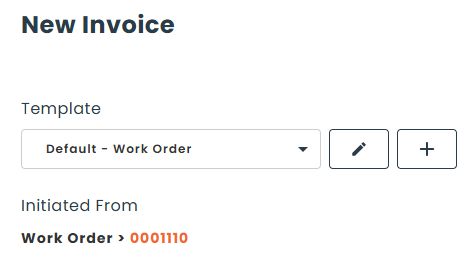
Note: to bill a place, Places must be among the entities allowed in the Billed Entity setting of invoices. It was added automatically to instances that already restricted this list.
● What happens next
- The invoice is saved as anything other than a draft: the work order moves to Invoiced.
- A payment settles the invoice: the work order moves to Paid. A partial payment leaves it Invoiced.
- An invoice saved as a draft changes nothing on the work order.
These state changes behave like any other: they are dated, apply the owner by state and send the configured notifications.
● Following the invoice from the work order
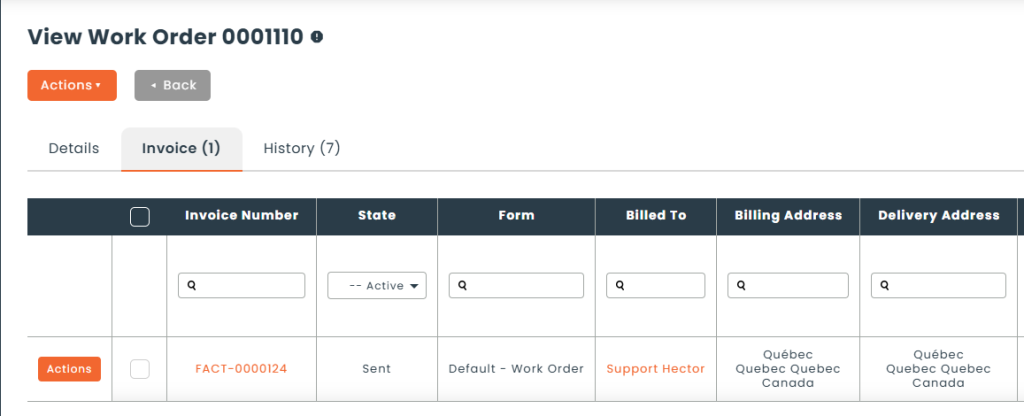
The work order page has an Invoice tab showing the invoice created from this work order, even as a draft. The action menu also offers View Invoice, and New Payment while the invoice is not fully paid. Rights on these invoices are configured in the roles, Accounting tab, Invoice section, for the Work Order origin.
⚙️ Work order settings
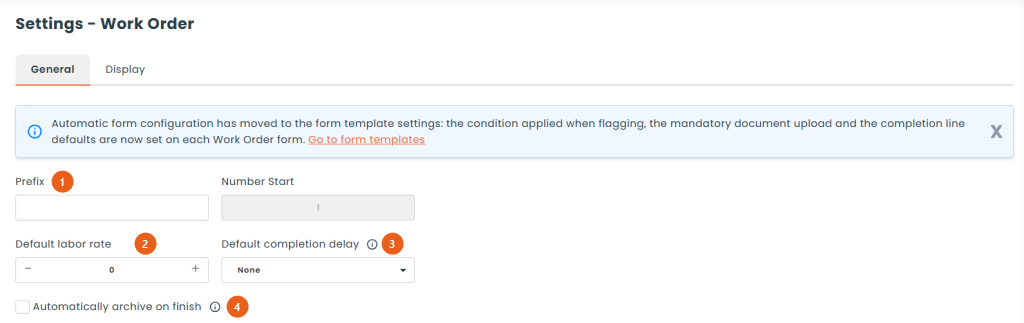
1. Prefix and Number Start: the numbering of work orders.
2. Default labor rate: the rate proposed on new hours lines.
3. Default completion delay: fills in the expected finish date of a new work order (tomorrow, a few days, weeks, months or years after its creation).
4. Automatically archive on finish: a finished work order is archived immediately.
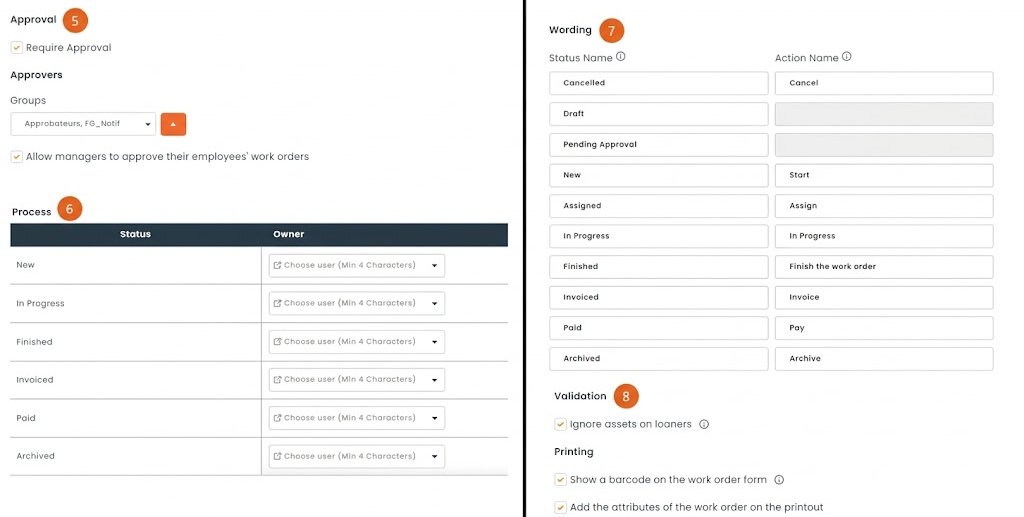
5. Approval: Require Approval, the Approvers groups, and Allow managers to approve their employees’ work orders.
6. Process: an owner per state. When a work order reaches that state, it is automatically reassigned to that person, for example to accounting once finished.
7. Wording: the Status Name and Action Name of each state, to use your own vocabulary.
8. Validation and Printing: ignore assets on loaners, show a barcode and the attributes on the printout.
Form options (requester, terms, condition when flagging, required document, completion) have moved to the forms: the Go to form templates link leads there. Notifications are configured in Settings › Notifications, Work Order tab.
🔐 Permissions
In Settings › Roles, Operations tab, Work Order section:
- Responsible: the user can be chosen as the owner of a work order (Owner field, assignment and process). This permission grants no other right.
- Flag: the user can create a work order through the Flag window. It replaces the former limited creation.
- Create Full: creating a work order with the creation forms.
- Edit, with the State list, which sets the states where editing is allowed.
- Submit For Approval, Assign, In Progress, Finish (with the At any state option), Archive, Cancel, Delete, Print and Email.
- View (Mine or all), as well as the list tabs and the history.
📥 Import and reports
To create work orders in bulk, download the import template from Data Import › Operations › Work Orders. You can also access work order reports under Reports › Operations › Work Orders.
Again, to go further, see the Configuring Work Order Forms article. If you have any questions or would like personalized support, please feel free to contact our sales team at [email protected] or your account manager.