
Do you want Hector to remind you when each asset is due for maintenance, give your technicians the right instructions and checklist, and even create the work orders for you?
Maintenance Plans do exactly that. This guide explains why to use them, how to create and attach a plan, and how a maintenance works from the schedule to the history: scheduled maintenances on each asset, customizing a plan for one asset, performing a maintenance, plans that create work orders, postponement requests and loan blocking.
🎯 Why use maintenance plans in Hector?
Preventive maintenance only works if nothing slips through the cracks. Maintenance plans let you:
- Define a maintenance once and reuse it on as many assets as you need.
- Give an asset several maintenances at the same time, each with its own frequency (for example, an inspection every month and a calibration every year).
- Schedule maintenances by time, by usage (hours, kilometres…), or both.
- Guide technicians with instructions and a checklist, and keep a record of what was done and what was not.
- Let technicians ask for a postponement while a manager keeps control of the due dates.
📋 Prerequisites
- You must have a role with the maintenance plan permissions. See the Permissions section at the end of this article.
- Plans with the Work Order output require the Operations module.
- Your categories, parts and assets must already be in Hector.
ℹ️ Note: some names in this article (Part, Stockroom, User, Work Order…) may be different in your Hector, depending on the terminology chosen for your instance.
🧠 How maintenance plans work
A maintenance plan is a reusable model, for example “Oil change – every 6 months” or “Calibration – every 500 hours”. You create it once in Settings > Maintenance Plans, then attach it to parts or to specific assets.
Each asset covered by a plan gets its own scheduled maintenance, with its own Last done and Next due dates. A plan can come due:
- Time-based — after a period of time (days, weeks, months…).
- Usage-based — after a number of counter units (hours, kilometres…).
- Both — as soon as the first of the two is reached, for example “every 10,000 km or every year”.
- On demand — no frequency at all: the maintenance is performed when needed and never scheduled ahead.
See the vocabulary quick reference at the end of this article for the terms used on the maintenance screens.
⚙️ Step 1: Create a maintenance plan
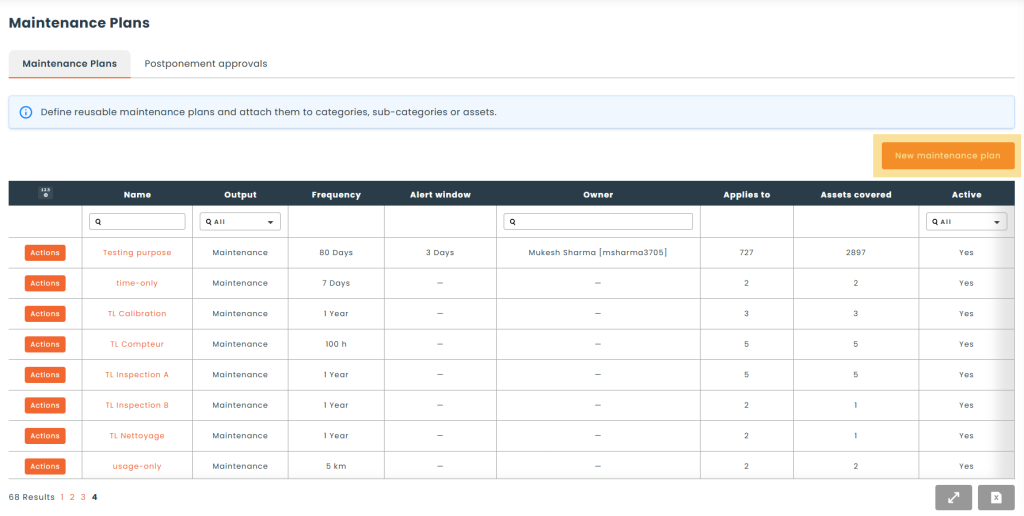
Go to the Settings menu, then Maintenance Plans, and click New maintenance plan.
ℹ️ General Information
- Name — must be unique among the active plans.
- Active — an inactive plan is no longer offered and no longer schedules anything.
- Output — what the plan produces when it is performed:
- Maintenance — a maintenance record is created on the asset.
- Work Order — a work order is created (see Step 6). Requires the Operations module.
- Owner — None, a User or a Group. The owner decides on postponement requests.
- Instructions — shown to the person who performs the maintenance.
- Documents — attach procedures, manuals, etc.
- Average duration — how long one maintenance usually takes.
- Average cost — what one maintenance usually costs, per asset. Pre-filled when the maintenance is performed.
- Type and Task — the default maintenance type and task, pre-filled when performing.
- Blocks loans while due — see Maintenance and loans.
⏱️ Frequency
- Time-based — activate it and enter the Frequency (for example, 6 months) and, optionally, the Alert window in days.
- Usage-based — activate it and enter the Frequency, the Unit (for example, 500 hours) and, optionally, the Alert window.
The Alert window is how long before the due date (or reading) the maintenance shows as Due soon rather than simply Scheduled.
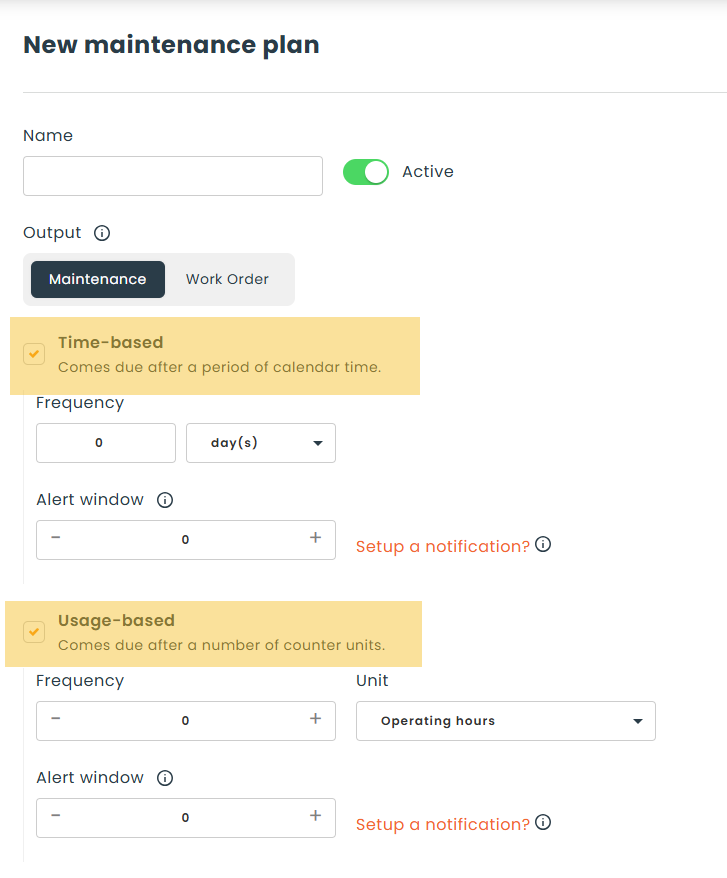
💡 Tip: the Setup a notification? link takes you to the notifications configuration, where you can add reminders for your maintenances.
✅ Checklist
For plans with the Maintenance output, the Checklist section lists the steps the technician ticks off while performing the maintenance.
- Add a line — type a line and press Enter to add the next one.
- Reorder — drag the lines to reorder them.
- Save — nothing is saved until you save the plan.

ℹ️ Note: the checklist is copied onto each maintenance record. If you rename or remove a line later, past maintenances keep the checklist exactly as it was when they were performed.
🔗 Step 2: Attach the plan
A plan does nothing until it is attached. There are three ways to attach it.
🗂️ From the plan
In the plan’s Applies to section:
- In Attach to categories, select one or more categories.
- In Attach to parts, select the parts the plan applies to. All the sub-categories of the selected categories are offered.
- Click Save.
All the assets of the selected parts get the plan. Clearing a selection detaches the plan when you save.
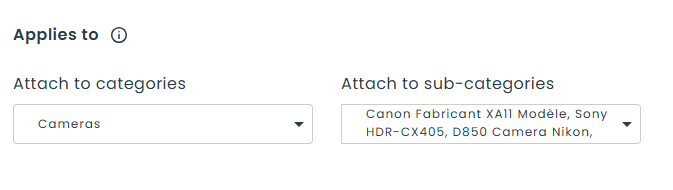
💡 Tip: if you leave all the parts of a category selected, the plan will also be attached automatically to the sub-categories created later in that category.
📁 From a category or a part
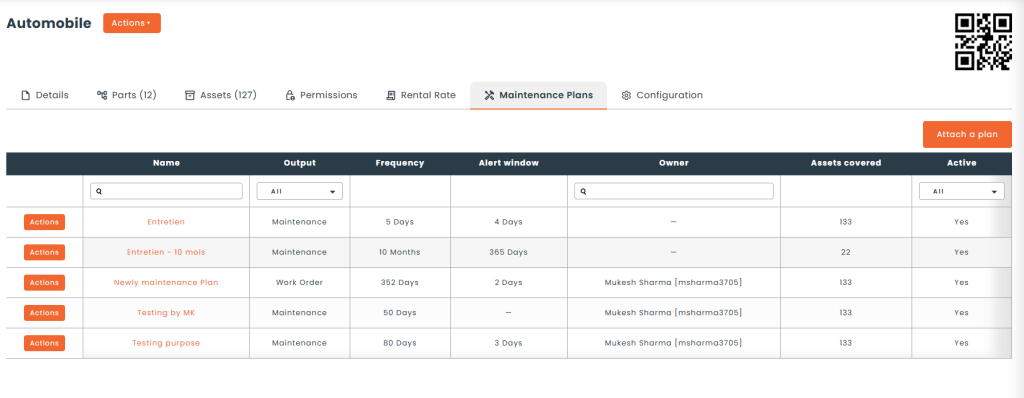
Open the category or the part, go to the Maintenance Plans tab and click Attach a plan. Attaching a plan to a category attaches it to all its parts, including the ones created later.
🚜 Directly on an asset
On the asset, open the Maintenance tab, Planned sub-tab, and click Attach a plan. Only this asset gets the plan; its part is not affected.
ℹ️ Note: when an asset changes part, the plans of the old sub-category are removed and those of the new one are added. The plans attached directly to the asset stay.
📅 Step 3: Follow the scheduled maintenances of an asset
On the asset, the Maintenance tab contains two sub-tabs:
- Planned — one line per plan, with the Frequency, Last done, Next due and Status. For usage-based plans, the line also shows the Current reading, the Next due reading and the Usage until due.
- History — the maintenances performed, with the plan used (Unplanned if none), the type and the checklist counter (for example, 4 / 4).
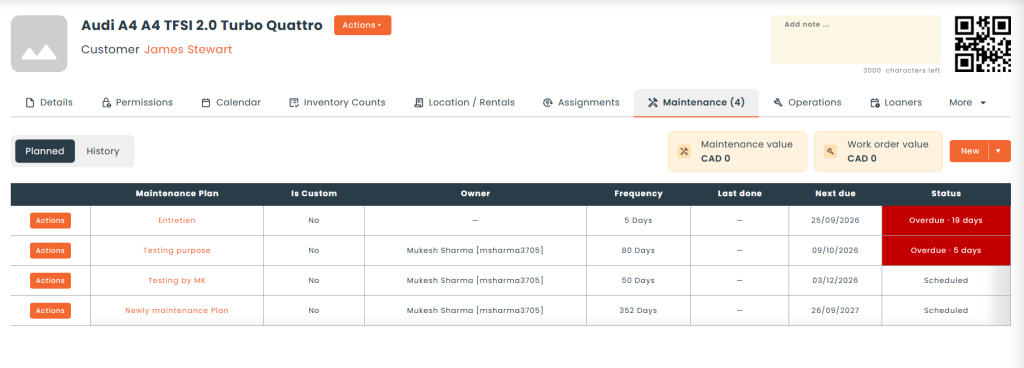
The asset card also shows the Maintenance value and the Work order value, the total cost of the maintenances and of the maintenance work orders. In the asset list, the Next Maintenance Date column shows the earliest next due date among all the asset’s plans.
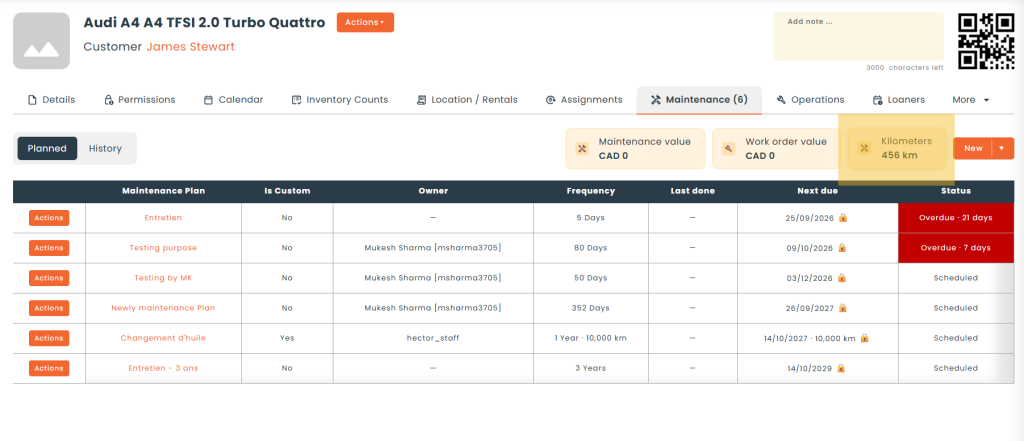
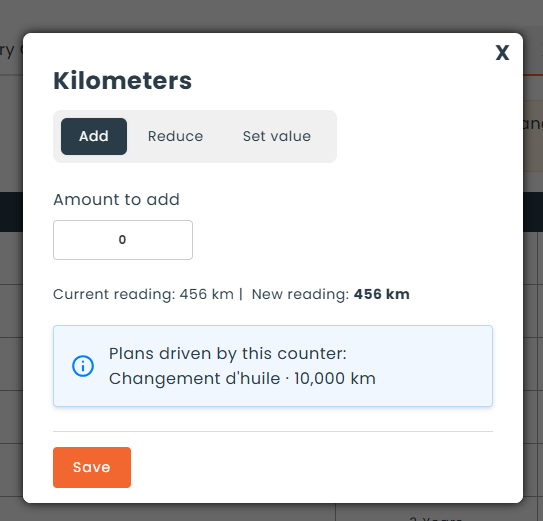
When an asset has at least one usage-based maintenance, its card also shows a clickable tile to manage the quantity of that unit.
The modal allows the users to add, reduce or set the unit to a specific amount.
See the status quick reference at the end of this article for what each status means.
🎛️ Step 4: Customize a plan for one asset
Sometimes one asset needs a different rhythm, for example a machine that works in harder conditions.
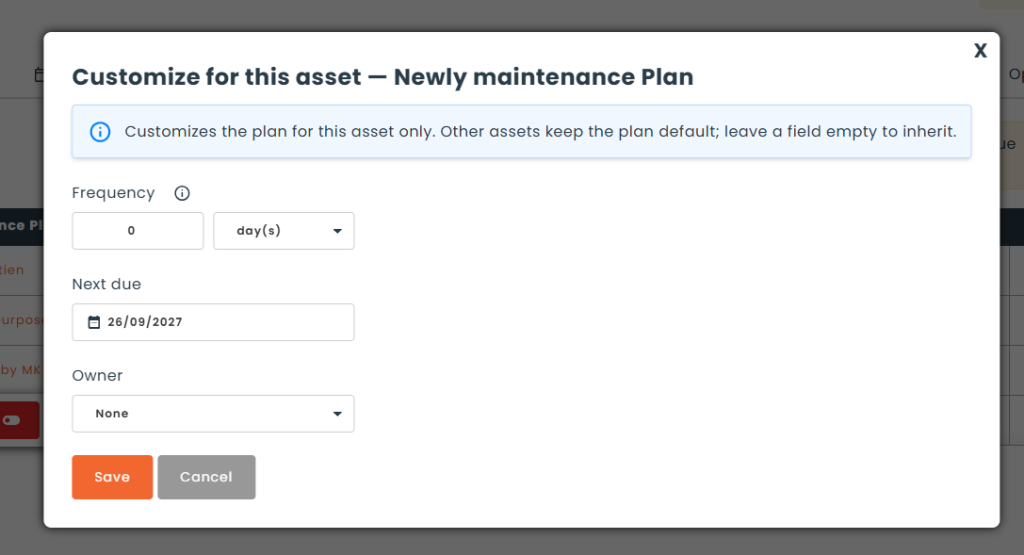
- In the Planned sub-tab, open the line’s action menu and click Customize.
- Change the Frequency, the Owner or, if your role allows it, the Next due date.
- Click Save.
Only this asset is affected; the other assets keep the plan’s values. Leave a field empty to go back to the plan’s value.
🚫 Exclude an asset from a plan
If one asset of a part must not follow a plan, use Exclude from this asset in the line’s action menu. The rest of the part keeps the plan, and the asset’s history is kept. Use Re-include to put it back.
🔧 Step 5: Perform a maintenance
Click Perform on a line of the Planned sub-tab, or use the maintenance action on the asset.
- On the plan — the form opens directly.
- On the asset(s) — choose the plan, or Unplanned for a maintenance outside of any plan.
The form is pre-filled with the plan’s type, task and cost, and shows its Instructions and Checklist. You can change any value before saving.
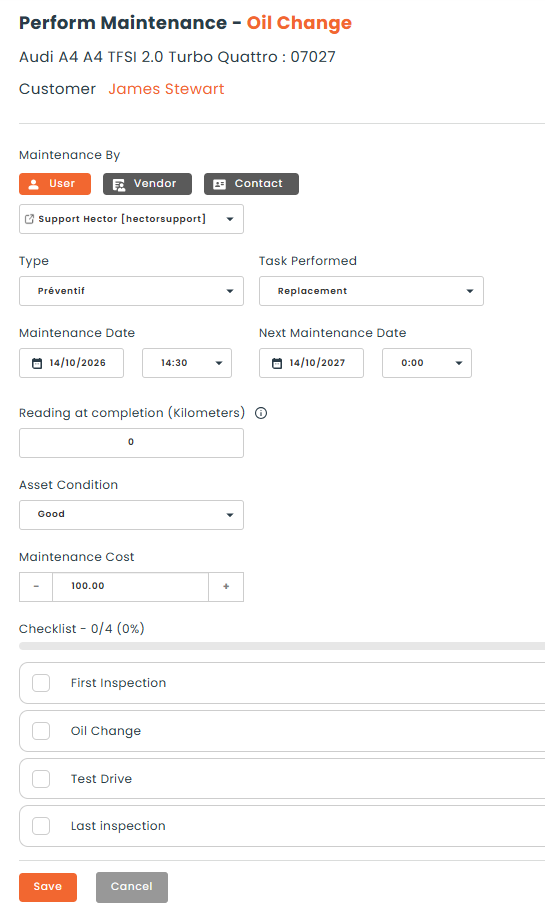
- Checklist — tick the lines as you go. Unticked lines remain visible in the history.
- Dates — after saving, Last done is updated and Next due is calculated again from the plan’s frequency.
- Unplanned — an unplanned maintenance does not move any date.
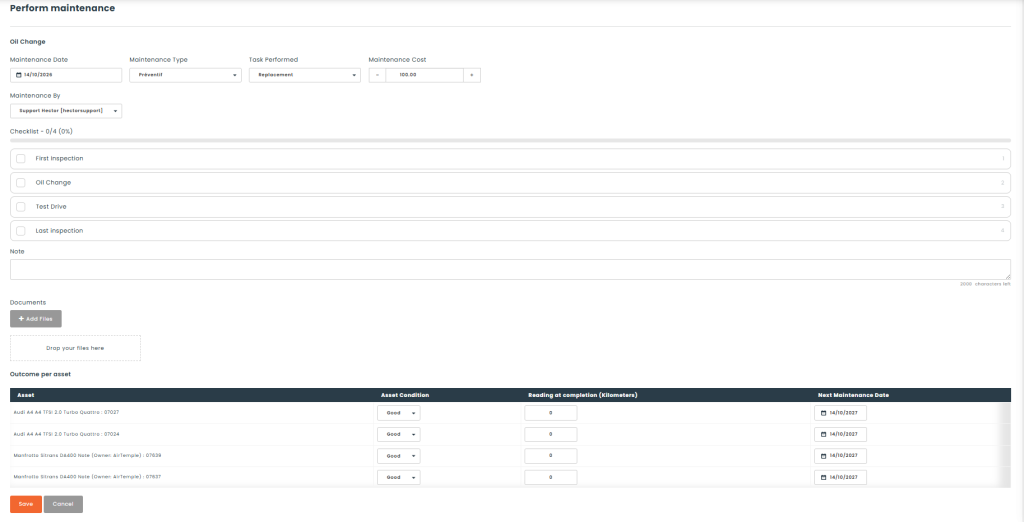
📑 Perform a maintenance on several assets
- In the asset list, select the assets.
- Click Perform maintenance in the action bar. The button only appears when the selected assets share at least one plan (or have no plan at all).
- Choose the plan, fill in the information once, and set the condition of each asset in Outcome per asset.
- Click Save. Each asset gets its own maintenance record and its own next due date.
🛠️ Step 6: Plans that create work orders
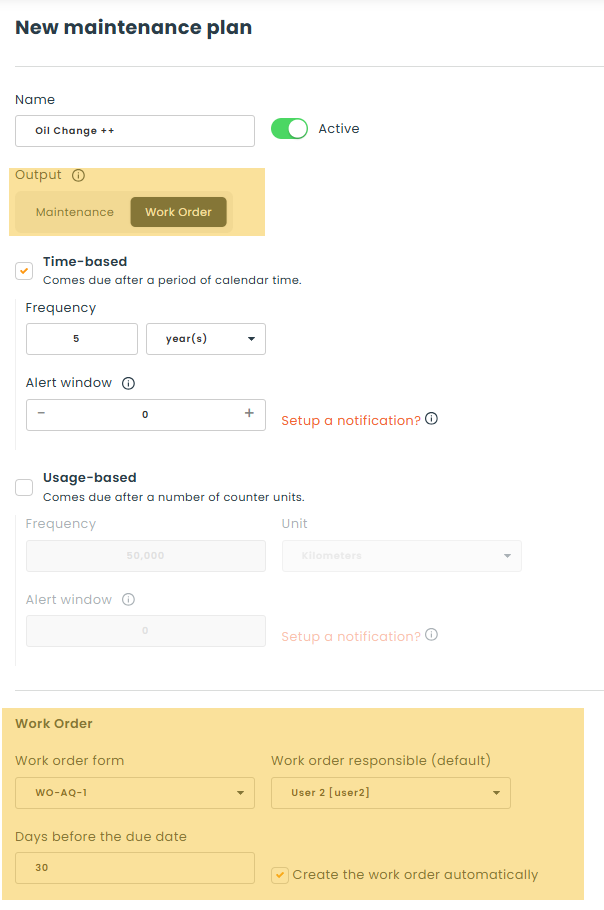
When the plan’s Output is Work Order, performing it creates a work order instead of a maintenance record. The plan then shows these fields:
- Work order form — the form used for the work order.
- Work order responsible (default) — the user assigned to the work order.
- Create the work order automatically — Hector creates the work order by itself.
- Days before the due date — how many days before the due date the automatic work order is created.
How it works:
- Perform — opens the work order creation form, pre-filled. Nothing is created until you save. If a work order is already open for this maintenance, Hector opens it instead of creating a second one.
- Automatic creation — work orders are created every night as Draft, only once per due date.
- Completion — when the work order is completed, the asset’s scheduled maintenance moves forward automatically.
- Several assets — a single work order is created, with one line per asset.
- History — work orders linked to a plan appear in the asset’s maintenance History.
ℹ️ Note: if the plan’s owner is a group, automatically created work orders are not assigned to anyone.
For more information on work orders, you can visit the Work Order Management article.
⏳ Step 7: Postpone a maintenance
When a maintenance cannot be done on time, a user without the Edit next due date permission can ask to postpone it. A user who has that permission can simply change the date.
ℹ️ Note : notifications (automations) can be configured for all stages of the postponement request (requested, approved or refused).
📨 Request a postponement
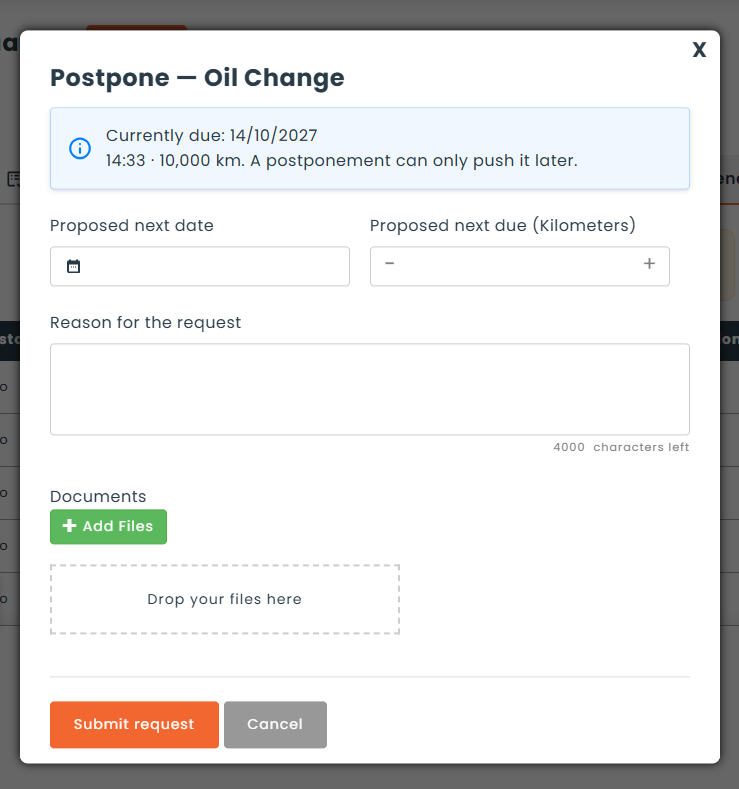
- In the Planned sub-tab, open the line’s action menu and click Postpone….
- Enter the Proposed next date (or reading) and the Reason for the request. You can add documents.
- Click Submit request.
The next due date does not move until the request is approved. Meanwhile, the line shows Postpone requested. You can Withdraw request while it is pending. Only one request at a time can be open per scheduled maintenance.
👍 Approve or refuse
The plan’s Owner (a user, or any member of the owner group) with the Approve postponement permission decides. If the plan has no owner, the permission alone is enough.
- Open the request from the asset with Postpone…, or from Settings > Maintenance Plans > Postponement approvals.
- Enter a Granted date if you want to grant a different date (leave it empty to grant the proposed date) and the Reason for the decision.
- Click Approve or Refuse.
👤 Follow the requests
- My Postponement Requests — this workspace tile lists your requests and those waiting for your decision. It is activated in the role’s workspace options.
- Postponement History — in the line’s action menu, shows all the requests made on that scheduled maintenance.
- Settings > Maintenance Plans > Postponement approvals — An admin can see all postponement requests in this section of the settings.
- Audit — every change of date is also recorded in the asset’s audit.
📦 Maintenance and loans
The Blocks loans while due option prevents an asset from being loaned while it is due for this maintenance. It only blocks when the stockroom also refuses loans during maintenance (stockroom option Allow reservation of an asset during its maintenance period unchecked).
| Stockroom allows loans during maintenance | Plan “Blocks loans while due” | Result |
|---|---|---|
| Yes | On or off | Loan allowed |
| No | Off | Loan allowed |
| No | On | Loan blocked, with a message naming the plan |
💡 Tip: this lets you choose which maintenances block a loan: for example, a calibration blocks, but a cleaning does not.
🗄️ Deactivate or delete a plan
- Deactivate — turn off Active on the plan. It is no longer offered and no longer schedules anything, but its history is kept.
- Delete — only possible when the plan has no maintenance history. Otherwise, deactivate it instead.
- Detach — removing a plan from a part or an asset removes its scheduled maintenances. Maintenances already performed stay in the history with the plan’s name.
🔄 What happened to my old maintenance settings?
Before, the maintenance frequency, average duration, average cost and owner were set directly on the part, and the next maintenance date on the asset. With maintenance plans:
- Settings converted — your existing settings were converted automatically into maintenance plans, attached to the same parts. They are named after the task and the frequency, for example “Maintenance — 6 months”. Parts that had exactly the same settings share the same plan.
- Dates kept — each asset’s next maintenance date was kept on its new scheduled maintenance.
- Fields moved — these fields no longer appear on the part and asset forms. The next due date is now managed in the asset’s Maintenance tab.
- History kept — maintenances performed before plans existed appear as Unplanned.
💡 Tip: take a moment to rename the converted plans so they are easier to recognize.
📊 Reports and visibility
You don’t need to open each asset to know where your maintenances stand. Hector gives you three views across all your assets.
📄 Maintenance reports
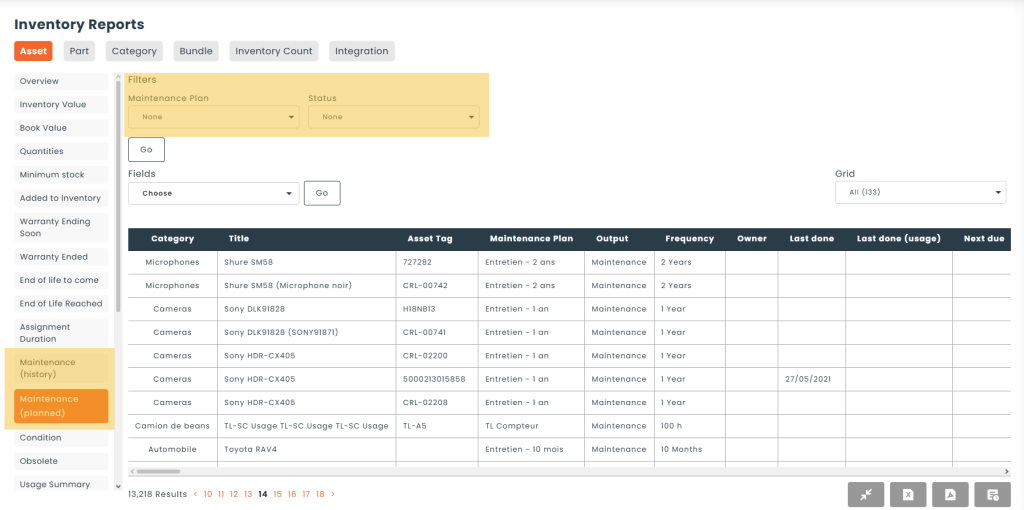
In Reports, the Inventory section has two maintenance reports:
- Maintenance (planned) — what is coming. The Planned sub-tab of every asset in one list: the plan, frequency, owner, Last done, Next due, current reading and status. Filter it by Maintenance plan and by Status, for example to see only the overdue maintenances.
- Maintenance (history) — what was done. The History sub-tab of every asset in one list: the plan (Unplanned if none), the checklist counter, who did it, the date, how early or late it was, the type, the task, the condition and the cost. Filter it by Maintenance plan, for example to see all the calibrations done and what they cost.
📈 Dashboard tiles
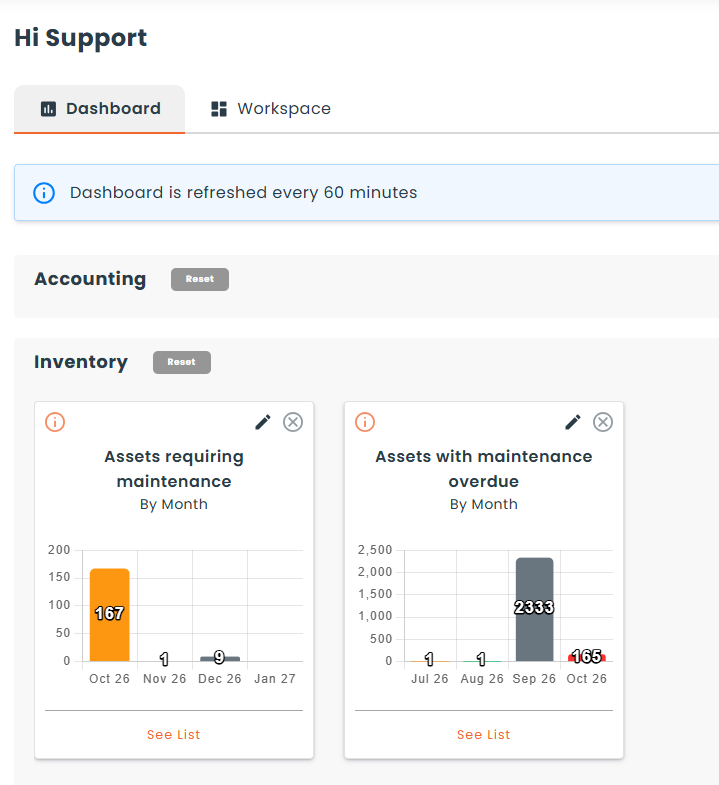
Two tiles can be shown on the dashboard:
- Assets requiring maintenance — the number of assets due for maintenance in each of the coming months.
- Assets with maintenance overdue — the number of assets whose maintenance is overdue, by month.
An asset that is due because of its usage (hours, kilometres…) is counted in the current month. Click a bar to see the assets.
⚠️ Maintenance Needed tab of the asset list
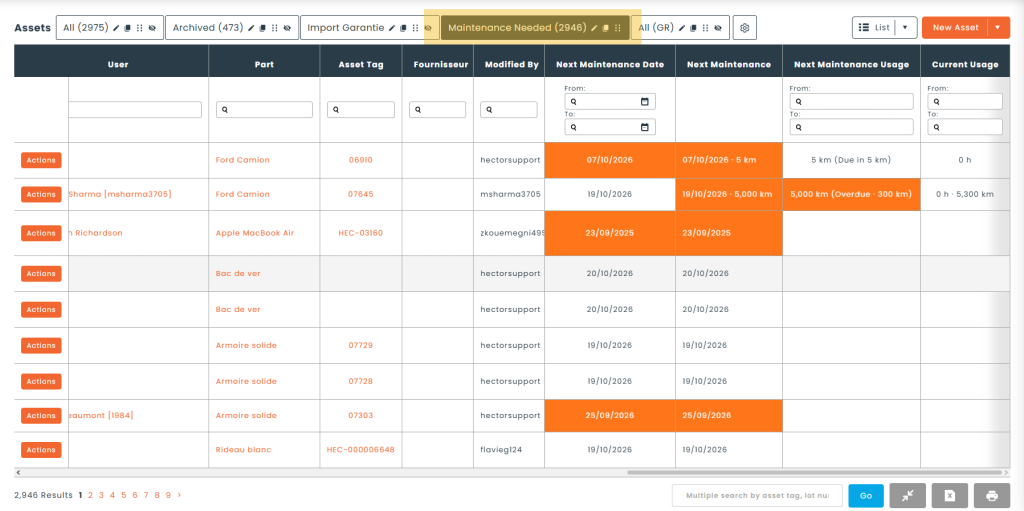
In the asset list, the Maintenance Needed tab shows the assets that need attention right now: every asset with at least one maintenance that is due soon or overdue. The tab shows how many there are.
- Due soon — the maintenance has entered its plan’s Alert window. Each plan has its own, so you choose how early each maintenance shows up. If a plan has no alert window, its assets show up only once the maintenance is due.
- Usage-based maintenances — included. The asset shows up when its current reading is within the alert window of the next due reading.
ℹ️ Note: before maintenance plans, this window was a single setting for all assets. Each plan was given that same value when the module was installed, so your list did not change.
🔐 Permissions
Access to maintenance plans is controlled by the following role permissions under Settings > Roles. When the new module was installed, existing roles automatically received permissions based on what they could already do, so nobody lost access; we recommend that you review them.
⚙️ Settings tab – Maintenance Plans
- View, New, Edit, Delete — consult and manage the maintenance plans in Settings > Maintenance Plans.
- Attach / detach to scopes — attach or detach a plan to a category, a part or an asset, and customize it at that level.
🚜 Assets tab – Scheduled Maintenance
- Edit next due date — change the next maintenance date directly, without going through a postponement request.
- Postpone — submit a request to move a maintenance to a later date.
- Approve postponement — approve or refuse postponement requests. Only the owner of the plan can decide.
- Customize schedule — customize the frequency or the owner of a plan for a single asset.
💡 Tip: a typical technician has Postpone and Customize schedule, but not Edit next due date: they can ask to move a date, and a manager approves it.
🏷️ Quick reference: scheduled maintenance statuses
- Scheduled — the maintenance is planned, nothing to do yet.
- Due soon / Due in N d — the maintenance has entered its alert window.
- Due today — the maintenance is due today.
- Overdue — the due date (or reading) has passed.
- Postpone requested — a postponement request is waiting for a decision.
🏷️ Quick reference: postponement request statuses
- Pending — waiting for the owner’s decision.
- Approved — the next due date was moved.
- Refused — the next due date is unchanged.
- Withdrawn — the requester withdrew the request.
🏷️ Quick reference: vocabulary
| Term in Hector | What it means |
|---|---|
| Maintenance plan | The reusable model: frequency, owner, instructions, checklist, etc. |
| Scheduled maintenance | A plan applied to one asset, with its own dates. |
| Output | What the plan produces when it is performed: a Maintenance record or a Work Order. |
| Time-based | The maintenance comes due after a period of time. |
| Usage-based | The maintenance comes due after a number of counter units. |
| On demand | A plan without a frequency, performed when needed. |
| Alert window | How long before the due date the maintenance shows as Due soon. |
| Owner | The user or group responsible for the plan; decides on postponement requests. |
| Applies to | The categories, parts and assets the plan is attached to. |
| Unplanned | A maintenance performed without a plan. |