
You would like to set up a reset schedule for when users are allowed to make reservations in your organization? Do you want users to provide key documents before being able to make reservations?
Here are the steps to set up an access reset frequency for loans in your Hector environment.
Required before starting:
- Have a Castle subscription plan
- Have the loan module enabled in your instance
- Have access to the Settings section
Step 1:
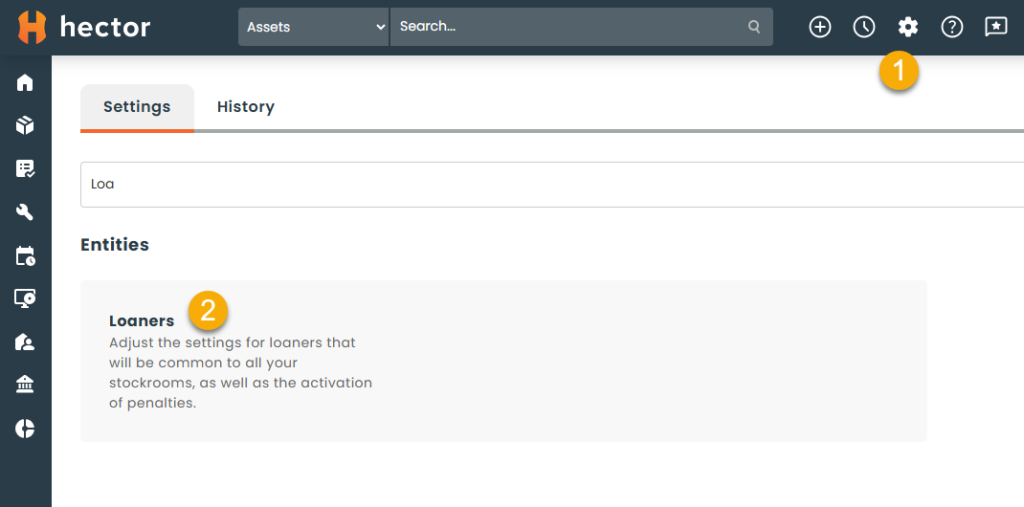
From the Settings menu, select the loaners setting.
Step 2:
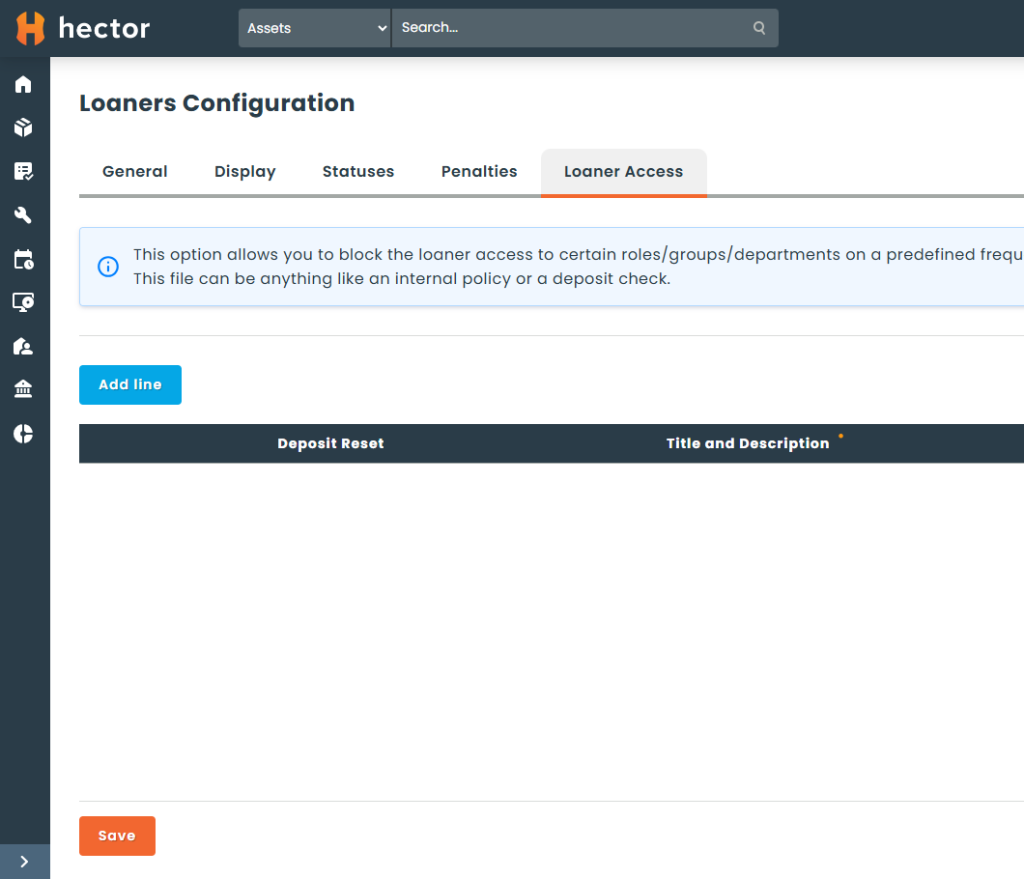
On the loans configuration page, click on the Loaner Access tab.
Step 3:
In the section Loaner Access, select the option Add line.
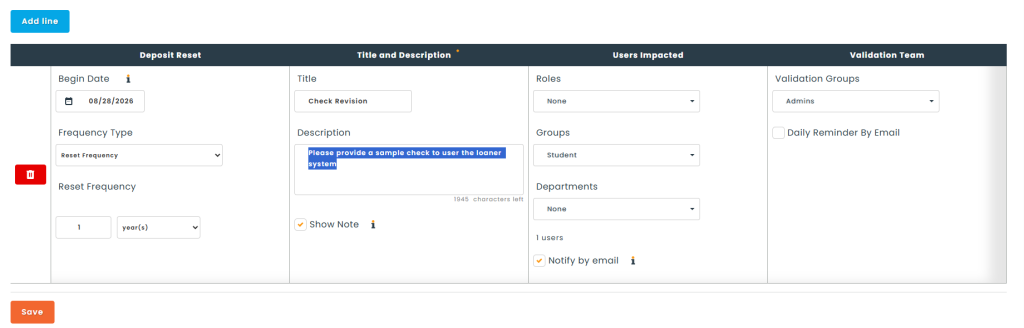
Each line is one document request, and each request accepts one file. If you need to collect two different documents, create two lines. You can add as many lines as you want.
Step 4:
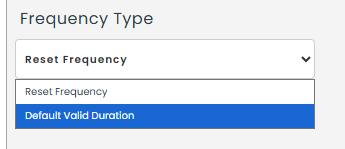
In the Deposit Reset column, choose the Frequency Type. This decides how the request behaves over time, and the field below it changes name accordingly.
- Reset Frequency – everyone impacted is reset on the same schedule. Each time the cycle comes around, all impacted users must submit their document again, and the begin date automatically rolls forward to the next occurrence. Use this for documents that must be renewed on a fixed calendar, like a yearly signed policy.
- Default Valid Duration – no group-wide reset. The request is handled per user and stays active continuously: users who start matching your filters are asked automatically, users who no longer match are removed, and each approved document carries its own expiry date (Valid Until). When one user’s document expires, only that user loses access. Use this for documents with their own real expiry date, like an insurance certificate.
Step 5:
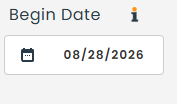
You can then set the begin date, which is the date on which the document deposit will be required, followed by the Reset Frequency or the Default Valid Duration, depending on the frequency type you selected. Impacted users, based on your filters, will receive a request to provide new documents.
Step 6:
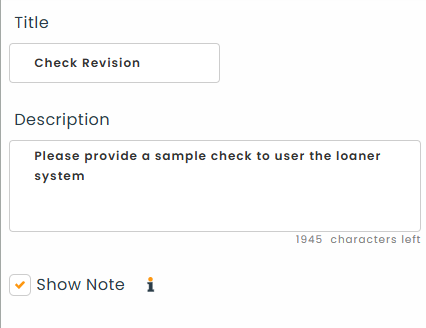
Then, indicate the Title of the document required from the user, as well as a brief Description. The description is the exact message your users will read on their home page telling them which file to upload, so be specific.
Enable Show Note if you want users to be able to add a note along with their document. The note is shown to your validation team when they review the request.
Step 7:
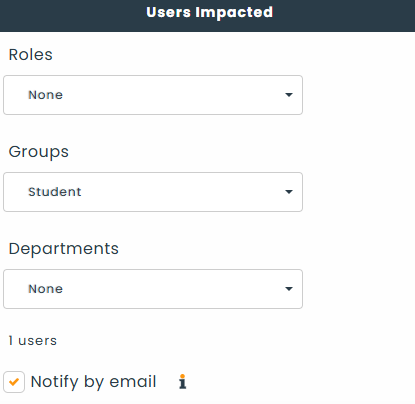
In the Users Impacted column, select the users targeted by this rule using Roles, Groups or Departments. A live count of the users matching your selection is displayed under the filters, so you can confirm the scope before saving.
Enable Notify by email if you want those users to receive an email when the request is created. If you leave it off, the request still appears on their home page, but no email is sent.
Step 8:
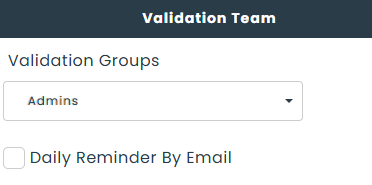
The Validation Team column allows you to indicate which Validation Groups will be responsible for approving pending documents.
Enable Daily Reminder By Email to keep that team informed: they will receive a daily summary of all pending access requests, as well as an email each time a new document comes in.
Step 9:
You can then complete the form and save. Every line requires a Title, at least one role, group or department, and at least one validation group. In Reset Frequency mode, the begin date combined with the frequency cannot already be in the past.
If your dates trigger a reset action, an email will be sent to all impacted users when Notify by email is enabled. In every case, the request appears on their home page. These users will not be able to make any reservations until an approval is made by your validation team.
Step 10:
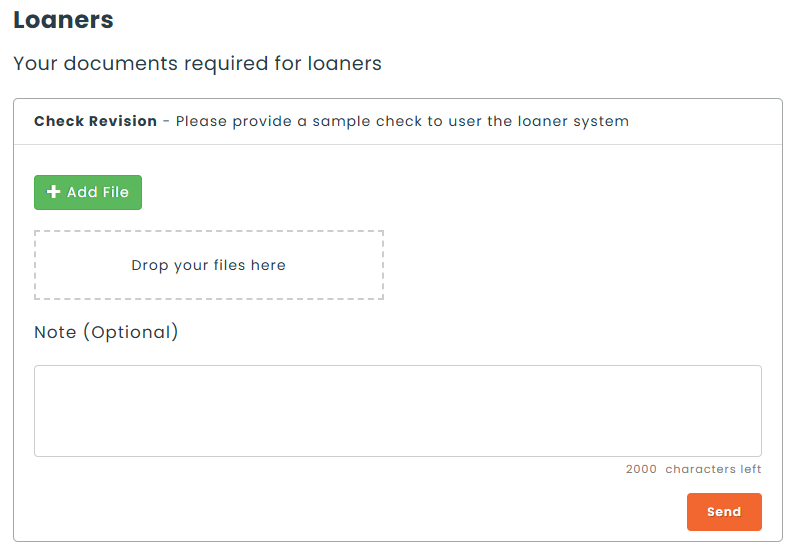
Users who have been impacted by your request will see a tile appear on their home page, in the Loaners section, asking them to provide the requested document.
They upload their file, add a note if you enabled that option, indicate a Valid Until date if you are using the Default Valid Duration frequency type, and click Send. The tile then shows that their document is pending validation.
Step 11:
Once the requested documents have been sent by the users, only the members of the validation group will have to approve them.
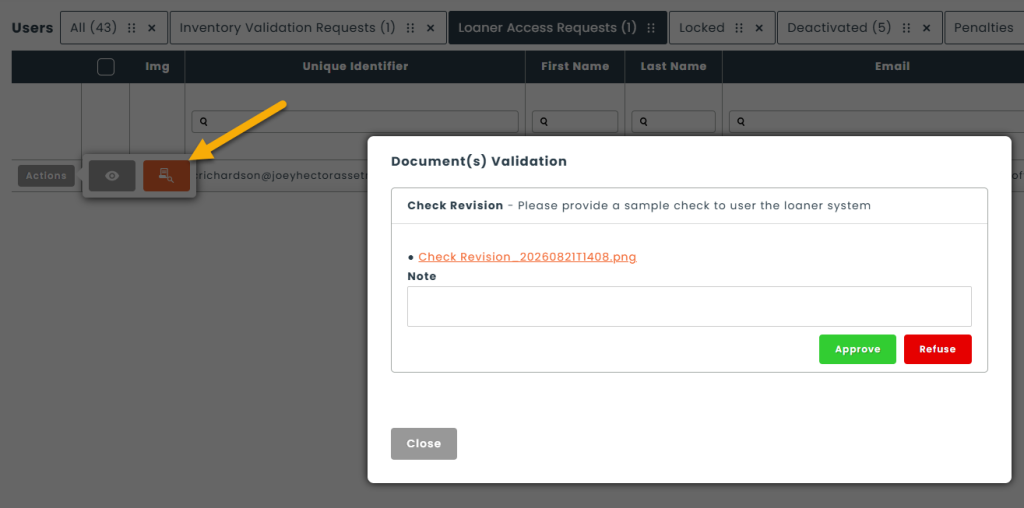
To do this, select the Resources and Users menu, and you will find a tab named Loaner Access Requests.

Click on the Actions button of the user and select Take Action to open the Document(s) Validation window.
You will be able to consult the document sent by the user along with their note, add a note of your own, confirm the Valid Until date when the request uses the Default Valid Duration frequency type, and then Approve or Refuse the request. If refused, the user will receive a new notification and will have to return to the home page to update the document or fix any mistakes.
A copy of the approved document will then be available for consultation on the user’s card.
If you’d like to use this feature but your plan does not allow it, please contact your account manager or send us a message at [email protected]!