
Are you looking to cut down on the number of assets visible in your item catalog? Then this guide is perfect for you as we’ll teach you how to group assets together by category or by part to have a more condensed view in the loaner catalog.
Before you start
- The Loaners module must be active in your environment. Without it, none of the grouping options below are displayed.
- Grouping is not available on lot size categories. Those categories already work with quantities, so the option is hidden and cannot be saved.
- Grouping is ultimately stored on the part. The category setting acts as the default for new parts, plus a tool to push the change to existing ones.
Step 1. Configure your category
In this example, we’ll be setting up our Books category to group all assets together.
First things first, navigate to the category of your choice, and click on the edit button.


Once inside the category, open the Configuration tab and select the Loaners section. Under Item Catalog, you can check the Group assets together option.
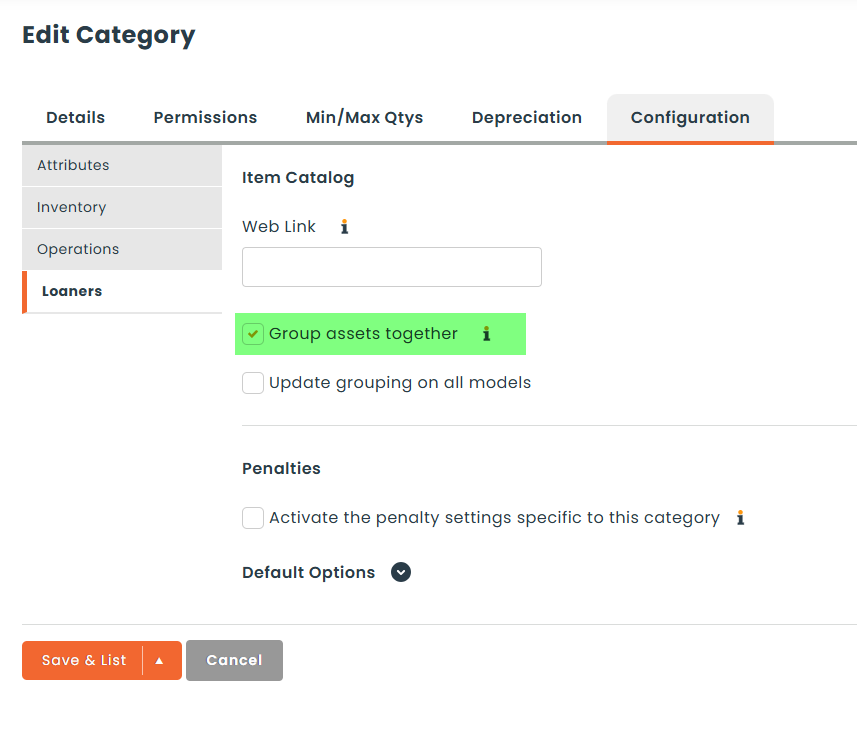
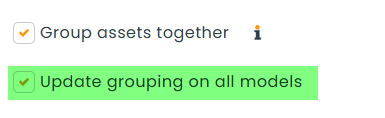
Once checked, you can also choose to check Update grouping on all parts so that all parts of this category will group assets together in the catalog. This step is to prevent you from having to set grouping part by part.
Important: the category checkbox on its own only defines the default for parts created from now on. Existing parts keep whatever they had until you check “Update grouping on all parts” and save.
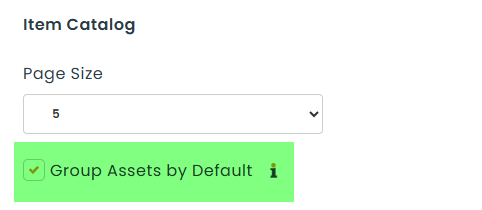
If you want every new category to start with grouping enabled, activate Group Assets by Default in Settings > Loaners > General, under Item Catalog.
Step 2. Configure your attributes (optional)
This step is optional and requires in depth understanding of Hector.
After having setup grouping for your category and updated the parts belonging to the category, you can start thinking about attributes.
In some cases, you will have attributes attached to your category that have no impact on grouping. For example, a serial number should not force assets out of a grouping configuration. This makes sense, because requesters will rarely care about the individual serial number of an asset.
However, a second attribute, like Dimension, could have an impact on the requester. For example, an asset that is double the size of another asset, in the same category and the same part, could influence the requester’s choice. In these cases, you’ll want separate lines in the catalog to represent the different dimension choices.
To do so, stay in the Configuration tab of the category and open the Attributes section. In the Assets list, check Loaners (Exempt from grouping) next to the attribute. Assets that share the same value for that attribute stay grouped, and assets with a different value get their own line in the catalog.
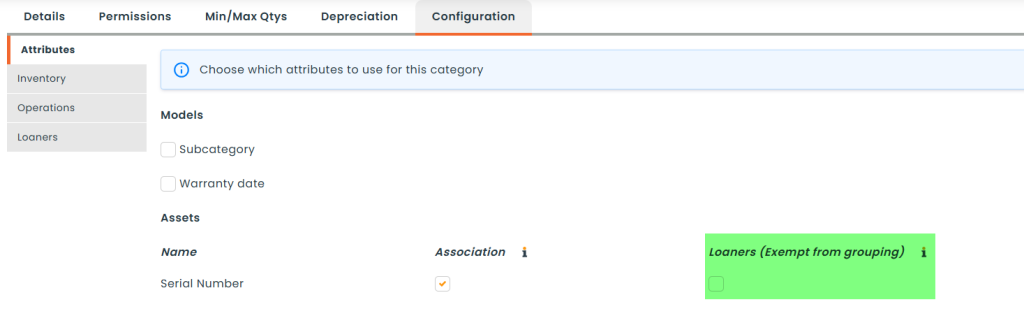
A few things to know about this column:
- It only appears once Group assets together is checked for the category. If you don’t see it, go back to the Loaners section and check the option first.
- It is only available on asset attributes. Part attributes never split a group, because a group never spans more than one part.
- The setting is saved per category, so the same attribute can be exempt in one category and ignored in another.
- Assets stored in different rackings are always shown as separate lines, whether or not any attribute is exempt.
- Saving the category recalculates the groups for you in the background. There is nothing else to run.
Step 3. Configure your parts (optional)
If you prefer to manage grouping directly by part, you can do so from the part edit screen. Loaners must be activated in your environment before you can perform this step.
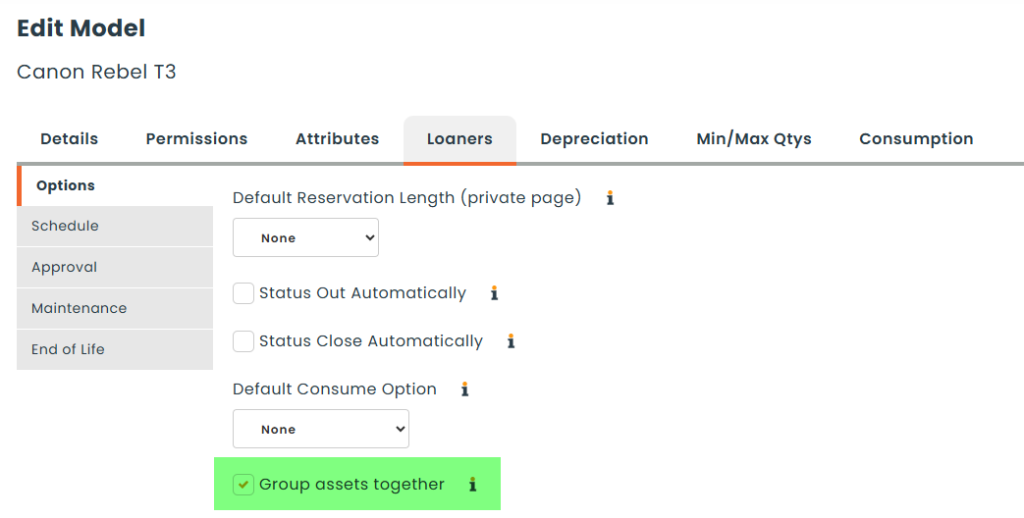
Once inside the edit screen, navigate to the Loaners tab, then to the Options section.
Within this section, you will find the option to group assets together. When you create a new part, this checkbox follows the category you select: it is checked by default if that category has grouping enabled, and unchecked otherwise. It is not shown at all on lot size parts.
Step 4. Check out your catalog
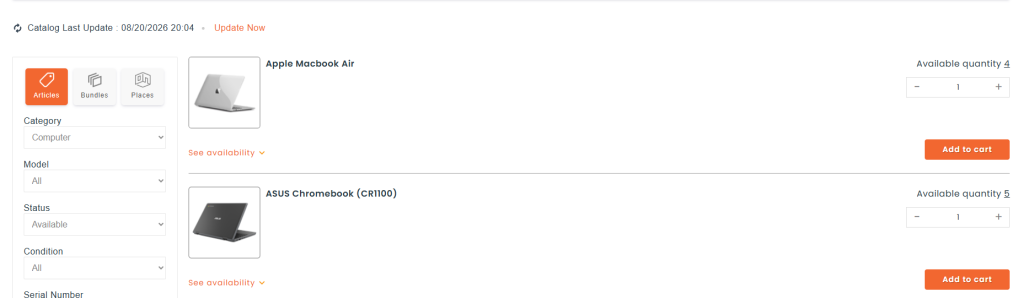
We’ve setup our computers with unique serial numbers for each based on what we have in inventory. We can see that each computer has been grouped, with a quantity selector instead of one line per asset. Knowing that the serial number was not exempt from grouping, this information doesn’t appear as it doesn’t hold any value for our requesters.
Because the requester picks a quantity from a group rather than a specific asset, Hector decides later which asset is actually allocated. That moment is controlled per stockroom by Asset Grouping – Asset allocation rules, in Stockroom > Loaners > Advanced:
- On Creation: a specific asset is reserved as soon as the item is added to the reservation.
- On Out: the reservation holds a quantity from the group, and the asset is only allocated when the item goes out.
Note: if your stockroom’s catalog is not refreshed automatically, your grouping changes will only be visible after a catalog refresh. See our guide on how the loaner catalog refresh options work.
There you have it. That is how you can setup asset grouping for the loaner item catalog in order to have a condensed view of assets for your users.