
Welcome to the official implementation guide for the Hector + ServiceNow integration.
⚙️ Functional Overview
The integration operates in two distinct layers: Data Dictionary Synchronization (Makers, Hardware Models) and Asset/CI Synchronization (Hardware and Configuration Items).
🧠 How it Works
Sync Direction (Hector → ServiceNow): For inventory data, this integration is unidirectional. Hector is the source of truth and pushes makers, models, assets and configuration items to ServiceNow. Changes made directly in ServiceNow to those records are not pulled back into Hector.
Sync Direction (ServiceNow → Hector): Ticket synchronization is the one exception, and it runs the other way. When enabled, Hector pulls tickets attached to your synced configuration items and displays them read-only on the asset. Nothing is ever written back to ServiceNow from Hector’s Tickets tab. See section 3 below.
To ensure data integrity, Hector syncs information to ServiceNow in a specific, dependency-based order, driven entirely by your category mappings:
- Category Mapping (The Gatekeeper): Hector pulls in your ServiceNow Model Categories so you can map them to your Hector Categories. Only elements belonging to these mapped categories will be synchronized.
- Makers (Manufacturers): For the mapped categories, Hector syncs its “Makers” (defined at the part level) to create or update corresponding Manufacturers/Companies in ServiceNow.
- Hardware Models: Once Makers are established, Hector creates or updates the specific Hardware Models, linking them to the mapped Model Category.
- Assets & CIs: Finally, the physical assets are created. Hector uses the mapped Categories to determine the correct Asset Class and CI Class for each.
- User Assignment: During asset creation, if it is assigned to a user in Hector, the system looks up that user by email in ServiceNow and automatically populates the
assigned_tofield. - Location Assignment: If the asset is not assigned to a user, Hector resolves the asset’s Stockroom or Racking to a matching ServiceNow location and populates the asset’s
locationfield (see Location Mapping configuration).
✅ Key Capabilities
The Hector-ServiceNow integration is a professional-grade bridge designed to maintain a single source of truth for your IT hardware and configuration items. Core features include:
- 🔄 Automated Lifecycle Sync: Keep your assets, models, and makers perfectly aligned across both platforms without double data entry.
- 🏗️ Intelligent Class Routing: Hector automatically routes assets and CIs into their proper ServiceNow tables based on the specific CI and Asset classes defined in your Category mapping.
- 👥 Automatic Identity Mapping: When an asset is assigned in Hector, the system looks up the user’s email address in ServiceNow and automatically updates the Assignment field.
- ✨ Advanced CI Enrichment: Overcome standard ServiceNow limitations by mapping specific Hector fields directly to distinct CI Class fields, ensuring your CMDB is always rich with accurate data.
- 📊 Incremental Sync: After the initial full synchronization, only assets modified since the last successful sync are processed, keeping sync cycles fast and efficient.
- 📍 Location Resolution: For assets that are not assigned to a user, Hector can match the asset’s Stockroom or Racking to a ServiceNow location and automatically populate the asset’s
locationfield. - 🎫 Ticket Visibility: Optionally pull the ServiceNow tickets attached to each synced configuration item — open and closed — and read them directly on the asset, without leaving Hector.
🛡️ Configuration: ServiceNow API Setup
Hector requires API access and specific roles in your ServiceNow instance to act as the secure bridge between systems. Follow the steps below to create a dedicated integration user and grant it the required access.
⚠️ Roles & ACLs vary by organization. ServiceNow security models differ significantly from one organization to another. The roles and Access Control Lists (ACLs) listed below are a baseline that works on a standard instance, but the exact role names and record-level permissions you need may differ depending on your instance’s plugins, domain separation, and custom security rules. Treat the lists below as a starting point and work with your ServiceNow administrator to grant the equivalent access in your environment. If validation fails on a specific table, it usually points to a missing role or ACL for that table.
Step 1: Create an Integration User
We recommend creating a dedicated service account for the Hector integration rather than using a personal admin account.
- In ServiceNow, navigate to User Administration > Users.
- Click New to create a new user.
- Fill in the required fields:
- User ID: e.g.,
hector_integration - First Name / Last Name: e.g., “Hector” / “Integration”
- Password: Set a strong password and save it — you will need it for the Hector configuration.
- User ID: e.g.,
- Click Submit to create the user.
Step 2: Assign Roles
Open the newly created user record, then scroll down to the Roles related list and click Edit. Add the following roles:
cmdb_readmodel_managerpersonalize_dictionaryrest_api_explorersn_cmdb_editorsnc_required_script_writer_permission- user_admin — required for Company
- asset — required to read Assets
sn_incident_read— required for Ticket Synchronizationsn_request_read— required for Ticket Synchronization
Click Save to apply the roles.
Step 3: Configure ACLs (Access Control Lists)
Depending on your ServiceNow instance’s security configuration, you may need to ensure the integration user has the following record-level ACL permissions. Navigate to System Security > Access Control (ACL) to verify or create these rules:
| Table | Operation | Type |
|---|---|---|
| alm_asset | write | record |
| alm_asset | create | record |
| cmdb_ci | write | record |
| cmdb_ci | create | record |
| core_company | write | record |
| core_company | create | record |
| cmn_location | read | record |
| sys_db_object | read | record |
🛠️ Configuration: Hector Integration Settings
Now that your ServiceNow instance is ready, you can configure the integration in Hector. Navigate to Settings > Integrations > Inventory > ServiceNow and click Add.
🔐 Step 1: Connect & Validate
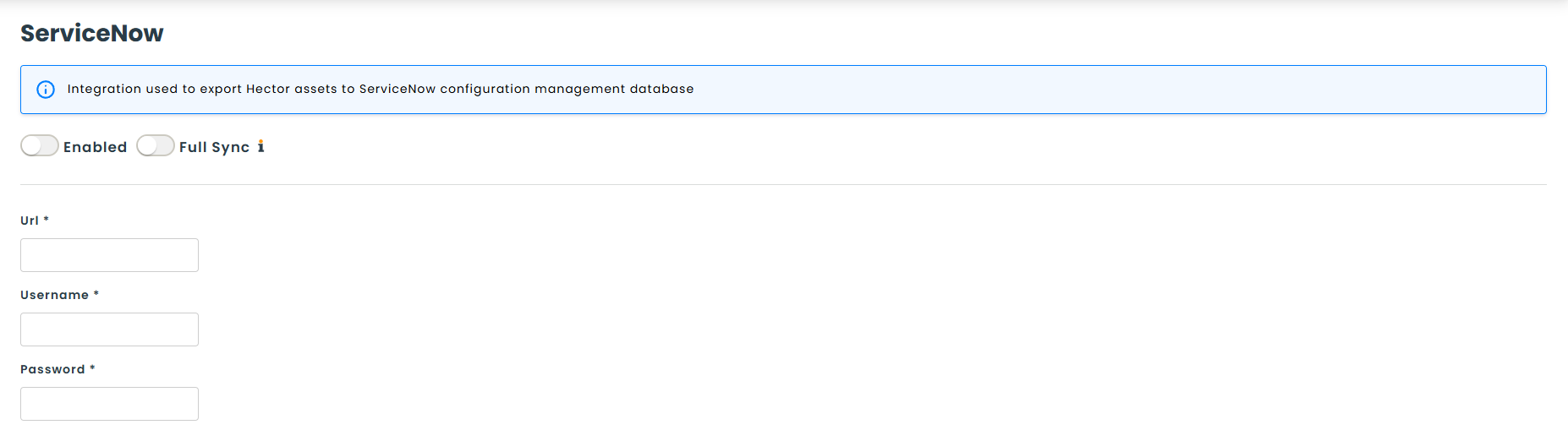
On the Authentication tab, enter the credentials you prepared in the ServiceNow API Setup:
Instance URL: Your full ServiceNow instance URL (e.g., https://YOURINSTANCE.service-now.com).
Username: The User ID of the integration service account you created.
Password: The password for the integration service account. This value is stored encrypted in Hector.
Click Validate. During validation, Hector tests API access to every required ServiceNow table (categories, companies, models, users, locations, assets, and CI fields). If any table is unreachable — due to incorrect credentials, missing roles, or network issues — validation will fail with a specific error message.
Once validation succeeds, the Inventory tab becomes available, unlocking the mapping configuration.
🗂️ Step 2: Category & Class Mapping
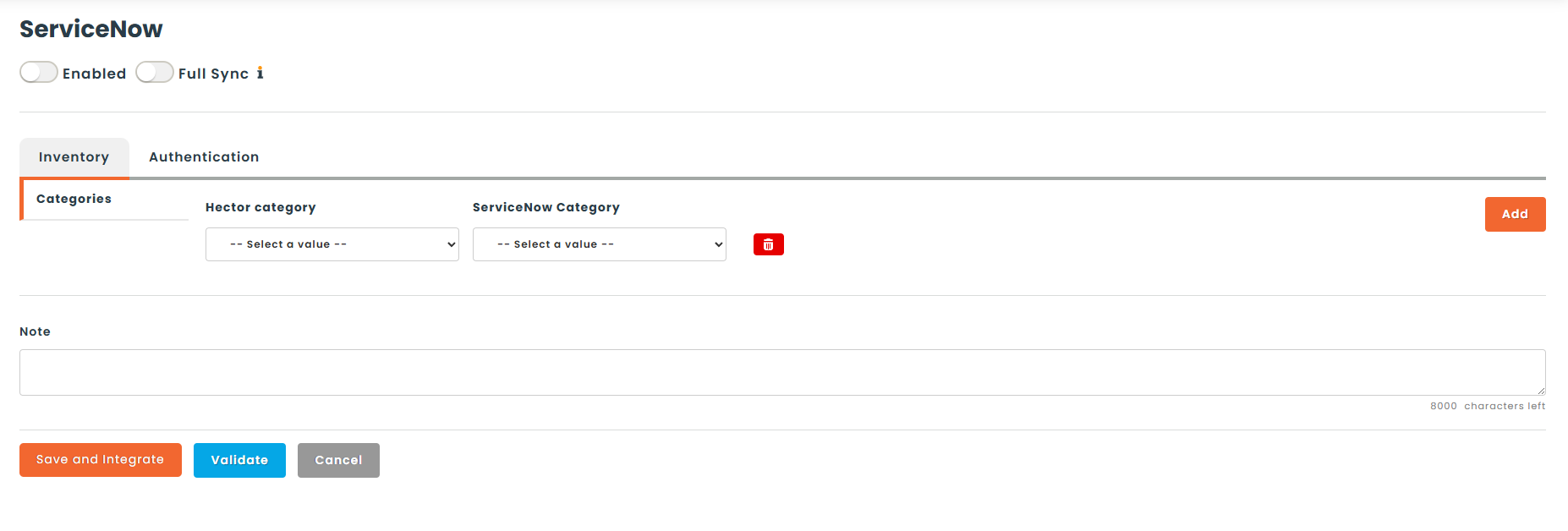
Switch to the Inventory tab, then open the Categories sub-tab. This is where you establish the mapping that drives the entire synchronization. Only elements belonging to mapped categories will be synchronized.
Click Add to create a new mapping row. For each row, select:
- Hector Category (left dropdown): One of your existing Hector Categories. Each Hector Category can only be mapped once.
- ServiceNow Model Category (right dropdown): The corresponding ServiceNow Model Category. This dropdown only lists categories with an
asset_classofalm_hardware. Each category carries its ownasset_class(determines the target asset table) andcmdb_ci_class(determines the CI type for enrichment).
Repeat for each category you want to synchronize. You can remove a mapping at any time by clicking the delete button on the row. Click Save when you are done.
🎛️ Step 3: Advanced CI Field Mapping (Optional)
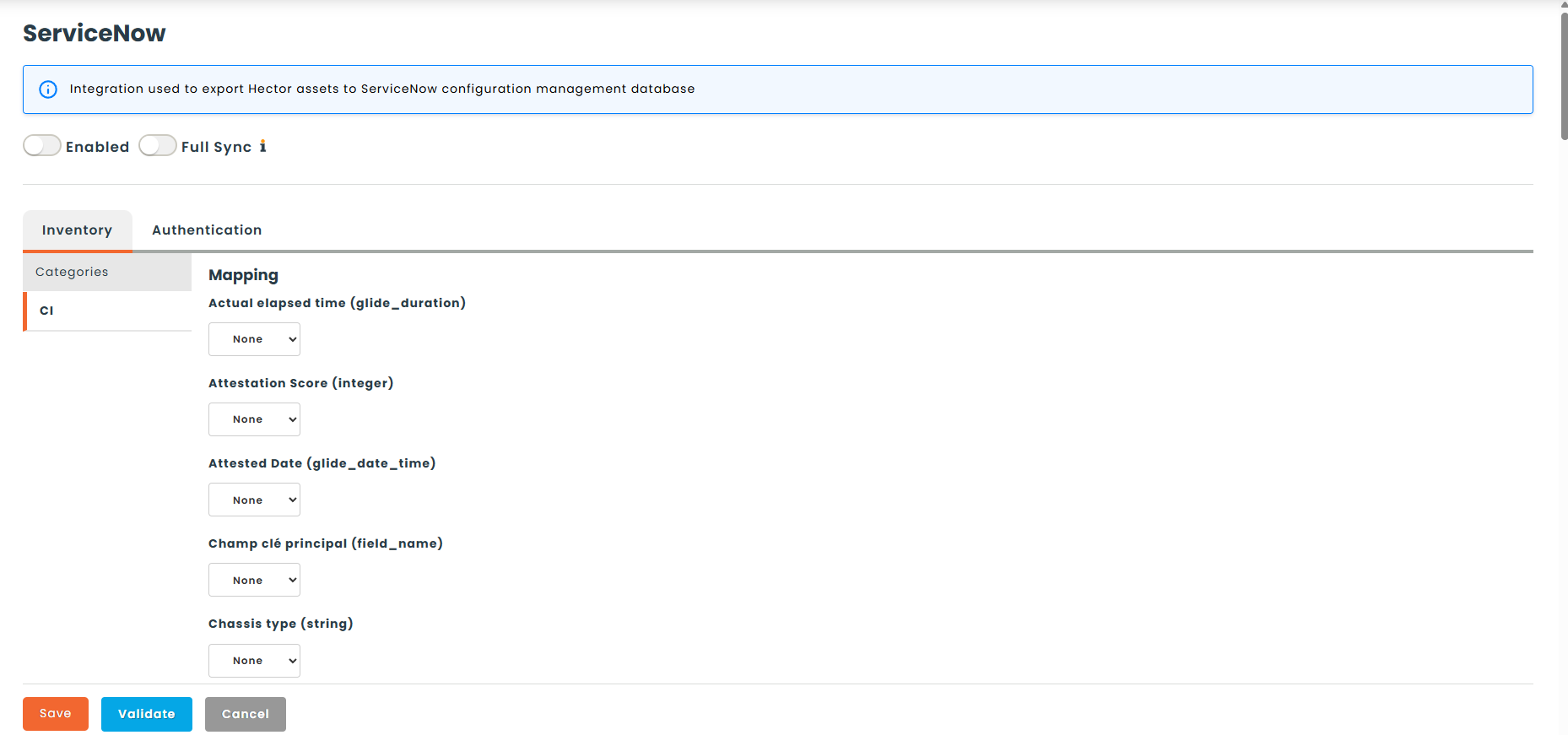
Once you have saved at least one category mapping, the CI Fields sub-tab becomes available. This step is optional but recommended if you want to push additional Hector data into ServiceNow Configuration Items beyond the base asset fields.
By default, when ServiceNow generates a CI from a new asset, it only copies over basic information. This feature lets you go further by mapping specific Hector asset columns directly to CI fields.
How it works:
- Aggregated Field Discovery: Hector dynamically reviews all the CI Classes associated with your mapped categories and gathers every distinct CI field available across them. Only fields with supported data types (string, integer, boolean, date/time, duration, IP address, domain path, field name) are included. If multiple CI classes share the same field (e.g., “CPU” or “MAC Address”), it appears only once.
- Mapping: For each discovered CI field, you can optionally select a Hector asset column to map to it.
- Smart Execution: During the sync, Hector checks if the specific CI being updated actually supports that field. If the field belongs to that CI’s class, the mapped value is pushed. Date/time values are automatically converted to UTC format.
📍 Step 4: Location Mapping (Optional)
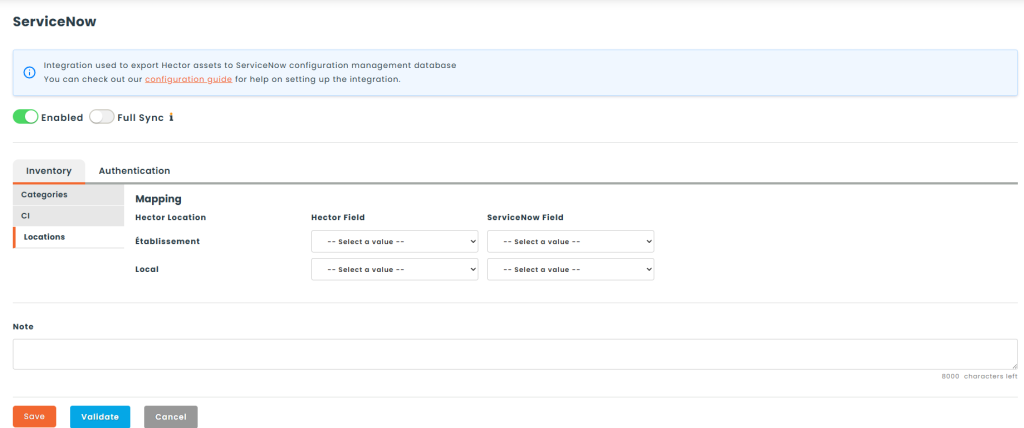
The Locations sub-tab lets Hector populate the location field of an asset in ServiceNow based on where the asset is physically stored in Hector. This step is optional and only affects assets that are not assigned to a user — when an asset has a user, its assignment always takes priority and no location is set.
The mapping defines a matching key between a Hector location and a ServiceNow location (the cmn_location table). For each supported Hector location type, you choose one Hector field and one ServiceNow location field. During sync, Hector considers a location a match when those two field values are equal.
Two Hector location types are supported, each on its own row:
- Stockroom — selectable Hector fields: Name, Description, Note, plus any custom Stockroom attribute of a simple, single-value type (text, whole number, or single-select list). Decimal, date, checkbox, multi-select, and reference-type attributes are intentionally excluded.
- Racking — selectable Hector fields: Name and Description.
The ServiceNow Field dropdown is populated dynamically from the cmn_location table’s data dictionary, so you can match against any standard or custom location field.
Configure the row(s) you need and click Save. Leave a row blank to skip mapping that location type. Because a Racking always lives inside a Stockroom, an asset stored in a racking is matched against the Racking mapping first, then falls back to the Stockroom mapping if no racking match is found (or no racking mapping is configured).
🔄 Usage & Synchronization
Once the initial connection is established, the integration manages the lifecycle of your hardware dictionary and individual assets for all mapped categories.
🕒 Sync Frequency
- Scheduled Job: The synchronization runs as a scheduled job on a configured interval. It can also be triggered manually from the integration settings.
- Incremental by Default: After the initial sync, only assets modified since the last successful sync are included. This keeps sync cycles efficient.
- Full Sync Option: A full sync can be forced when needed, which re-processes all active assets in the mapped categories regardless of their modification date.
🔍 The “Lookup, Link, or Create” Logic
For every entity synced to ServiceNow (Makers, Models, and Assets), Hector follows a strict validation process to prevent duplicates:
- Lookup: Hector searches ServiceNow for an existing record based on predefined matching fields.
- Link & Update: If a match is found, Hector links its internal ID to the ServiceNow
sys_id. For all future syncs, it will simply update this existing record. - Create: If no match is found during the initial lookup, Hector creates a brand-new record in ServiceNow and establishes the link for future updates.
📥 1. Dictionary Synchronization (Hector → ServiceNow)
Before syncing individual assets, Hector ensures ServiceNow has the correct foundational data for your mapped categories.
A. Makers (Manufacturers)
Hector checks the core_company table in ServiceNow for makers tied to mapped categories.
- Matching Field: Name (case-insensitive)
🔁 Sync Behavior:
- If found: Hector links to the existing company. If the company is not already marked as a manufacturer, it updates the
manufacturerflag totrue. - If not found: Hector creates a new company with the
manufacturerflag set totrueand a note indicating it was auto-created via Hector Sync.
| Hector Part Field | ServiceNow Field | Notes |
|---|---|---|
| Maker | name | Used to find matching manufacturers. |
| – | manufacturer | Set to true to identify the company as a manufacturer. |
| – | notes | Set to “Auto-created via Hector Sync” on creation only. |
B. Hardware Models
Hector checks the cmdb_hardware_product_model table in ServiceNow for models tied to mapped categories.
- Matching Fields: Name + Manufacturer
🔁 Sync Behavior:
- If a mapping already exists: Hector updates the existing product model in ServiceNow with the latest data from Hector.
- If no mapping exists: Hector creates a new product model and saves the link (Hector Part ID → ServiceNow
sys_id) for future syncs.
| Hector Part Field | ServiceNow Field | Notes |
|---|---|---|
| Model | name | The model name. |
| Maker | manufacturer | Linked to the company synced in Step A. |
| Category | cmdb_model_category | Linked to the ServiceNow Model Category defined in your integration mapping. |
| Description | short_description | Populated directly from the Hector part. |
| Vendor SKU | model_number | Populated directly from the Hector part. |
| Price | cost | Populated directly from the Hector part. |
📥 2. Asset & CI Synchronization (Hector → ServiceNow)
Once the structural data is in place, Hector syncs the physical assets and configuration items that belong to your mapped categories using a specialized enrichment process.
Assets & Configuration Items
Hector checks the appropriate asset table (determined by the category’s asset_class, typically alm_hardware) in ServiceNow.
- Matching Fields: Serial Number OR Asset Tag (via existing mapping link)
🔁 Sync Behavior & Creation Logic:
- Lookup: Hector checks if it already has a mapping (Hector Asset ID → ServiceNow
sys_id). If a mapping exists, it updates the record. If the mapped record no longer exists in ServiceNow (e.g., it was deleted), Hector falls back to creating a new one. - Table Routing: The target ServiceNow table is determined by the asset’s category. The Part → Model → Category →
asset_classchain determines the exact table (e.g.,alm_hardware). If the chain cannot be resolved, it falls back toalm_asset. - User Assignment: If the asset is assigned to a user in Hector, the system looks up that user’s email address in ServiceNow’s
sys_usertable. If a match is found, theassigned_tofield is populated. If no match is found, the field is left empty. - Location Assignment: If the asset is not assigned to a user and you have configured a Location Mapping, Hector determines where the asset is stored and resolves it to a ServiceNow location. It prefers the most specific match — a Racking when the asset sits in one — and otherwise falls back to the asset’s Stockroom. The mapped Hector field value is matched against the mapped
cmn_locationfield; if a location is found, the asset’slocationfield is set to it. Assets assigned to a user keep their user assignment and are never given a location by this process, and a non-match simply leaves the location untouched. - ✨ Two-Step CI Enrichment:
- Step 1 – Standard Creation: Hector creates the Asset, triggering ServiceNow to generate the baseline Configuration Item (CI).
- Step 2 – Targeted CI Update: Immediately after, Hector reads the CI reference from the newly created asset. Using the CI class determined by the category’s
cmdb_ci_class, Hector pushes mapped field values into the CI record. This enrichment also runs on updates to existing assets.
🧱 Base Asset Field Mapping
| Hector Asset Field | ServiceNow Field | Notes |
|---|---|---|
| Asset Tag | asset_tag | The asset’s unique tag identifier. |
| Serial Number | serial_number | Populated from the asset’s serial number attribute. |
| Model | model | Linked to the Hardware Product Model synced in Step 1B (reference by sys_id). |
| Model Category | model_category | Inherited from the model’s cmdb_model_category. |
| Manufacturer | manufacturer | Inherited from the model’s manufacturer (reference by sys_id). |
| Assignment (if user only) | assigned_to | Populated automatically if the user is found in ServiceNow by email. Left empty otherwise. |
| Location (if unassigned) | location | Resolved from the asset’s Stockroom/Racking via the Location Mapping. Only set when the asset is not assigned to a user and a matching cmn_location record is found. |
| Acquired Date | purchase_date | Formatted as yyyy-MM-dd. |
| Price | cost | Populated directly from your Hector asset. |
| Currency | currency | Populated directly from your Hector asset. |
| [Custom Mapped Fields] | [Distinct CI Fields] | Pushed to the CI record during Step 2 of enrichment, provided the field exists on the CI’s specific class. |
🚫 Integration Constraints
- Unidirectional Sync: This integration pushes data from Hector to ServiceNow only. Changes made directly in ServiceNow (field updates, status changes, deletions) are not reflected back in Hector.
- No Deletion Propagation: When records are deleted or inactivated in Hector (assets, categories, parts, manufacturers, etc.), they are not removed from ServiceNow. Cleanup in ServiceNow must be performed manually.
- Skip Sync Flag: Individual assets can be excluded from synchronization by enabling the Skip Sync flag on the asset in Hector.
- Category-Gated: Only assets belonging to categories that have been explicitly mapped in the integration settings will be synchronized. Unmapped categories are completely ignored.
- User Matching by Email Only: The
assigned_tofield is populated by matching the Hector user’s email address against ServiceNow’ssys_usertable. If the email does not exist in ServiceNow, the field is left empty — no error is raised. - Hardware Only: This integration is designed exclusively for hardware. The category mapping dropdown only displays ServiceNow Model Categories with an
asset_classofalm_hardware, and product models are synced exclusively to thecmdb_hardware_product_modeltable. Other ServiceNow model types (e.g., software models, consumable models) and non-hardware asset classes are not supported. - CI Class Fallback: If a mapped ServiceNow category does not have a
cmdb_ci_classdefined, CI enrichment will target the genericcmdb_cibase table. For best results with CI field mapping, ensure your ServiceNow categories have a specific CI class assigned (e.g.,cmdb_ci_computer,cmdb_ci_server). - Location for Unassigned Assets Only: Location resolution applies exclusively to assets with no user assignment. An asset assigned to a user is given
assigned_toand never a location. - Stockroom & Racking Only: Location matching supports the Hector Stockroom and Racking location types only. Assets located at a Place, Space, or other whereabouts are not matched to a ServiceNow location.
- Value-Based Matching: A location match requires the mapped Hector field value to equal the mapped
cmn_locationfield value (case-insensitive, surrounding spaces ignored). If no location matches, thelocationfield is simply left unset.
📥 3. Ticket Synchronization (ServiceNow → Hector)
When tickets synchronization is activated, Hector automatically pulls ticket data from ServiceNow into your asset records. When a ServiceNow ticket — such as an incident, problem, or change request — is linked to a Configuration Item that corresponds to a tracked Hector asset, Hector mirrors the selected ticket fields and displays them directly on the asset’s Tickets tab.
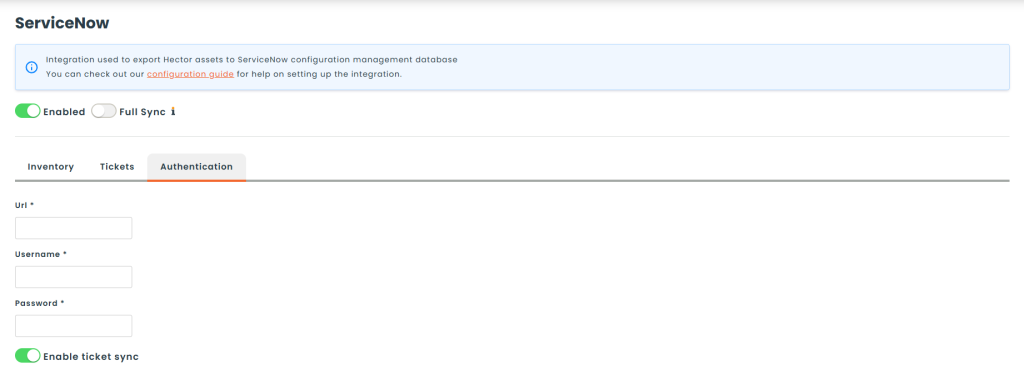
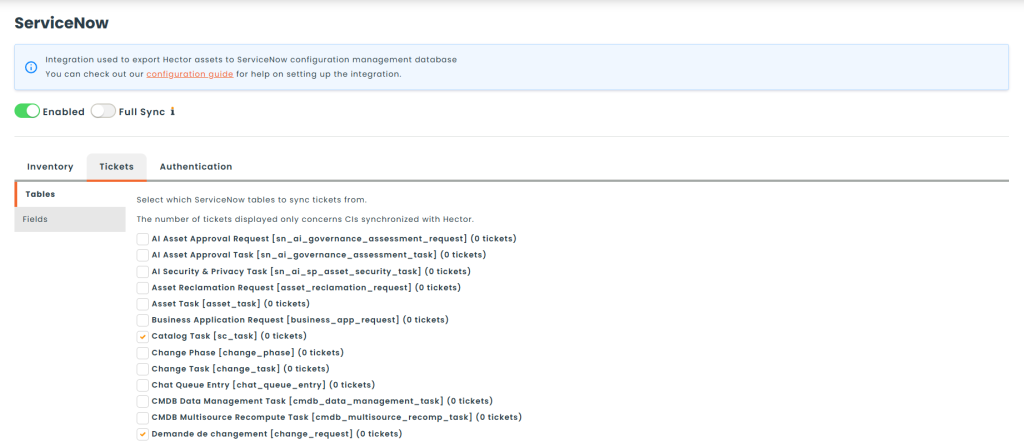
⚙️ Configuration: Step 1 — Table Selection
Navigate to the Tickets tab in your ServiceNow integration settings and open the Tables sub-tab. This is where you select which ServiceNow task-derived tables Hector will monitor for tickets.
The list is automatically populated with every task-derived table available in your ServiceNow instance — commonly incident, problem, change_request, sc_req_item and sc_task, alongside any custom tables your instance defines.
No table is selected for you. Enabling ticket sync on its own pulls nothing: you must tick at least one table here and click Save. Until a table is selected the ticket sync runs and completes without importing anything, and the asset Tickets tab stays empty.
Each table is shown with a ticket count to help you choose. That count is every ticket in the table attached to a configuration item — open or closed — across your whole ServiceNow instance, not only the CIs synced with Hector, so treat it as an indication of where your tickets live rather than a preview of what will be imported.
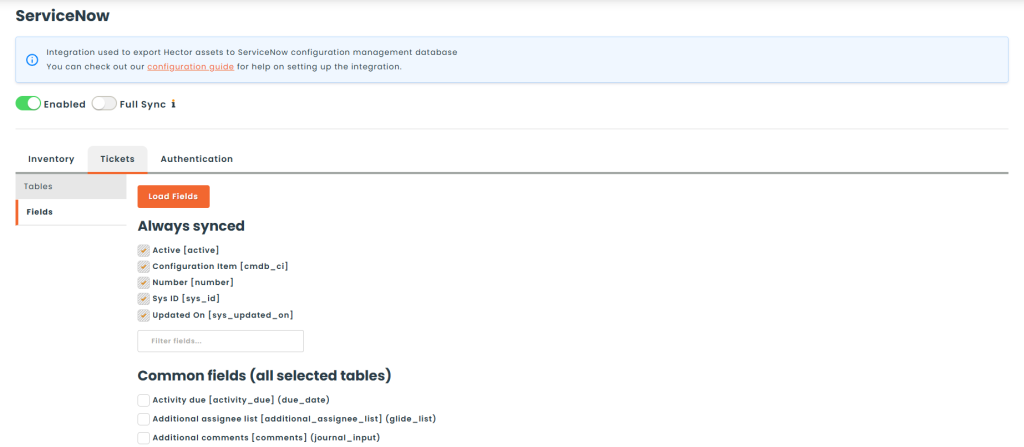
⚙️ Configuration: Step 2 — Field Selection
Once tables are selected, open the Fields sub-tab. Fields are automatically loaded from ServiceNow’s data dictionary for all selected tables and grouped into three categories:
- Always Synced: Core tracking fields (ticket number, CI reference, active status, last updated date) that are always included and cannot be deselected.
- Common Fields: Fields shared across all selected tables (e.g., short description, state, priority, assigned to).
- Table-Specific Fields: Fields that exist only on certain tables, displayed per table with a label indicating which tables they belong to.
Use the search box to quickly filter fields by name or label. Click Save to persist your selection. Fields will appear as columns on the asset Tickets tab in the order they were selected.
🔄 Sync Behavior
Ticket synchronization runs with the nightly integration sync, right after the asset sync it depends on:
- CI → Asset Resolution: For each ticket, Hector reads the linked Configuration Item (
cmdb_ci) and resolves it to a Hector asset using the existing CI mapping established during asset sync. Tickets linked to CIs that are not tracked in Hector are silently skipped — no error is raised. - Open and Closed Tickets: Every ticket attached to a tracked CI is imported, whatever its state. Closing a ticket in ServiceNow does not remove it from Hector — the asset keeps its full ticket history. Select the
statefield (see Step 2) if you want a column that tells open and closed apart at a glance. - Field Snapshot: The selected fields are stored as a snapshot on each Hector ticket record, along with their display labels. Values are stored ready to display — no additional ServiceNow lookups are required when viewing the asset’s Tickets tab.
You do not have to wait for the nightly run. Pressing Sync beside ServiceNow in Settings → Integrations queues the ticket sync straight after the asset sync, and the Sync button on an individual asset’s Integrations tab refreshes that one asset’s tickets immediately — useful for checking a single ticket without running a full sweep.
🛡️ Ticket Reconciliation
A dedicated reconciliation job runs with the nightly integration sync, immediately after the ticket sync, to catch tickets that have silently fallen out of scope — such as tickets deleted directly in ServiceNow, or reassigned to a configuration item Hector does not track.
Any Hector ticket record that the sync has not seen in 90 or more days is considered stale and is deactivated: it stops appearing on the asset, but the record itself is never deleted. A closed ticket is not stale — the sync keeps returning it, so it stays visible indefinitely.
Reconciliation is deliberately cautious: if no ticket sync has succeeded in the last three days, it skips itself entirely rather than risk deactivating tickets on the strength of a sync that never ran.
🗂️ Viewing Tickets on an Asset
When at least one ticket has been synced for an asset, a Tickets tab appears on the asset detail page. The tab badge shows how many tickets are held for that asset, open and closed alike. An asset with no synced tickets shows no tab at all.
The tickets table displays the following columns:
| Column | Description |
|---|---|
| Number | The ServiceNow ticket number, displayed as a clickable link that opens the full record directly in your ServiceNow instance. |
| Source | The ServiceNow table the ticket originates from (e.g., incident, problem). |
| Updated | The date and time the ticket was last updated in ServiceNow. |
| [Selected Fields] | One column per field selected during configuration, displayed in selection order. |

🚫 Constraints
- Unidirectional Sync: Ticket data flows from ServiceNow to Hector only. No information is written back to ServiceNow from the Tickets tab.
- CI Mapping Required: Only tickets linked to CIs that are already tracked as Hector assets will be synced. Tickets associated with untracked CIs are ignored.
- No Deletion Propagation: Tickets deleted directly in ServiceNow are not removed from Hector immediately. They stop being returned by the sync and are deactivated by the reconciliation job once they pass its 90-day staleness window. Closing a ticket is not a deletion — closed tickets remain visible on the asset by design.
- Shared Configuration: The table and field selection applies globally to all assets. There is no per-asset or per-category ticket filter.
- Hardware CI Dependency: Ticket sync relies on the CI mapping established by the asset sync (section 2). The asset sync must have run at least once for a CI’s corresponding asset to receive tickets.
We hope this guide was helpful and best of luck on your Hector journey!