
Suppliers print GS1 barcodes (GS1-128, GS1 DataMatrix) on their products, carrying several pieces of information: the product identifier (GTIN), the expiration date, the lot number, and sometimes a serial number or internal information. The GS1 Codes integration lets Hector read these codes when an asset is created and fill in the matching fields automatically. This article explains how to activate and configure it, and what happens when you scan a GS1 code.
🏷️ What a GS1 code looks like
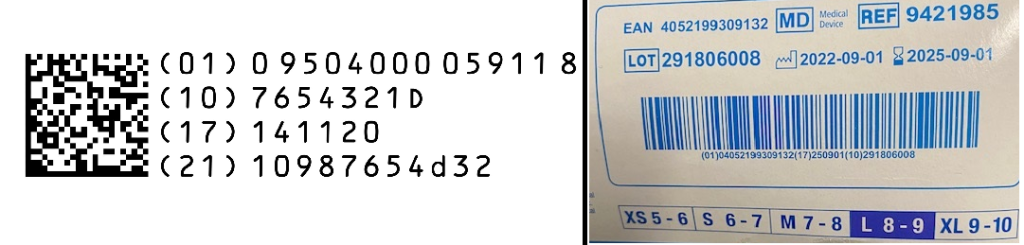
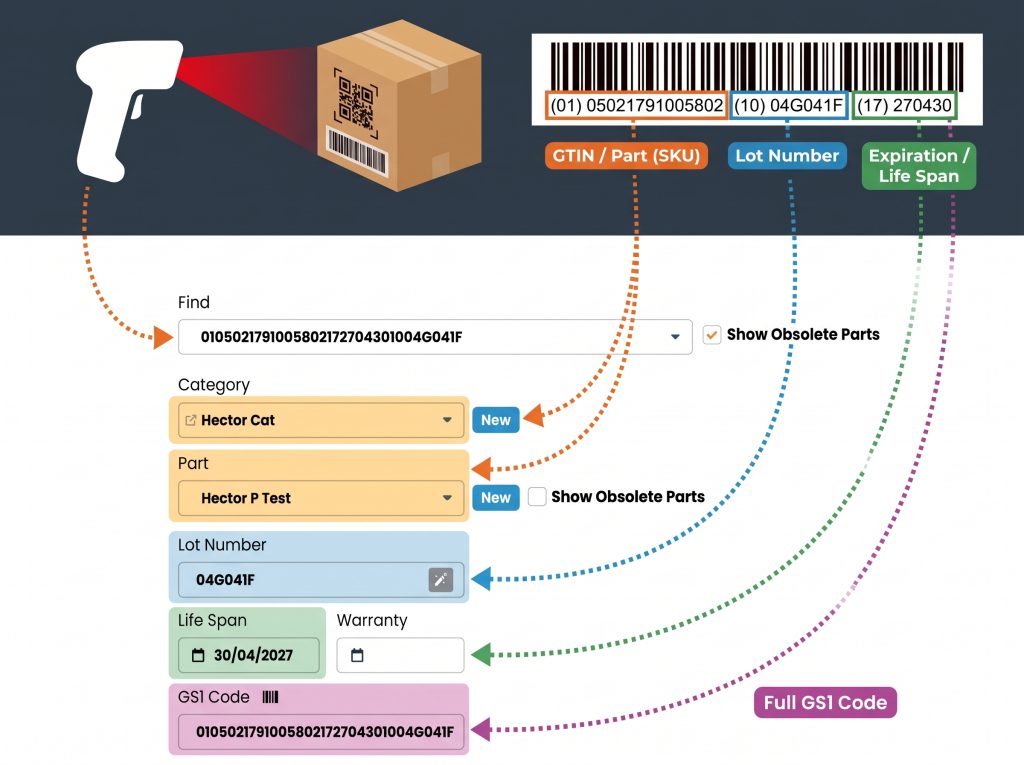
Under the barcode, the label shows the code in human-readable form. Each piece of information is preceded by its identifier (AI) in parentheses:
(01)«GTIN» (17)«YYMMDD» (10)«LOT»
- (01) «GTIN»: the product identifier (GTIN), always 14 digits.
- (17) «YYMMDD»: the expiration date, in year-month-day format.
- (10) «LOT»: the lot number.
The scanner does not send the parentheses or the spaces: Hector receives a single string, «CODE». That is what you see in a field after a scan.
📦 What the integration does
Once the integration is activated, a GS1 code scanned when creating an asset is used to:
- find the part from the product identifier (01), compared with the Vendor SKU of your parts;
- fill in the life span with the expiration date (17);
- fill in the lot number (10);
- fill in the attributes of your choice with the other identifiers (serial number, supplier internal information, production date…);
- keep the complete code in the GS1 Code attribute, so the asset can be found later by scanning the same code in search.
While the integration is off, a scanned code is treated as plain text: nothing changes for you.
Note: this article uses the word “part”. If your instance uses another term (subcategory, model, reference…), that is the word Hector displays.
✅ Prerequisites
- The integration is part of the Castle plan; it is not available during the trial period.
- To configure it, your role needs full access to the integration settings.
- The Vendor SKU field must be filled in on your parts with the GTIN printed by the supplier. This is what lets Hector find the part from the code. In the scan messages, this field is called “supplier SKU”. A 14-digit GTIN also matches a SKU entered without its leading zeros (EAN-13, UPC).
⚙️ Activating and configuring the integration
- Go to Settings › Data Management › Integrations, Inventory tab.
- On the GS1 Codes card, click Add.
- Configure the identifiers and categories (see below).
- Click Save and Integrate. The integration is then active and the GS1 Code attribute is created.
Afterwards, the card offers Edit to return to the configuration and Remove to deactivate the integration. Deactivating the integration does not delete the GS1 Code attribute or its values: scanned codes simply become plain text again.
● Identifiers read and fields filled
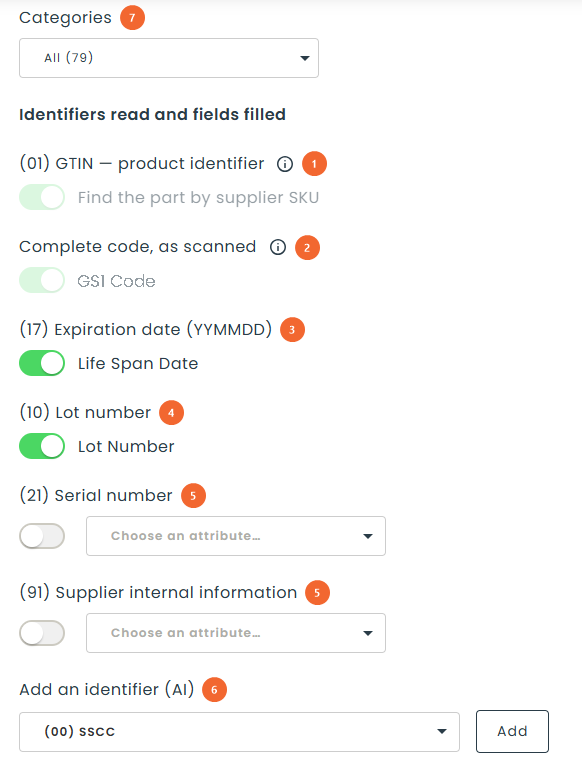
1. (01) GTIN — product identifier: finds the part by its Vendor SKU. This identifier is required and cannot be disabled.
2. Complete code, as scanned: kept in the GS1 Code attribute. It is also required: without it, the asset could not be found by a later scan.
3. (17) Expiration date (YYMMDD): fills in the asset’s Life Span (option “Life Span Date”). Enabled by default.
4. (10) Lot number: fills in the Lot Number. Enabled by default.
5. (21) Serial number and (91) Supplier internal information: disabled by default. To enable one, choose the attribute that will receive the value; only text or date attributes are offered.
6. Add an identifier (AI): adds another GS1 identifier Hector can decode (production date (11), best-before date (15), additional product identification (240), customer part number (241), etc.). Enable the row and choose the target attribute. A date is stored as YYYY-MM-DD in a text attribute, or as a real date in a date attribute. An added row can be removed with its delete button.
7. Categories: the categories that receive the GS1 Code attribute. Only lot-size managed categories are offered, since a GS1 code only carries a lot number; All targets every one of them. Removing a category later does not take the attribute away from it.
Like the rest of the page, adding and removing identifiers only takes effect when you save. An identifier present in a code but disabled, or unknown to Hector, is simply ignored: it never blocks the scan.
● Test a code
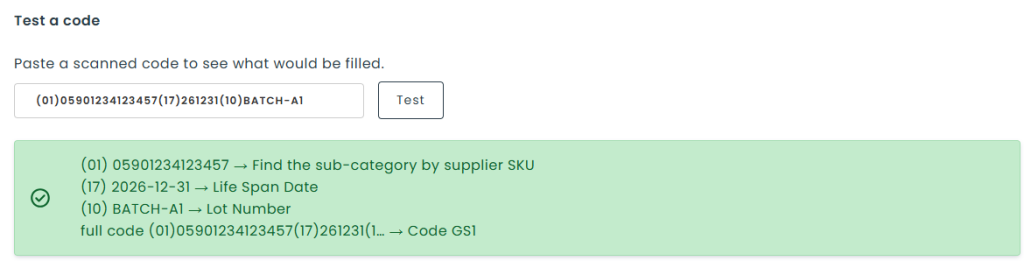
The Test a code zone shows, segment by segment, what a code would fill in. Paste a scanned code or its human-readable form “(01)0405… (17)2509…”, then click Test. Each segment shows the field it fills, or a status such as “ignored — not enabled”, “ignored — unknown identifier” or “ambiguous — nothing will be filled (missing GS separator)”. A code that is not a GS1 code is reported as such.
This zone uses the settings shown on screen, even before they are saved: use it to validate your configuration before saving.
Once the integration is active, the same test is available from anywhere in Hector, without going back to the settings:
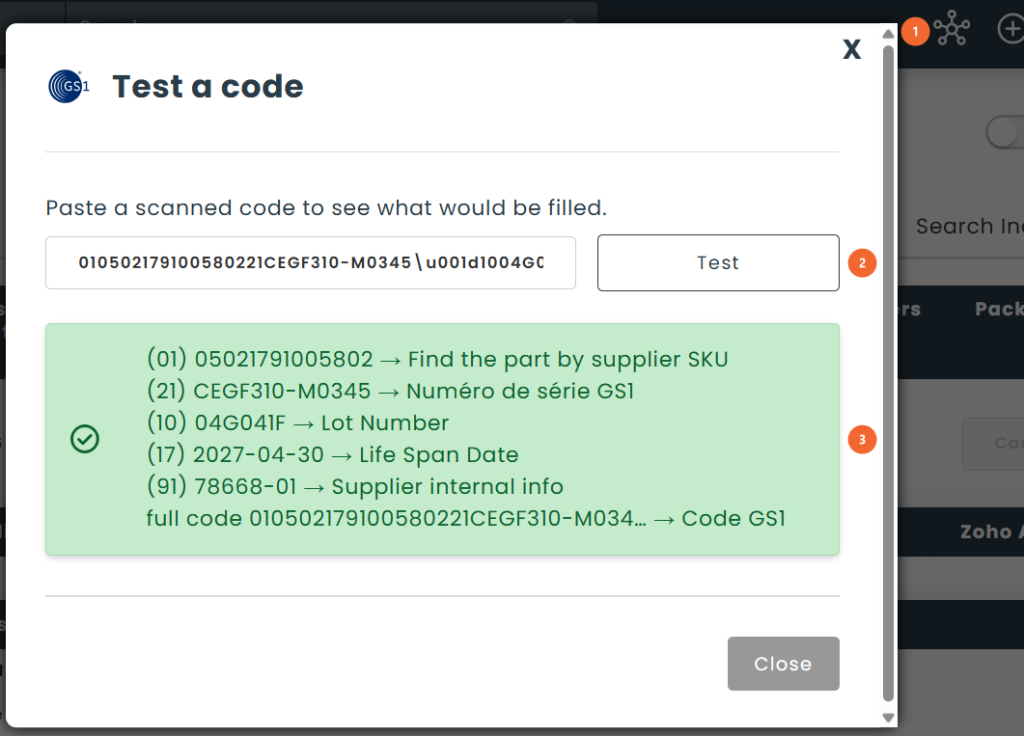
1. In the top bar, open the Integration Tools menu, then GS1 : Code Test. The menu appears only once the integration is active, and only to users who have access to the settings.
2. Paste a scanned code in the Test a code window, then click Test or press Enter.
3. The result lists one line per identifier: (AI) value → field filled, with the same statuses as above. The last line, full code, shows the GS1 Code attribute that will receive the complete code.
Unlike the zone on the settings page, this window uses the saved configuration: it shows exactly what a scan will do on the asset creation page. It is the tool to use when a code does not fill in as expected. Note: the (01) line indicates that the part will be searched by supplier SKU, but does not say whether a part matches. To check that, scan the code on the asset creation page.
📷 Scanning a code when creating an asset
● Example: a scan with the standard configuration
This example uses the configuration offered when the integration is activated: (01), the complete code, (17) and (10) enabled, nothing else configured. The part already exists, its Vendor SKU holds the GTIN, and the asset form is empty.
On the asset creation page, you can scan the code into three fields:
- Find, the search box at the top of the form;
- the part field;
- Lot Number.
Hector decodes the code as soon as typing stops (about 1.5 seconds); a code shorter than 14 characters is not treated as a GS1 code.
Scan the label (01)«GTIN» (17)«YYMMDD» (10)«LOT» into Find. Hector fills in the form:
Complete the other fields if needed, then save: the asset is created. The next scan of the same label in search will find it (see Finding an existing asset).
The following sections describe what happens when the form already holds values or when the part is unknown.
● A scan never overwrites what you entered
Empty fields are filled in directly, and fields that already hold the same value do not change. For each field that already holds a different value, Hector displays a message:
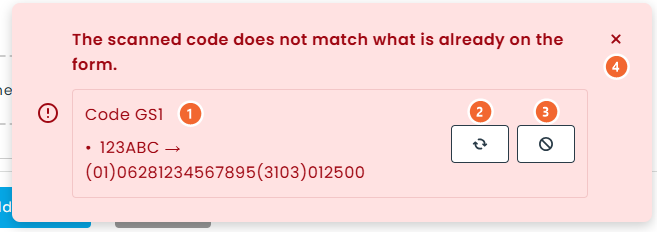
1. The field name, then current value → code value.
2. Switch (two-arrow icon): applies the code’s value. The field is brought to the middle of the screen and its border lights up briefly, so you see what changed.
3. Ignore: the line disappears and nothing changes.
4. X: closes the message at any time.
The button names appear on hover. As long as there is a decision left to make, the message stays open; it closes on its own once you have answered the last line. A purely informative message fades away after a few seconds.
● The code points to a different part
If a part is already selected and the SKU read from the code belongs to another part, the message shows both parts (the one on the form → the one from the code) with Switch and Ignore. Switch selects the right part, and its category if needed, then reloads the fields. If the SKU matches several parts, the message only reports it: the choice is yours. Nothing is ever changed without your click.
● The part does not exist yet
If the code’s GTIN matches no Vendor SKU, Hector offers to create the part:
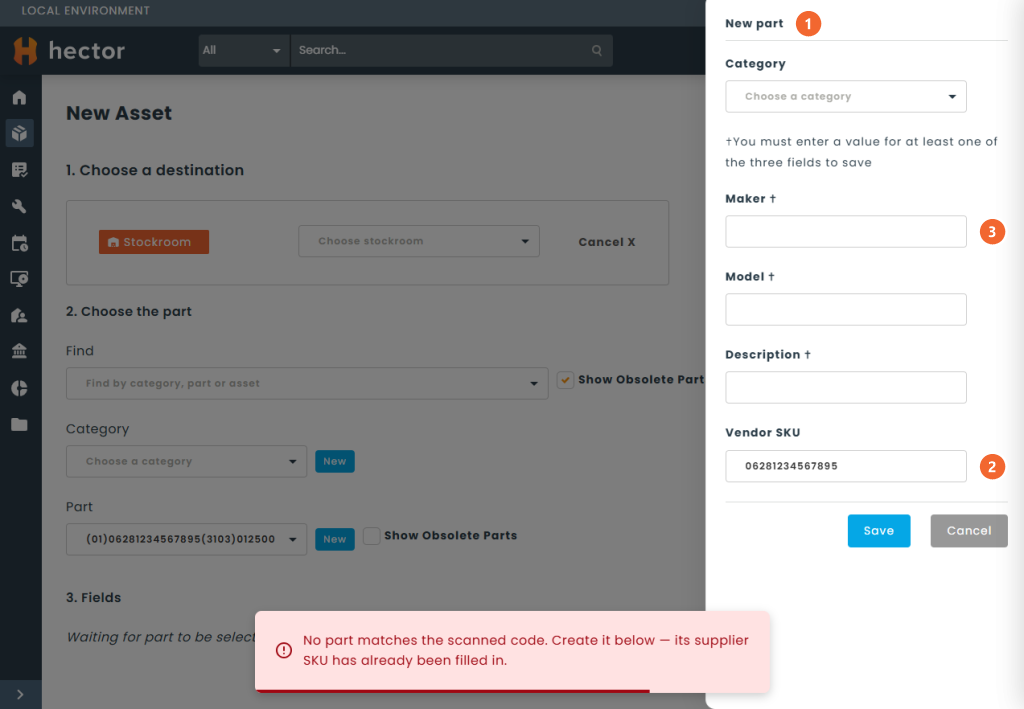
1. The New Part panel opens directly if you scanned into Find or the part field. If you scanned into the lot number, the message offers a New button to open it.
2. Vendor SKU: already filled in with the code’s GTIN. The category already selected on the page is carried over.
3. Complete the maker, model and description, then save. The part is created and selected, and the values already decoded (lot, life span, complete code) stay in place. The next scan of the same label will recognize the part.
This creation is only offered on the asset creation page, to users who can create parts. In this panel, a SKU already used by another part is refused, since no scan could tell the two apart. Also avoid giving the same SKU to two parts from their own page.
🔎 Finding an existing asset
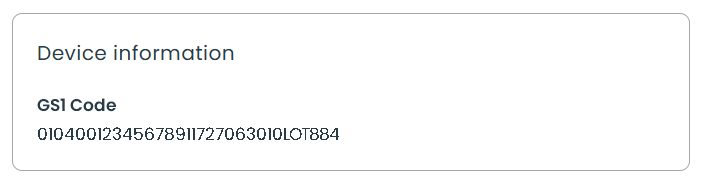
Every time an asset is created from a scan, the complete code is kept in the GS1 Code attribute, without its separators. To find the asset later, scan the same code into the search at the top of the screen or into the asset list search: Hector finds it through this attribute, even if your scanner adds separators or a prefix. If a single asset matches, its page opens directly.
A few precautions:
- Do not clear the GS1 Code attribute: it is what lets you find the asset.
- Save & Same clears this attribute on the copy, since the code identifies a single asset.
- Create your assets from a real scan, not from the human-readable “(01)…” form: the stored code would not match a later scan.
- Scanning a label on the asset creation page always creates a new asset; to open an existing asset, use search.
📱 Mobile app
In the mobile app, the main scan works the same way. If the code matches a single part, the category and part are selected automatically. If no part matches, the app offers to create the part; enter the Vendor SKU there, so that later scans of the same label find it.
⚠️ Known limit: the GS separator
In a GS1 code, variable-length fields (lot number, serial number…) end with an invisible character called “GS”. Some scanners or manual entries lose it. Without that separator, a variable-length field followed by another identifier cannot be split reliably: for example, a serial number containing “10” blends into the start of the lot number.
In that case, Hector fills in nothing rather than a wrong value. Fixed-length identifiers read before the ambiguity, notably the GTIN, are still used; the rest is ignored, and the Test a code zone shows those segments as ambiguous. If this happens regularly, check your scanner’s configuration: transmitting control characters (FNC1 / GS) is the recommended setup.
Some scanners send the separator as visible text (\x1D or \u001d) or as a replacement character (often displayed as a diamond with a question mark). Hector understands all three forms and decodes them like the real character, so those scanners work without reconfiguration. Codes that start with ]C1, ]d2 or ]Q3 also work: that prefix, which identifies the barcode type, is ignored automatically.
If you have any questions or would like personalized support, please feel free to contact our sales team at [email protected] or your account manager.