
Open hours tell Hector when your loaner service is actually available. They control which dates and times a requester can pick on the public reservation form, and — depending on your rules — how reservation delays are counted. This article covers the full schedule: weekly open hours, closed days, exception days, and the part-level overrides.
Everything below lives on the stockroom itself, so each stockroom keeps its own hours.
Before you start
Loaners must be enabled on the stockroom. If you do not see a Loaners tab when you edit a stockroom, open the Details tab and turn on Allow loaners first.
New stockrooms start from a default 8-to-5 schedule, so in most cases you are adjusting an existing schedule rather than building one from an empty grid.
Step 1 — Open the stockroom
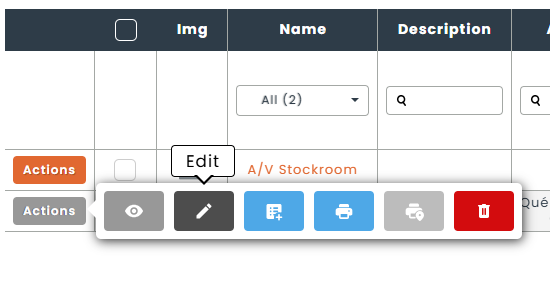
Navigate to the stockroom whose reservation hours you want to change, then click its edit button.
Step 2 — Go to Loaners › Getting Started
Click the Loaners tab. The loaner settings are divided into sub-tabs — Getting Started, Rules, Communications, Catalog, Default Values and Advanced.
The schedule is the first line of the setup checklist on Getting Started: Open hours & schedule. Click Configure beside it to expand the schedule editor.
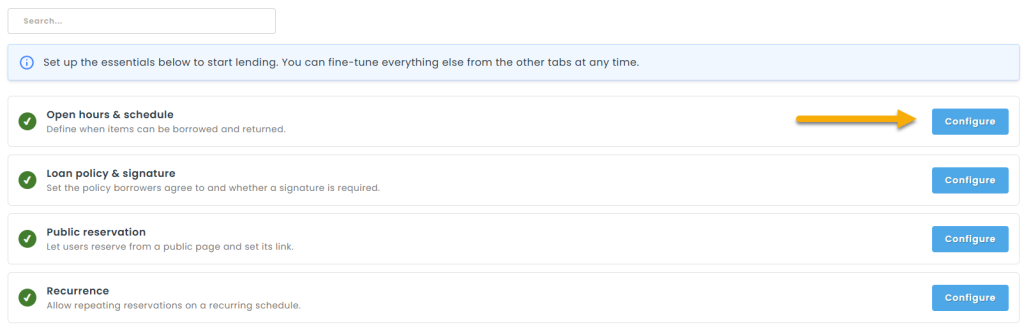
The badge at the left of each checklist line shows whether that item is done. The schedule line is marked complete as soon as at least one day of the week has open hours.
Step 3 — Set your weekly open hours
The Open Hours grid shows the seven days of the week. A day with no time period displays as Closed.
To add a period, use the three selectors below the grid and click Add:
- Week Day — a single day, or one of the two shortcuts: All Days (adds the period to all seven days) and Business Days (Monday through Friday).
- Start — the opening time, available in 15-minute increments.
- Finish — the closing time, also in 15-minute increments. It must be later than the start time; otherwise Hector shows an error and nothing is added.

You can add more than one period to the same day — for example 8:00 to 12:00 and 13:00 to 17:00 to close over lunch. On a stockroom schedule, periods that touch or overlap are merged into a single period automatically.

To remove a period, click the X next to it in the grid.
Remember to save the stockroom. The schedule is stored together with the rest of the stockroom, so nothing is written until you submit the record.
Step 4 — Add closed days
Closed days are calendar dates on which the stockroom does not lend at all, whatever the weekly hours say — statutory holidays, shutdown weeks, inventory counts, and so on.
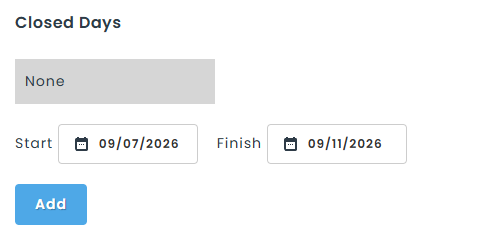
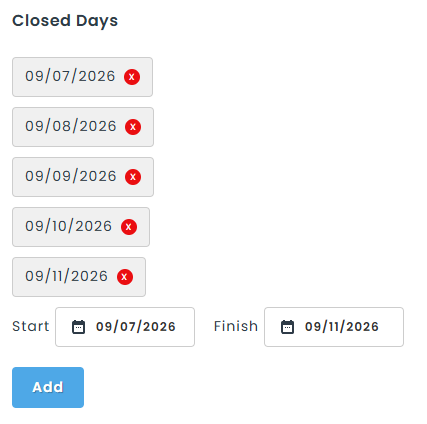
Under the Closed Days heading, pick a Start and a Finish date and click Add. Use the same date in both fields for a single day, or a range for a full shutdown. Each closed date is then listed as its own tag.
Step 5 — Add exception days
Exception days change the hours of specific dates instead of closing them. Use them for a half-day before a holiday, a late opening, or a weekend on which you exceptionally do lend.
Under the Exception Days heading, pick a Start and a Finish date, then the Open Hours that apply to those dates, and click Add.
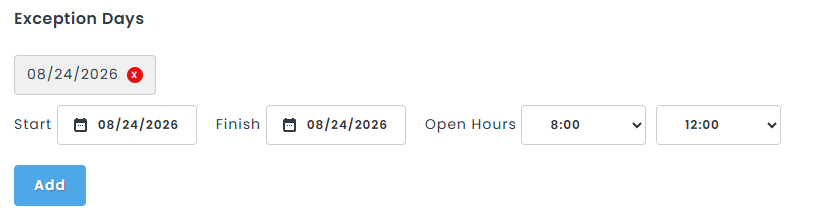
How an exception day resolves depends on the weekly schedule for that weekday:
- If the day is normally closed, the exception hours apply as they are. This is how you open a day that is otherwise closed.
- If the day is normally open, the exception hours act as a window over the regular hours: only the overlap of the two stays open. An exception of 8:00 to 12:00 on a day normally open 9:00 to 17:00 leaves 9:00 to 12:00 open.
In other words, on a day that is already open an exception can only narrow the hours — it cannot extend them past the regular schedule. To open later than usual, widen the weekly hours for that weekday and use exception days to trim the dates that should stay short.
Step 6 — Check the result on the public form
On the public reservation page, the current day’s hours appear in the header under the stockroom name, beside a small calendar icon. Clicking that icon opens a window with the full weekly schedule and the list of closed days, so requesters can plan ahead.
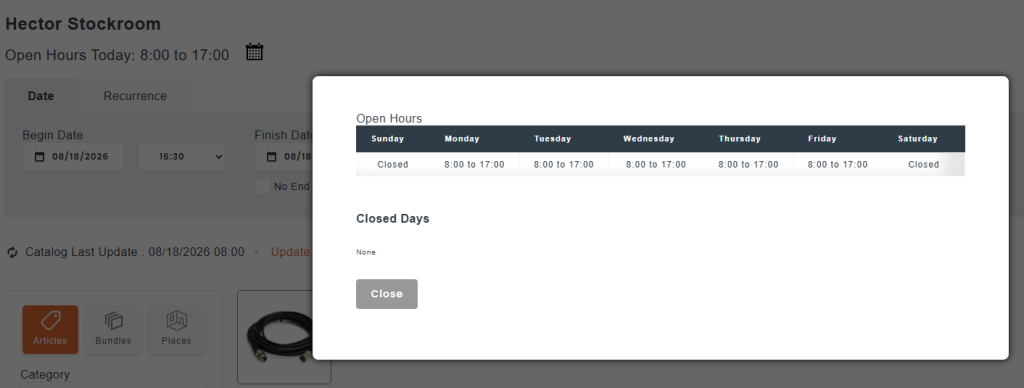
If no open hours are configured at all, the public form does not display the catalog. Requesters see a warning instead: “There are no open periods for making reservations defined by your administrator.” If you get that message, go back to Step 3.
Related settings worth knowing
Count delays only during opening hours
On Loaners › Rules, the option Count delays only during opening hours ties your minimum and maximum reservation delays to the schedule. When it is enabled, those delays elapse only while the stockroom is open, so a request made after closing starts counting from the next opening time instead of running overnight.
Time slot length and buffer
Also on Loaners › Rules, Time slots length and Time slots buffer determine how your open hours are divided when the stockroom uses time-slot reservations. The open hours define the window; the slot length decides how that window is cut up for requesters.
Billable days (Rental Rates)
If the Rental Rates module is active and the stockroom allows rentals, a Billable days selector appears under the open-hours grid. It defines which weekdays are billed on a rental, independently of the days you are open. Changing billable days creates a new schedule record rather than editing the existing one, so a schedule shared with another stockroom, or captured inside an existing rental, is never altered retroactively.
Part-level schedules
A part can carry hours of its own. Edit the part, open its loaner settings, go to the Schedule tab and enable Loaner Schedule to reveal the same grid. This lets a single item be available on a different schedule than the stockroom it sits in — a projector bookable only in the afternoon, for instance.
One difference to keep in mind: on a part schedule, adjacent or overlapping periods are not merged. Each period you add stays distinct.
Reusing a schedule across stockrooms
If you run several stockrooms with identical hours, the stockroom settings offer a Loaners copy option that carries the loaner configuration — schedule included — over to other stockrooms, instead of retyping the grid for each one.
Troubleshooting
- A day shows as Closed even though I added hours. The stockroom was most likely not saved. Re-open it and confirm the grid still holds your periods.
- My exception day did not open the extra hours I wanted. On a day that is already open, exception hours can only narrow it. Widen the weekly hours for that weekday, then trim the other dates with exception days.
- Requesters cannot pick the times I expect. Check the closed days and exception days lists for that date, and check whether a part-level schedule is overriding the stockroom for the item being requested.
- The Add button does nothing. The finish time must be later than the start time; an invalid pair is rejected with an error message above the grid.