
In Hector, you can restrict access to a stockroom’s inventory and to its loaners by staff member, by group, by department, or by individual user. This is useful for organizations that have multiple locations but do not want their staff members to have access to the entire inventory.
Prerequisites
- Having added the users in the database (Azure / Active Directory / One Login / Google).
- Having defined the user roles.
Understanding the Permissions tab
All three procedures below happen in the same place: Inventory > Stockrooms, open the stockroom’s action menu, click Edit, then open the Permissions tab.
The tab is divided into separate permission blocks, each one covering a different kind of access. Each block has the same three fields:
- Access by Users — add specific individuals, one by one.
- Access by groups — grant access to entire groups.
- Access by Departments — grant access to entire departments.
The blocks you will see are:
- Staff — who is a staff member of this stockroom. This is the block that controls inventory management, and it also gates loaner management for roles with limited loaner rights. This block is always visible.
- Reservations — who may reserve items from this stockroom, including through the online reservation catalog. Visible only when Activate Loaners is enabled on the stockroom’s Details tab.
- Read-only for loaners — who may see this stockroom’s loaners without being able to modify them. Visible only when Activate Loaners is enabled.
- Access restrictions for operations — which users may select this stockroom to limit the inventory shown on a requisition or purchase order. This block appears only if Add scoping limitation capability to operations is enabled under Settings > General > Operations > Permissions. It is off by default.
At the top of the tab you will also find two options that change how the stockroom behaves for the people you have just given access to:
- Use role permissions for action buttons — when checked, the loaner buttons a user sees match the actions allowed by their role. Users with full access permissions to stockrooms continue to see all buttons regardless of this setting.
- Filter requesters — when checked, the requester list on a staff reservation only contains users who are allowed to make reservations for this stockroom.
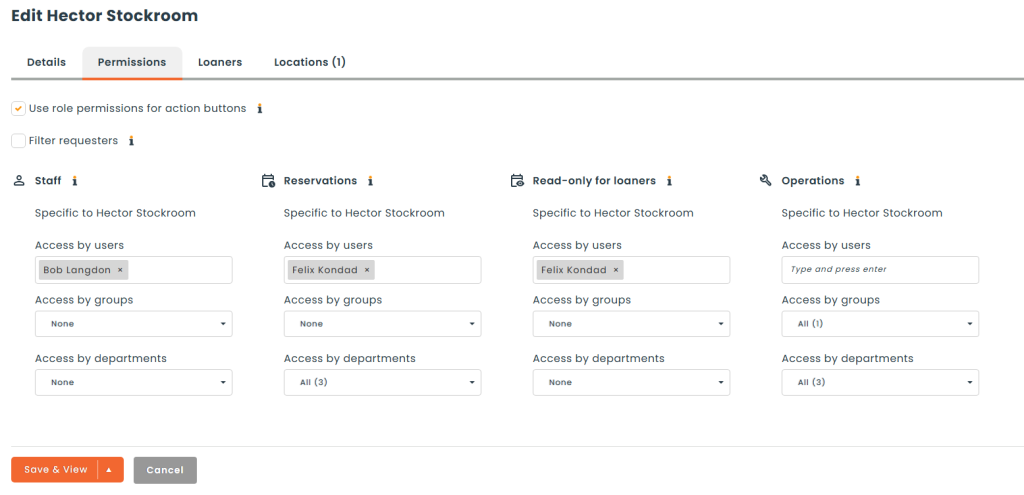
How “All” and “None” work
Each dropdown can be set to All, to None, or to a specific selection. All means “everyone qualifies on this dimension” — it does not restrict anything. None blocks the dimension entirely.
This matters when you are trying to limit access: leaving a stockroom’s Staff block set to All means every user whose role has limited stockroom access is a staff member of it. To genuinely confine technicians to their own locations, make sure each of your other stockrooms has its own staff members selected instead of All. If no technician is responsible for a stockroom, add an administrator.
How the fields combine
The three fields are not combined the same way in every block, so it is worth knowing which rule applies:
| Block | How groups and departments combine |
|---|---|
| Staff | Groups OR Departments — matching either one is enough |
| Read-only for loaners | Groups OR Departments — matching either one is enough |
| Reservations | Groups AND Departments — the user must match both |
| Access restrictions for operations | Groups AND Departments — the user must match both |
In every block, a user named individually in Access by Users is granted access directly and does not need to satisfy the group or department conditions.
Procedure to limit access to a stockroom by staff member (inventory management + loans)
- Assign the Staff Limited role to the technicians who should only manage the inventory of specific stockrooms. This role ships with Hector and is the counterpart of Staff: where Staff grants full access to every stockroom, Staff Limited grants limited access, which means access is decided per stockroom by the Staff block.
- Go to Inventory > Stockrooms, edit the stockroom in question, and open the Permissions tab.
- In the Staff block, add the technicians using Access by Users, or add their groups or departments using Access by groups and Access by Departments.
- Repeat for each stockroom those technicians are responsible for, and make sure your remaining stockrooms are not left on All — otherwise the technicians will reach those locations too.
For these technicians to also manage the stockroom’s loaners, their role needs Limited Management under Stockroom > Loaners in the role’s permissions. With Limited Management, a user can see and manage loaners only for the stockrooms where they have been added as a staff member. Full Management lets them manage every loaner stockroom, whether or not they are staff.
Note: an administrator, or a user with the regular Staff role, does not need to be added to a stockroom’s Staff block — they can already manage its inventory and loaners. However, they will not receive that stockroom’s notifications unless they are added.
Procedure to restrict access to loan management only
To let a technician work with a stockroom’s loaners without giving them any inventory management rights:
- Go to Settings > Roles and open the role you want to use for these technicians — the User role, or a role of your own.
- Under the Stockroom section, leave the inventory permissions off, and in the Loaners sub-section check Limited Management. Leave Full Management unchecked so the role stays scoped to the stockrooms you choose.
- Assign that role to the technicians.
- Go to Inventory > Stockrooms > Edit > Permissions for each stockroom in question and add the technicians to the Staff block.
These technicians will not have access to inventory management — only to the actions that concern loans.
If you only want someone to consult the loaners without changing anything, use the Read-only for loaners block instead of Staff.
Procedure to allow online reservations by users
- Create your departments and groups under the Resources menu (you can also import your departments and groups from Azure).
- Go to Inventory > Stockrooms > Edit > Permissions and open the Reservations block.
- Select the departments and the groups you want to give access to online reservations for this stockroom. You can also name individual users under Access by Users.
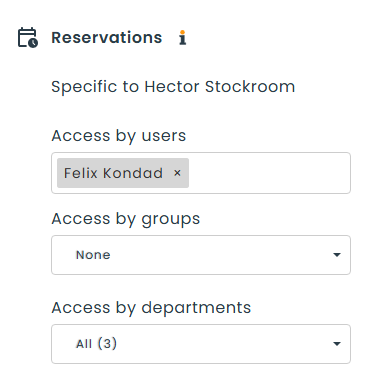
Because the Reservations block combines groups and departments with AND, a user has to match on both sides. Here is a decision tree for understanding the impact of groups on departments, for a user who belongs to Department A and Group A:
| Stockroom setting | Access |
|---|---|
| Department: All, Group: All | Yes |
| Department: All, Group: None | No |
| Department: B, Group: A | No |
| Department: A, Group: B | No |
| Department: A, Group: A | Yes |
Staff members of the stockroom can always make reservations, whatever the Reservations block says.
Rackings inherit the stockroom’s permissions
The rackings inside a stockroom inherit its Staff and Reservations permissions, so in most cases setting them at the stockroom level is enough. A racking can be given its own permissions instead, which breaks its inheritance from the stockroom.
When at least one racking has been given its own permissions, the corresponding stockroom block shows a Restore inheritance on rackings checkbox with the number of affected rackings. Check it and save to pull those rackings back onto the stockroom’s permissions.
Note: “Stockroom”, “Users”, “Departments” and “Rackings” are customizable terms in Hector, so your instance may display different wording for them.
Next step: Configuration of loan settings