
The integration of a Zebra device with the Hector platform simplifies and optimizes data entry through the use of a Zebra scanner.
This documentation will guide you step by step in configuring the Zebra profile and connecting it to Hector to ensure optimal performance and smooth interaction between the two tools.
Prerequisites
- Have the Hector application on your Zebra device.
Zebra Profile Configuration
Follow the steps below in the DataWedge app on your Zebra device to connect your profile to Hector.
Creating a Hector Profile on Zebra
- Open the DataWedge app on your Zebra device.
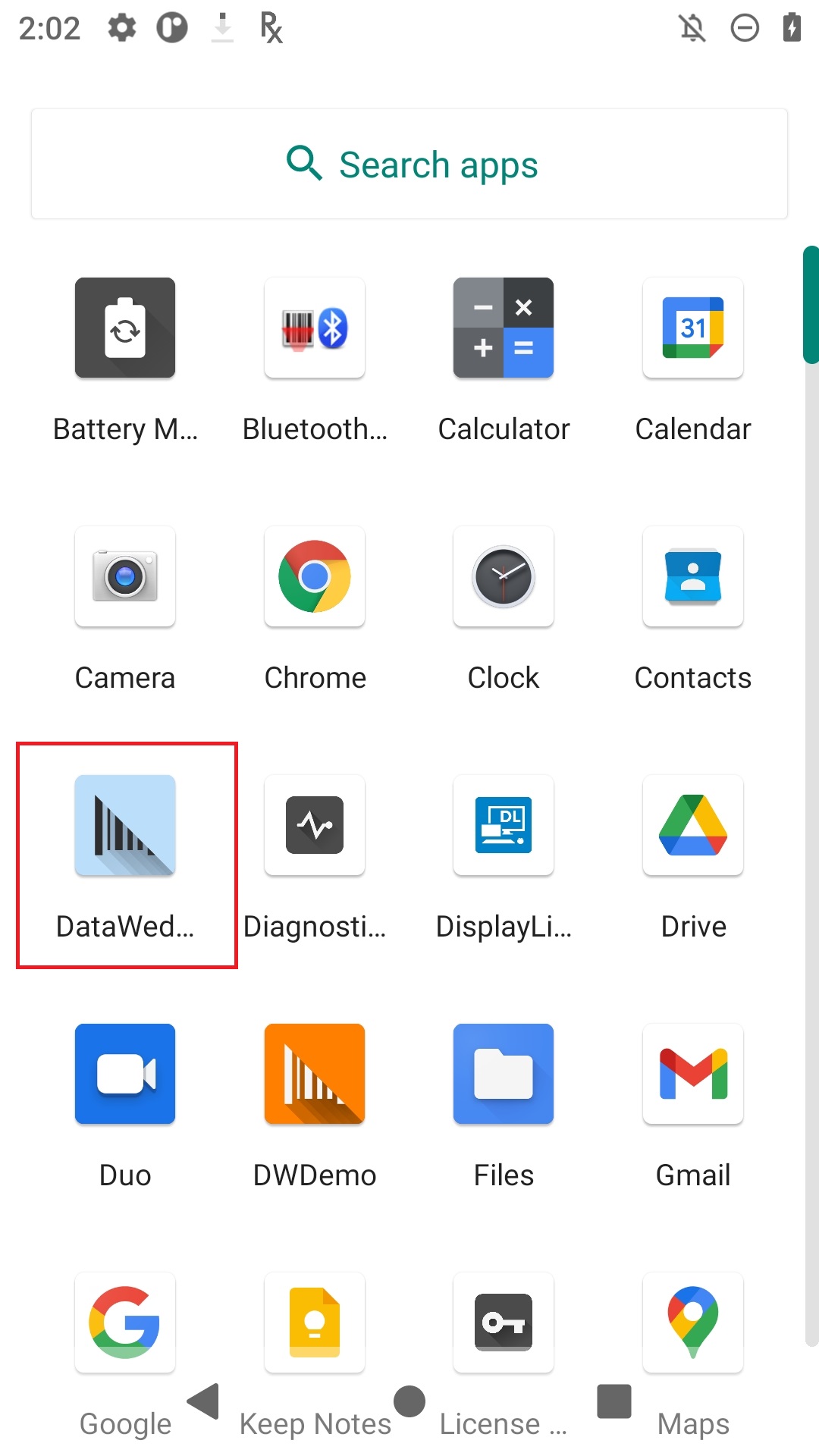
Note: If DataWedge was previously opened, it will reopen to the last screen used. If necessary, press BACK until the profile screen appears.
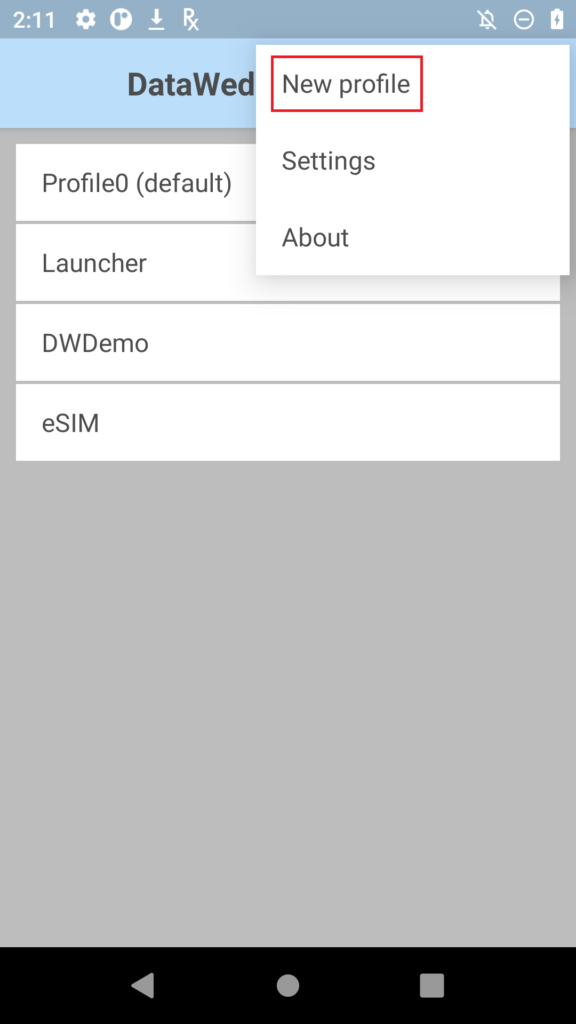
- Tap the “hamburger” menu and select “New Profile.”
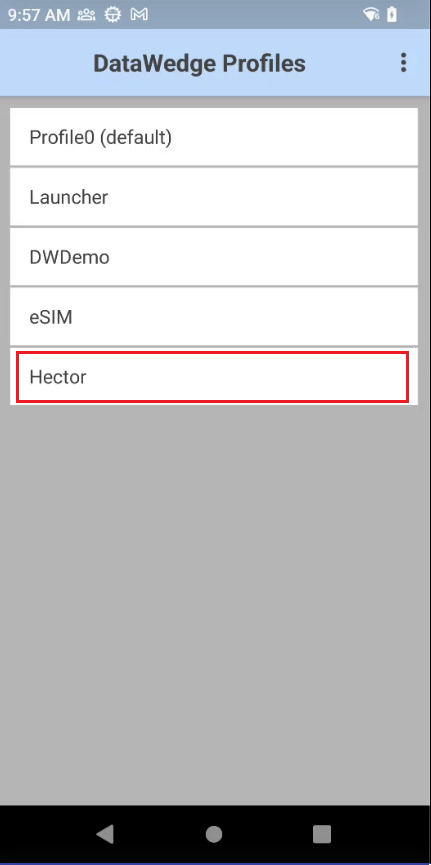
3. Enter a name for the new profile and tap OK. We recommend naming it Hector:
Associate the Profile with the Hector App
- Tap the Hector profile that you previously created.
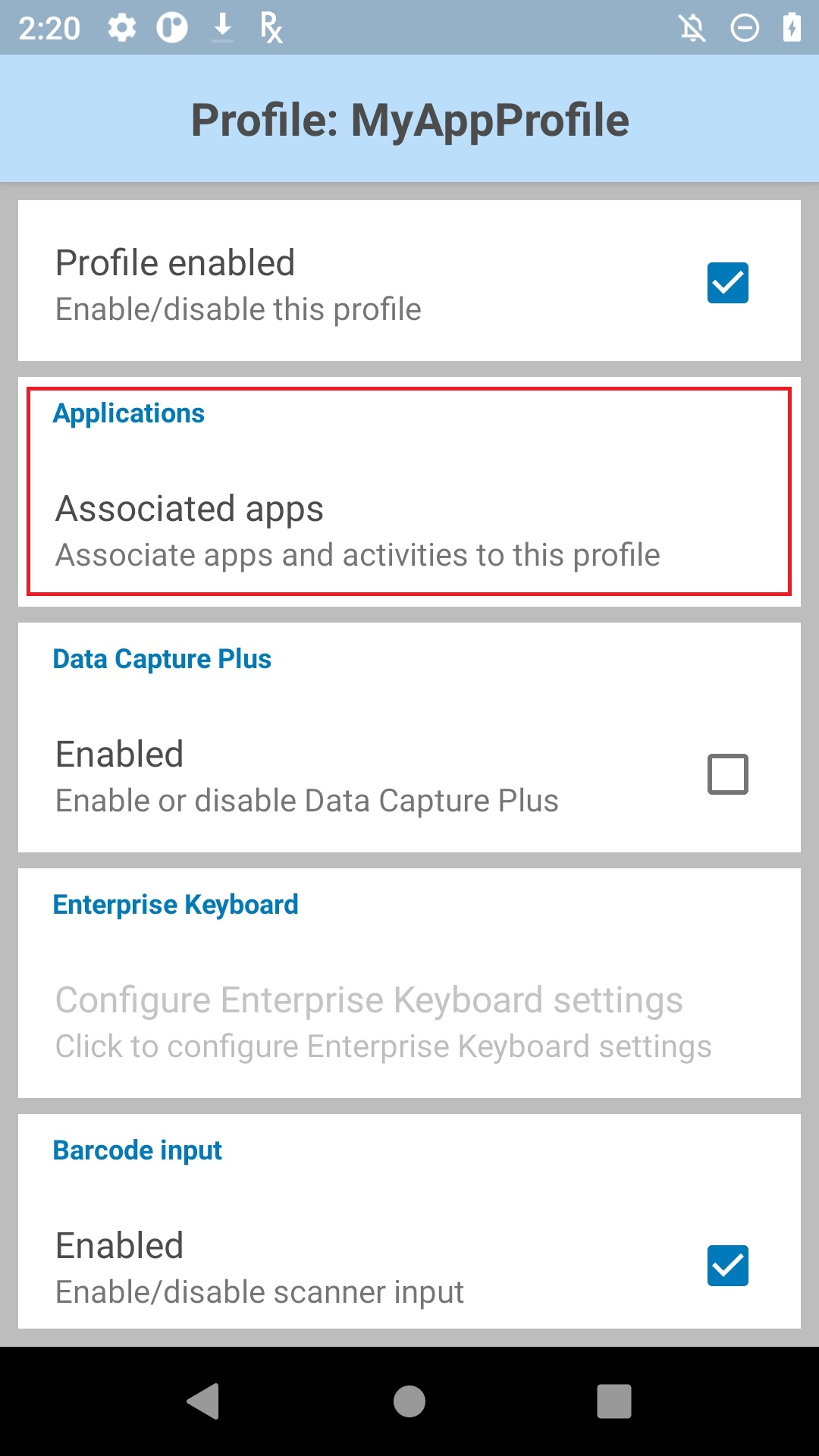
2. From the profile screen, check the “Profile enabled” box to activate it, then tap “Associated apps” to link it to the Hector app.
3. Tap the menu and select “New application/activity“. A list will appear with all the apps and activities installed on the device.
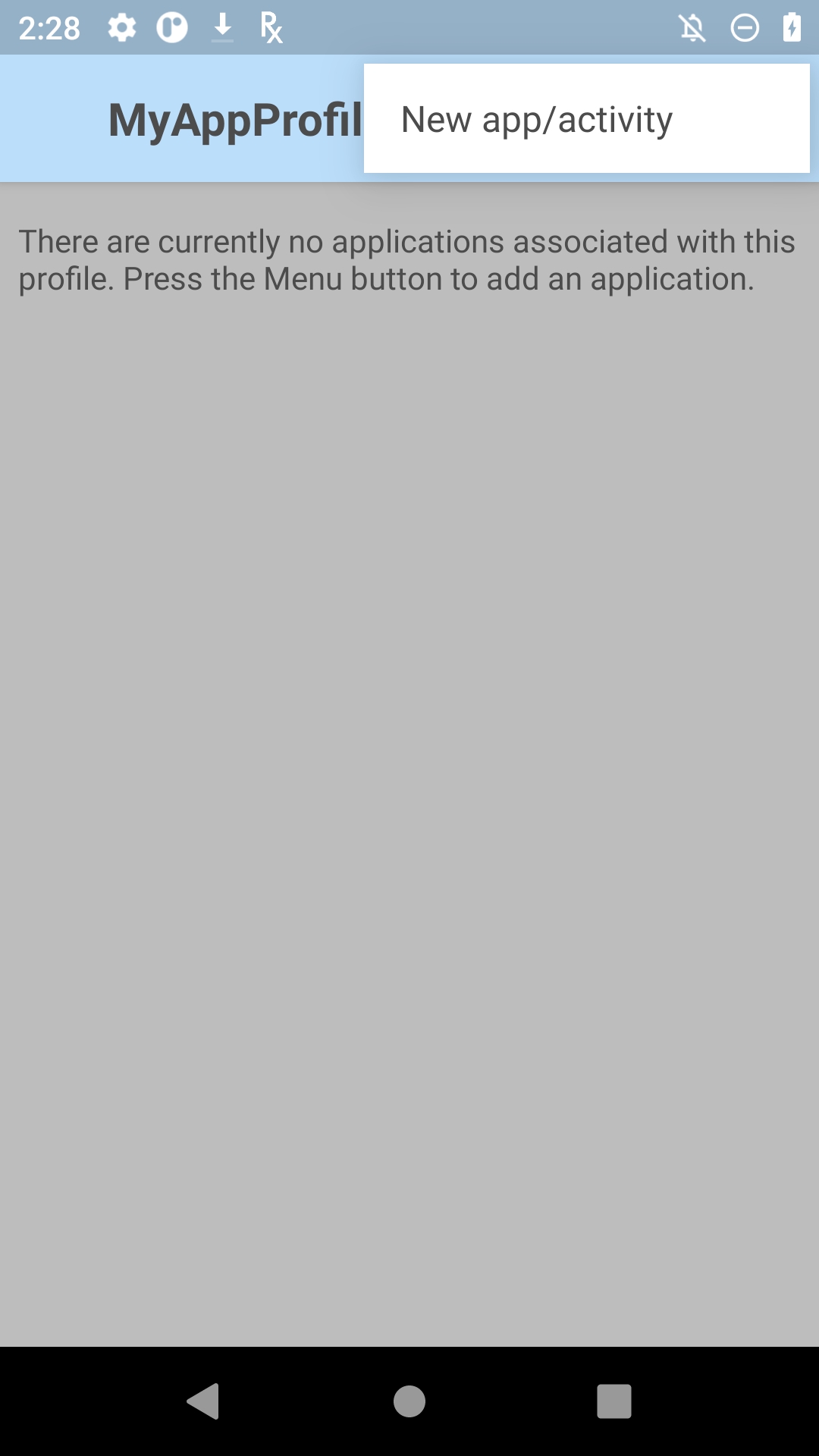
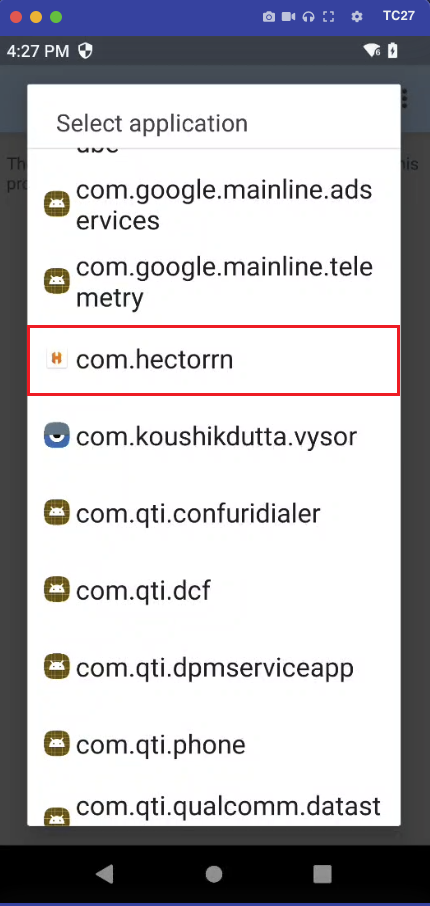
4. In the list of applications/activities presented, select the Hector app. It is named com.hectorrn. Once the app is selected, its list of activities will appear. Select *.
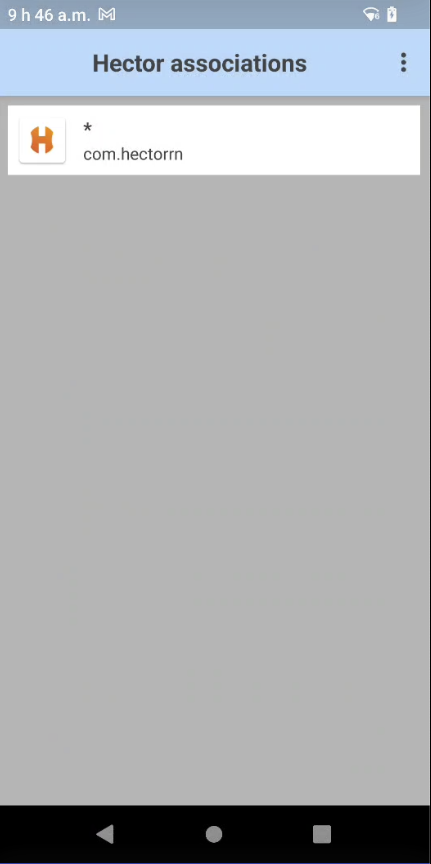
5. The app now appears in the profile associations list, as shown below.
Before proceeding to the next step, check the following points:
- Verify that the “Profile enabled” box is checked for the new Hector profile.
- Verify that “Barcode Input” are enabled.
Configure the Zebra Device’s Intent Output for Hector
Still in the configuration menu of the Hector profile you created earlier, follow these steps to complete the setup:
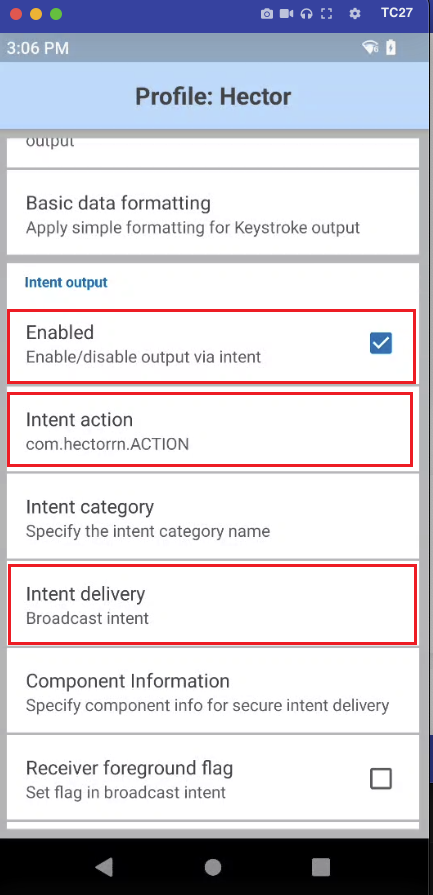
1. Navigate to the Intent Output section. Ensure that it is enabled.
2. Open the Intent Output section.
3. Modify the following information in the Intent Output section:
- Intent action: com.hectorrn.ACTION
- Intent delivery: Broadcast intent
If you wish to use RFID technology, refer to the section Use Zebra with RFID Technology.
Once the profile configuration is complete, all that’s left is to prepare Hector to properly receive the information transmitted by your Zebra device. The next step will allow you to finish the configuration.
Configure Hector to Support Zebra
1. Tap the “hamburger” menu and select -> Settings.
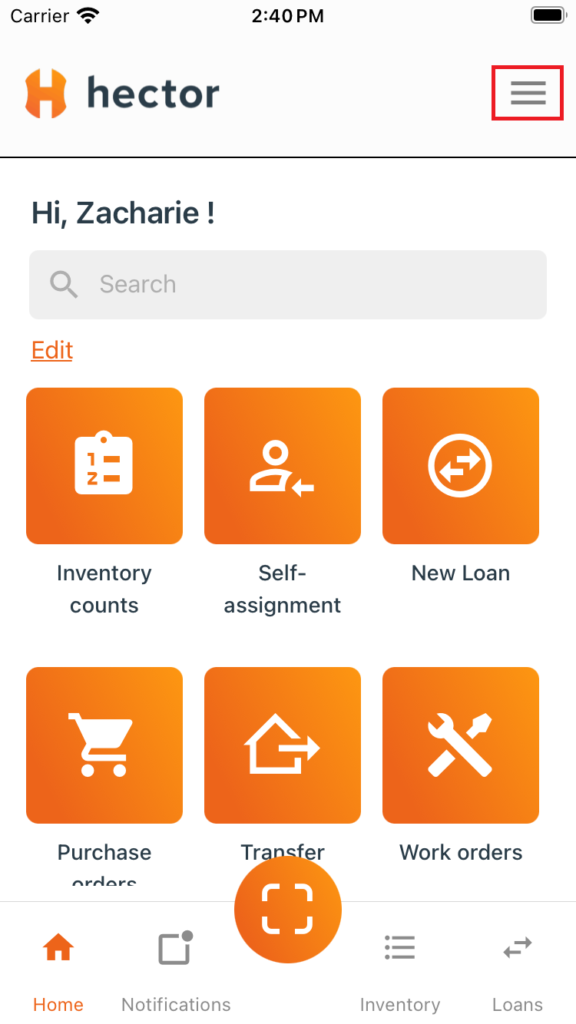
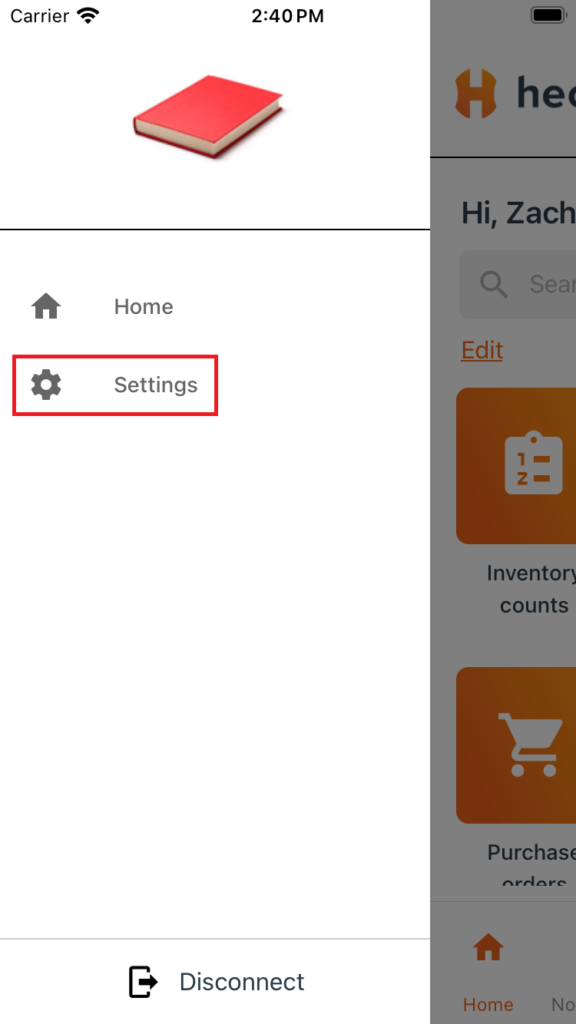
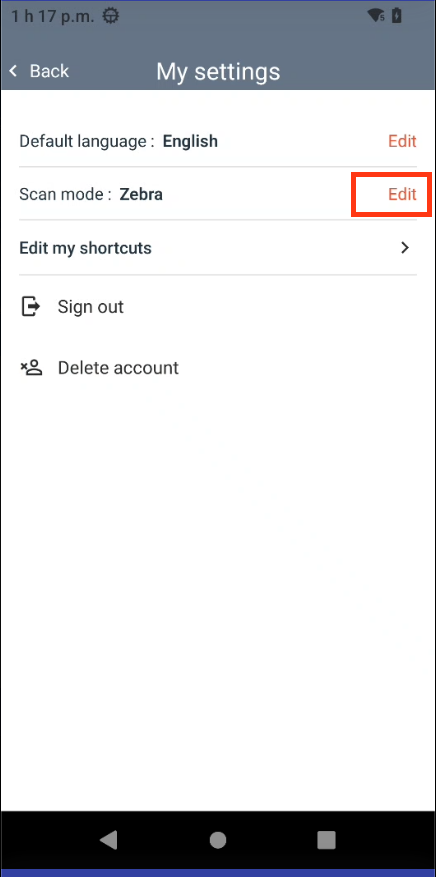
2. Tap Edit on the Scan Mode line.
3. Select Zebra.
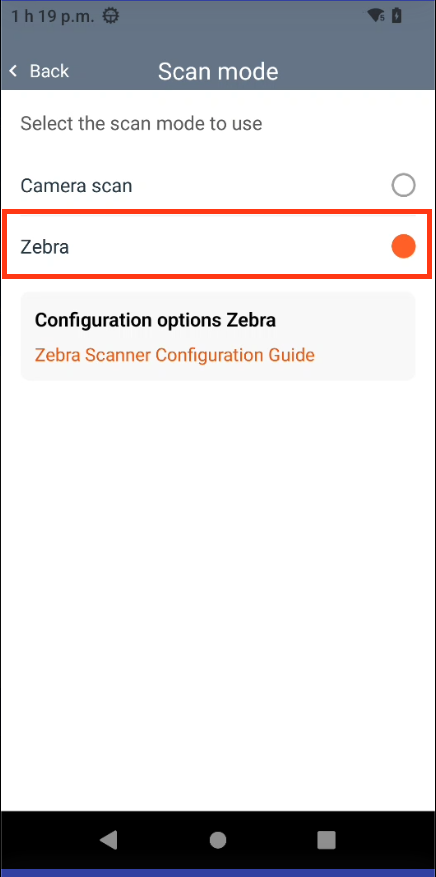
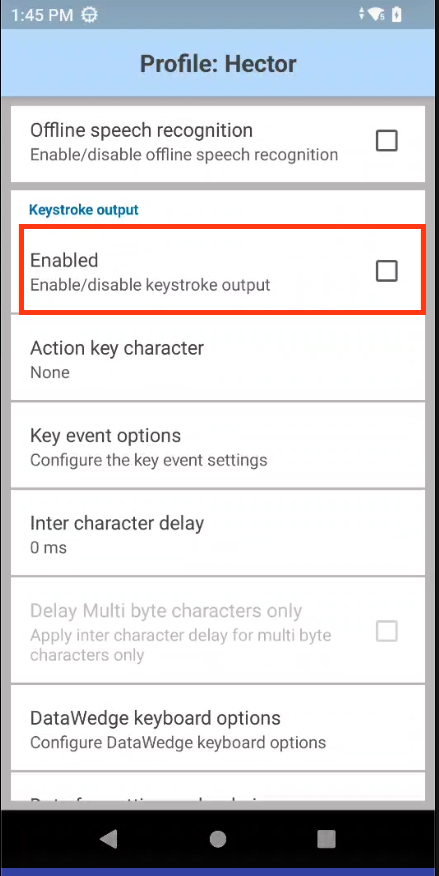
- Keystroke Output Section
To avoid unwanted behavior during scans, make sure the “Keystroke output” option is disabled. Indeed, if it is enabled, the scan simulates a keyboard keystroke (including the “Enter” key). If a button has focus on the screen at the time of the scan, it may be triggered automatically, as if the user had clicked on it.
If you wish to use RFID technology, refer to the following section.
Use Zebra with RFID Technology
Voici la traduction :
This step is optional. If you wish to use RFID technology, simply enable the option in the previously created Hector profile in DataWedge when the Zebra mobile device is placed in the Zebra barcode scanner.
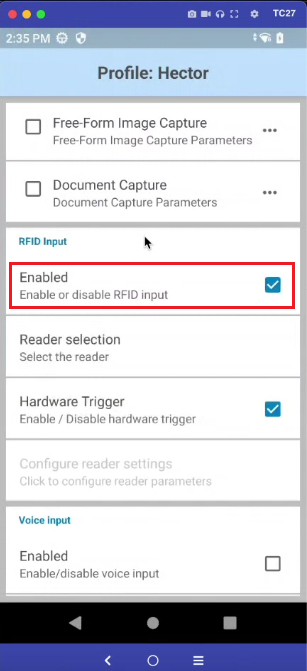
RFID Configuration
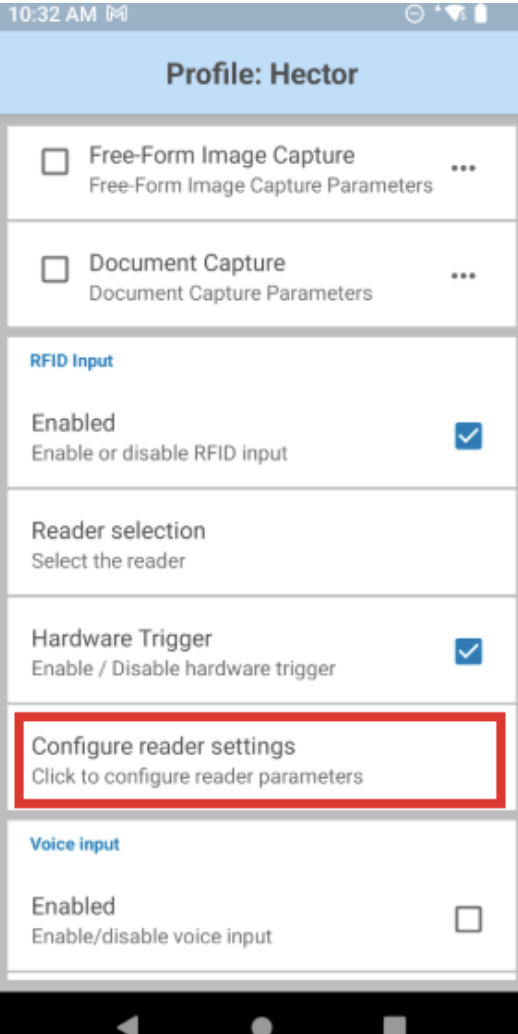
1- Configure the reader settings
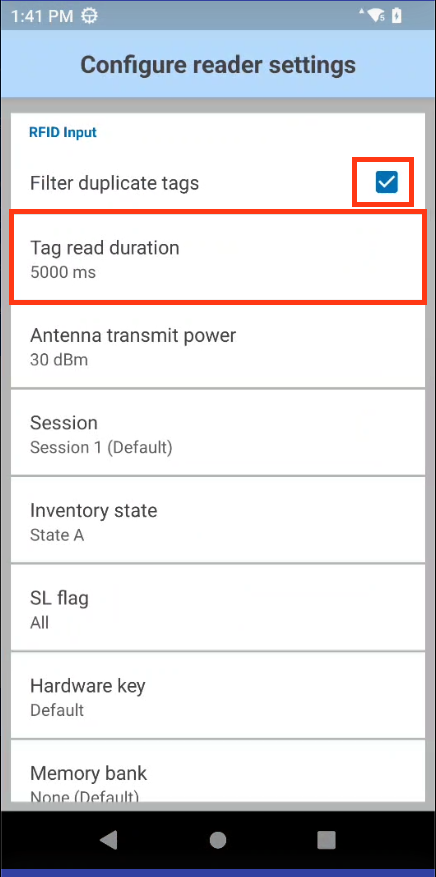
2- Enable tag filtering
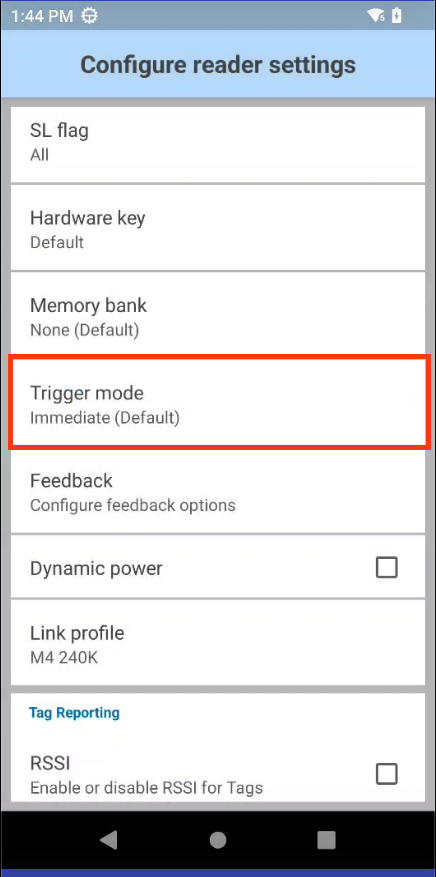
- Reading Mode
Set the reading mode to “Immediate.”
Operating mode:
- Hold the trigger down (approximately 2 to 5 seconds) so the reader scans the area and collects the RFID tags present.
- Release the trigger to stop the reading and display the results (the list of detected tags).
Using Your Zebra Device to Scan Assets in Hector
If the following changes have not been applied to your Hector application, please revisit the previous sections to identify the missing step.
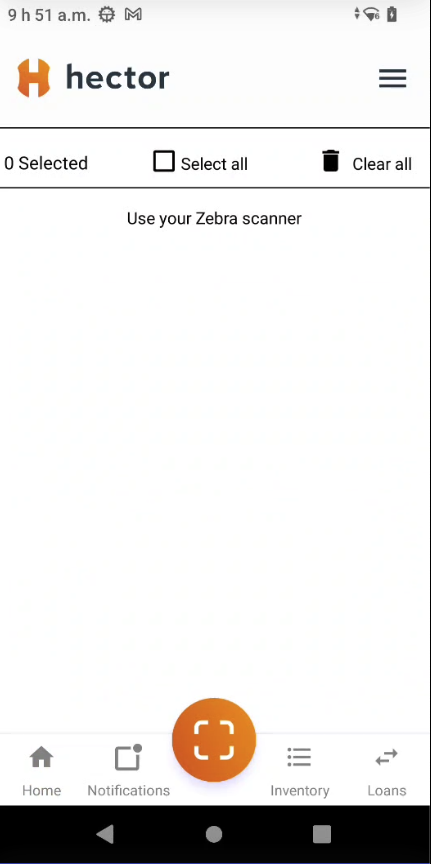
Once the setup is complete, you will be able to use your Zebra device to scan assets from the Hector application.
You will now see this symbol when scanning is possible:

Once pressed, the Hector application will be waiting for your scan and will show this symbol:

It is now also supported by your Zebra device:
All that’s left to do is scan!
Frequently Asked Questions
1. What is the integration of a Zebra device with Hector?
The integration optimizes data entry on Hector by using a Zebra scanner, thus facilitating information management through a seamless connection between the Zebra device and the Hector application.
2. how to encode information in RFID chips?
In an RFID tag, several memory areas can be encoded:
- TID (Tag Identifier)
- User Memory
- EPC (Electronic Product Code)
- Reserved
For the Hector application, the information used by the system — such as the assetTag number— must be encoded in the User Memory section..
3. Being able to directly configure the RFID scan power (scan range) in Hector?
It’s not possible to open DataWedge directly from another app because its main screens and settings are not accessible.
DataWedge is designed to be used only by the system or Zebra’s own apps, so other apps can’t open it directly.
4. Prerequisites for the integration?
The Hector mobile app must be installed on your Zebra device.
Follow the configuration steps via the DataWedge app.
5. What to do if the RFID scan returns multiple codes at once?
If the scanner is not working properly, revisit all the configuration steps to ensure the options have been activated.
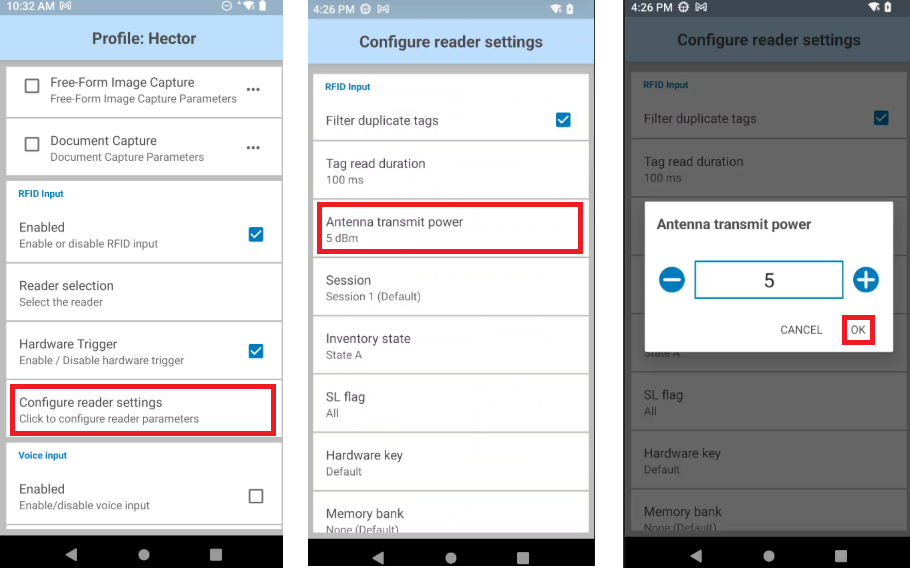
In case of an issue with RFID code reading, we recommend adjusting the configuration of your Zebra device to reduce the antenna transmission power:
For any issues with your Zebra device, please refer to support.