

Welcome to the official implementation guide for the Hector + Microsoft Outlook integration.
⚙️ Functional Overview
The integration operates in two distinct layers: Resource Discovery and Event Synchronization.
🧠 How it Works
Room Synchronization (Outlook → Hector): Hector connects to your Azure environment to import Room resources. Once imported, these appear in Hector as Places or Spaces.
Bi-directional Event Sync:
- 📥 Inbound (Outlook → Hector): When an event is created/updated on a synced room, a webhook notifies Hector to create or update a corresponding reservation.
- 📤 Outbound (Hector → Outlook): When a reservation is made in Hector, it pushes an event directly to the Outlook resource’s calendar.
✅ Key Capabilities
The Hector-Outlook integration is a professional-grade bridge designed to eliminate double-bookings and manual data entry. If you are looking for a “set and forget” synchronization, these are the core features at your disposal:
- 🔄 Bi-Directional Event Sync: Create a reservation in Hector and see it appear on the Outlook calendar instantly—or invite a room in Outlook and see the reservation automatically appear in Hector.
- ⚡ Real-Time Webhook Monitoring: Your calendars don’t wait for a daily update. Using Microsoft Webhooks, changes made in Outlook are processed and reflected in Hector within 5 minutes.
- 🏗️ Advanced Hierarchy Protection: Hector solves the “flat list” problem in Outlook. By linking Places and Spaces, the system automatically creates “Blocking Events” to ensure that if a sub-unit is booked, the parent room remains protected (and vice versa).
- 📋 Automated Resource Discovery: Save hours of setup time. Hector automatically imports your Resource Rooms, bringing over the Room Name, Email Address, and Physical Location directly from your Exchange tenant.
- 👥 Intelligent Identity Mapping: The system automatically identifies the Meeting Organizer. If the person booking in Outlook exists in Hector, the reservation is tied to their profile; if not, the system uses a secure Default User fallback.
🛡️ Configuration: Azure App Setup
Hector requires an App Registration in your Azure Portal to act as the secure bridge between systems. You will first need to register a new app in your Azure environment, or use the same one as your Azure User Synchronization. If you are using the same Registered App, you can skip to the permission section of the Azure App Setup
Primary Domain & App Registration
Primary Domain: In the Microsoft Entra ID (formerly Azure AD) section, copy your Primary Domain.
- You must have administrator privileges on your Azure Active Directory in order to do the following steps.

Register App: Go to App Registrations > Register an application.
- Name: “HectorApp”
- Redirect URI: Enter your Hector URL (e.g.,
https://app.hectorassetmanager.com/YOURINSTANCE).


Application (client) ID: Copy the Application (client) ID and save it for later.

Public Client: Under Authentication > Advanced Settings, set Allow public client flows to Yes.

Secret Key: Under Certificates & Secrets, create a new Client Secret (24-month expiry recommended). Copy the Value (note the ID) immediately.

API Permissions
Go to API Permissions > Add a permission.

Click on Microsoft Graph.

Click on the Application permissions section.

You must add and then Grant Admin Consent for:
- Calendars
Calendars.ReadCalendars.ReadWriteCalendars.ReadBasic.All
- Mailbox Settings
MailboxSettings.Read
- Place
Place.Read.All
🛠️ Configuration: Exchange & Hector
Now that the “bridge” is built, you must define which rooms to sync and how Hector should behave.
🏷️ Exchange Room Management
Create your rooms in the Exchange Admin Center under Resources.

Filtering (Tags): To avoid importing every utility closet or private office, use tags.
- Inclusion: Only rooms with specific tags (e.g.,
Sync) will be imported. - Exclusion: Rooms with these tags (e.g.,
Private) will be ignored.


🔗 Hector Integration Settings
In Hector, go to Settings > Integrations > Loaners > Microsoft Outlook and click Add.
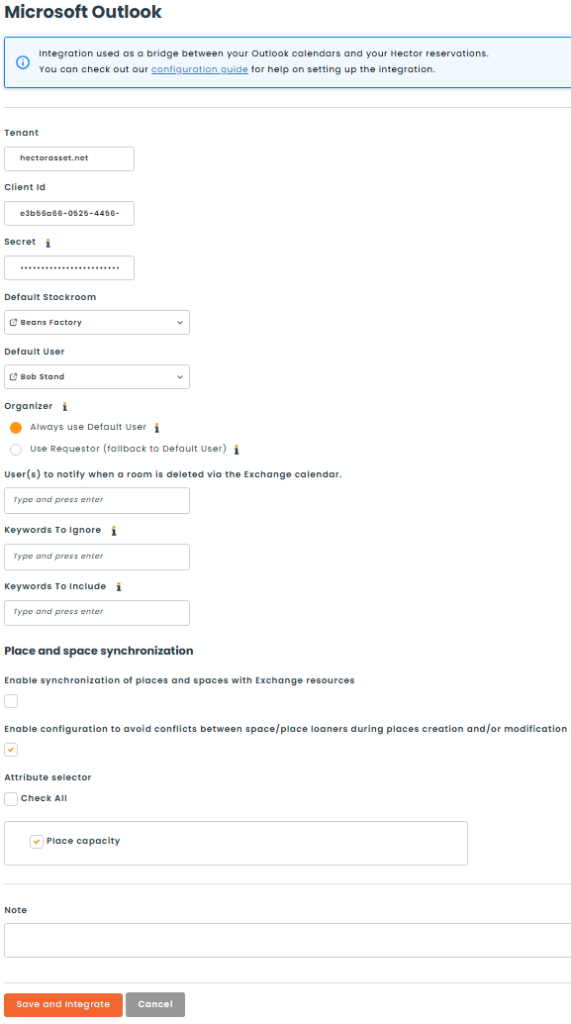
Then fill in the following:
Tenant / Client ID / Secret: The values collected from your Azure App setup.
Default Stockroom: The stockroom in which your rooms are going to be imported.
Default User: A user with a valid Azure mailbox used as a fallback for external or unrecognized organizers.
Organizer: This setting dictates who “owns” the event when it is pushed from Hector to Outlook:
- Always use Default User: The Default User specified above will always be set as the organizer in Outlook.
- Use Requestor (fallback to Default User): The person who made the reservation in Hector is the organizer. If their email isn’t found in your Exchange tenant, it falls back to the Default User.
User(s) to notify when a room is deleted via the Exchange calendar: Choose who receives an email if a room is deleted in Exchange.
Keywords to Include/Ignore: Assign specific tags (e.g., Sync) to your rooms in the Exchange Admin Center, then list them here to filter the import.
🏢 Place and space synchronization
In Microsoft Exchange, room resources exist as a “flat list” with no inherent relationship between them. Hector bridges this gap by introducing a parent-child hierarchy. When activated, this feature ensures that if a Place (parent) is reserved, all underlying Spaces (children) are automatically marked as unavailable. Conversely, if a single Space is booked, the parent Place is blocked to prevent overbooking. This advanced logic allows you to mirror complex physical environments – like a laboratory containing multiple workstations – within the standard Outlook interface.
Enable synchronization of places and spaces with Exchange resources: Used to toggle this hierarchy system on or off.
Enable configuration to avoid conflicts between space/place loaners during places creation and/or modification: Used to automatically activate or deactivate the conflict prevention setting (Prevent the reservation of a place if the space is reserved and vice-versa) for every place during synchronization. This saves you from having to manually check or uncheck this box in each place’s individual Loaner settings.
Place capacity: When activated, the resource room capacity value will be mapped onto the Hector place as a new attribute.
The synchronization will start within a few minutes after you save your changes. You will be able to tell the sync is over once all of the rooms you wanted to import are in the Resources > Places section of Hector.

🔄 Usage & Synchronization
Once the initial connection is established, the integration manages two primary workflows: the Resource Synchronization (Places/Spaces) and the Reservation Synchronization (Events).
📥 Resource Synchronization (Exchange → Hector)
This process imports your Exchange room resources Azure/Exchange into Hector.
🕒 Sync Frequency
Exchange syncs with Hector once a day unless the sync is manually launched. Any new, updated, or deleted room in Exchange will be reflected in Hector based on your integration rules.
⚠️ Note on Sync Delay : Due to Microsoft API limitations, structural changes in Exchange (creating, modifying or deleting a room) can take up to 24 hours to be detected by Hector.
🔁 Sync Behavior
- Hector only retrieves rooms that satisfy the Inclusion/Exclusion tag rules defined in your settings.
- Existing Hector places with a matching name (exact match with the Exchange Room Display Name) will be linked and updated. This allows you to pre-create places in Hector before the first sync runs. Once linked, subsequent syncs identify the room by its internal integration reference, not the name.
- Exchange rooms not matching any existing place will be created as new places in the Default Stockroom.
✅ Verifying a Successful Link
To confirm that an Exchange room has been successfully linked to a Hector place or space, open the record and navigate to the Integration tab. A linked resource will display the corresponding Exchange email address. This is a quick way to verify the sync status of any room after the initial synchronization runs.
🏢 Advanced Hierarchy: Places vs. Spaces
If you have enabled Place/Space Synchronization, Hector applies specific naming conventions to determine the relationship between resources:
- Place (Parent): The resource display name must end with a number to be imported (e.g., local.1).
- Space (Child): The resource display name must include the Parent Name as a prefix and end in a letter to be imported. (e.g., local.1a).
These naming conventions are strictly enforced to ensure data integrity. They have been established specifically to avoid importing a room wrongfully as a place or space, ensuring your hierarchy remains accurate and functional.
🧱 Place Field Mapping
When a Place is imported into Hector, the data is mapped as follows:
| Exchange Field | Hector Field | Notes |
|---|---|---|
| Room ID | Unique Id | |
| Display Name | Name | Used to match a room on initial sync to link to an existing Hector place (exact match). Updated on subsequent syncs. |
| Phone | Phone | |
| Email Address | ||
| Email Address | Code | Content before the @ sign in the email address |
| Street | Address | |
| City | City | |
| State / Province | Province | |
| Country / Region | Country | |
| Postal Code | Zip/Postal Code | |
| Capacity | Place capacity | Will be mapped if activated in the integration settings |
| Affiliated Stockroom | Mapped to the Default Stockroom on initial import only. Once linked, the stockroom can be changed manually and will not be overwritten by subsequent syncs. |
🧱 Space Field Mapping
When a Space (child resource) is created, the mapping is simplified:
| Exchange Field | Hector Field | Notes |
|---|---|---|
| Display Name | Name | |
| Email Address | ||
| Email Address | Place | Content before the @ sign in the email address is used to link the space to its parent place. |
⛔ Handling Inactive or Deleted Rooms
If an Exchange room is deleted from your tenant, or if it no longer meets the Inclusion/Exclusion rules in your settings:
- Data Preservation: The corresponding Place or Space will remain active in Hector. It is not automatically deleted or inactivated.
- The Link is Broken: Hector immediately stops the synchronization for that specific resource.
- Sync Suspension: No further events, updates, or cancellations will be pushed between Outlook and Hector for that room.
Because a room may still have historical reservations or physical assets associated with it, an administrator must manually decide its fate in Hector.
⚠️ Swap Option : You can relocate current reservations from a decommissioned room to a new one using the Swap action within the Place or Space menu in Hector.
🚫 Integration Constraints
- Booking options of your Exchange rooms are not synchronized with Hector due to API limitations.
- Default Stockroom: Newly imported rooms are initially assigned to the Default Stockroom defined in your Hector integration settings. Once imported, you can freely move a room to a different stockroom in Hector — the daily synchronization will not overwrite your assignment.
📤Reservation Synchronization (Hector → Exchange)
This process ensures that any reservation created or modified within Hector is reflected as a Calendar Event in Microsoft Exchange.
🕒 Sync Frequency
Synchronization occurs the moment the Save action is triggered on a reservation in Hector.
🔁 Sync Behavior
Hector manages the lifecycle of your Exchange events (Create, Update, or Cancel) based on the following rules:
- Eligible Lines Only: Synchronization only applies to reservation lines tied to linked/synchronized rooms.
- Unlinked Resources: If a room is unlinked from the integration, its specific reservation lines will drop out of the synchronization scope.
- ⚠️ Pre-existing Reservations: Reservations created before the integration was activated, or before a room was linked to Hector, will not sync automatically.
- With Place/Space Sync Active: Hector automatically catches up by creating Outlook events for any future active reservations that are missing one. This runs on the daily sync cycle.
- Without Place/Space Sync: Use the “Fake Edit” Solution — open the reservation in Hector, click Edit, and then Save without making changes. This triggers the sync hook.
🧱 Reservation Field Mapping
When a reservation passes validation, Hector creates or updates an equivalent Outlook event using the following data mapping:
| Hector Field | Exchange Field | Notes |
|---|---|---|
| Requester | Organizer | Falls back to the “Default User” if unmapped. |
| Begin / Finish Date | Start / End Time | |
| Loan ID + Requester | Event Title | Provides quick identification in the calendar view. |
| Item List + URL | Description | Includes a direct link to view the reservation in Hector. |
| Place/Space | Attendees | The resource mailboxes are invited as participants. |

⛔ Handling Cancelled Reservations
To keep your Outlook calendar clean, Hector automatically manages the lifecycle of cancelled events:
- Partial Cancellation: If a specific place or space reservation line is cancelled or refused within a multi-line reservation in Hector, that room is immediately removed as a participant from the Outlook event.
- Full Deletion: If a reservation no longer contains any linked rooms (either because all rooms were cancelled or the entire reservation was refused), the corresponding event is permanently deleted from the Exchange calendar.
🚫 Integration Constraints
- Room Decline Not Detected: When Hector pushes an event to Exchange, the room is invited as an attendee. If the room declines the invitation, the room simply drops off the Outlook event, but the reservation in Hector is not affected. A room may decline for several reasons: a scheduling conflict, booking outside working hours, exceeding the maximum duration, or because the room’s booking permissions restrict who is allowed to book it. Some environments lock down room booking delegates too aggressively, which can cause consistent declines. Administrators should ensure that the Default User (or the Requestor, depending on the Organizer setting) is allowed to book the synchronized rooms in Exchange, and that booking rules are mirrored in Hector’s loaner settings to prevent mismatches.
📥 Reservation Synchronization (Exchange → Hector)
This process monitors your Outlook Resource Calendars and automatically creates or updates corresponding reservations within Hector.
🕒 Sync Frequency
- Subscription-Based: Once a room is linked, Hector “subscribes” to that specific Exchange calendar.
- Webhook Monitoring: Our integration listens for real-time notifications (webhooks) whenever an action occurs in Outlook.
- Processing Cycle: To ensure system stability, Hector processes these captured actions every 5 minutes.
🔁 Sync Behavior
Hector manages the lifecycle of your Exchange events (Create, Update, or Cancel) based on the following rules:
- Eligible Events Only: Synchronization only applies to Exchange events where a linked/synchronized room is a participant and has accepted the invitation.
- Unlinked Resources: If a room is removed from an Outlook event, the corresponding reservation line in Hector is automatically cancelled.
- ⚠️ Pre-existing Events: Events that already exist on a room’s calendar before its webhook subscription is established will not sync automatically. This applies both when the integration is first activated and when a new room is later imported or linked to Hector — any future events already on that room’s calendar at the time of linking are not imported.
- The “Fake Edit” Solution: To push an existing Outlook event to Hector, simply open the event in Outlook, click Edit, and then Save without making changes. This triggers the required webhook notification.
🧱 Reservation Field Mapping
When a reservation passes validation in Exchange, Hector creates or updates an equivalent reservation in Hector using the following data mapping:
| Exchange Field | Hector Field | Notes |
|---|---|---|
| Organizer | Requester | Falls back to the “Default User” if the email is unmapped to a Hector user |
| Start / End Time | Begin / Finish Date | Hector rounds these to the nearest 15-minute block. |
| Attendees (Rooms) | Items | Synced Outlook rooms become the line items of the reservation. |
| Body | External Note | The event body content is stored as the reservation’s external note. |
| Status | New creations are set to “New” by default. |

⛔ Handling Cancelled Reservations
- Outlook Cancellation: If an event containing a linked room is cancelled within Outlook, Hector immediately cancels the corresponding reservation line(s).
- Room Removal: If a room is removed from an event (but the event continues), Hector cancels only the specific line item associated with that room.
🚫 Integration Constraints
- Multi-Stockroom Events: Since a reservation in Hector belongs to a single stockroom, if an Outlook event includes rooms from different stockrooms, only the rooms belonging to the first stockroom will be synchronized. Rooms from other stockrooms will be silently excluded from the reservation. To avoid this, ensure that rooms invited to the same Outlook event are all associated with the same stockroom in Hector.
- Recurring Events: Outlook recurring events (daily, weekly, monthly series) are not supported. Only single-instance events are synchronized. If a user creates a recurring meeting with a synced room in Outlook, none of the occurrences will appear as reservations in Hector. To work around this, users should create individual events for each occurrence instead of using the recurrence feature.
🏢 Advanced Hierarchy: Places vs. Spaces
In Microsoft Exchange, room resources exist as a “flat list” with no inherent relationship between them. Hector bridges this gap by introducing a parent-child hierarchy.
How it works: When this synchronization is active and you have enabled Place/Space Synchronization, Hector manages the availability of the entire “family” of resources by creating Blocking Events on the Default User’s calendar.
- Booking a Space (Child): If a specific Space is reserved, Hector automatically generates a blocking event that includes the Parent Place. This prevents the entire location from being double-booked while a sub-unit is in use.
- Booking a Place (Parent): Conversely, if the Parent Place is reserved, Hector creates blocking events for all associated Spaces, ensuring no individual unit can be booked while the main room is occupied.
💡 Pro-Tips & Recommendations
To ensure a seamless experience between Outlook and Hector, we recommend the following configurations to align the behavior of both platforms.
🔄 Automate the Lifecycle (Auto-Out & Auto-Close)
In Outlook, meetings “end” automatically when the time is up. In Hector, a reservation typically requires a manual “return” action. To bridge this gap for synchronized rooms:
- Recommendation: Enable Auto-Out and Auto-Close statuses for your synchronized rooms (or for the entire Default Stockroom).
- The Benefit: This ensures that reservations do not become “Overdue” if a user forgets to check out. Overdue reservations can block future availability and create sync conflicts; automation keeps your calendar “clean” and ready for the next user.

🪞 Mirror Your Booking Rules
Since Microsoft’s API does not export specific scheduling constraints, you should manually match your Exchange Booking Options to your Hector Loaner Settings:
| Exchange / Outlook Setting | Corresponding Hector Setting |
|---|---|
| Allow scheduling only during working hours | Create a Schedule on your Hector Place or Stockroom. |
| Booking Window | Set the Maximum Reservation Delay (Stockroom option). |
| Maximum Duration | Set the Maximum Reservation Duration (Stockroom or Place option) |

We hope this guide was helpful and best of luck on your Hector journey!