
Email templates let you write your own emails: the subject, the text, the layout, the record data to insert and the attachments. Hector replaces the tags with the real values when the email is sent.
A template is used in two ways:
- Automations: an automation picks the template to send when a trigger occurs (status change, due date, etc.). See Configuration of advanced notifications.
- Manual sending: a record’s or list’s Send … by email button sends the template on demand (see Sending a template).
Available entities
Each template is tied to one entity, which determines the tags and attachments offered. Most Hector entities are supported.
The Entity list only shows the entities whose module is enabled in your instance.
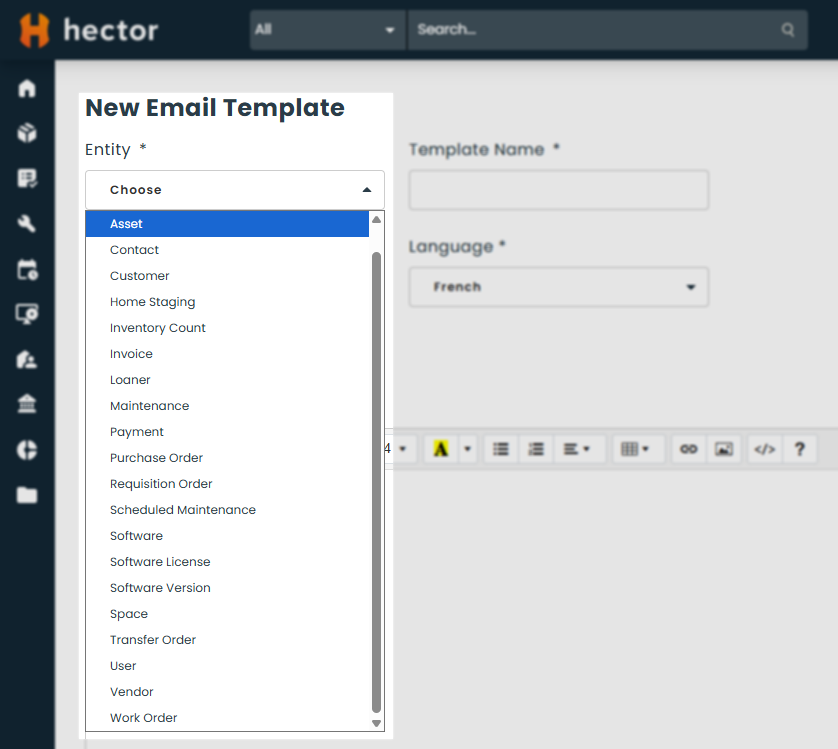
Some entity names follow your instance’s vocabulary. For example, if you renamed “Place” to “Worksite”, “Worksite” is what you will see.
If a module is disabled later on, its templates stay in the list, but they cannot be saved until the module is enabled again.
Before you start
- Creating and editing templates requires the Castle plan. On other plans, the New button is disabled.
- Creating, editing or deleting a template requires full access to the Templates settings. See the Permissions Management Guide.
Opening the template list
Go to Settings > Customization > Templates, Email tab. The other tabs hold printout templates and forms (see Customizable Printout Templates).
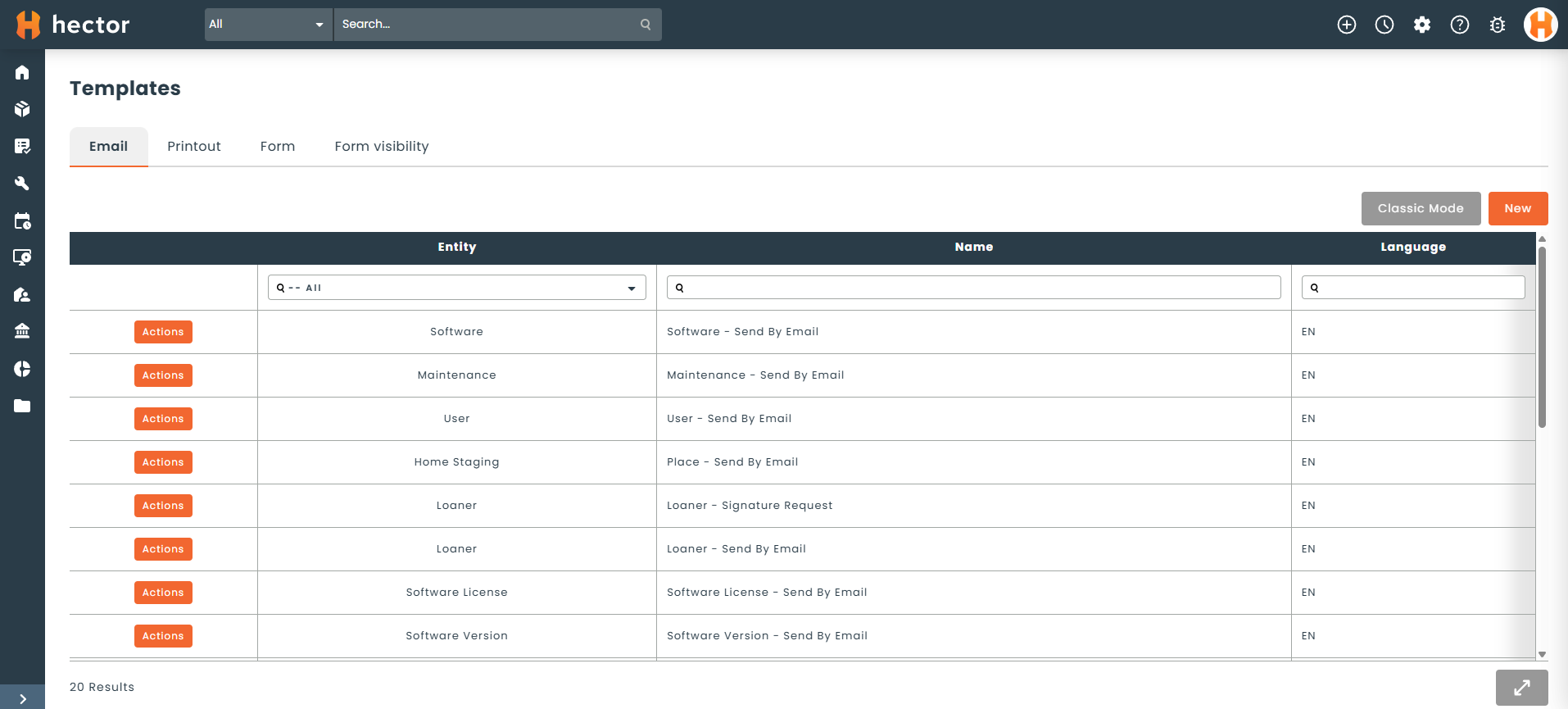
Use the grid’s Entity column to filter templates by entity.
The Classic Mode button opens Hector’s former page for customizing system emails.
Creating a template
Click New.
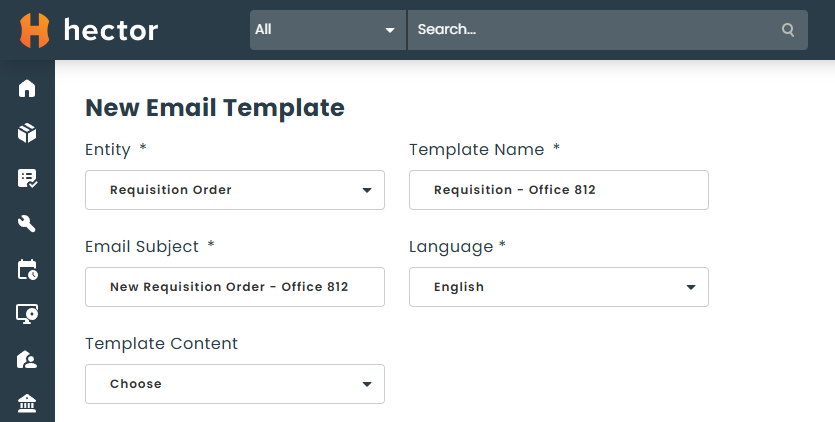
1 – Entity, name, subject and language
- Entity: choose it first. The tags and attachments offered depend on it.
- Template Name: pick a clear name. This is the name you will choose in automations.
- Email Subject: the email’s subject line. It can contain tags (for example the record’s name).
- Language: the language of this version of the template (see Translating a template).
2 – Inserting tags
A tag is a code between double braces, for example {{PLACENAME}}. Hector replaces it with the record’s value when the email is sent.
Under Template Content, choose a section in the dropdown, then the tag, and click Add. The tag is inserted at the cursor position in the editor.
Besides the entity’s own fields, some sections cover related records, for example the parent place of a space.
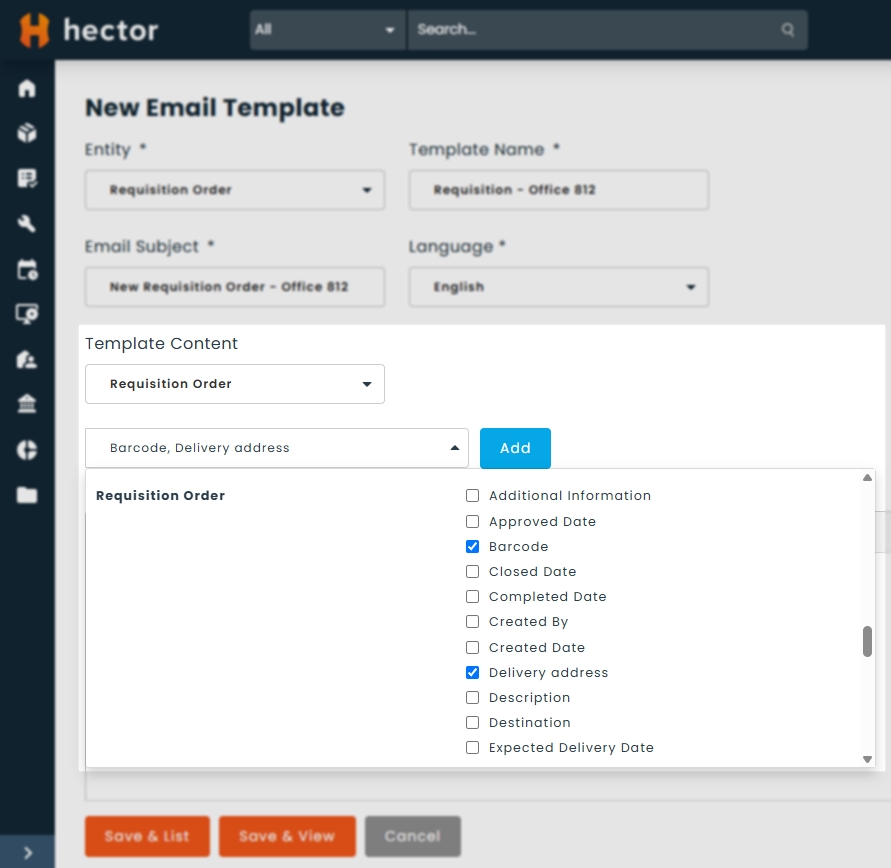
Some tags only appear when the matching module is enabled, for example rental costs. For security reasons, software license keys and activation keys are never offered as tags.
3 – Inserting a list
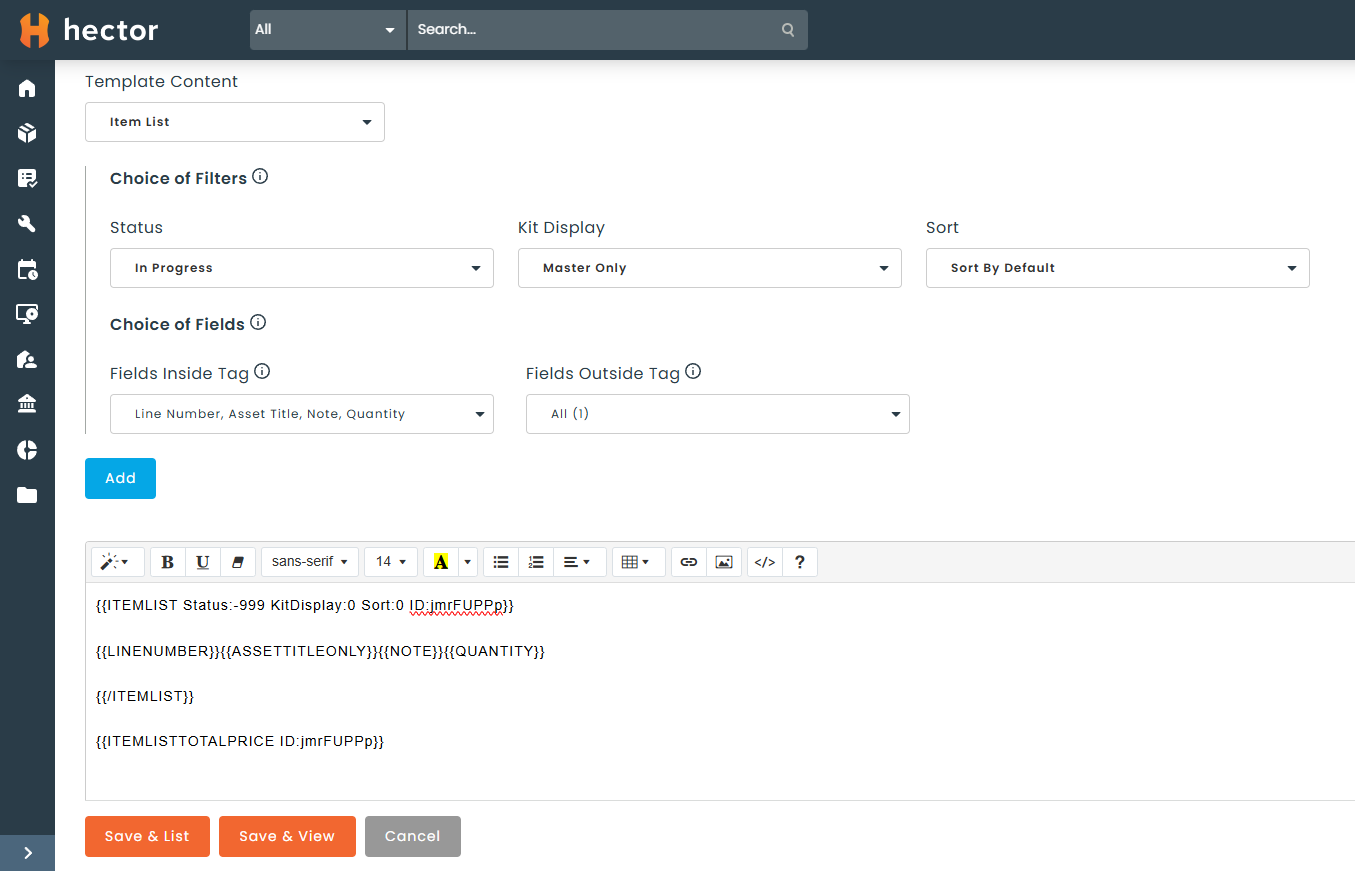
Some tags display a list of items: the lines of an order, the assets assigned to a place, the versions of a software, etc. When you choose a list tag, three extra options appear:
- Choice of Filters: filters which items appear in the list (for example, only active assignments) and sets their sort order.
- Fields Inside Tag: the fields repeated on every line of the list (title, quantity, date…).
- Fields Outside Tag: fields calculated across the whole list (for example a total). They are linked to the list and its filters by an identifier, so they can be placed anywhere in the template.
Filters are saved in the template: every send produces the same selection, no matter who sends it.
4 – Formatting
The editor supports tables, paragraphs, colors and images. An HTML code mode gives finer control over the layout.
5 – Adding attachments
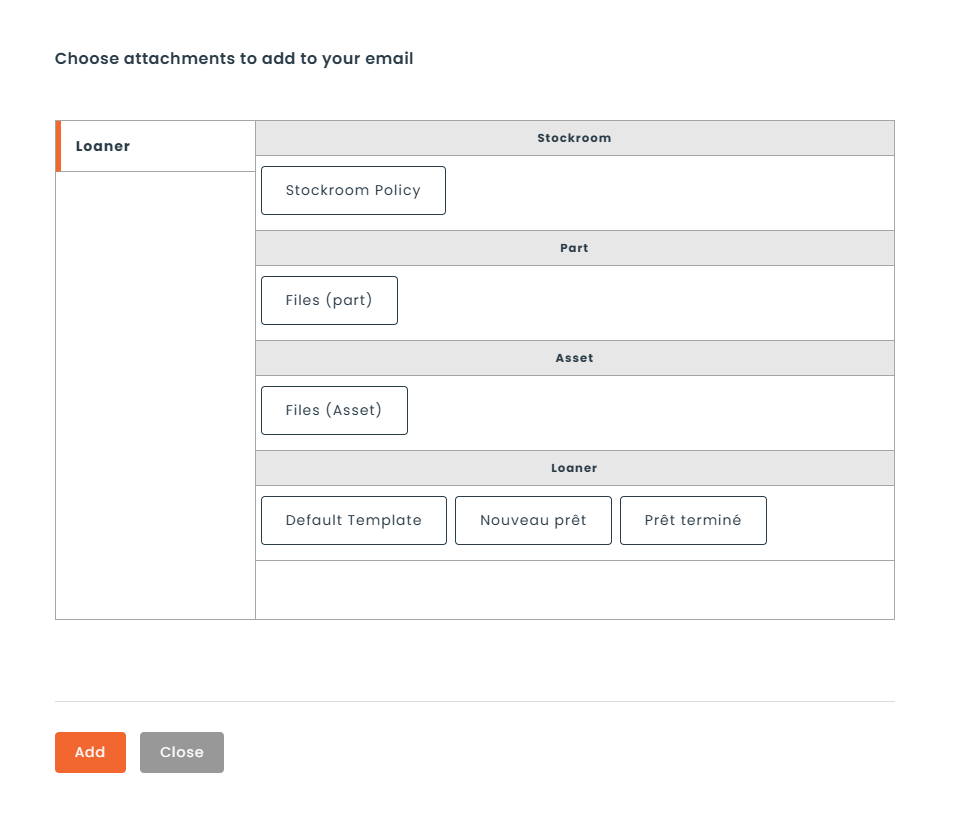
- Next to Attachments, click the paperclip icon.
- In the Choose attachments to add to your email window, choose the entity on the left, then the item to attach.
- Click Add. The item appears under Attachments.
Depending on the entity, you can attach:
- the record’s documents: every file added to the record’s Documents section at the time of sending;
- the record’s printout: Hector generates a PDF from the standard printout or from one of your printout templates (see Customizable Printout Templates).
Save with Save & View or Save & List.
Translating a template
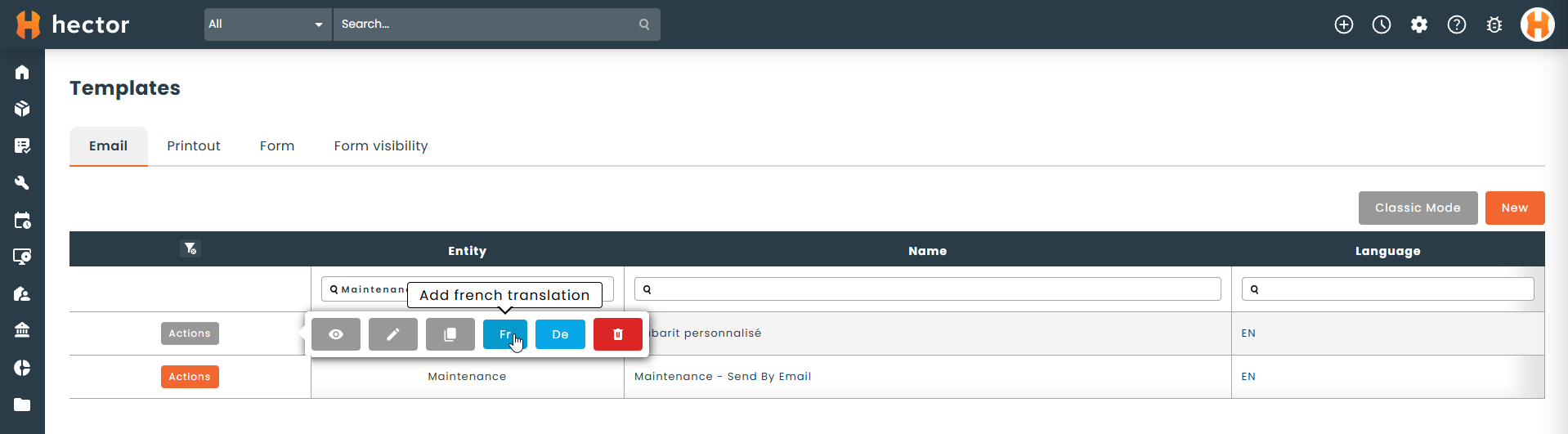
A template can have one version per language. In the template list, use Add english translation, Add french translation or Add german translation, then write the translated text. Once the translation exists, the button becomes Edit … translation (for example Edit french translation).
Which language is the email sent in?
Each recipient receives the version of the template in their language:
- User: the language of their profile.
- Contact, customer or vendor: the language set on their record. For a purchase order, all external recipients receive the language of the order’s contact, or failing that, the vendor’s.
- Place, or a record with no language: your instance’s default language.
If no translation exists in a recipient’s language, they receive one of the template’s existing versions. Attached printouts follow the email’s language.
Managing existing templates
For your templates:
- Edit: opens the template for editing.
- Copy: creates a new template from this one.
- Delete: deletes the template.
Templates provided by Hector cannot be edited or deleted. You can Copy them to start from their content, or Activate / Deactivate them.
Sending a template
Automatically
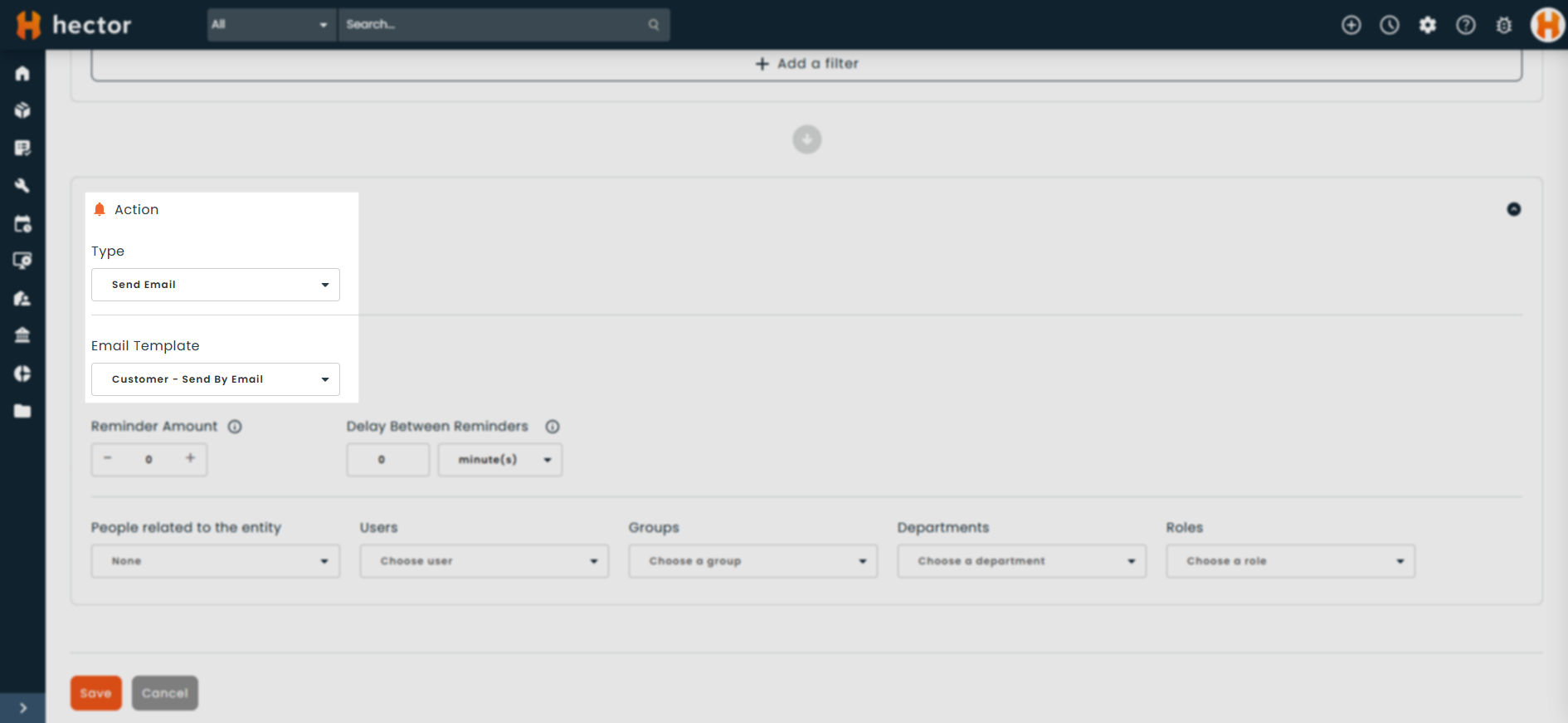
Create an automation in Settings > Data Management > Automation. There you choose the trigger, the filters, the recipients and the email template to send. All the details are in Configuration of advanced notifications.
On demand, from a record or a list
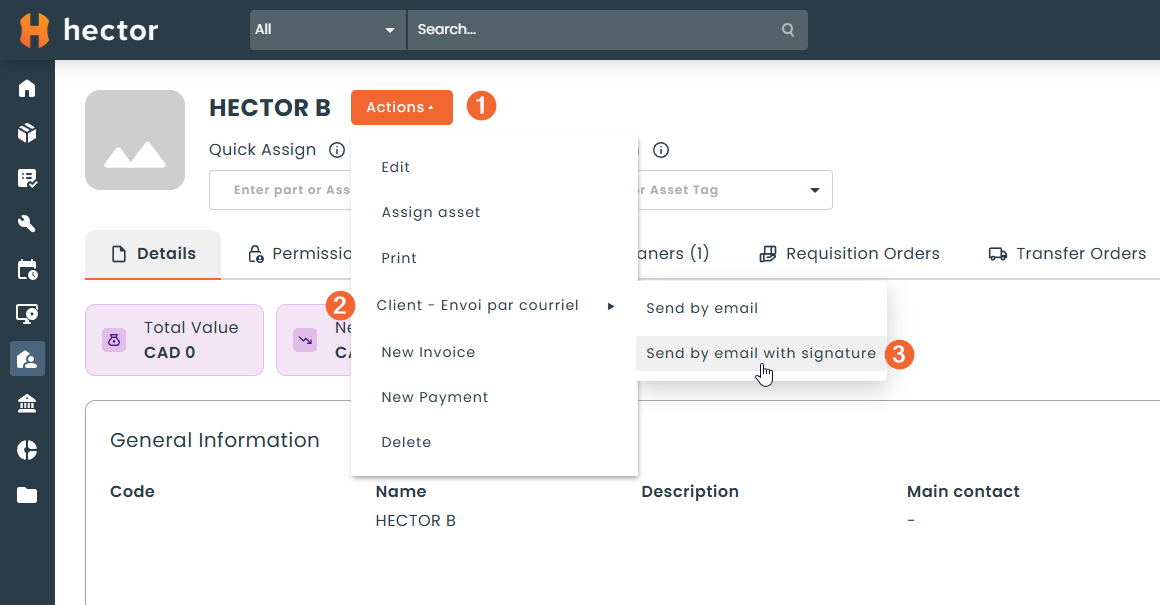
A Send … by email button (for example Send customer by email) appears in the record’s actions and on each row of the list. It relies on an automation with the Action trigger type:
- Create an automation for the entity, with the Action trigger type.
- Choose the email template and the recipients in it.
- Activate the automation.
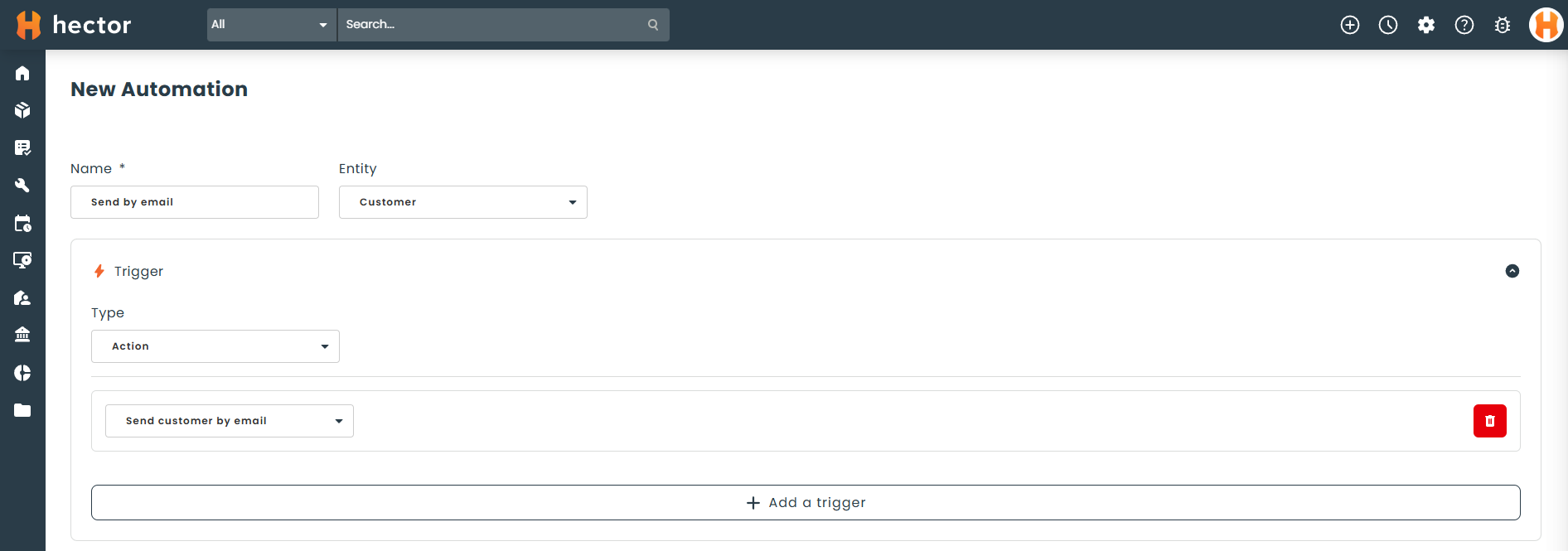
The button appears as soon as at least one active Action automation exists for the entity, and only for people who have permission to email that entity. If there are several automations, the button bears the name of the first one and sends it directly; the arrow next to it lists the others, by name.
The email is not sent instantly: it is queued and goes out within the next few minutes.